Most people who go looking for alternatives to a docking station discover that the dock was doing four jobs and the second monitor was only one of them. The usual reason for leaving is the extra box itself: another power brick on the floor, another warm lump on the desk and another link between laptop and screen. The realistic destination is a desk that does the same four jobs through plainer parts.
How many of those jobs your laptop can do alone decides whether leaving is worth it. A laptop with several ports barely notices the dock’s absence. One with two ports is a different case, and the guide below treats it as one.
What has to survive when you give up the dock
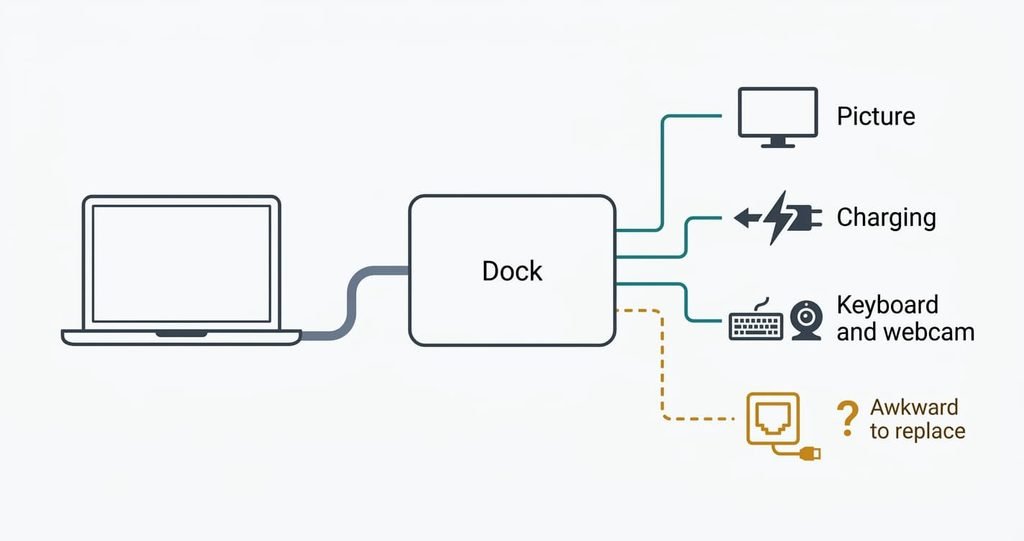
A docking station does four jobs, and a second monitor is only one of them. It sends a picture to the screen and charges the laptop. It also hands your keyboard and webcam to the computer, and it may provide a wired network socket. Before choosing among alternatives to a docking station, list which jobs yours actually performs, because each alternative has to take over every one of them.
Picture and charging export cleanly, since any direct video cable and any charger do those jobs. USB devices export if the laptop has a spare port for each, or if a small hub adds them. The network socket is the awkward job. Wi-Fi replaces it for most work. A wired link stays steadier on a crowded home network, and a laptop without its own socket needs an adapter to keep it. Large file copies are where you would notice the difference first.
What cannot move is the single plug-in. The dock turned four connections into one, and no alternative gives you that without a monitor or a dock doing the gathering.
Alternatives to a docking station, and what each costs you
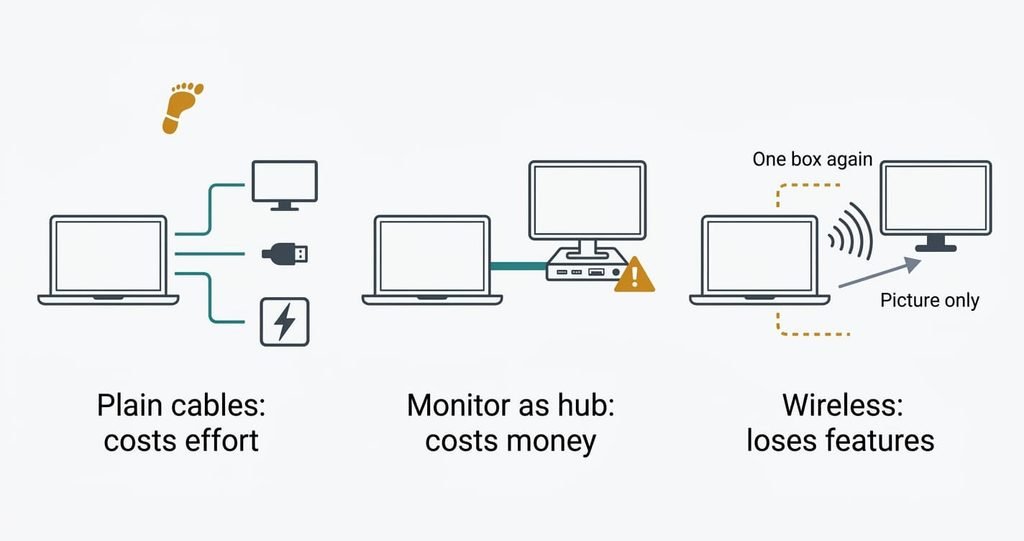
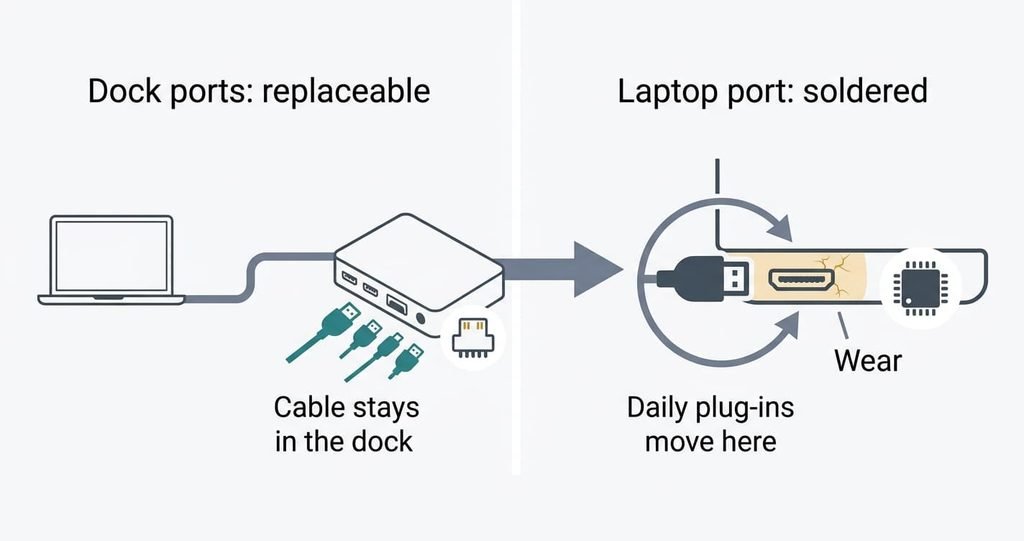
1. Plain cables straight to the laptop. This suits one monitor and a few devices on a desk where the laptop stays put most of the day. It costs effort rather than money. Count the laptop’s video output and its spare ports before you commit. The trade-off is that a one-step morning becomes several steps: the video cable first, then the charger, then each device. Picture and charging land exactly as before. Devices land when the ports exist. Over months the failure shows in the laptop’s own port, which loosens with daily plugging and on most laptops is soldered to the mainboard.
2. A monitor that gathers the jobs. A screen with its own hub ports and a charging output can take over most of the dock’s work through one cable to the laptop. It suits a desk you won’t move, and it costs money, because you choose the screen for its ports as well as its picture. Compare the jobs a candidate lists with your own list. The trade-off is that the desk depends on one box again. A failed monitor takes the picture and the hub with it. The four jobs land well when the monitor offers all four, and the network socket is the one most often missing. The failure mode is a mismatch: a screen chosen for one laptop’s ports may not suit the next laptop.
3. A wireless display. Software on the laptop encodes the screen, sends it over the network and the second display decodes it. It also needs a second display that can receive the signal, so check what yours supports. It suits presentations and reference pages, and it costs a feature rather than money or effort, since it carries only the picture. Power and devices don’t land at all. Delay and compression make typing feel slightly behind. It fails when the network is busy, and the picture stalls.
The cost that arrives in month three
The dock was quietly absorbing plug cycles. Each morning’s connection happened at the dock’s ports, and the cable between dock and laptop stayed in place. The wear moves from the dock’s ports to your laptop’s own. A connector is rated for a finite number of insertions, so the count matters. One plug-in each working morning is about 250 a year, and moving the laptop at lunchtime doubles it.
A worn port on a dock is a replacement part, while a worn port on a laptop is a repair on the mainboard. I’d weigh that above any saving on the dock, because the cheap part was protecting the expensive one. Check your laptop’s specification sheet for a rated insertion count if the maker publishes one, and judge whether your daily routine will approach it.
The laptop’s port is the part you can’t swap.
How to move off a docking station without losing anything
Start with a list. Photograph the back of the dock and write beside each cable the job it does, since a cable’s purpose is easy to forget once it’s unplugged. Verify next: take the list to the replacement and test each job on its own. Check the picture first. Watch the battery percentage rise while you work for an hour. Try the keyboard and webcam. If you used the wired network, it should reach the same speed, and otherwise Wi-Fi has to match it.
Run the old and new arrangements side by side for a week with the dock still on the desk, unplugged but not stored. Notice which morning step annoys you most. Cut over only when no job is missing from your list. Then remove the dock and its power brick.
When to stay
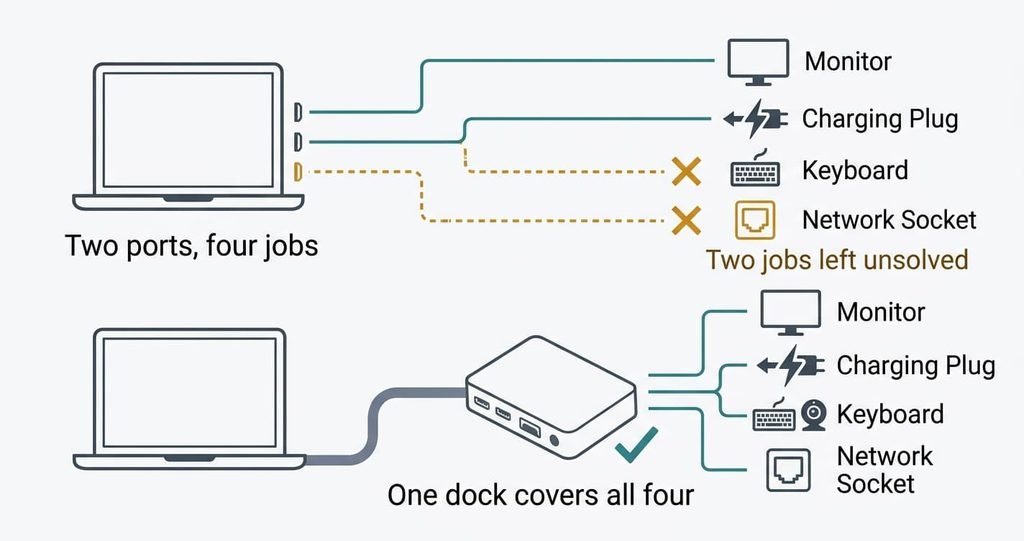
A laptop with one or two ports and four jobs to do should keep the dock. The alternatives need ports the laptop doesn’t have, and a hub that restores them just rebuilds a smaller dock with the same weakness. A dock shared by several laptops on a hot desk also earns its place, since one set of cables serves everyone.
Staying wins elsewhere. A desk where the laptop is plugged in twice a day suits the dock’s single connection. A dock that works needs no replacement. If the only complaint is the clutter, a cable tidy under the desk costs less than a new setup. One honest hedge: your next laptop’s port count is out of my sight, so a spare dock may be needed again after an upgrade.
A dock that works is already a decent alternative to a tangle of cables.
The export to do before you decide anything
Start with this: write down what each cable on the dock does. Follow every lead to its end and label it with its job. The list shows how many jobs any replacement has to absorb, so it measures the move itself. It also shows whether any of them has already become unused. Many docks carry a cable nobody remembers plugging in.
Then count the free ports on the laptop and mark each job on the list. Some are covered. Others need a small part or stay unsolved. One unsolved job is a warning. Two or more mean you keep the dock for now.
Alternatives to a docking station work only when they take over every job on that list. The laptop’s own ports cover the list or they don’t, and that single count settles whether leaving costs anything. Do the export today, since it costs a pencil and ten minutes. Everything else in this article follows from that list.
Questions readers keep asking
Will my keyboard and webcam still work without a docking station?
Yes, if the laptop has a free port for each, or a small hub adds more. The devices don’t depend on the dock itself. Only the number of ports matters. List your devices first, then count the ports you’d have without the dock before you unplug anything.
Are alternatives to a docking station cheaper?
Plain cables are the cheapest route, because you probably own most of them. A monitor with its own hub costs more than a dock in the short run, since you must choose the screen for its ports. A wireless display costs little and carries only the picture.
Is it worth replacing a docking station that mostly works?
Rarely. If the dock does its four jobs and nothing flickers, the single plug-in is worth keeping. Replace it when it fails or when you can cover every job with ports you already have. Moving daily wear onto the laptop’s own port is the cost to weigh.