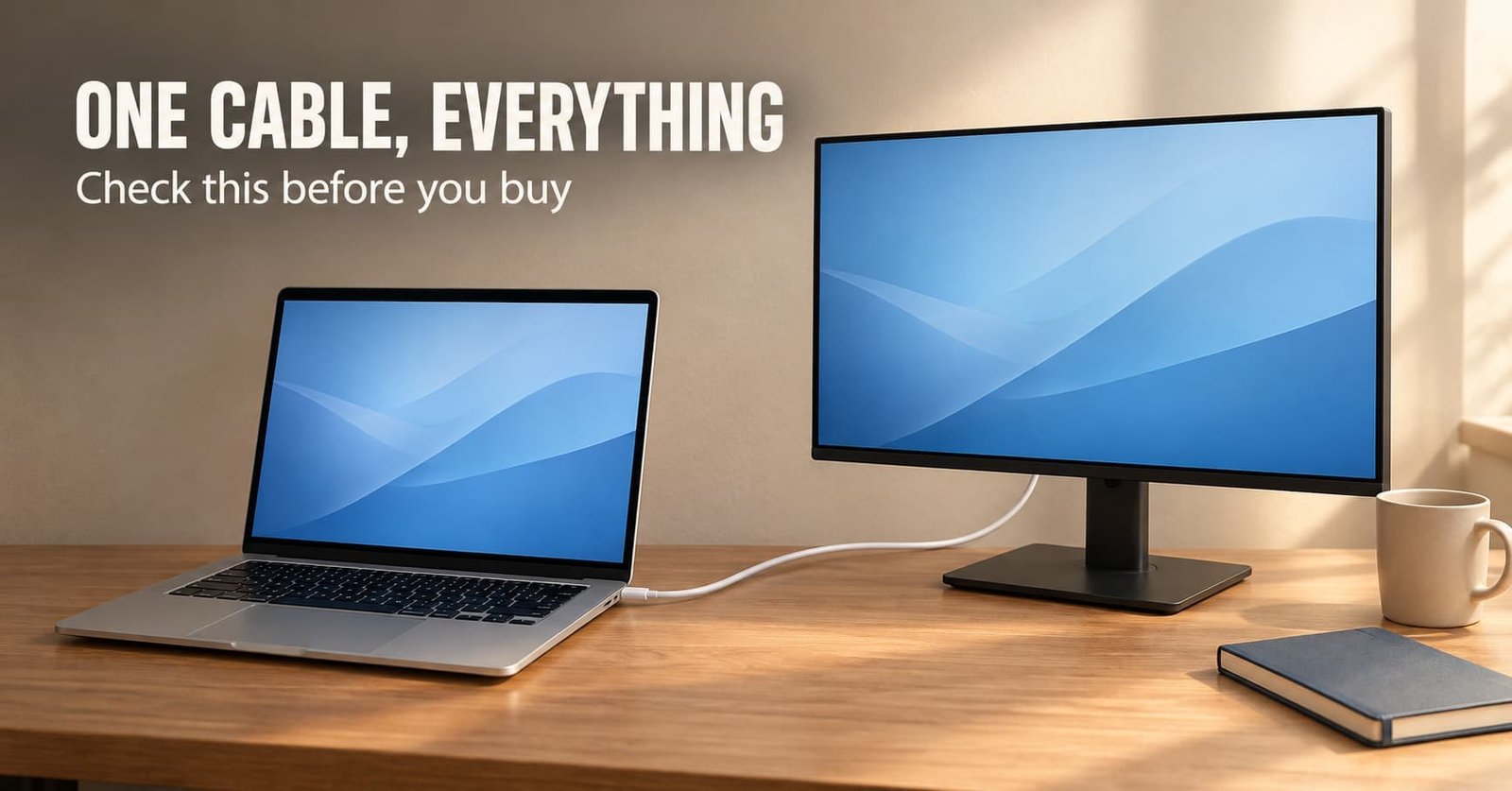
Ask people who bought a monitor for home work what bothers them and the cable pile comes up first. A laptop whose battery still drains while it’s plugged in is the other half of the grumble. What to look for in a monitor starts with whether one cable can carry everything the desk needs between the screen and your laptop. Rank that connection above every other specification.
The reader assumed here uses a laptop for a full day at a desk in a United Kingdom home, with the monitor as the main screen. The criteria are ranked, and no product is, which keeps the advice valid after today’s models are gone.
Why one cable decides what to look for in a monitor
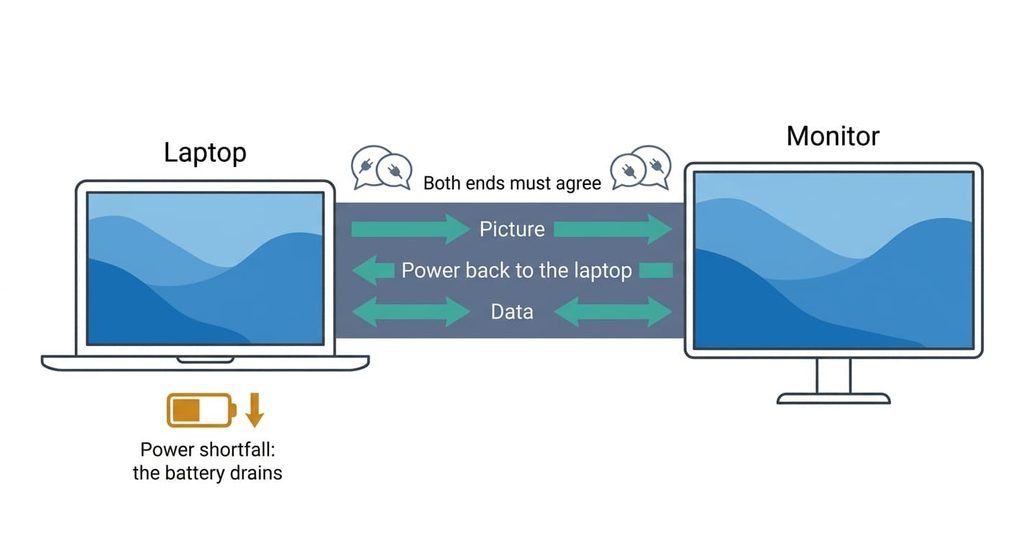
A single cable can carry the picture and the power, with USB data alongside, only when both ends agree to it. The laptop’s port must send a picture through that cable, and the monitor must accept it. The monitor must also push power back at a level that meets what the laptop draws under load. Whether one cable carries everything the desk needs depends on all of those agreements, and the shape of the plug tells you nothing about any of them.
When the cable is plugged in, the two ends announce what they can give and what they want, then settle on the highest level both support. A small oval connector may carry data alone. Another of the same shape carries data plus a picture, and a third carries everything. Two ports that look identical on one laptop can differ. If the monitor offers less than the laptop wants under load, the laptop covers the gap from its battery. It drains slowly through a day of work while appearing to charge.
Every other criterion can be tolerated or patched afterwards. A missing power path can’t be fixed without a second cable and a second charger on the desk.
What to look for in monitors, in order
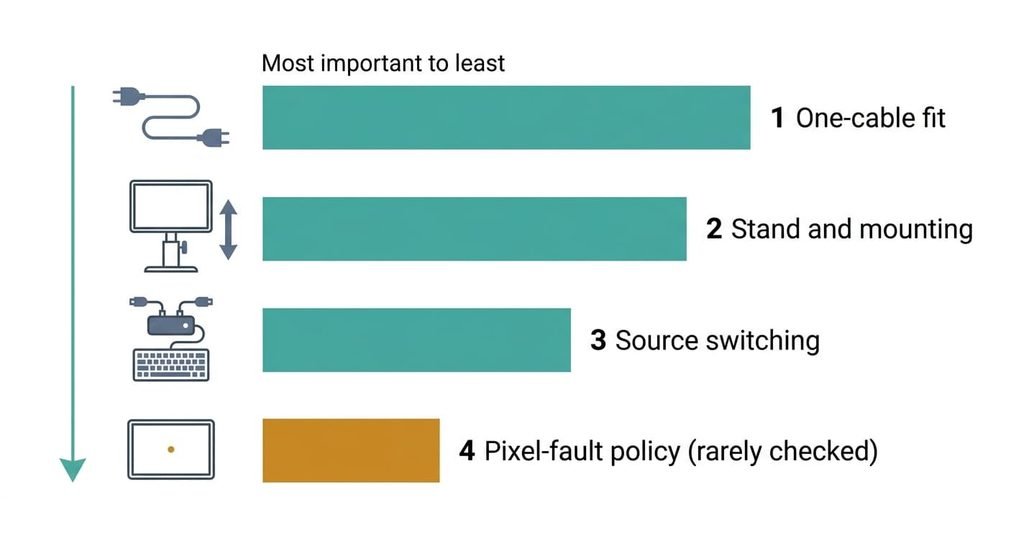
1. One-cable fit. This is whether the cable from your laptop carries everything together. Day to day, it separates a single plug-in from a desk crowded by three cables and a charger. Check your laptop’s port markings or manual for what each port does. Then read the monitor page for its charging output and compare it with the figure in watts printed on your laptop’s charger. The answer you want is a monitor output at or above the charger’s figure, which is a safe stand-in for what the laptop wants. If you get it wrong, the battery sinks through the afternoon even though it looks plugged in.
2. Stand and mounting. This is how the screen moves, and whether the stand can be swapped. It decides if the top edge can line up with your laptop’s, and whether the screen can turn upright. Look for a stated height range and a standard square of four screw holes on the back. A page that lists both passes. If you get it wrong you end up propping the screen on books, or replacing a perfectly good monitor to fit a wall arm.
3. Source switching. This is how the monitor changes between two computers. It also covers whether a keyboard and mouse plugged into its USB ports follow the picture. It matters in a home with a work laptop and a personal machine on one desk. Look for an input selector described together with USB connections for each computer. The best case is one press moving picture and devices together. If you get it wrong you swap cables every morning.
4. A written pixel-fault policy, the criterion most buyers never check. The maker’s rule for replacing a screen with a stuck or dead pixel changes nothing until a single lit dot appears in the middle of a document. Find the policy on the maker’s support page. Look for a stated number of faulty pixels or a stated position that qualifies, plus a replacement period. Silence is an answer. If you get it wrong the dot stays.
What does not matter as much as they tell you
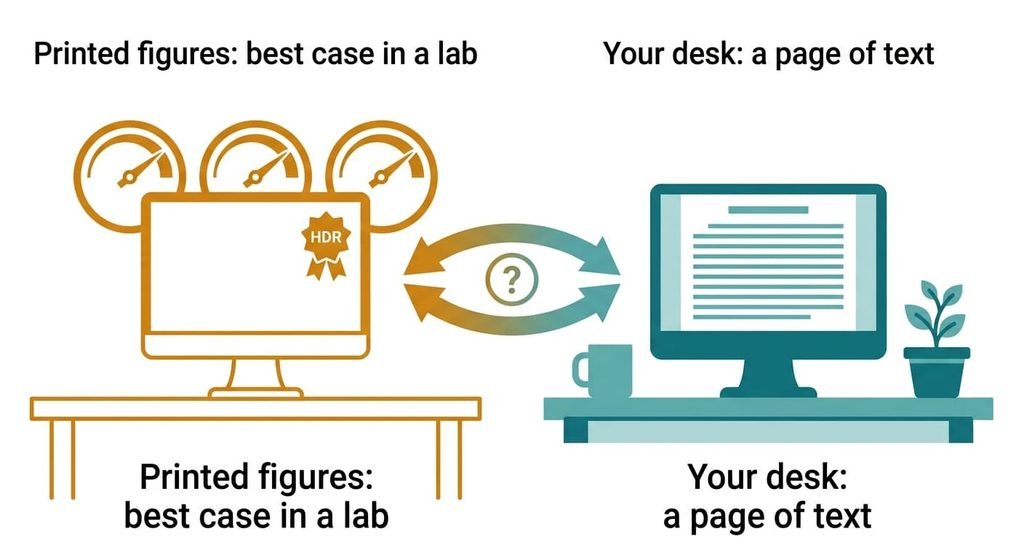
When you decide what to look for in a monitor for office work, the loudest number is the response-time figure. It sells because the number is cheap to improve on paper and simple to show on a box, and it mattered in older screens that smeared moving text. Makers quote it for the single best case, so two screens’ numbers can’t be compared. I’d defend ignoring it for desk work, since a document doesn’t move fast enough to show a difference.
The next is the HDR badge. It promises a wider range of brightness, which a desk monitor of modest brightness showing a spreadsheet has no way to use. Contrast ratio ranks third. Makers often quote it for a setting where the backlight dims to near black across the whole screen, so the figure says little about black text on a white page. It stays on the box because a big ratio looks impressive next to a small one.
Printed figures describe the lab, and your desk sits somewhere else.
Matching the choice to your situation
Three readers shift the ranking. If you work on a desktop tower, the one-cable question drops because a tower has its own power. Stand and mounting then rise to first place. If you share a desk with a second computer, source switching climbs to second, ahead of the stand. A reader with one laptop and nothing else keeps connection fit first and loses switching altogether.
None of this alters the logic of what to look for in a monitor, which is to find the criterion that can’t be patched later and put it first. The pixel-fault policy keeps fourth place for every reader. I can’t see which port your laptop uses, so read its markings before you rely on this order.

What to walk away from
Any page that never says what its single port carries should end your interest. A port shaped for one cable can carry anything from data alone to picture and power, and a page that stays silent hides the answer you need. Nothing you do after buying can add a power path.
A fixed stand with no height adjustment and no standard mounting holes also ends it. You can’t fix that after the fact, because there is nothing to attach a better stand to. A riser of books is the usual patch, and it takes up the desk it was meant to free. Replacing the whole monitor later to gain a wall arm costs more than choosing the right stand now. The same goes for a page that mentions a charging feature without giving its output, since a missing figure leaves you nothing to compare.
A listing that can’t be matched to your laptop’s port is a guess.
The two-minute check before you commit
Begin with your own laptop and spend half a minute on its ports. Read the markings beside each one and note which carries a picture. Then open the monitor’s page and find the line describing what its connection carries. If it doesn’t state what the port carries, look elsewhere.
Next, compare the charging output with the figure on your charger. A lower figure means a slowly draining battery. Then look for the height range and the mounting holes, and finish with the support page for a pixel policy. Walk away from any listing where the single port’s role isn’t written down, because every later answer depends on it.
Put the connection first, since a power path can’t be added after you buy. A listing that won’t say what its port carries is out of the running. The stand comes second. Source switching and the pixel policy follow, and a missing answer on any of them sends you to the next candidate.
Questions readers keep asking
Must a monitor charge my laptop through the cable?
Not strictly, though it’s the biggest daily convenience. Without it you carry a second cable and a charger to the desk. If the monitor supplies less power than your charger, the battery drains slowly under load. Compare the two figures in watts before buying.
How much should I spend on a monitor for working from home?
Put the money into the top two criteria first. The cheapest tier tends to omit the power path and the height adjustment, which cost more to retrofit than to buy. Mid-range screens usually cover both, though current lineups are out of my sight, so test any tier against the check above.
Will a monitor I buy now work with my next laptop?
Often, if the connection standard matches, and what to look for in a monitor that outlasts a laptop is a stated port role. The risk is a port that carries picture on your current laptop and only data on the next. Choose a monitor that states what its port carries. Standard mounting holes let you replace the stand later.