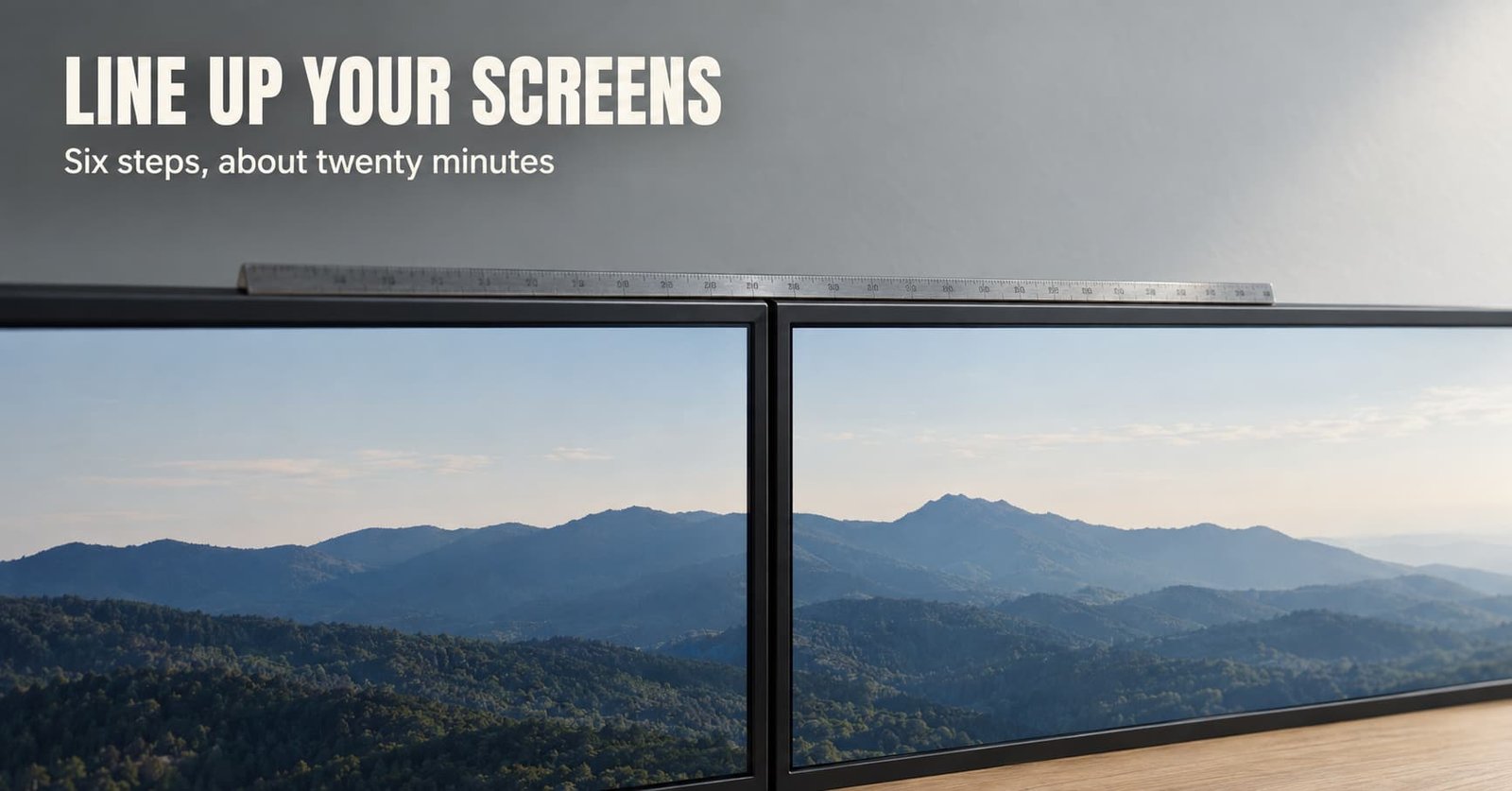
How long does it take to get a window across the gap between two screens without it changing size or place? About twenty minutes and six steps, and most of the time goes on the desk and a ruler rather than on settings. To set up two monitors properly, you make the computer’s map of your desk match the real desk. You’ll finish with a cursor that crosses the join between the frames at the height it left from, and windows that keep their apparent size on either side.
One decision shapes the order: which screen is the main one, meaning the one you face most. Pick it before step 1.
Before you start
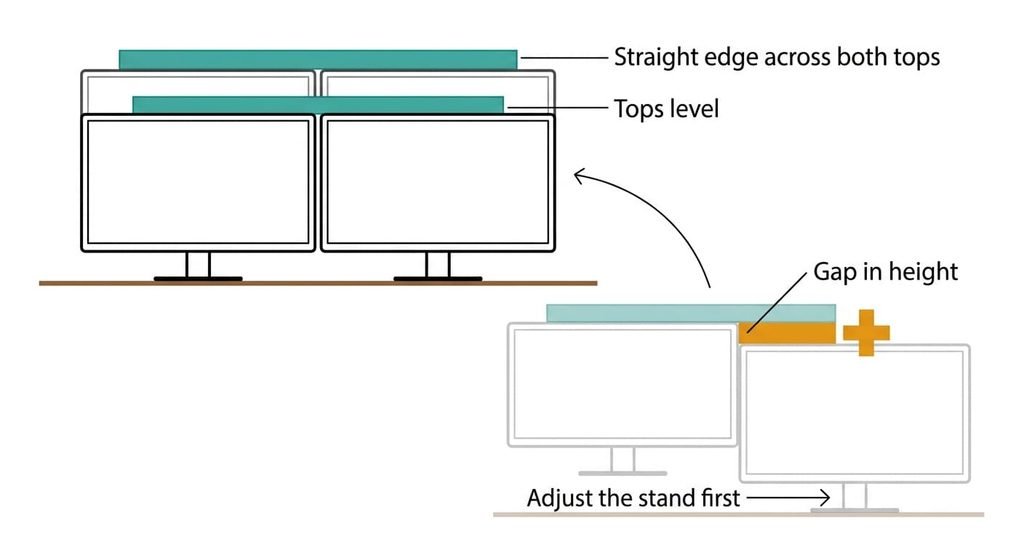
Put both monitors in their final positions on the desk before you touch any setting. Steps 4 and 5 draw a map of the real arrangement, so any screen moved later makes the map wrong and costs you both steps again. That is the one preparation people skip when they set up two monitors.
The map you draw can only be as steady as the desk.
Gather four more things. Each monitor should be powered on and showing a picture from the computer, because a screen that isn’t detected can’t be placed on the map. If one is missing, fix its connection before anything else, since every later step needs both. Have a straight edge about 30 cm long, such as a ruler, since judging heights by eye leaves the cursor a few pixels out at the join. Open a document with several lines of text, which gives you something to measure in step 4. A phone to photograph the current arrangement screen gives you a way back. Names change between systems, so match each control by what it does. Your menus are out of my sight.
How to set up two monitors, step by step
1. Place the screens edge to edge. Slide the frames together and lay the ruler across both top edges. Adjust a stand until the ruler rests on both, because software can line up pixels but can’t straighten a gap in physical height. Check: the ruler lies flat across the two tops.
2. Extend the desktop and identify each screen. Find the display settings screen with one numbered rectangle per monitor, and the control that picks between duplicating and extending. Choose extending, because duplicating shows one picture twice and gives windows nowhere to go. Then use the identify control to flash a number on each real screen. Check: each screen shows a different number.
3. Choose the main display. Find the control that marks one screen as main, the one that carries the clock and the taskbar or menu bar and receives new windows. Do this before arranging, because changing it can shift the whole map. The step worked if a freshly opened app lands on the screen you face most.
4. Match the apparent size. Find each screen’s scale control, the setting that scales every button and line of text. Set it so the same text is the same height on both, usually with a higher scale on the denser screen. Do this before arranging, since scale changes each rectangle’s size. Some programs redraw at a new scale only after a reopen, and closing one discards unsaved work, so save first. Check: a ruler against identical text reads the same on both screens to within a millimetre.
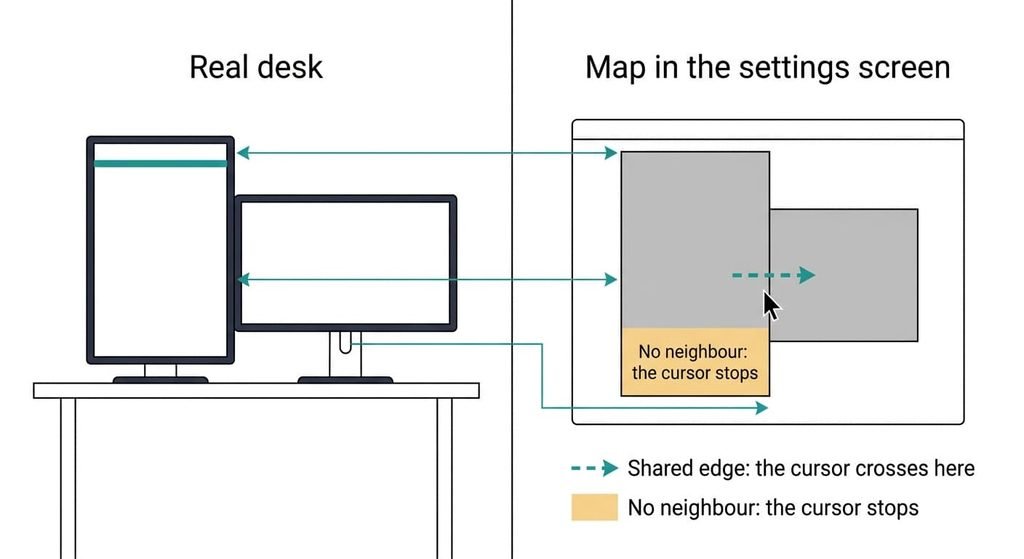
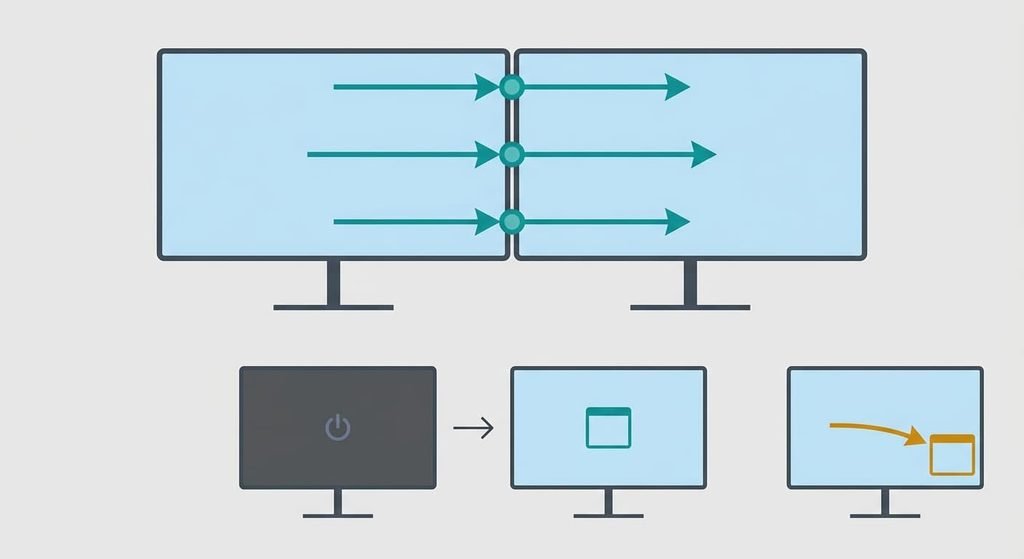
5. Arrange the map to match the desk. Drag the rectangles onto the same sides as the real screens, with their tops level. The cursor crosses only where two rectangles touch, and each is drawn from its pixel count after scaling. A screen 1440 pixels tall beside one 1080 tall leaves 360 pixels, a quarter of the taller one, with no neighbour, so a cursor pushed there stops. Check: the cursor leaves one screen at three different heights along the shared edge and arrives at the same height on the other.
6. Learn the move-to-next-screen shortcut. Find the keyboard shortcut that sends the active window to the next display [VERIFY: the shortcut for moving a window to the next display on your system]. It places the window at the same relative spot with its size intact, where a drag can leave it half on each screen. The step worked if a window sent across keeps its size and position, and a second press brings it back.
Check two monitors behave as one desk
Once you set up two monitors, test the result rather than the steps. Drag a window across the join at three different heights, then switch one screen off and on again. In a pass, the window arrives at the height it left from. Its text stays sharp and its size is unchanged. A window maximised on the second screen fills that screen only. After the screen wakes, the windows that lived on it return to it.
Partial passes happen. Windows that stay piled on the main display after a wake-up are a behaviour of some systems rather than a fault in your layout, and the shortcut from step 6 sends them back in two key presses. A partial pass at the join is different. If the cursor catches at one height, step 5 isn’t finished.
If setting up two monitors stalls
If the cursor stops at the edge at some heights, the rectangles overlap less than the real screens do, or they touch only at a corner. Slide one rectangle until a full edge is shared. A short screen beside a tall one will always leave a part of the tall edge with no neighbour.
If windows change size or turn soft after crossing, the two screens have different scales, or the program drew itself at the first screen’s scale. Repeat step 4. Then save your work and reopen the program on the new screen.
If dragging stutters or video tears while a window straddles the join, the screens probably run at different refresh rates, which on some systems makes the desktop pace its drawing to one screen and leaves the other out of step. Set both screens to the same rate if each offers it. The cost is that the faster screen runs slower, and some systems cope with the mix better than others.
The shortcut to skip
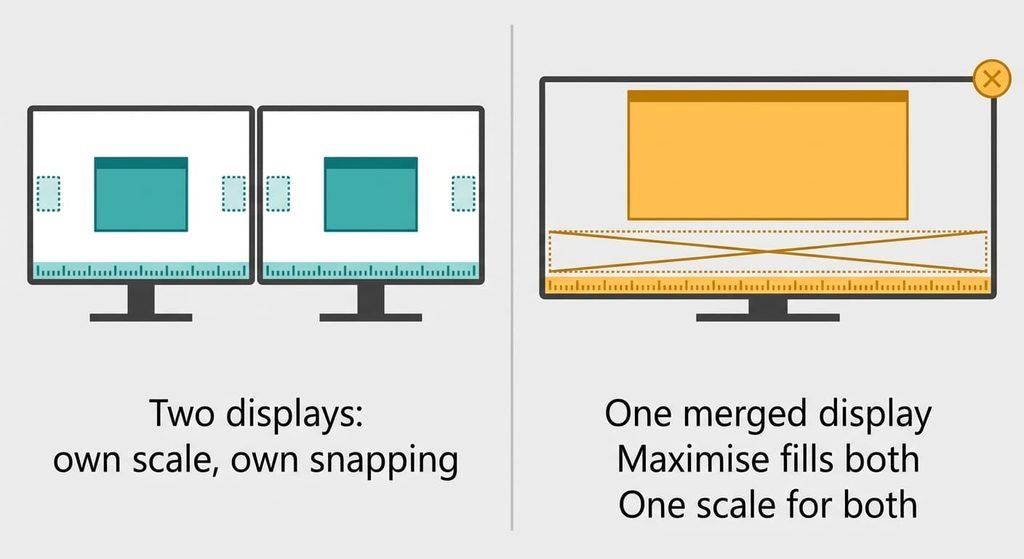
Merging both screens into one wide display through the graphics driver is a popular tip, because it stops the cursor snagging. The system then sees a single display with no join. It also removes what makes two screens useful. Maximise fills both screens at once, and both share one scale, so a sharper screen can’t have its own. Snapping zones stretch across the bezel, and screen sharing sends one enormous picture. I’d skip it. Steps 4 and 5 remove the snag with none of those costs. The exception is a single full-screen program that wants one wide canvas, such as a flight simulator, where the merge is the point. It suits people who think the join is the problem. The problem is almost always the map, and the map takes minutes to fix.
Two screens work better as two screens.
The finished layout is a map that matches the desk. Tops are level and apparent sizes match, with the main display chosen first. One test confirms it, which is a window dragged across the join at three heights. If a window lands in the wrong place after a screen wakes, the shortcut from step 6 fixes it. Keep the photograph of the arrangement screen, and the map can be redrawn in a minute with the main display and scales already noted.
Questions readers keep asking
How long should I set aside to set up two monitors?
Plan on twenty minutes the first time. Most of that goes on placing the screens and measuring, while the settings themselves take around ten. Later changes are quicker: if you nudge a screen, only the arrangement in step 5 needs redoing.
Will I lose open windows when I set up two monitors?
No files are deleted. Windows can jump to another screen when a display is switched off or its scale changes, and the shortcut from step 6 sends them back. Closing a program so it redraws at a new scale discards unsaved work, so save first.
Can I use two monitors of different sizes and resolutions?
Yes. Use the scale control to make text the same height on both, and keep the top edges level. The taller screen then has a stretch with no neighbour, which is harmless unless you push the cursor there. Different refresh rates can also make dragging stutter.