Checking your phone’s battery health takes under a minute, and improving it going forward comes down to a handful of specific habits rather than a long list of rules to follow perfectly. This guide skips the chemistry behind why this figure declines and focuses entirely on what to actually do about it, in the order that gives you the most practical benefit for the least ongoing effort.
Check your current battery health first
On an iPhone, go to Settings, then Battery, then Battery Health & Charging – the percentage shown there is your starting point. On most Android phones, the exact menu location varies by manufacturer, but it’s typically under Settings, then Battery, then Battery Health or a similar label; some Android phones require a manufacturer-specific app to see this figure at all.
Write this number down, or take a screenshot with the date visible. This percentage is only meaningful as a trend over months, not as a single reading – knowing where you started lets you actually track whether the habits below are making a measurable difference later.
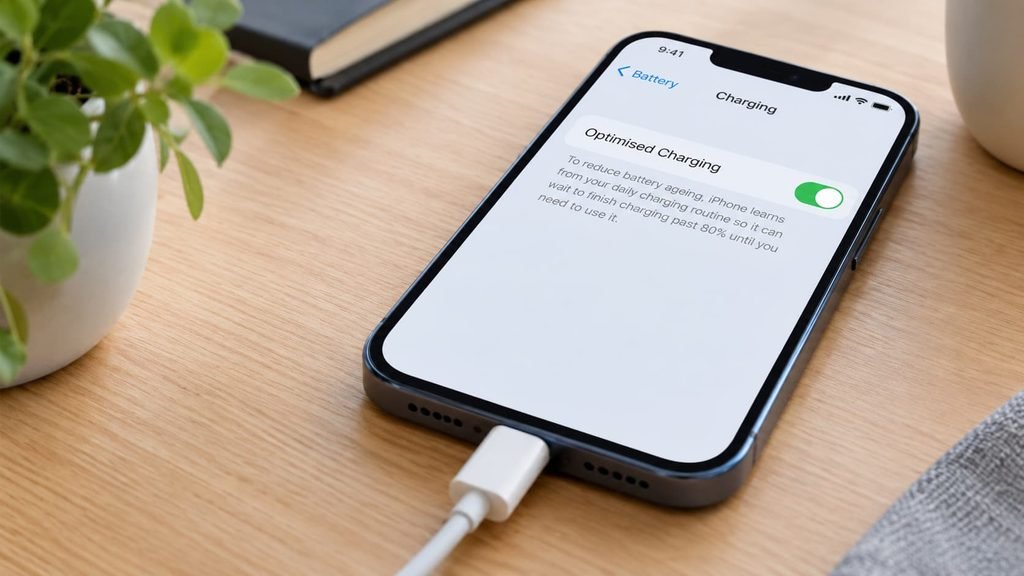
Adjust how you charge, starting today
Avoid routinely charging to 100% and leaving the phone plugged in for hours afterward, since sitting at full charge for extended periods adds mild additional stress compared to charging to a slightly lower level. Many phones now offer an “optimised charging” or similar setting that learns your routine and delays reaching 100% until shortly before you typically unplug – enable this if your phone offers it, since it requires no ongoing effort from you once turned on.
Avoid letting the charge repeatedly drop to very low levels (under 10%) before charging, particularly combined with fast charging immediately afterward. An occasional low-charge moment causes no meaningful harm, but making it a consistent daily pattern adds up over months in a way a single instance doesn’t.
Consider deliberately switching to a slower charging speed overnight specifically, if your phone or charger genuinely supports selecting this option. Overnight charging already happens over several hours regardless of speed, so there’s no practical benefit to fast-charging during that window – using a slower speed then, while keeping fast charging available for moments you genuinely need it, costs you nothing in daily convenience.
Manage heat exposure specifically
Remove phone cases that trap heat while fast charging, if you notice the device getting noticeably warm during charging sessions – a few minutes of exposed charging when this happens costs nothing and reduces one of the more significant accelerants of degradation, particularly during faster charging speeds where heat generation is naturally higher to begin with.
Avoid leaving your phone sitting in a hot car, in direct sunlight on a warm day, or near another heat source for extended periods, since sustained heat exposure accelerates capacity fade independently of how the battery is actually being charged or used at that moment.
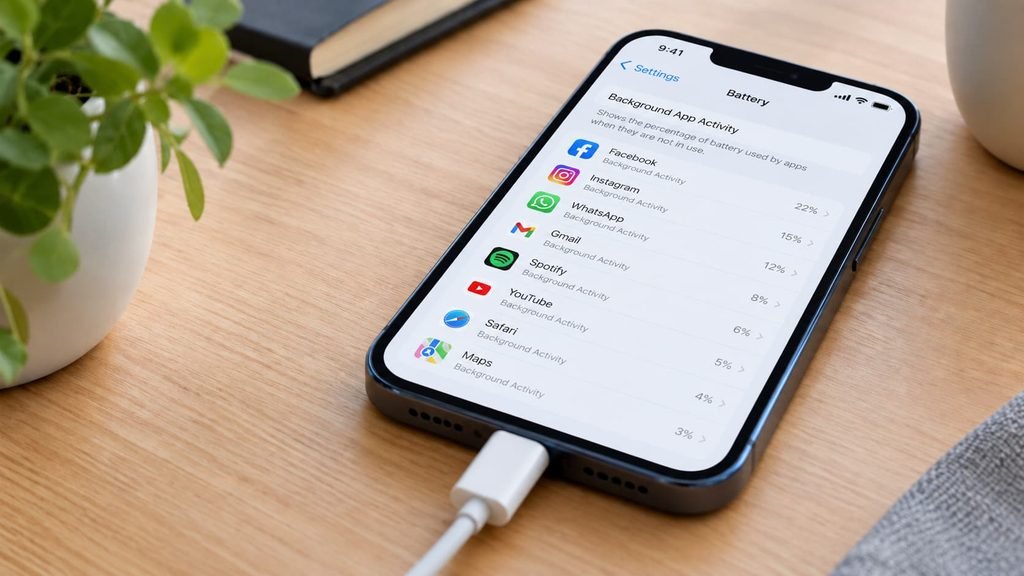
Review your background app settings
Go to your phone’s Settings, then Battery, and look for a list showing which specific apps have used the most power recently – this identifies both immediate drain issues and, over time, which apps are putting the cell through the most charge cycles via constant background activity.
Disable background app refresh for apps where instant updates genuinely don’t matter much, keeping it enabled only for messaging or genuinely time-sensitive apps. This directly reduces how many partial charge cycles accumulate from apps working in the background rather than from your own deliberate phone use.
Check location services next, specifically which apps have access to your location “always” rather than only “while using the app.” Apps with constant background location access tend to wake the phone’s GPS repeatedly throughout the day, and switching genuinely unnecessary ones to “while using” only meaningfully reduces this specific source of background activity.
Verify these settings are actually working
A week after making these changes, return to the battery usage screen and compare the pattern to what you saw initially. A meaningful shift toward fewer, more deliberate charging sessions rather than frequent small top-ups suggests the optimised charging setting and habit changes are genuinely taking effect.
If you don’t see any change in your usage pattern after a week, double-check that optimised charging is still enabled – some software updates have been known to silently reset this setting back to its default, undoing a change you made previously without any visible notification.
A more reliable long-term check is comparing your capacity percentage at roughly the same point each month, rather than watching it day to day. Short-term fluctuations of a percentage point or two are normal measurement noise and rarely indicate anything meaningful on their own; a genuine trend only becomes visible across several months of comparable readings, ideally taken at a similar charge level each time for consistency, so you’re comparing like with like rather than catching the number at different points in its normal daily fluctuation.
The step that isn’t worth doing
Manually force-closing every app after each use, in an attempt to prevent background charge-cycle accumulation, isn’t worth doing.
This habit trades a small, uncertain benefit for a real cost: force-closed apps must fully reload and re-sync the next time you open them, which itself draws more power than simply letting the operating system manage background activity as it’s designed to. The apps genuinely worth restricting are the specific few identified in your battery usage screen, not every app indiscriminately.
Buying a dedicated “battery-saving” third-party app is similarly not genuinely worth the effort for most people. These apps typically just automate the same background-refresh and brightness adjustments already available natively in your phone’s settings, adding another background process of their own in the process – the native settings covered above achieve the same result without the added overhead.
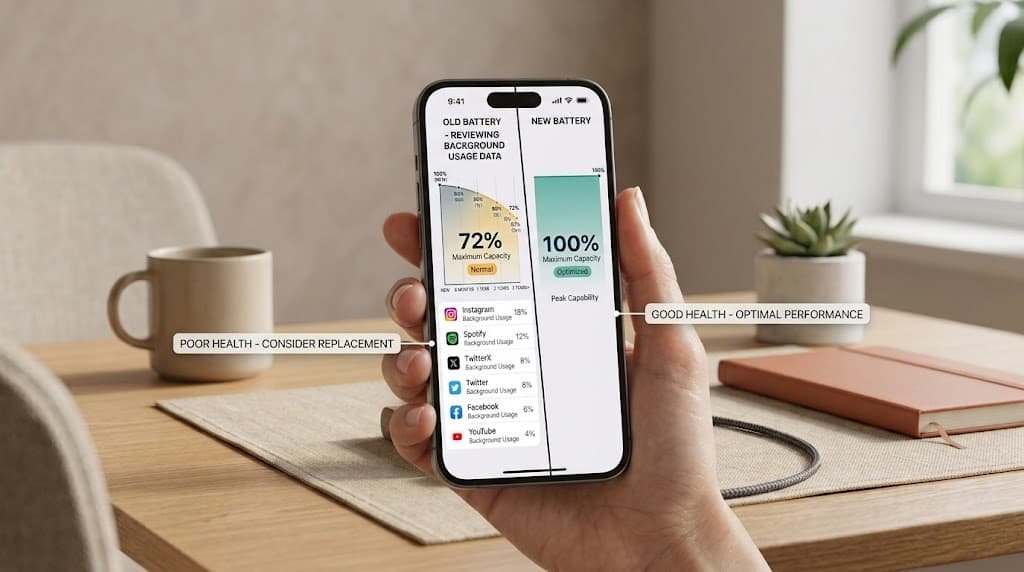
When it’s worth considering a replacement instead
If your capacity percentage has already dropped significantly and the habits above are meant to slow further decline rather than restore what’s lost, it’s worth weighing whether a battery replacement makes more practical sense than continuing to manage around reduced capacity. This is a genuinely different decision from the habit changes covered so far – it’s about whether the current state justifies a repair, not about anything you did wrong in how you’ve charged the device.
A phone that no longer comfortably lasts through a normal day, despite following the habits above consistently for at least a month, is the clearest practical signal that replacement is worth investigating, rather than continuing to adjust settings around a capacity level that’s already fallen well below what daily use actually requires.
If a battery is already damaged, stop here
If your phone shows signs of a swollen or damaged battery – unusual heat during normal use, a visibly bulging back panel, or a burning smell – none of the steps above apply. Stop using the device immediately and take it to an authorised repair centre; this is a fire safety issue that habit changes cannot address, and continuing to use or charge a damaged battery is genuinely dangerous.

Questions readers keep asking
How often should I check my battery health?
Checking once a month is generally sufficient to spot a genuinely meaningful trend without it becoming an unnecessary daily habit to maintain. Checking after any major software update is also worth doing, since some updates can affect how the health percentage is calculated or displayed.
Does turning off Wi-Fi and Bluetooth when not in use help specifically?
It has a minor effect on daily battery drain, but a smaller effect on long-term capacity specifically, since health is primarily driven by charge cycles rather than by how much power any single feature draws during a charge cycle.
Can I actually reverse this decline once it’s dropped?
No – the chemical changes behind reduced capacity are permanent and cannot be reversed through settings, habits, or software updates. The habits in this guide slow the rate of future decline; they cannot restore capacity already lost.

