Why does my Bluetooth mouse lag every few seconds? It freezes for a beat and then jumps ahead. Move your Wi-Fi to 5 GHz first. That one setting clears the problem for most people, and if your Wi-Fi is already on 5 GHz, everything else here helps you find the real cause.
Our example home is a flat in the UK holding a laptop, a router in the next room and a mouse sending a position report every 15 ms. All numbers are declared examples, and the loss rates are assumptions you can test. No brand or price appears.
Why does a Bluetooth mouse lag every few seconds? The mechanism
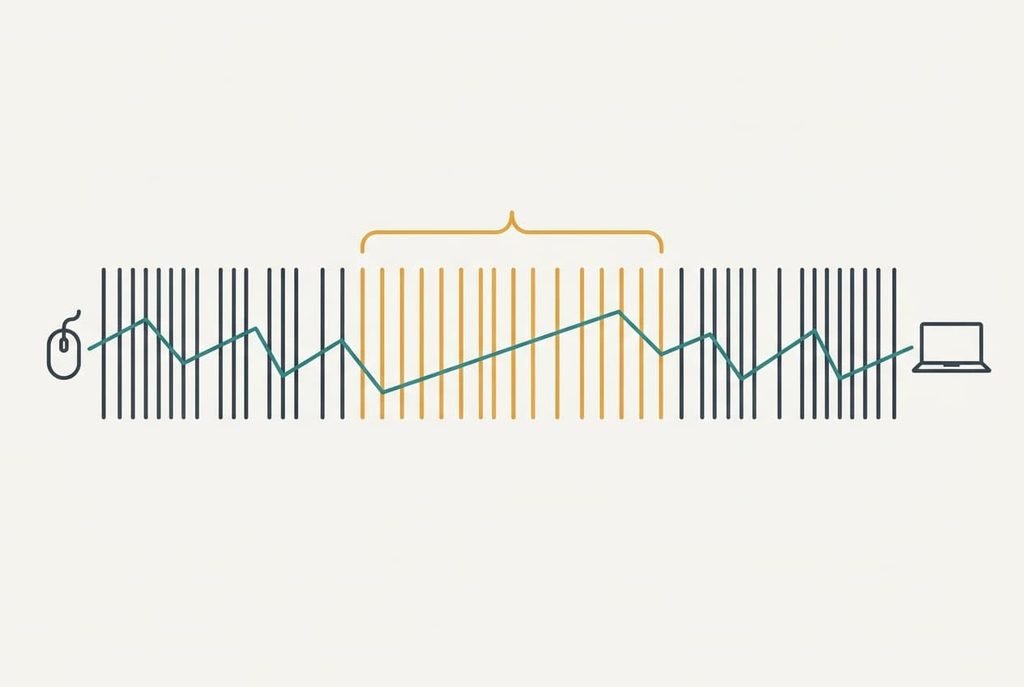
A mouse sends its position in short bursts. Each burst is one connection event, and the laptop answers it. At 15 ms between events that makes 67 reports a second. The mouse hops between 37 data channels, each 2 MHz wide, so a single lost event costs only one 15 ms wait.
You notice a hitch only after about three events in a row fail, which is a 45 ms gap, close to three frames on a 60 Hz screen. Wi-Fi on the 2.4 GHz band covers about 22 MHz, and that blankets 11 of the 37 channels, or 30%. If the Wi-Fi is active half the time, one event in seven is lost (0.30 × 0.5 = 0.149).
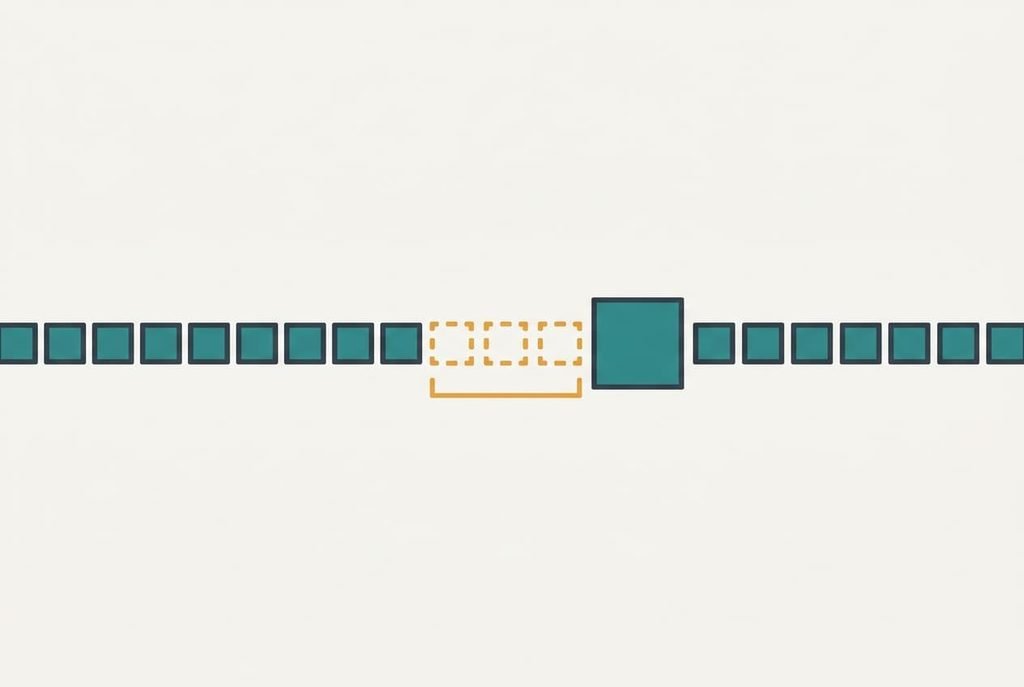
Three in a row then happens with a chance of 0.149³, which is 0.33% per event. Multiply by 67 events a second and the result is 0.22 hitches a second, or one every 4.6 seconds.
A small rise in loss per event makes hitches far more frequent, because the chance is cubed. When the Wi-Fi is busy 80% of the time, loss climbs to 0.238, and hitches arrive about once a second: four times as often.
The pattern is random, and a regular beat points elsewhere.
Narrow it down in two minutes
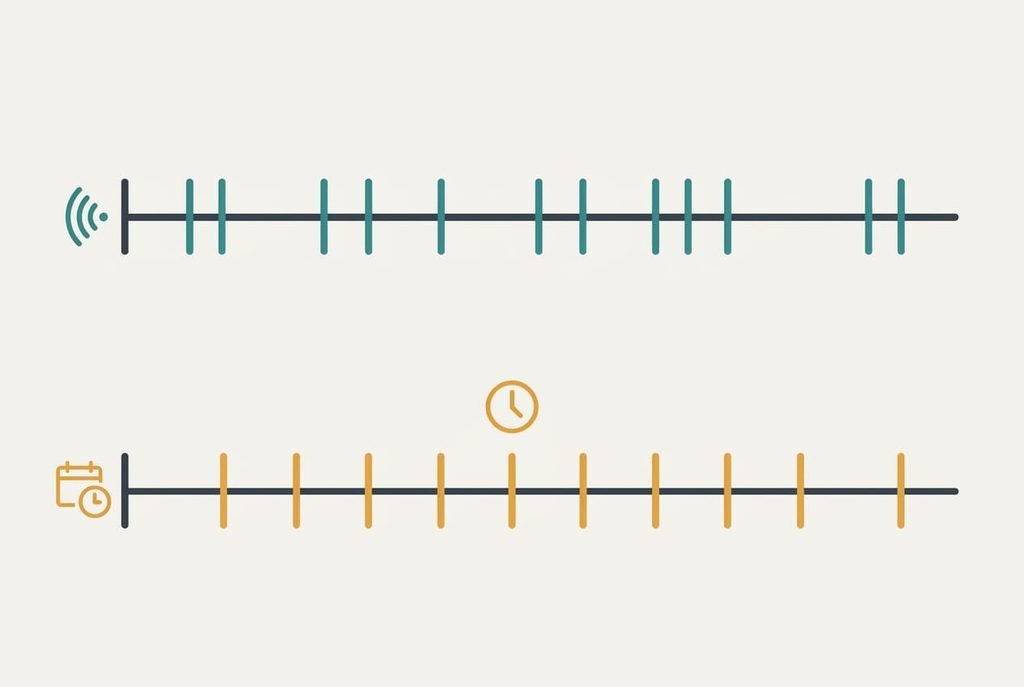
First, time ten hitches with a phone stopwatch and write down the gaps. Gaps that vary between 1 and 10 seconds match random interference. Gaps that repeat at almost the same figure, such as every 5 seconds, point to something scheduled, such as a background program or a scan on a timer. In that case the fixes about interference won’t reach the cause.
Second, turn off the laptop’s Wi-Fi for two minutes and work offline. If the Bluetooth mouse lag every few seconds disappears, both radios fight over one band. If it continues, the Wi-Fi isn’t the cause.
Third, move the mouse to closer than 30 cm to the laptop with nothing between them. If the hitching stops there but returns at arm’s length, distance is the weak link. If it keeps going, interference is.
Last, try the trackpad, which has no radio at all. A cursor that stutters on the trackpad too points at the computer rather than the radio, so the fixes below won’t help. Close the heaviest program and test again.
The fixes for a mouse that lags every few seconds, in order
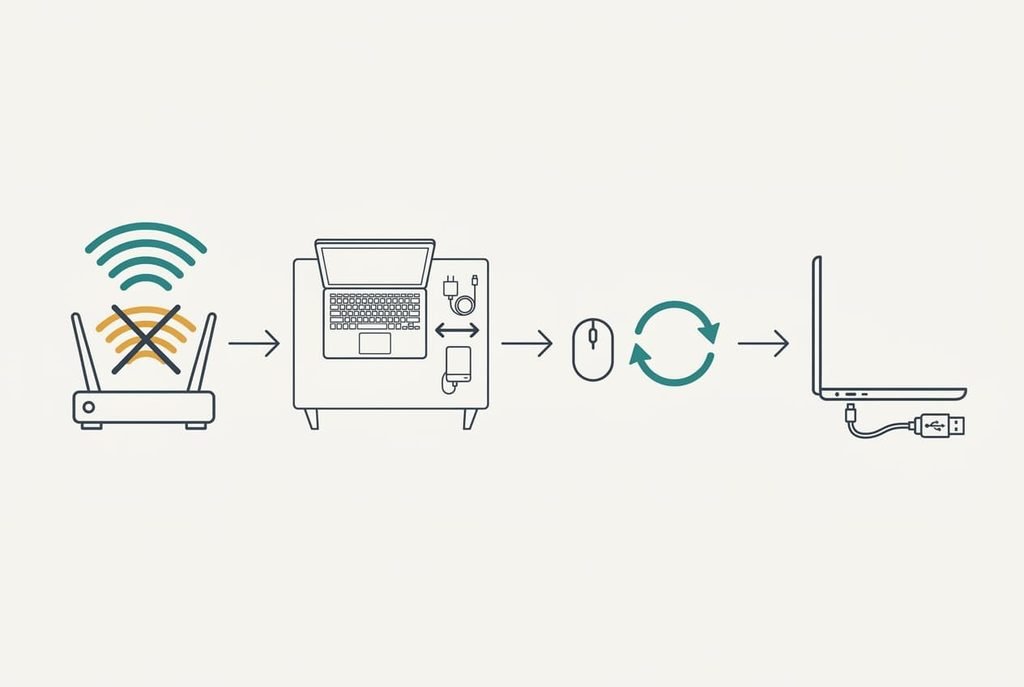
Put the Wi-Fi on 5 GHz instead of 2.4, which addresses the overlap in section B. All 11 channels clear, loss falls to the 1% of ordinary noise, and three in a row then occurs once in 4.2 hours. It costs a setting on the router or the laptop, and you can flip it back in a minute. It loses range, because 5 GHz crosses walls less well, so a far bedroom may get slower internet than before. Choose it first. It is free and reversible, and it cures the commonest case.
Move other 2.4 GHz noise away from the laptop’s Bluetooth side, which attacks the same loss rate from the other direction. It costs nothing: shift a USB 3 drive or a phone charger a hand’s width away, and watch the stopwatch for a minute. It loses a tidy desk and nothing else. Skip it if your hitches come at a steady beat, since steady beats are scheduled and noise is random. Check your stopwatch notes before you move anything, because a good guess at the cause saves several experiments.
Re-pair the mouse, which means removing it and adding it again. That refreshes the channel list it hops across, which may have been built while the Wi-Fi was quiet. The job takes ten minutes. It addresses a stale hop list, a cause that appears after the router changes channel on its own. It loses the saved pairing on that computer, so you set the mouse up again, along with any button assignments stored there.
Plug the receiver into a short USB extension on the desk, which applies when your mouse uses its own USB receiver. The cost is that of a cable. A receiver behind a laptop’s rear edge sits next to the Wi-Fi antenna and a metal case, and a cable lifts it 30 cm clear into open air. It loses a free port and adds one more thing to carry. Try it only after the earlier three have failed, because the cable treats only one location of the noise and leaves the Wi-Fi overlap in place.
If none of that worked
Collect four facts before contacting anyone, and write them on one page: the average gap between hitches, whether the trackpad stutters, the Wi-Fi band you use and which USB devices are plugged in. If your Bluetooth mouse lag every few seconds survives all four fixes, put one question to the laptop’s maker: do Wi-Fi and Bluetooth share an antenna? since a shared antenna takes turns and the radio can’t hear both at once. Ask the mouse’s maker about the fault if the cursor stutters on another computer too. Offer them the gap figure from your stopwatch test, since it separates a random fault from a timed one in a single sentence.
Write the page before you phone anyone.
A reset of the laptop’s network settings is the usual last request. Know that it wipes each saved Wi-Fi network along with its password, so write the ones you need before you agree.
The fix that is not worth doing
Turning up the pointer speed or smoothing looks sensible, because the lag feels like a slow cursor. It leaves the radio untouched. The pointer-speed slider scales how far the cursor moves for each count the mouse reports, and a hitch is a missing report. Raise the speed and the cursor jumps farther after the pause. Smoothing spreads the movement over later frames, which adds lag. It hides nothing.
The fix leaves a mouse that still pauses and now overshoots as well. Leave the sliders alone and change the cause instead.
A test makes this plain. Set the speed to its highest, then walk the cursor across the screen while counting hitches. The count is unchanged, and the cursor lands farther from where you meant to stop. Two minutes of that costs nothing and ends the temptation to treat a radio fault with a slider.
The Bluetooth mouse lag every few seconds comes from reports going missing in runs of three or more, and Wi-Fi sharing the 2.4 GHz band makes those runs frequent. The fastest identifier is the stopwatch gap, and the 5 GHz switch is the fix to try first. If the gaps are regular, look for a program on a timer, because no radio change will touch it.
Questions readers keep asking
Can I fix a stuttering Bluetooth mouse without buying anything?
Usually, yes. Move noisy devices away, switch the Wi-Fi to 5 GHz and re-pair the mouse, all free. Only the USB extension costs money. Time the gaps first, since a steady beat of about 5 seconds suggests a program, and no hardware change would help.
Why does the lag come and go?
Wi-Fi activity changes from minute to minute. A video meeting or a big download keeps the shared band busy, and that raises the loss rate. The hitches are cubed, so a modest rise produces several times as many. When the router goes quiet, the mouse recovers. The lag seems to vanish.
How can I tell if the mouse itself is failing?
Test it on a second computer. If the cursor stutters there too and a fresh battery doesn’t help, the mouse is the fault. If the cursor is smooth there, the blame falls on the first laptop and its desk. Also check whether the cursor jumps in a regular rhythm, which the mouse alone rarely causes.