Are you leaving because the browser only offers your logins on one device? That’s the usual reason people look at alternatives to saving every password in their browser: the list lives in one place. A new laptop or phone starts empty. The likely destination is a vault that syncs, or one you keep yourself, and each option below is judged against what survives the move.
Whether leaving pays depends on one number. How many of your saved entries are complete, meaning each has both an address and a login pair? Anything incomplete moves badly, and everything else here is measured against it.
What has to survive when you leave
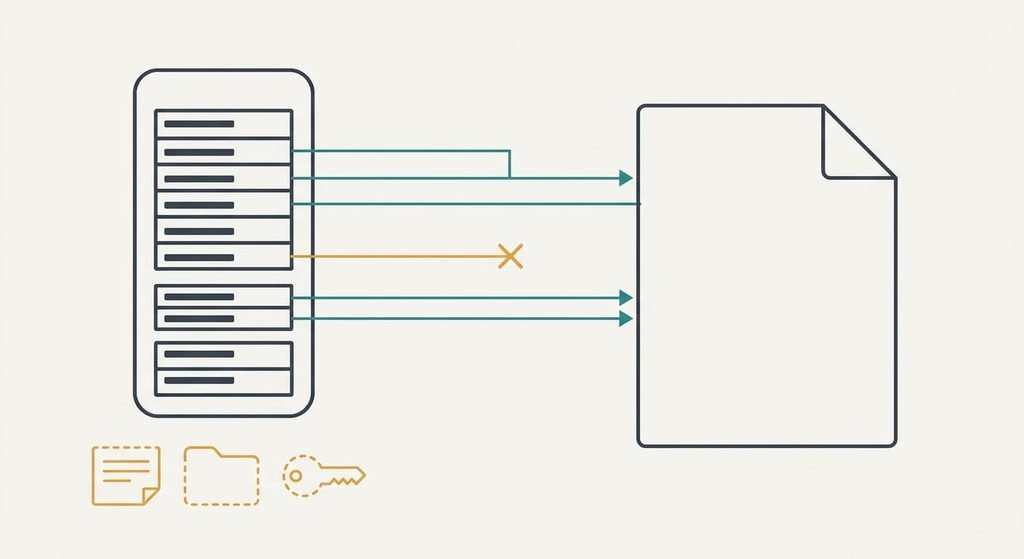
An example list helps, because the alternatives to saving every password all start from one. Ours holds 140 saved logins in a UK household, and each number below is a declared example. Each entry carries an address and a login pair of username and password. It may also carry a note or a folder, and sometimes a one-time-code seed or a passkey.
Only the address and the login pair travel in a standard export, as a plain file that any program can open. For 140 rows at about 90 bytes each, that is a file of roughly 13 kB, small enough to hold every login you own.
Notes and folders export badly. Many tools drop the folders. Notes can fold into one field. A passkey often can’t leave the device that holds it, because it is a key pair that never leaves its secure store.
The history of old passwords usually stays behind. So does the record of who in the household may see which login, because sharing lives inside the service and not in the file.
Your list is a file of 13 kB that includes every key you own.
Alternatives to saving every password in your browser, and what each one costs you
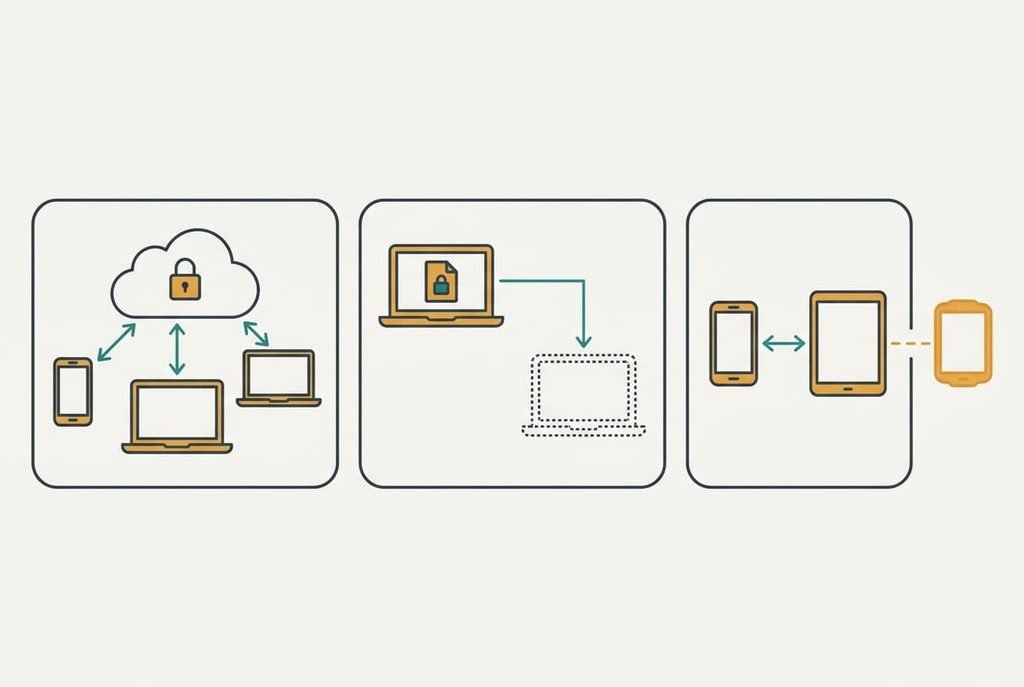
1. A paid vault that syncs. You pay a recurring fee for a service that keeps an encrypted copy. It offers that copy on every device, so it suits a household with a phone and two laptops, where a lost phone shouldn’t mean lost logins. The cost is money plus a master password you can never reset on your own. The service holds only an encrypted copy, so recovery is out of its hands. Core fields land intact and folders land partly. Passkeys land only if the service supports them. It ends when the master password is lost, which can lock you out for good. A price rise can also push the household back to the browser.
2. A file you keep yourself. This route trades effort for control: an encrypted file on a device you control, copied between machines by hand. It suits one person with a laptop and a patient habit. Treat the file like a notebook kept in a drawer. The cost is your time, because you do the syncing and the backups yourself, every time something changes. Core fields land well, and notes land as you paste them. It usually ends with a laptop that stops working, taking the only copy with it. It can also end when the file falls a month behind.
3. The phone or computer maker’s own keychain. This costs you features. Built into your devices, it syncs between them at no extra price. It suits a household using one maker’s products throughout, with no cost beyond what the devices already cost. It fails the moment someone owns a phone from another maker. Autofill is smooth inside the family of devices and absent outside it. The core fields land. Notes and folders mostly stay behind. It ends when a family member switches ecosystems and the logins don’t follow. Moving out of the maker’s family later means exporting again, with the same gaps.
The trade-off nobody warns you about when saving every password to a new store
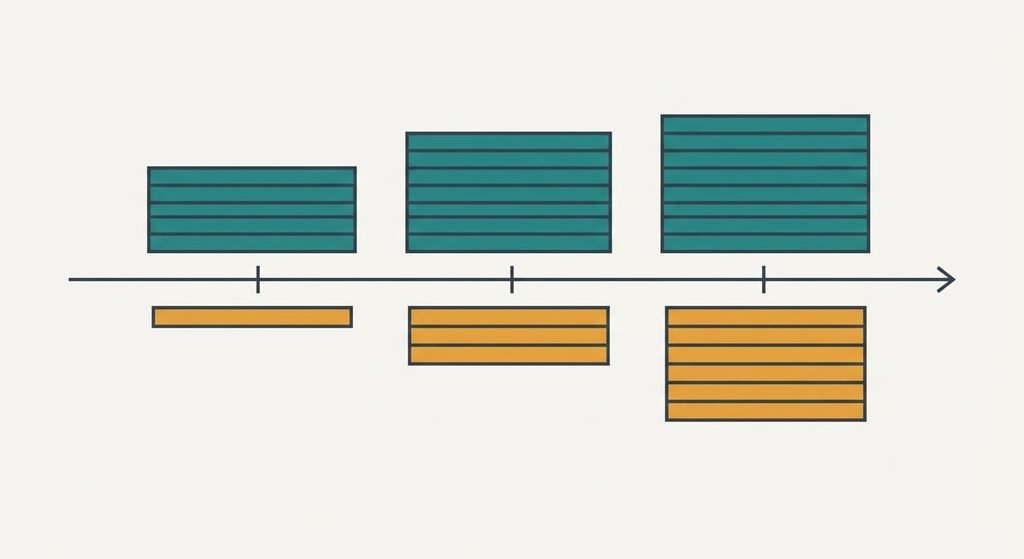
The cost arrives in month three. Your browser still offers to save a password whenever you log in somewhere new, and a person on autopilot clicks yes. Suppose you create or change five logins a month and the prompt is still switched on. After three months, 15 of your 145 logins sit only in the browser, which is a split of about one login in ten.
Nobody notices until a login is needed on another device and the new vault shows an empty box.
The browser may be long gone by then, so the missing entry has to be reset by email. A second quiet loss involves autofill on a phone. The old store filled apps and sites unprompted. The new one may need a tap each time. Some people treat that tap as a nuisance and quietly stop using the vault.
How to leave without losing a login
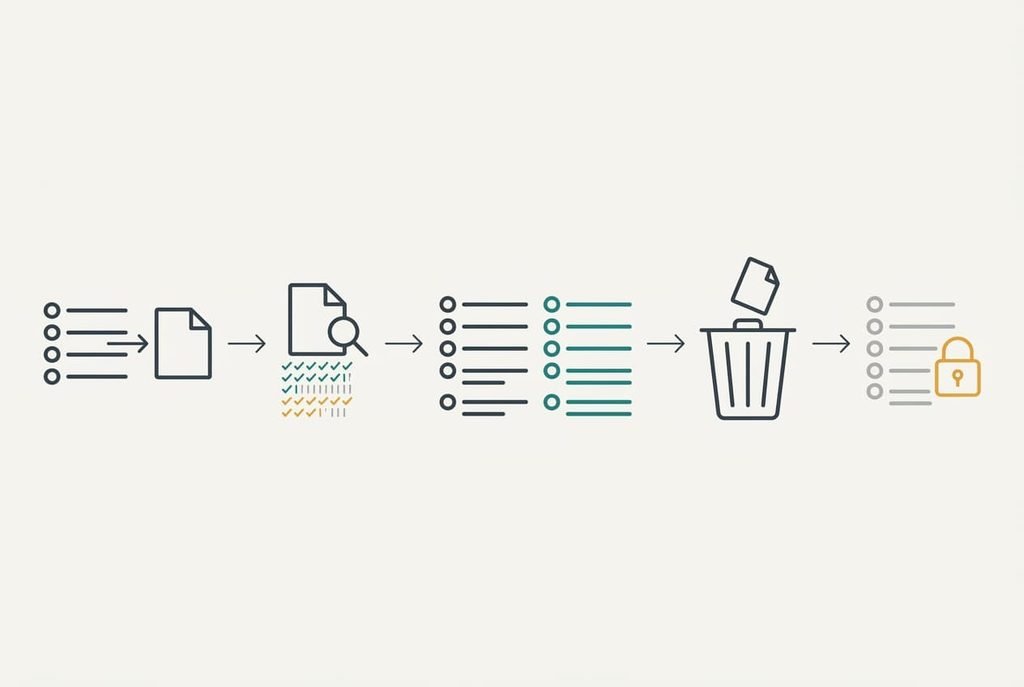
Export first, then check the count. Your file should hold 140 rows. After the import, the new vault should hold 130. Six duplicates merge into earlier rows and 4 rows with no password are rejected: 140 − 6 − 4 = 130. Any gap you can’t explain with a reason means a login went missing.
Next, test eight logins by hand, including one with a long password and one with an unusual symbol. A file that opens may still be incomplete, and eight tests take about five minutes.
Keep both going for two weeks while the browser prompt stays on, so any stray new login is caught. Then switch the prompt off, and delete the export file, because while it exists it holds everything in plain text. Empty the bin as well.
When to stay
Stay put if you use one device, protected by a screen lock, and fewer than about 30 logins. In that case the move costs more than it buys. Shared logins add a second reason: if your partner relies on your browser’s list, the move breaks their routine for no gain of their own. The extra copy of your list adds a second place to protect, and the benefit of syncing is zero when nothing syncs.
Alternatives to saving every password are also not worth the move when the weak point is how you pick passwords, not where you store them. A vault that holds 140 copies of one password is a tidy list of one problem. I can’t see how many of your logins repeat from here, and that count decides whether the first job is a vault or a clean-up.
The export to do before you decide anything
Export your saved logins today, then look at the file. Open it in a spreadsheet and count the rows. Sort by the address column, and mark the repeats. Sort by password and mark the entries that match another entry. A count of the complete entries against the duplicated and empty ones tells you what a vault will take.
Then delete the file the same hour, and note the number of minutes it sat in your downloads folder. Those 25 minutes of exposure are the price of knowing your own data.
That count lets you leave later, which is the real asset whatever you choose among the alternatives to saving every password. Knowing what moves matters more than the move.
Only the address and the login pair are certain to survive. The export worth doing today shows how many rows carry all three, and it needs ten minutes at most. A short list favours staying, while a long, messy one gives you a reason to tidy first and move second. Do that count first.
Questions readers keep asking
Will my passkeys move to a new place?
Often they won’t. A passkey is a key pair held in a device’s secure store, and many tools can’t export it. Plan to set up each passkey again on the new tool, one site at a time. The core fields travel, while passkeys frequently have to be recreated.
Do I have to pay to leave the browser?
No. A built-in keychain and a file you manage cost nothing but your effort. A paid vault adds a recurring fee for syncing and support. Weigh that fee against how many devices need your logins, and keep the free route if the answer is one.
Is it worth the disruption for a handful of logins?
Rarely. With fewer than about 30 logins on one locked device, leaving adds a second place to protect and takes an evening to verify. Move when you use several devices, or when a lost device would strand you. Otherwise, fix repeated passwords first.

