Does your tablet know which way is up, or only which way is down? It knows only down. That’s why your tablet screen rotates the wrong way when you lie down: gravity says one thing and your eyes say another. The quickest relief is to lock the rotation before you lie back. The scene is a UK bedroom with a tablet held square to your face in bed. Angles and thresholds are round examples, so test your own tablet at the angles below. Ten seconds of setup usually ends the problem. I’d call it a disagreement about down rather than a fault.
Why a tablet screen rotates the wrong way
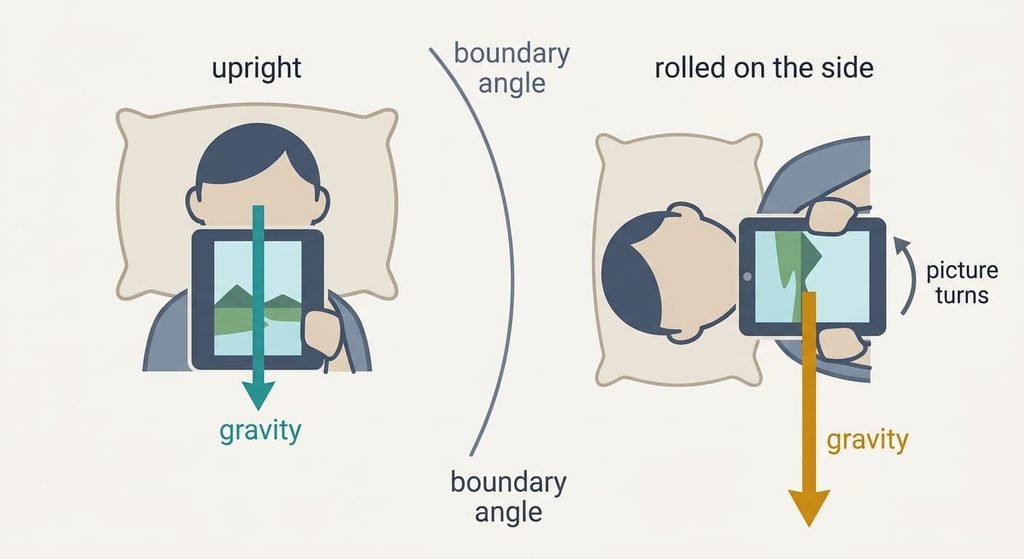
A tablet reads gravity through a motion sensor, and it decides which way is down from the part of gravity that lies along the glass. It turns the picture until that part points down the screen. The turn happens when the angle crosses a boundary, which is 45° plus a margin of 15° in the example, so 60°. The margin stops the picture flicking back and forth when you hold the tablet near the boundary.
Lying down changes the angle without changing the tablet’s idea of down. On your side your head is rolled about 80° from upright. The tablet, held square to your face, sees gravity along its left edge and rotates the picture 90°. The picture is now upright for the room and sideways for you. On your back your head roll is near 0°, so the picture stays put.
Tilt matters too. The part of gravity along the glass is sin of the tilt from flat. At 10° it’s 0.17 g, at 15° it’s 0.26 g, at 30° it’s 0.50 g, at 60° it’s 0.87 g and at 80° it’s 0.98 g. Below about 0.3 g, the dead zone in the example, the tablet ignores the signal and keeps the picture it had.
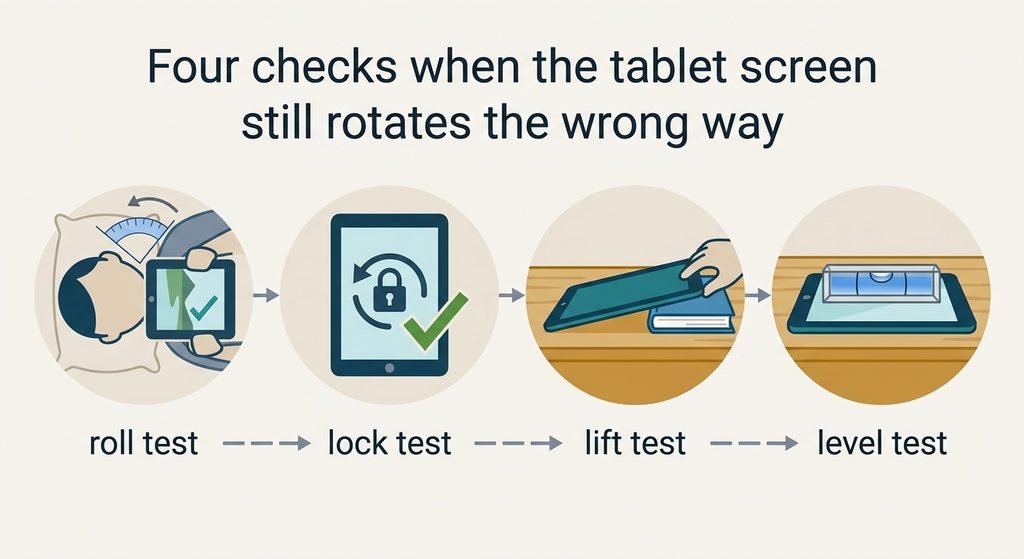
Four checks when the tablet screen still rotates the wrong way
Each check ends in an angle or a yes-or-no. Run them in bed with the lamp on, and use your own tablet at its normal reading distance.
First, roll slowly from your back to your side with the tablet square to your face. Note the angle where the picture turns, and ask a friend standing by the bed to call out the moment it happens. Near 60° means the standard boundary.
Second, switch the rotation lock on and repeat. If the picture now stays put, the sensor was driving the turn. If it still turns, an app is forcing its own orientation, which video apps often do.
Third, lay the tablet face up on a table and lift one edge 5 cm with a book, using the same book each time so the tilt is repeatable. That’s a tilt of about 11° on a 25 cm edge. A picture that turns at 11° means an offset in the sensor.
Last, put a bubble level on the glass, face up on a level table. Anything above 5° off zero is an offset.
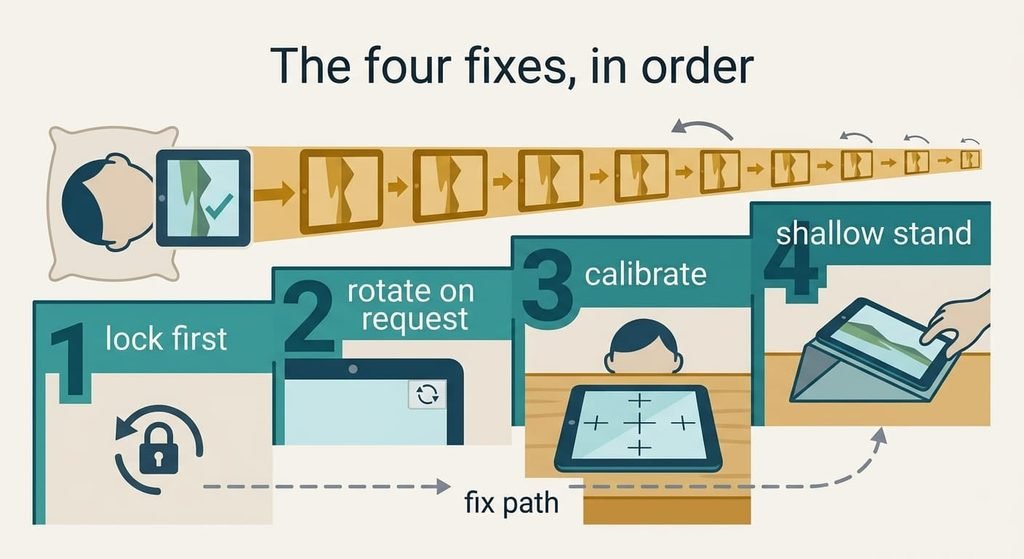
The four fixes, in order
When a tablet screen rotates the wrong way, alter one setting a night. Repeat the roll test after each change.
Locking the rotation before you lie down costs nothing. Lock it while the picture is upright for you, and the boundary stops mattering. The loss is that every app now stays in that orientation, so a video app that wants landscape stays in portrait until you switch the lock off. Switch it off for films and on again before you settle. Check it worked by rolling onto your side once, and the picture should stay where it was. Some tablets lock portrait only, so read what yours does.
Turning on rotate-on-request is a setting. Many tablets show a small rotate button in the corner while the lock is on, and the picture then turns only when you tap it. It costs a tap each time you change position. Some tablets and some apps hide the button, so confirm yours has one before you plan around it. In the example a tap takes well under a second and gives you back every film in landscape, which suits anyone who switches between reading and watching. Test it in the app you use most, since a few apps ignore the button.
Calibrating the motion sensor takes about two minutes on a flat, level table. An offset of 8° moves the real boundary from 60° to 52°, so the picture turns sooner than it should, and calibration puts it back. The limit is that a knock can bring the offset back, and some tablets have no calibration menu at all. Place the tablet face up on a surface you’ve checked with a bubble level, and keep your hands off the screen while the countdown runs. Test again afterwards with the 11° lift from the checks.
Fitting a stand that holds the tablet at 15° from flat is the purchase. At 15° the part of gravity along the glass is 0.26 g, under the 0.3 g dead zone, so the tablet keeps whichever picture you set last. The loss is bed space and a viewing angle that looks down at the glass. Check that your tablet’s dead zone is as wide before you buy, using the 11° lift test above. Pick a stand whose angle you can read or set, because a fixed 25° stand puts the part of gravity along the glass at 0.42 g, which sits over the dead zone.
If none of that worked
If your tablet screen rotates the wrong way even with the lock on, an app is almost certainly in charge. Try one app that plays video, then one that shows text, and note which one turns. Write down the roll angle at the flip. Add the lock state and the level reading. A level reading above 15° on a table points to a sensor fault, and the maker will want to hear about it. Resetting the tablet wipes the lock and per-app settings, so write those down first. Test the tablet without its case too, since a thick case changes how you hold it and so changes the roll angle. Ask a friend to hold it the same way and repeat the roll test, so you can tell whether the cause lies in the tablet or in your grip. Install any waiting system update and retest at 60° and 80°.
[IMAGE 4 HERE – replace this box with the generated image]
The fix that isn’t worth doing
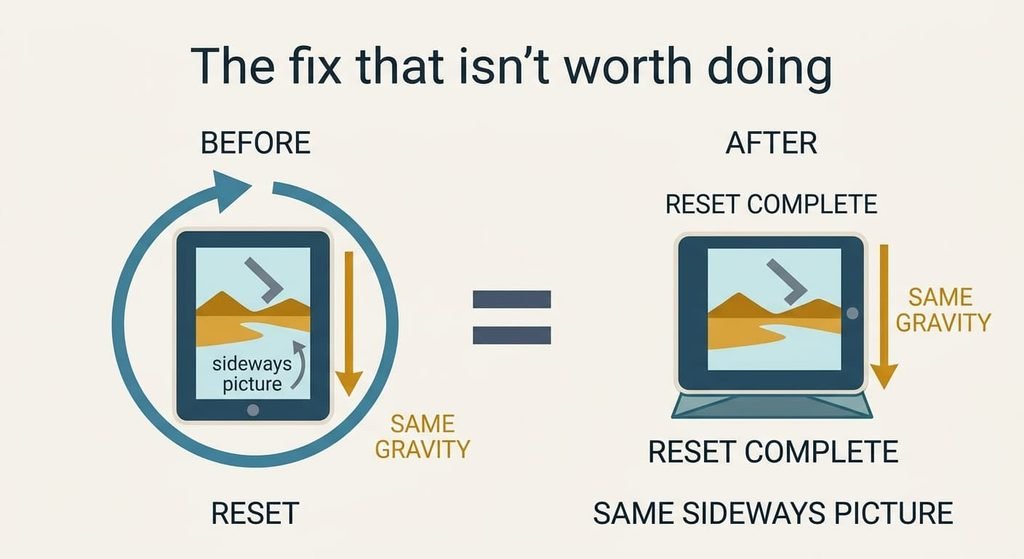
A full reset to factory state is the usual advice, because it clears odd software behaviour. Gravity doesn’t live in the software. At a head roll of 80° the part of gravity along the glass is 0.98 g, far over the 0.3 g dead zone. The picture crosses the 60° boundary exactly as it did before, the first time you lie down. You’d lose an evening restoring apps and see the same sideways picture. Where a reset does help is a software glitch, such as a lock that has stopped responding. The roll test shows which of the two you’re facing. If the picture turns at the same angle every time, a reset changes nothing. It also restores the default boundary, which is the very number behind the sideways picture. Keep the reset for a lock that no longer responds.
A reset changes the software, and gravity stays where it was.
When your tablet screen rotates the wrong way, the tablet is following gravity and you are following the pillow. Lock the rotation first, then try rotate-on-request, then calibrate. Buy the stand last, once the roll test shows the lock isn’t enough. Repeat the roll test after each step, and stop when the picture stays upright at 80°. A single roll test each month keeps the numbers honest after updates.
Questions readers keep asking
Why does auto-rotate work sitting up but not lying down?
Sitting upright puts your eyes and gravity in agreement about down, so the tablet’s choice matches yours. Lying on your side, they differ by about 80°, and the tablet follows gravity. The picture is correct for the room and wrong for you, which is why the lock helps.
Is my tablet faulty if the picture turns sideways in bed?
Usually not. Check with a bubble level on a level table. A reading within 5° of zero means the sensor is fine, and the cause is the angle. Above 15° suggests a fault worth reporting. Between 5° and 15° is an offset that calibration may fix.
Does the rotation lock have any downside?
One. Every app stays in the orientation you locked, so a film that wants landscape stays in portrait until you switch the lock off. Switch the lock off before a film and on again afterwards, or use rotate-on-request if your tablet offers it.