Encrypt the whole drive, never just the files you remember to protect. To encrypt an external drive, you turn on the disk-encryption feature your computer already has and choose a passphrase only you know. It takes about 50 minutes when 300 GB is in use and nearly 3 hours for a full 1 TB drive at 100 MB a second. Most of that is waiting. The one fork is who borrows it: someone on the same kind of computer opens it at once, while anyone on another kind needs a different route. The worked numbers assume a UK household and a borrower you trust.
Before you encrypt an external drive: what has to be true
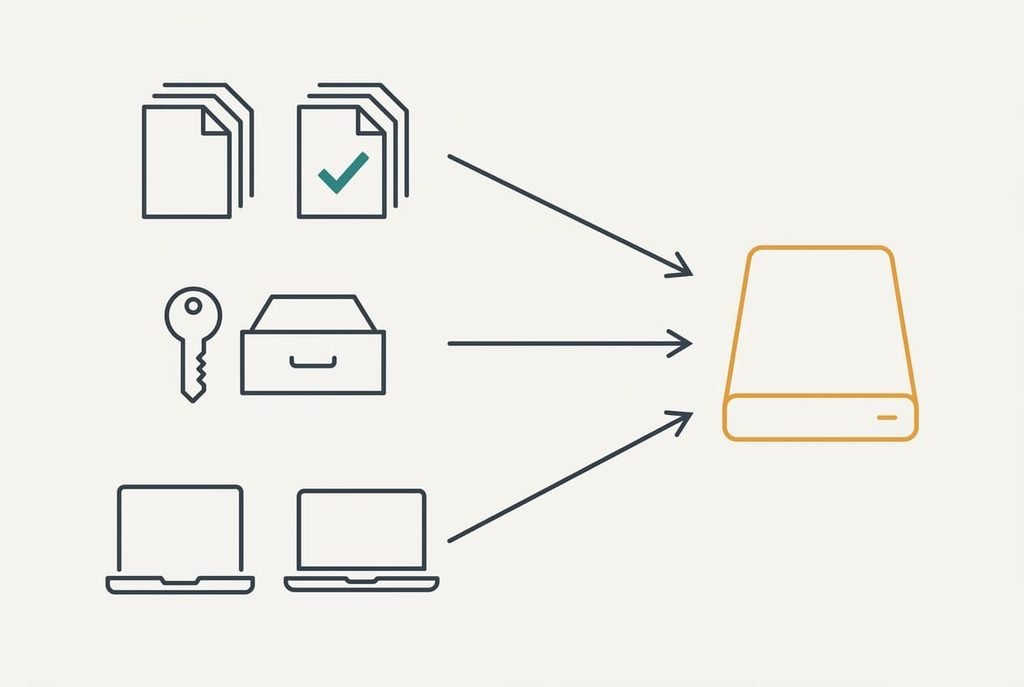
Three conditions come before step one, and the first is a second copy of every file on the drive, checked to open. Most people skip it. It needs as much free room as the data itself, so 300 GB of files wants a 300 GB gap on another disk. Encryption rewrites the drive from end to end, and an interrupted job can leave it unreadable. A power cut or a tugged cable is enough. Copying 300 GB at 100 MB a second takes 3,000 seconds, which is 50 minutes, so the insurance is cheap. Skip it and one slip costs every file you keep on that disk. That evening of copying is the cheapest insurance in this guide.
The second thing is a safe place for the recovery key, and it must be somewhere other than the drive itself. A drawer at home or a password manager will do. The third is the borrower’s computer. Ask what they use now, because the answer decides one of the stalls near the end. Each of these takes about a minute to settle.
The procedure to encrypt your external drive
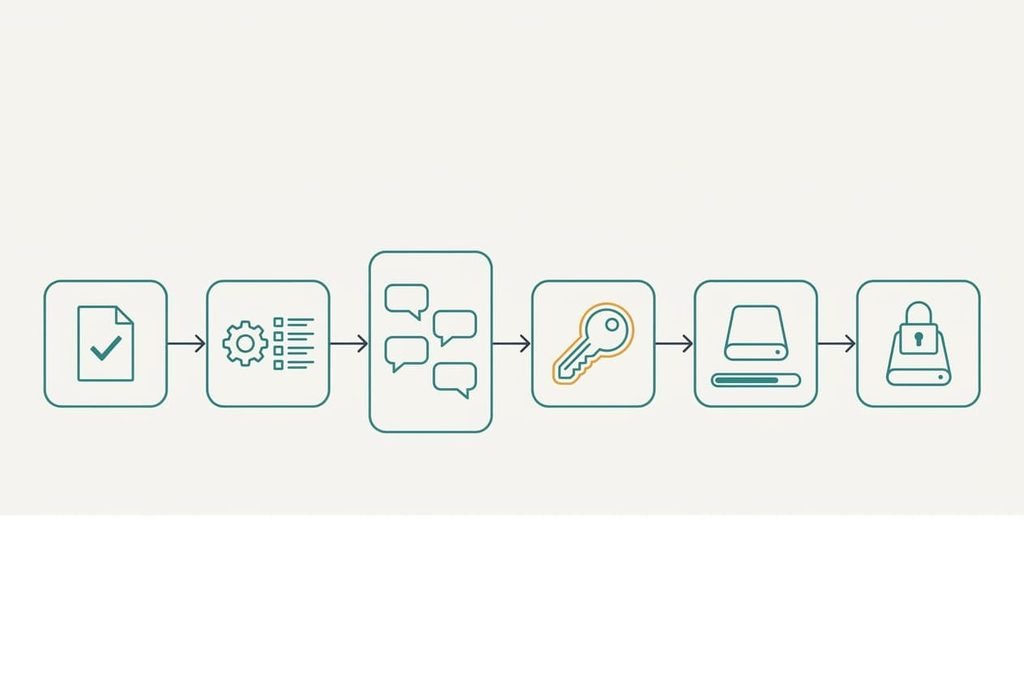
1. Open your second copy and open five files chosen at random from it. You’re looking for a copy that reads, not one that merely exists, and the largest file is the one to include. Five files that open are the proof. Do this before touching the drive, since every later step rewrites it.
2. Find the disk-encryption feature in your computer’s security or storage settings. It works at device level. That’s why it sits there, rather than inside a file manager. You want the option that locks a whole drive rather than one folder, and it’s the right one when your drive appears in its list. If nothing like it shows, read the stall notes before you alter anything.
3. Choose a passphrase of four random words. The cipher itself can’t be guessed, so an attacker guesses your passphrase instead. Say they try 10,000 a second. A common word plus two digits falls in about 200 seconds, and eight random lowercase letters in about 242 days. Three random words last about 544 days, and four random words about 11,600 years. Pick the words by dice or from a list, not by taste. You’ll know it works when you can type it from memory twice running.
4. Save the recovery key the feature offers, in the place you chose. Lose both the passphrase and that key and the files are gone for good, since nobody holds a reset. Store the key in two places, one of them away from home, so one lost bag can’t take both. The key is a long string of characters, which makes a printed copy more reliable than a retyped one.
5. Choose the option that encrypts the whole drive, then start it. A used-space-only job is quicker, but deleted files linger in the unused part, and someone with recovery tools could read them. A full 1 TB job at 100 MB a second is 10,000 seconds, nearly 3 hours. Keep the computer awake and the cable still. A progress figure that rises steadily tells you it’s running.
6. Wait for the feature to report the drive as protected, then eject it properly. Pulling the cable early is the one move that can damage a finished job. A drive that ejects cleanly is the proof you waited long enough.
Check that the drive is really locked
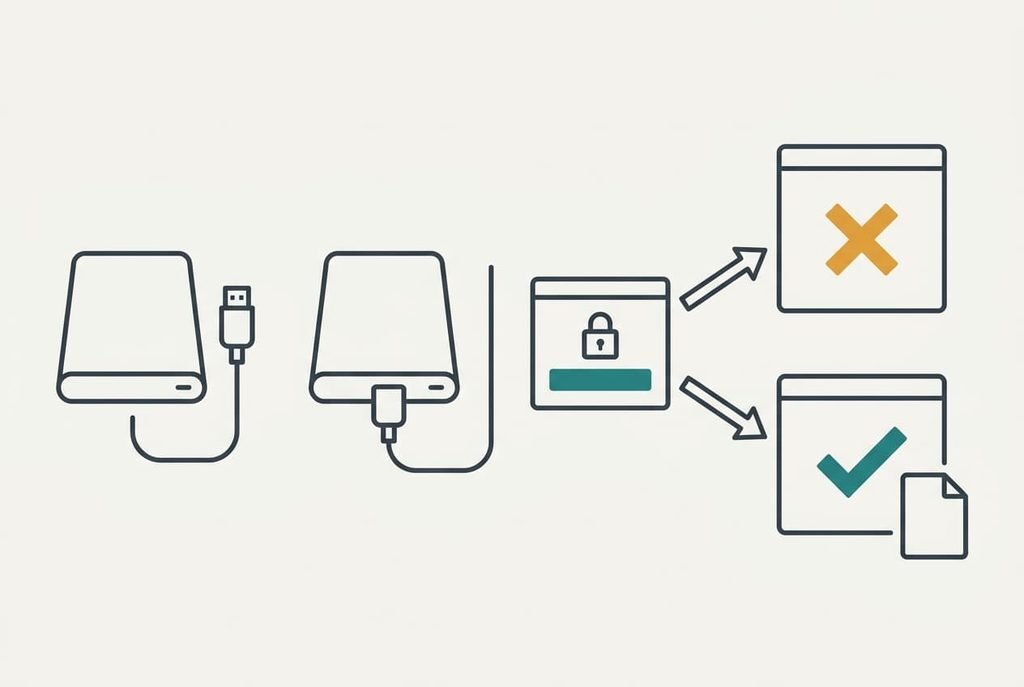
If you want to encrypt an external drive and trust the result, test it the way a stranger would meet it. Unplug the drive and reconnect it, then open it with nothing but the passphrase. A prompt should appear before any file name shows, and a wrong passphrase should be refused. Type the passphrase rather than pasting it, because you’ll have to type it when you’re lending the drive out. Then give the right one, copy a single file off and compare its size with the original. If the feature lets you test the recovery key, do it now, because a key you haven’t tried is only a hope. Finally, plug the drive into a computer of the borrower’s kind, if you can borrow one, and watch for the same prompt.
If a step did not work
Why won’t the feature let you encrypt an external drive at all? Usually the drive’s format is one the feature refuses. The fix is to reformat it, which wipes everything, so do it only once the second copy is verified and the five files have opened. A second stall is speed. A worn cable or an older port may carry only 30 MB a second, which turns 3 hours into about 9.3. Try another port before you assume a fault. The third is a borrower whose computer can’t read your drive. Then you’ll need a feature both systems understand, and you’ll repeat steps 3 to 6, another full round of the same waiting.
Whatever stalls, record the step number plus the exact message on screen first. The feature’s own wording names the cause better than a guess. Check that the drive still opens before you restart a half-finished job. A second attempt over a damaged first one is the case that costs files.
[IMAGE 4 HERE – replace this box with the generated image]
The step not worth taking
Hunting for the strongest cipher setting feels sensible, because strength is the whole point. A 128-bit key has about 3.4 × 10³⁸ possible values. Even at a trillion guesses a second that’s roughly 780 million times the age of the universe. A longer key buys nothing you can feel.
Your passphrase is the only part that matters.
The 11,600 years for four random words is what you actually rely on. If you still want more margin, add a fifth word, which multiplies the guesses by 7,776, and skip the settings menu.
Wiping the free space several times beforehand is a second habit to drop. Three passes over 1 TB at 100 MB a second would burn 30,000 seconds, more than 8 hours. A whole-drive job overwrites that space anyway. You’d lose an evening and gain nothing the encryption doesn’t already give you.
You now have a drive that asks for a passphrase before it shows a single file name. Keep the recovery key apart from it. Give the borrower the passphrase in a separate message. When you encrypt an external drive this way, lending it costs you one evening and no worry afterwards. The unplug-and-reopen test is the proof that it works. People leave that test and the recovery key until later. Do both while the drive is still on your desk.
Questions readers keep asking
How long does the whole job take?
The data and the port set the time. At 100 MB a second, 300 GB takes about 50 minutes and a full 1 TB drive takes nearly 3 hours. A slow cable can stretch that to roughly 9 hours. Start in the evening and leave the computer awake. Check the progress figure once.
Will encrypting wipe the files already on the drive?
Encrypting in place keeps your files, yet an interrupted job can leave them unreadable, which is why the verified second copy comes first. Reformatting is different, because it erases everything. Treat any step that rewrites the drive as a possible loss, and never start with your only copy on it.
Can I use one encrypted drive on two kinds of computer?
Only if both understand the feature you used. The built-in features usually belong to one system, so a borrower on another system may see a drive they can’t open. Ask what they use before you start, and if the two differ, choose a feature that works on both before step 2.