A phone losing significant charge overnight, while sitting untouched on a nightstand, almost never comes down to one obvious cause. It happens because several small background processes keep waking the device throughout the night, and each one alone barely registers — but together they add up to a noticeable drop by morning.
This is a mechanism problem, not a phone-age problem. A two-year-old handset and a brand-new one can both lose charge overnight for the exact same underlying reasons, if the same background processes are left unchecked on either.
What is actually happening
Modern phones don’t fully sleep, even when the screen is off. Apps running in the background periodically wake the processor to check for new content, refresh data, or search for a stronger network signal — each wake-up is brief, but a device with dozens of apps doing this repeatedly across eight hours adds up to real, measurable battery use.
The processor itself isn’t the only thing drawing power during these wake-ups. The radio that handles cellular and Wi-Fi connectivity draws noticeably more current when actively searching or transmitting than when idle, which is why network-related wake-ups tend to cost more than a simple background data check.
Network searching is a particularly overlooked contributor: in a bedroom with weak signal, the handset works harder to maintain a connection, repeatedly hunting for better reception. This single mechanism can account for a surprising share of overnight loss, especially in homes with thick walls or basement bedrooms.
Confirm which pattern you have
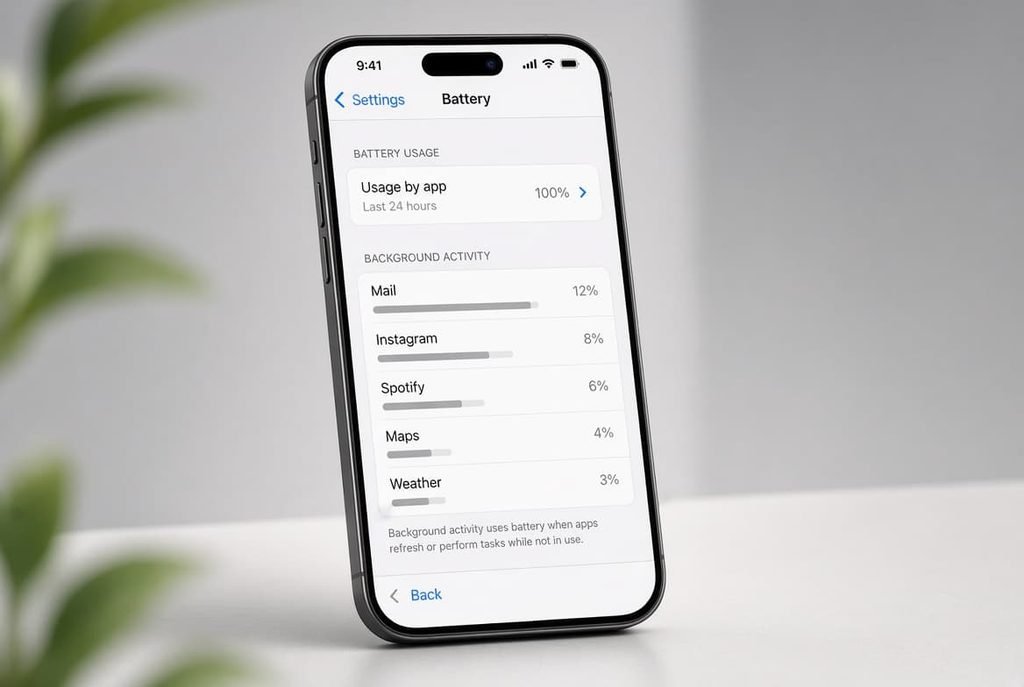
Check your usage breakdown (Settings > Battery on most phones) specifically for the overnight window. If one or two apps show disproportionately high background activity, the cause is likely app-specific; if the drop is spread evenly across many small contributors, it points toward the cumulative background-process mechanism above.
Check whether the loss is worse in one location than another — if it’s consistently heavier at night in a specific room, weak signal and network searching is a strong candidate, not the apps themselves.
The causes, diagnosed
“A specific app is using more than everything else combined.” Some apps, particularly ones with location tracking or frequent sync features, don’t fully respect background restrictions and keep working far more aggressively than their function requires. The fix: find that specific app in your usage breakdown and restrict its background activity individually, rather than applying a blanket restriction to every app on the device.
“The drop is spread evenly across many small apps, none dominating.” This points to background refresh being enabled broadly rather than selectively — each app checking for updates every so often, none egregious alone, but collectively meaningful across eight hours. The fix: disable background refresh globally in settings and re-enable it only for the handful of apps where instant updates genuinely matter, messaging apps being the obvious example.
“The loss is consistently worse overnight in one specific room.” Weak cellular or Wi-Fi signal in that location forces the device to work harder searching for connection, which uses meaningfully more power than maintaining an already-strong signal. The fix: enable Wi-Fi calling if your carrier supports it, or switch to airplane mode with Wi-Fi still active if the room has reliable Wi-Fi but poor cellular reception specifically.
What to check before tonight
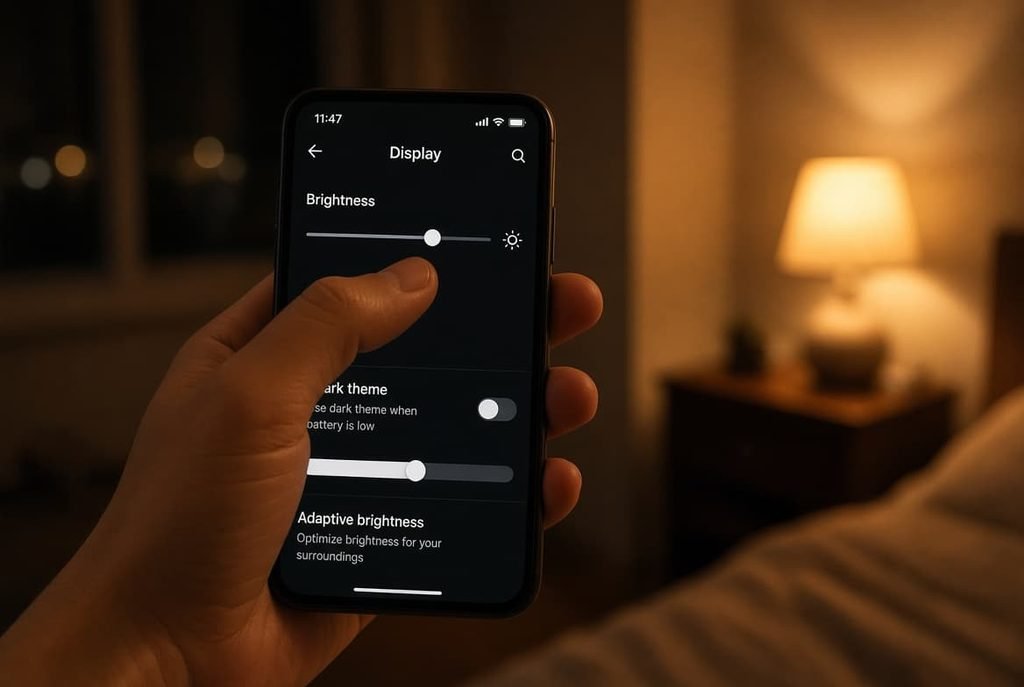
Before assuming a deeper problem, verify screen brightness isn’t set to auto-adjust upward in response to any ambient light in the room — even brief wake-ups at a higher setting use more power than the same wake-up at a lower one.
Check that notification-heavy apps aren’t set to trigger a full-brightness screen wake for every alert. Many phones allow notification previews without a complete wake, which meaningfully reduces cumulative overnight loss across dozens of small interruptions.
Also worth checking: whether the device is genuinely reaching a deep-sleep state at all. A charging cable that’s slightly loose, or a case interfering with a wireless charger’s alignment, can leave a phone in a semi-awake state all night, drawing on the battery continuously without ever showing an obvious symptom during the day.
What changes if you travel often
Overnight power loss tends to be worse on nights right after travel, and the mechanism is the same one described above, just intensified. A phone that spent the day switching between cell towers, searching for unfamiliar Wi-Fi networks, or sitting in a hotel room with weak signal has already been running its radio harder than usual — that elevated activity doesn’t necessarily stop the moment you go to sleep, particularly if roaming or a new network is still being negotiated in the background.
If overnight loss is consistently worse after travel specifically, enabling airplane mode overnight in unfamiliar locations with poor signal addresses the root cause directly, rather than troubleshooting settings that work fine everywhere else.
The fix that isn’t worth doing
Force-closing every app before bed isn’t worth doing, despite being one of the most common pieces of advice for this exact problem.
Modern phone operating systems are designed to manage background apps more efficiently than manual closing achieves. Force-closing an app often means it has to fully restart and re-sync from scratch the next time you open it, which can use more power overall than simply letting the system manage it in the background. This habit treats a symptom with a gesture that doesn’t address the actual mechanism causing the loss in the first place.
When it’s not really about your settings
If the device is more than two or three years old, its capacity to hold a charge diminishes permanently regardless of how well background processes are managed — the same settings that worked fine a year ago may no longer be enough to offset normal ageing. If it shows signs of a swollen or damaged cell (unusual heat, a bulging case, a burning smell), stop using it and take it to an authorised repair centre immediately. This is a fire safety issue, not a setting to troubleshoot at home.
If you recently installed a new app right before noticing the change, that specific app is worth checking first and in isolation, since a coincidental timing match is a genuinely useful diagnostic clue, not something to dismiss as unrelated.
Getting it right consistently
Of the causes covered here, background refresh deserves the most consistent attention for your phone’s battery specifically, because it silently re-enables itself after some software updates and is easy to forget once you’ve fixed it the first time. Building a habit of checking this setting after any major system update closes that gap for good, and it’s the single check most likely to keep overnight battery loss under control long-term.
Overnight power loss almost always traces back to background processes and network searching working harder than necessary while you sleep. Check your usage breakdown first, since it tells you immediately whether one app or several are responsible, and address whichever pattern actually matches what you find rather than guessing.

Questions readers keep asking
Is it normal for a phone to lose charge overnight even when not in use?
Some loss is normal — devices stay partially active to receive notifications and maintain connections, and that baseline activity alone accounts for a small, expected drop. Losing more than roughly 5-10% overnight with no active use, though, usually points to a specific background process or weak-signal issue worth investigating further, rather than something inherent to how phones work.
Does closing apps before bed actually help?
Generally no. Modern phones manage background apps efficiently on their own, and force-closing often causes apps to fully restart and re-sync later, which can use more power than leaving them in a managed background state to begin with.
Why does mine drain faster overnight in one room than elsewhere?
This usually points to weaker cellular or Wi-Fi signal in that specific location, which forces the device to work harder searching for a stable connection. Enabling Wi-Fi calling or using airplane mode with Wi-Fi active can meaningfully reduce this particular cause of loss.

