A phone that shows a full Wi-Fi icon has told you very little. That’s why your phone shows Wi-Fi connected but pages will not load: the icon reports the first of four stages, and the fault sits in a later one. For a quick test, toggle Wi-Fi once. All the figures here come from one UK flat with one router, and each time is a round number. Put your own figures in once the checks are done, because the stage that fails decides which fix you need. Read the whole ladder once before you touch a setting.
Why your phone shows Wi-Fi connected but pages will not load
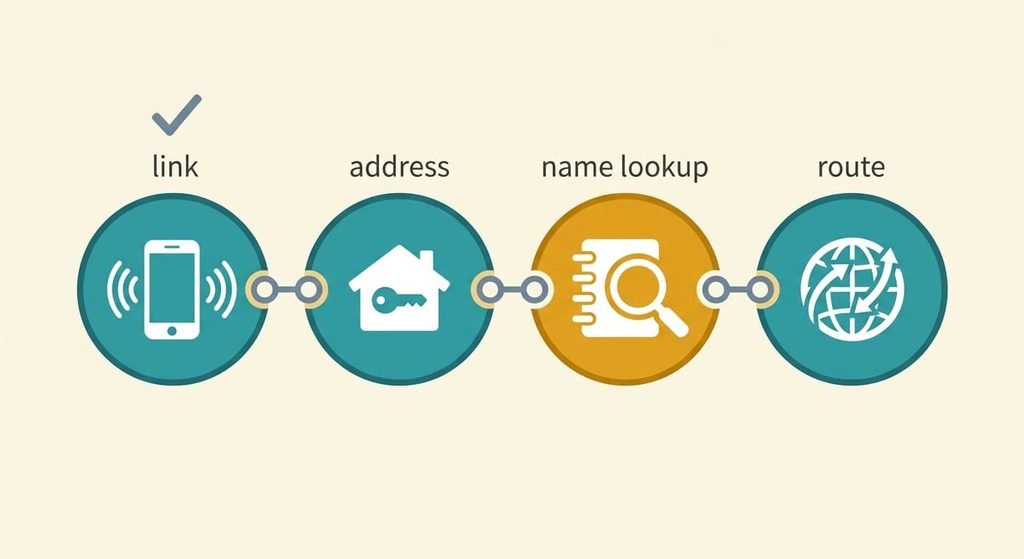
A page load needs four stages in order, and the Wi-Fi icon reports only the first of them. Stage one is the link, the radio handshake between phone and router. Next comes the address, which the router lends your phone for a while. After that the phone needs the name lookup, where a server turns a site’s name into a number the network can use. Last is the route, the road from the router out to the wider internet.
Names are where most stalls start, because a modern page isn’t one file. Suppose a page uses 14 names and the phone fetches them in three waves, with the main site first and the images last. Now suppose the phone’s first lookup server is dead while the second works. Each wave waits 3 seconds before the phone gives up on the first server, so the waits add up to 3 × 3 = 9 seconds. Real loading adds 1.2 seconds, which makes 10.2 seconds in total, and most people give up at 5. If no second server exists at all, nothing arrives. That’s the pattern whenever your phone shows Wi-Fi connected while the page stays blank.
Your phone then looks connected and behaves as if it’s offline.
Four checks when the phone still shows Wi-Fi connected but pages will not load
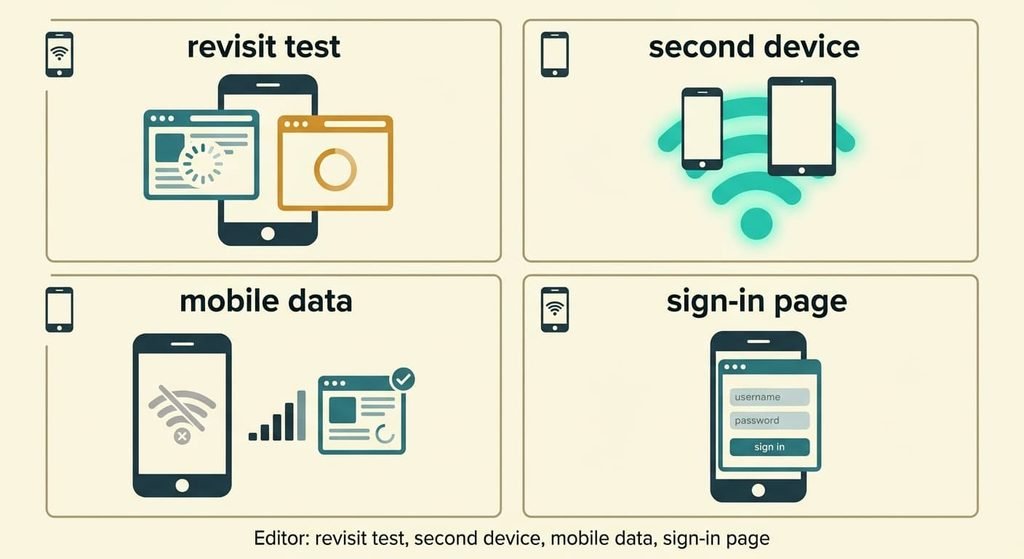
Each check ends in a yes or a no that names a stage. Run them at the moment of failure, using the same browser every time, and write the answers down.
Start with a revisit test. Load a site you opened a minute ago, then load one you’ve never opened. If the old one appears and the new one hangs, the name lookup is the cause, because the phone remembers recent names for a few minutes and skips the lookup for them.
Next, join the same network from a second device. If both devices stall, suspect the line, with the router a close second. If only the phone stalls, the fault lies in the phone.
Then switch Wi-Fi off and load a page over mobile data. A page that loads proves the site itself is up and the phone’s browser works.
Finally, watch for a sign-in sheet or a notification asking you to log in to the network. Hotels and cafés use these, and until you finish the login page, the route stays shut for every site.
The four fixes, in order
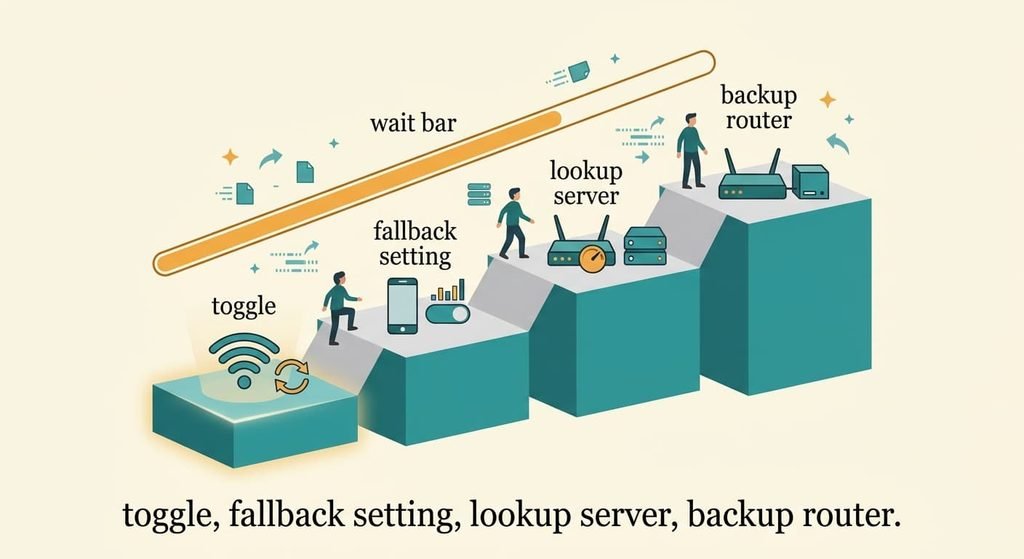
Make one change, then repeat the four checks before you make the next. When your phone shows Wi-Fi connected but pages still won’t load after a change, move down the list.
Switching Wi-Fi off and on is free and over in five seconds. The phone asks the router for fresh details, including which lookup server to use, and drops any stale entry it was holding. The loss is that it treats the symptom, and the stall comes back whenever the lookup server falters again. Do it before anything else. Use it as a test as well as a fix, because a quick success tells you the line is healthy and the fault is in the lookup.
Turning on the phone’s switch to use mobile data when Wi-Fi has no internet is a setting you change in a minute. The phone then falls back to mobile data by itself whenever the network goes quiet. It spends your allowance, though: at 2.5 MB a page, 40 pages cost 100 MB. Phones also wait about 10 seconds before they switch, so the first page of each stall still hangs. The setting is a bandage that keeps you moving while you find the real cause, and you can switch it off again whenever the allowance matters more than speed.
Replacing the router’s first lookup server needs roughly ten minutes in the router’s menu and then a few days of watching. Choose a public lookup service you trust and the 9-second penalty falls to nothing, because the first server answers at once. The loss is that another operator now sees the names your devices look up, and any filtering your provider applied stops working. Note the old values first, which lets you reverse the change in a minute. Then restart the router and rerun the revisit test, because a cached answer can hide the improvement for a few minutes.
Fitting a router with a mobile-data backup is the purchase, and it only helps when the route stage fails. The backup takes over when the line drops. It costs a device plus a monthly data plan, and it does nothing for a name stall. Run the second check before spending anything, since both devices stalling is your signal that the line or router is the weak point.
If none of that worked
Suppose your phone shows Wi-Fi connected but pages will not load after all four changes. Gather evidence before you phone anyone. Write down the time each stall begins, the result of the revisit test and whether a second device stalled too. Add the router’s model name from its label, because a support agent will ask for it within the first minute. Then ask the provider whether their lookup service or your line logged faults at those times, and give them your list. Two answers matter most: whether their lookup service had an outage, and whether your line shows errors. Both narrow the stage in minutes.
Keep a factory reset for the very end. It wipes the saved login and your own lookup server, which returns you to the 9-second wait. Photograph the settings page first.
The fix that isn’t worth doing
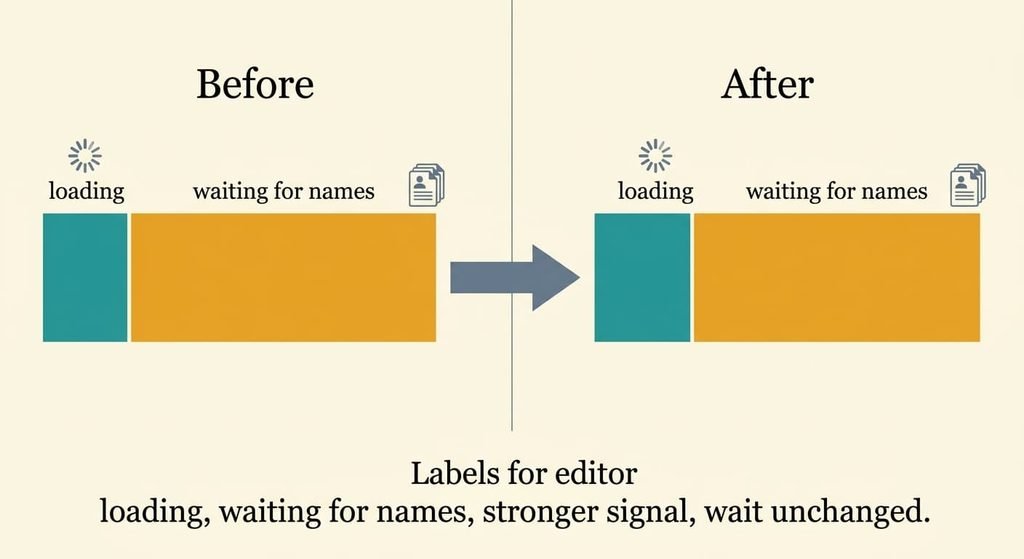
Moving closer to the router for a stronger signal is the usual first reaction, because a weak bar feels like the problem. Your phone already shows a full signal, so the first stage works. A better link might cut the 1.2 seconds of loading to 0.8, but the 9 seconds of waiting for names hasn’t moved at all. The page then takes 9.8 seconds instead of 10.2, a saving of 4%. Even the best case, a signal so strong that loading takes no time at all, still leaves 9 seconds. That figure comes from the lookup alone, and only a working lookup server removes it. A Wi-Fi extender repeats the mistake at a higher price, because the extra radio hop leaves the lookup untouched. The same logic rules out a new router or a different Wi-Fi band.
A stronger signal speeds up the wrong stage.
The icon has only described the link, and only the lookup server sets how long each wave waits. Run the revisit test and the second-device test, and let the failing stage decide the fix. Write each result next to the time, because patterns in those times point at the cause. Start with the Wi-Fi toggle and the fallback setting before you open the router’s pages. Leave the backup router for last.
Questions readers keep asking
Why do some sites load while others hang?
The phone remembers names it looked up a few minutes ago. Those sites skip the lookup stage and load, while new ones wait for a lookup server that isn’t answering. In the ledger each wave waits 3 seconds, so a page fetched in three waves takes about 10 seconds to appear.
Is the problem the phone or the router?
Join the same network from a second device. If it stalls too, suspect the line first. If it loads fine, the phone is at fault, so try the Wi-Fi toggle and the fallback setting before you change anything on the router.
Why does switching Wi-Fi off and on help?
It makes the phone ask the router for fresh details, including the lookup server it should use. A stalled server entry or a stale state clears, so pages load again. The cause remains in the network, though, so the stall can return an hour or a day later.