A common complaint is that tablet notes looked fine on the day and can’t be found a month later. This guide shows you how to turn a tablet into a reliable note-taking tool: a notebook that opens straight to a blank page, saves each stroke as you write, and keeps copies you’ve proved you can open. Plan on about an hour of setup and a ten-minute test the next morning.
The decision that shapes everything is where the master copy lives. Here it stays on the tablet, inside one notes app. Every copy flows out from it. You’ll end with that app, a synced copy on a second device and a folder of exported PDFs.
What must be ready before you start
Four conditions must hold before a tablet can be a reliable note-taking tool. First, a pen that works, charged if it has a battery, because a flat pen ends the session mid-sentence. Second, a notes app that stores ink as strokes (coordinates and pressure) instead of a flattened picture, and that can export pages. If it can’t export, step 6 is impossible, so pick another app before going on. Third, a second device (a phone or a computer) signed in to the same account. Without it, step 5 can’t pass.
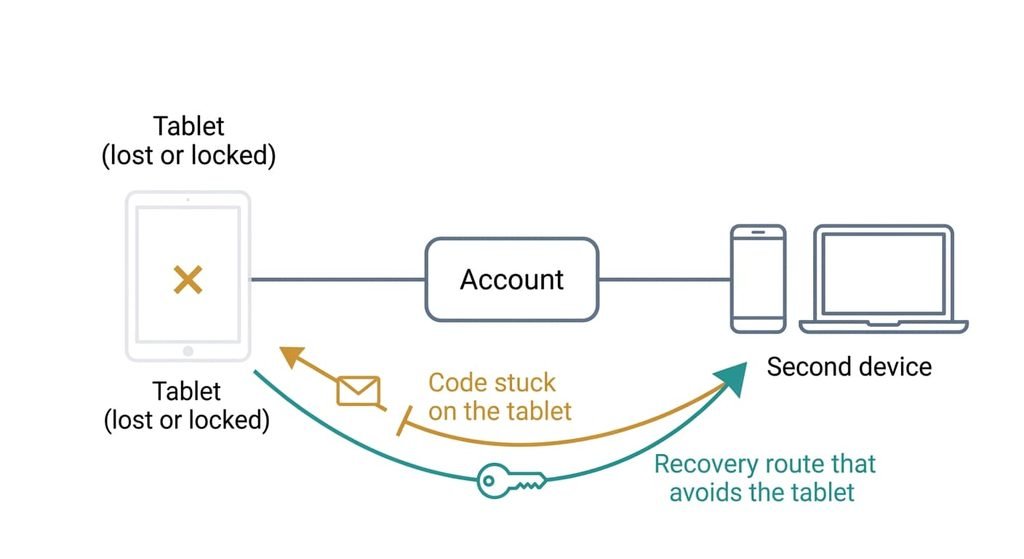
The fourth is the one people skip. Have a way into that account that doesn’t pass through the tablet. A sign-in code is often sent to, or generated on, the very device you’re trying to protect. If the tablet is the only thing that can approve a new sign-in, the second device can’t join, and the synced copy stays out of reach exactly when you need it. Sign in on the second device from cold now, and note where any code arrives.
The procedure that makes a tablet a reliable note-taking tool
1. Create one notebook for everything new, named for what it is, plus one archive notebook for each year. Each page lands in the inbox with the date as its title, and once a week you move the keepers. One inbox beats a notebook per subject, because choosing a notebook while someone is talking costs more attention than filing later. Success looks like a new page at the top of the inbox with today’s date on it.
2. Find the settings for the default page: its size and ruling, plus the pen you start with. Match them to your hand so nothing needs adjusting before the first word. The check is simple: you can open a page and write a line without touching a tool.
3. If your tablet offers a pen shortcut that starts a new page from a sleeping screen, find it; it usually sits under pen or display settings [VERIFY: current name of the pen shortcut]. Failing that, put the app first on the home screen. It exists so capture takes one gesture, and a notebook you have to hunt for is one you stop opening. The check is a sleeping tablet that takes you to a blank inbox page.
4. Find out when the app writes strokes to storage. Many hold the latest strokes in memory and save in batches, so a crash can eat the last few seconds. Write one line, wait a minute, write a second, then force-close the app straight away. That destroys any strokes not yet saved, so write throwaway lines, never a real page. Reopen it and see what survived. Both lines mean continuous saving, and only the first means a timed gap. If neither is there, the app saves only when you leave the page.
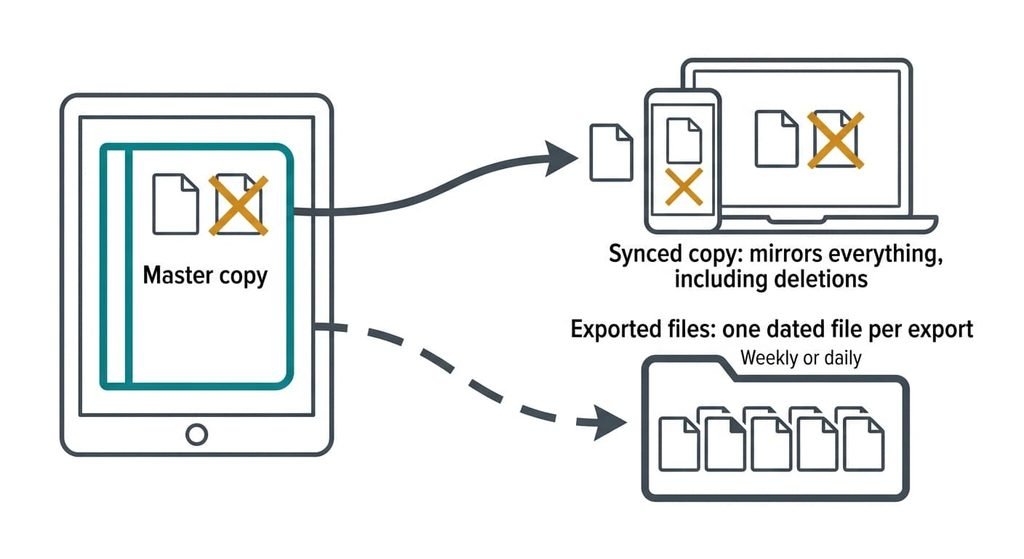
5. Sign in on the second device and let the notebook arrive. Sync is replication, so it copies every change to each device within moments, and that includes a deletion. It protects you from losing the tablet and not from your own mistakes. Success looks like your throwaway page opening on the second device with the strokes in place.
6. Set up an export of each notebook as PDF files into a folder outside the app, by schedule if the app offers one. Put the date in every file name, because a repeated name overwrites the last good copy. Pick the interval by what you could stand to rewrite: at 4 pages a day, a weekly export puts at most 28 pages at risk and a daily one puts 4. The check is the PDF opening on a device that doesn’t have the notes app.
Check it is a reliable tool for taking notes
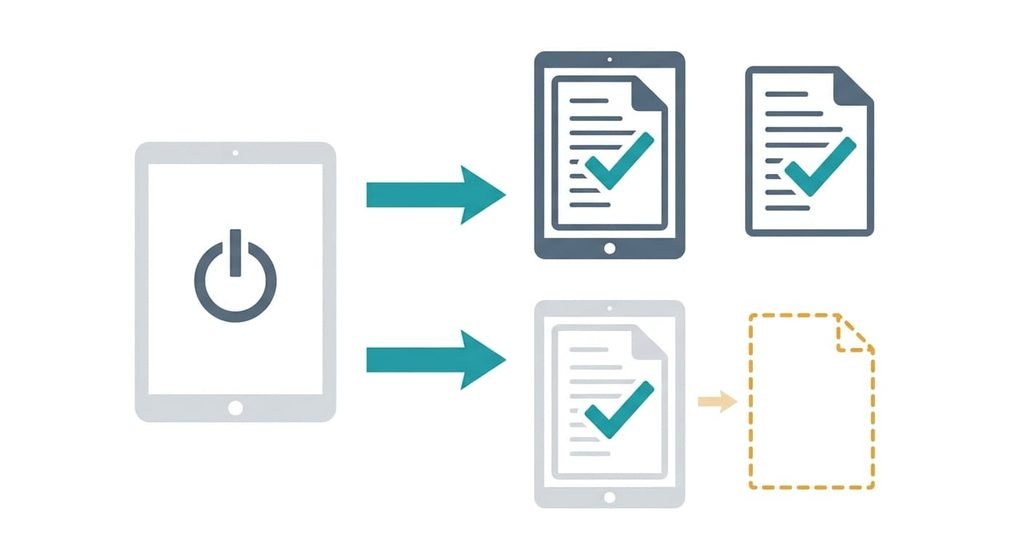
Run the test the morning after rather than that evening; sync and export will have run unattended by then. Switch the tablet off and open yesterday’s page on another device, then open the newest PDF too. Switching off loses nothing, since unsynced pages stay on the tablet, but they won’t appear elsewhere. A pass means both open with every stroke in place, and the PDF is no older than your export interval.
A partial pass means one copy is missing something, such as a recent page or a page that opens blank.
Add one more look. Search for a word you wrote yesterday. A miss after a night points at the search index and leaves the page itself safe, so treat it as a separate fault. If the synced copy is stale, go to the stalls below before you trust the setup with real work.
If a step did not work
Three stalls account for most failures. If the second device shows an empty notebook or old pages, the tablet may be holding changes until it’s online and the app has been open for a while, and battery saver can pause background sync. Keep the app in the foreground on Wi-Fi for a minute and look again. If nothing arrives, check that both devices are signed in to the same account and not two similar ones.
If search finds nothing, remember that ink is strokes. In apps that search handwriting, search relies on a recognition index that the system builds in the background, often while the tablet is idle or charging, so a page from an hour ago may not be findable yet. Leave it overnight before judging.
If sync stops weeks later, check whether you changed the account password. That usually signs other devices out, and nothing tells you. Sign in again and open a recent page to confirm.
The step not worth taking
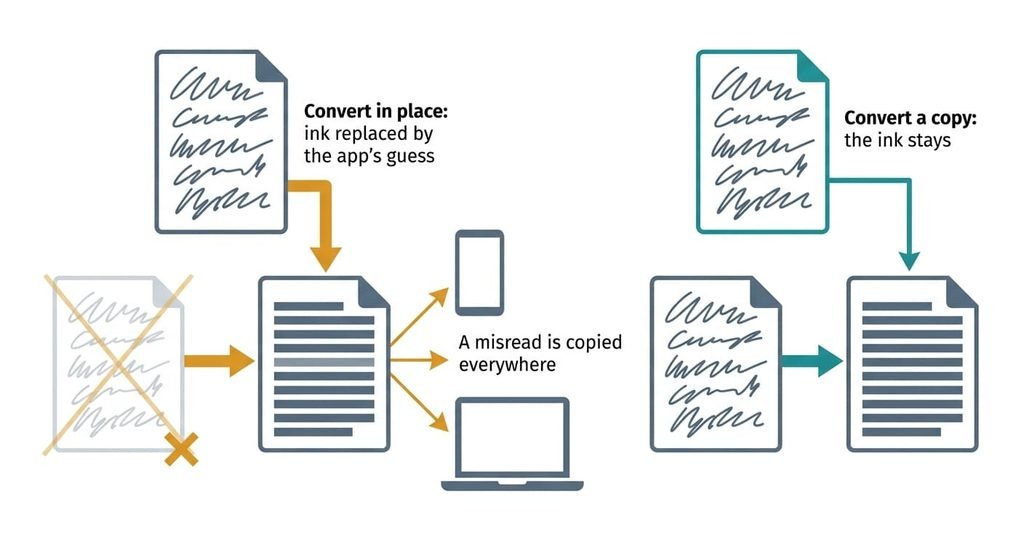
Keep the ink and skip converting it to typed text in place. Typed text is the usual reason given, yet apps that search handwriting already do so through the index. Conversion replaces your strokes with the app’s best guess, and sync then copies that guess to every device. Names and numbers are where a recogniser guesses worst. Abbreviations and hand-drawn diagrams fare no better. It ranks several readings and keeps only the top one, so a right answer in second place is discarded, and a misread is gone for good once the old page is. The strokes carried pressure and timing too, and neither comes back. Layout goes as well: arrows and margin notes have no typed equivalent. If you want typed text for pasting elsewhere, convert a copy of the page and leave the original alone.
I’d rather have messy ink I can read than tidy text that says the wrong thing.
Setting this up well turns a tablet into a reliable note-taking tool. It holds each page in two places besides the tablet: a synced copy and an exported PDF. The one check that matters is simple: switch the tablet off and open yesterday’s page elsewhere. If it opens, you’re done. A page that fails to open means step 5 or step 6 hasn’t finished, and no pen will fix that. Repeat the check once a month, and again after any password change.
Questions readers keep asking
How much time do you need to set up a tablet for note-taking?
About an hour for the setup, plus ten minutes the next morning for the test. The slow parts are the first sync and the first export finishing, not anything you do by hand. A reliable note-taking tool needs both copies proved, so don’t skip the morning check.
Will converting handwriting to text delete my original notes?
Many apps convert in place, which replaces the strokes with typed text, so the original ink goes. A few convert a copy and keep the ink, so the answer rests on which kind yours is. Try it on a throwaway page before trusting either behaviour, and keep the ink as your master copy whichever the app does.
Can I use the same setup for typed notes?
Yes. Steps 1 and 4 to 6 apply unchanged, and the save-timing test matters just as much. Typed notes are small and finish syncing fast. Exports are quick too. Replace steps 2 and 3 with a keyboard shortcut that opens a new note.