A tablet has no fan, so its metal back is the only radiator it owns. When your tablet slows down even though storage is free, switch off battery-saver mode first.
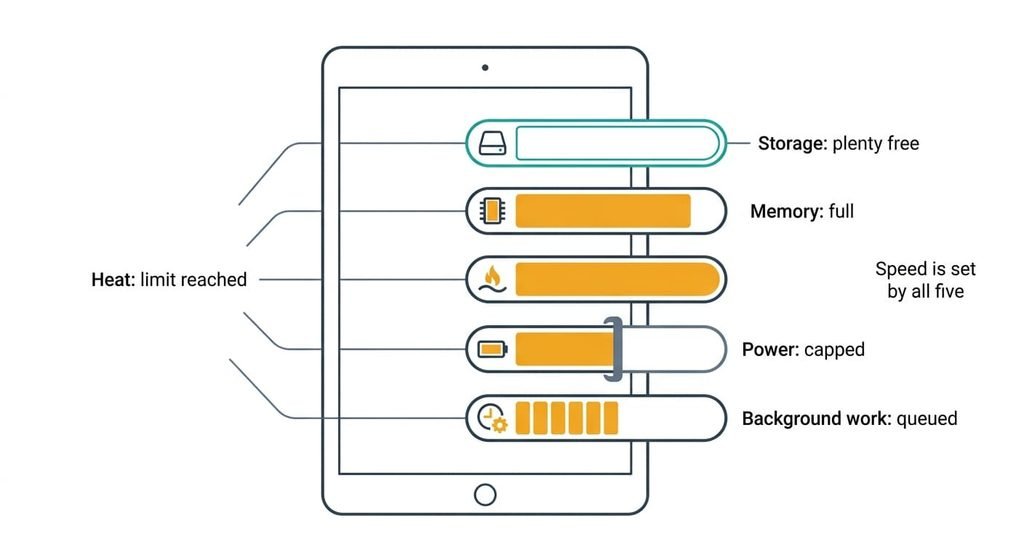
Storage is one meter among five. The other four decide speed far more often, and each leaves a trace you can check on the device itself. A few quick tests separate the causes. The fixes run from free to slow, so stop when the tablet is quick again. None of the four fixes needs an app or a purchase. This guide assumes a home tablet in the United Kingdom, running a current operating system.
Why your tablet slows down while storage sits free
Storage is the one meter that shows a number, so it takes the blame.
Four other limits set the speed, and a tablet hits each without a warning. Memory comes first. Apps in use live in RAM, which reads in tens of nanoseconds, while flash storage takes tens of microseconds, roughly a thousand times longer. When RAM fills, the system evicts the app you used longest ago, and returning to it means rebuilding it from flash.
Heat is second. A fanless tablet sheds only a few watts through its back. The chip can sprint above that for a minute, then must lower its clock once its temperature sensor crosses a threshold.
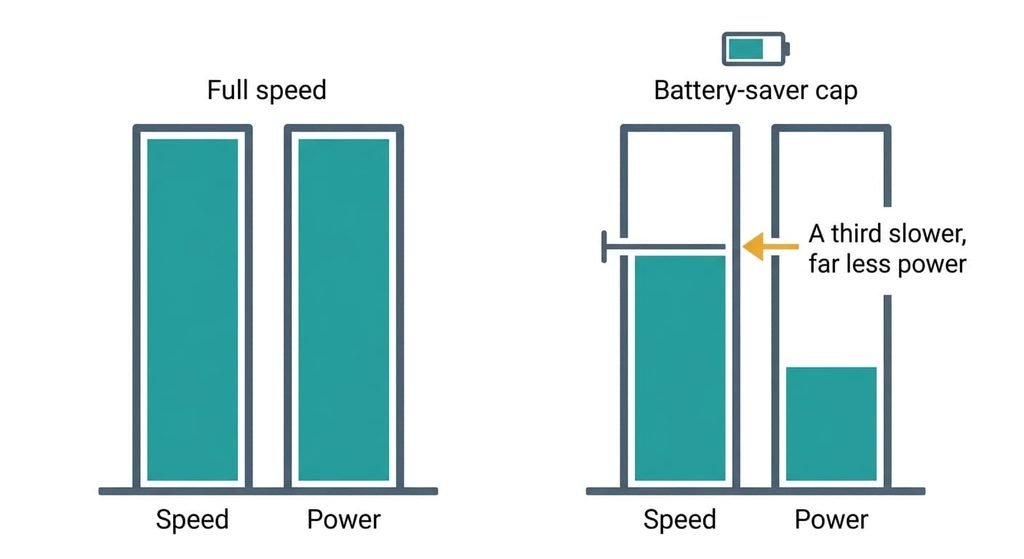
Power is third. In a simplified model where voltage tracks clock speed, power rises with the cube of speed, so a cap at two-thirds speed cuts power to 8/27, about 30 per cent. Battery saver applies that kind of cap. Background work is fourth. After an update or a restore the system indexes and backs up your files for hours. It works through that list while the tablet idles, and the work shows as lag when you interrupt it.
A slow tablet with free storage has hit a limit other than storage.
Narrow it down in two minutes
Every test here is free and can be undone. The first two take under ten minutes.
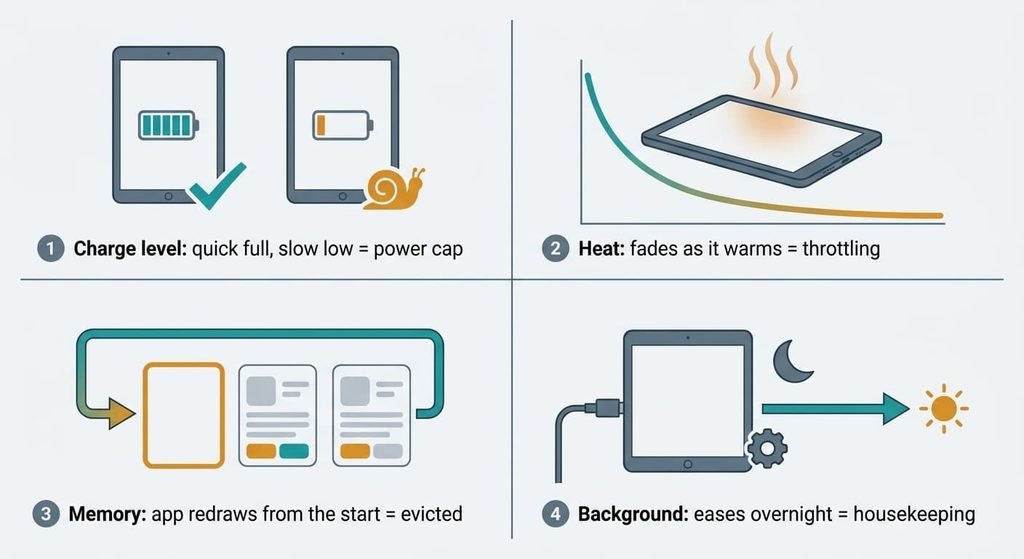
First, charge level. Scroll one long web page at near-full charge with battery saver off, then again at low charge. If it’s quick when full and slow when low, the power cap is the cause. If it’s slow both times, move on.
Second, heat. Rest the tablet for ten minutes out of its case on a hard surface. Then use it hard and watch the clock. If it’s fast for the first few minutes and fades while the back grows warm, the chip is throttling. If it stays slow when cold, heat is cleared.
Third, memory. Open three apps in turn, then go back to the first. If it redraws from its opening screen and not where you left it, the system evicted it. Memory is the cause. If it resumes in place, memory is cleared.
Fourth, background work. Note whether the slowness began after an update or restore and eases overnight. If it does, background work is the cause. More than one test can fail at once, so fix the first that fails and test again.
Fixes for a tablet that slows down, in order
Each fix names the cause it answers. It also states its cost and what it takes away. Test again after every one.
Two free fixes first
Release the speed cap that battery saver sets. This answers the power cap. Look for the setting that limits performance to save battery. At two-thirds speed, chip-bound tasks take about half as long again, so the difference is easy to feel. It costs nothing and you can undo it in a second. You lose battery hours, and the tablet may sync in the background again. Some tablets switch the mode on by themselves at a set charge level, so check it after each full charge.
Take the case off and keep the tablet off soft surfaces. This answers heat. A case or a sofa cushion traps the warmth that the metal back is meant to shed, so the sensor trips sooner. It costs nothing. You lose a little protection while you test. Fast charging adds its own warmth, so give a tablet that is already hot a rest before you plug it in. Heat also wears a battery faster, so a cooler tablet ages better.
Two fixes that take longer
Limit background refresh for apps you rarely open. This answers memory pressure and the background load. Look for the per-app control that stops an app working while it isn’t on screen. Each background app holds a slice of RAM, so fewer of them leave your open app resident. It costs about five minutes. You lose instant alerts and fresh content, so keep it on for messaging apps. Sort the rest by how long you’ve gone without opening them.
Leave the tablet on its charger, on Wi-Fi, with the screen off, for one night. This answers the background work that follows an update or a restore. The system finishes its indexing and backups when it’s idle and powered. Plug it in even if the charge is high, because many systems postpone heavy housekeeping while on battery. It costs a night. You lose nothing, but if the tablet is just as slow the next morning, the cause is somewhere else.
When the slowdown survives all four fixes
If your tablet slows down in every app, two causes remain. A battery worn enough that it can’t deliver peak current can make the system hold the chip back, though how a given maker handles that varies [VERIFY: whether your model throttles on battery wear]. The other cause is software that has outgrown the chip, which happens on tablets many years old. Whether yours still gets updates is a [VERIFY: support period for your model] question. One slow app points to the app, and every app slow points to the tablet.
Before you contact the seller or a repair shop, write down which apps are slow and the charge level. Ask for a battery health reading. Ask whether a software fault is known for your model.
Resetting to factory settings erases your apps and local files, along with your sign-ins. It can’t be undone, so back everything up first and check that your photos finished uploading.
Why clearing more storage won’t speed it up
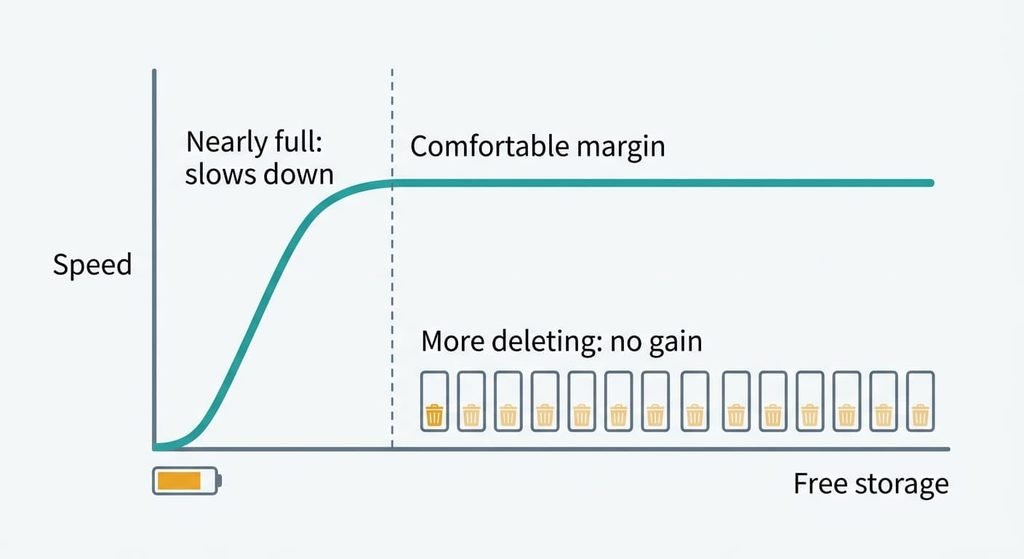
Deleting yet more photos and apps to free storage is the popular fix, and past a small margin it buys no speed. Flash storage needs spare room to write new data and tidy old data, so a nearly full tablet does slow down. Once that margin exists, extra free space relieves nothing, because memory and heat are untouched. You spend an afternoon choosing what to delete and lose files or app setups for no gain, and a deleted game save may not come back. I’d stop deleting the moment a comfortable margin is free.
Moving apps to a memory card is worse. Card flash is usually slower than the flash built into the tablet, so the app loads slowly every time you open it.
Spare room beyond that margin is just empty.
When your tablet slows down with free storage, it has hit a limit that storage space doesn’t measure. The quickest test is the charge-level check: quick when full and slow when low means the power cap. Take the fixes top to bottom and stop at the first one that works. Alter one setting per attempt, so you know which fix did the work, and write down what changed.
Questions readers keep asking
Can a tablet that slows down be fixed at home?
Usually, yes. When your tablet slows down with free storage, the cause is one of four limits, and the first three fixes need no tools and no purchase. Take them top to bottom and stop once it’s quick again. Only a factory reset risks data, so back up before it.
Does free storage affect how fast a tablet runs?
Only at the extremes. Free storage gives the system room to save files and move data. Day-to-day speed is set by other limits such as memory and heat. A nearly full tablet can slow down, yet plenty of free space is no guarantee that a tablet is quick.
Does a slow tablet mean the battery or chip is failing?
Rarely. Most slowdowns come from limits that ease once the tablet cools down or finishes its background work. A worn battery or an aged chip becomes more likely if it stays slow in every app after a night idle on the charger. A repair shop can check the battery.