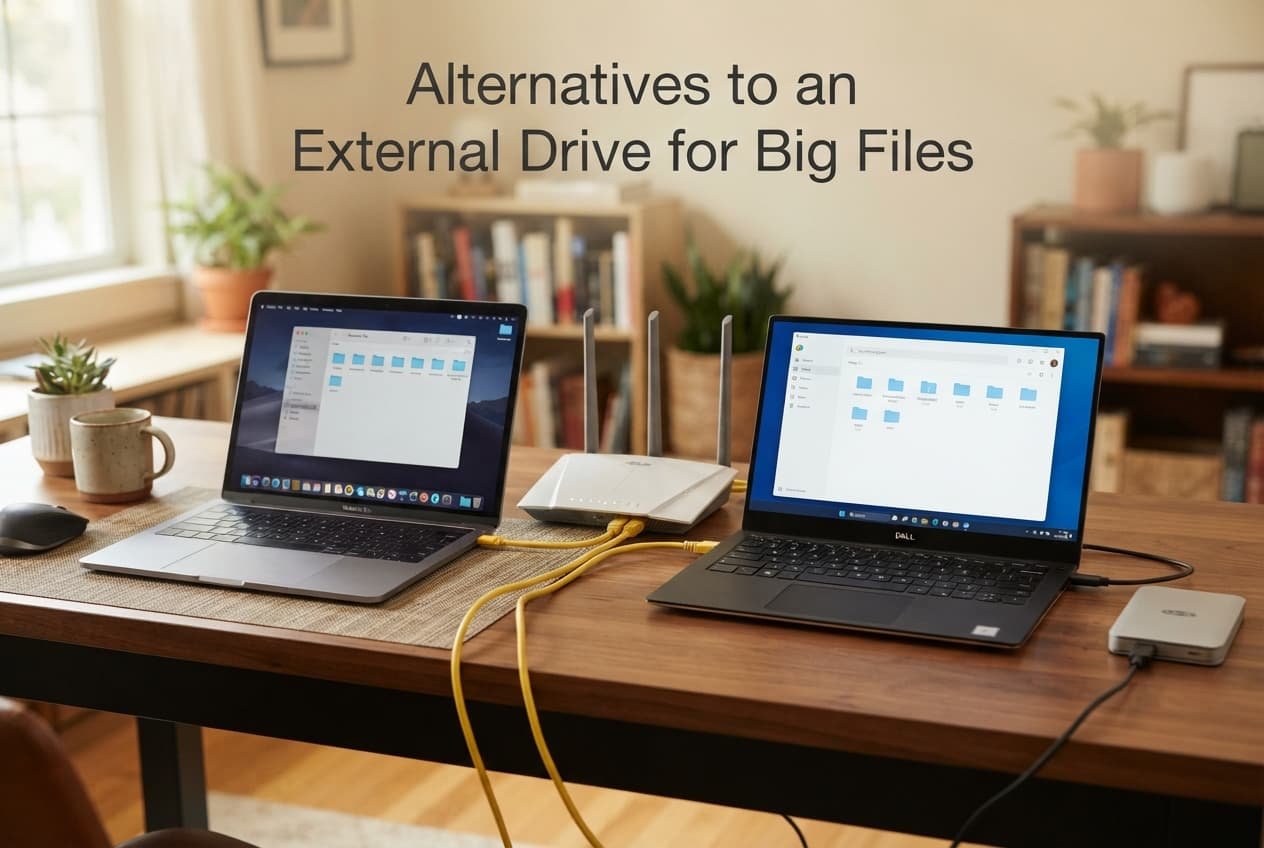
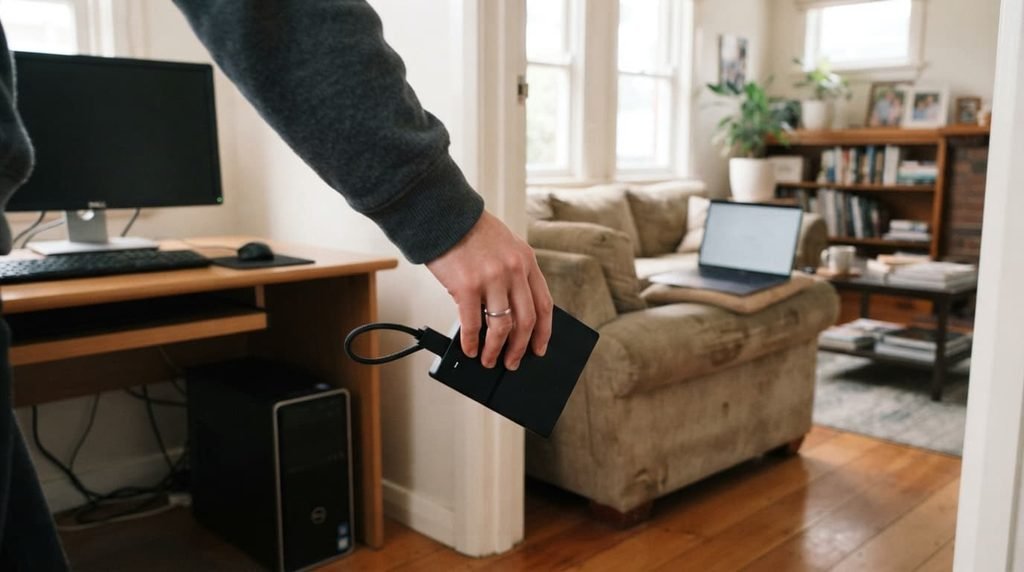
You have a folder of 80 gigabytes, a year of photos or a finished video project, and a second computer in the next room. The reflex is to find the external drive, copy, unplug, walk across the house, plug in and copy again. It works. It also means two full copies of everything and a trip with the drive in your hand. There are other routes, and the best one depends on a number most people never check: how fast the link between the two machines really is.
What the external drive is actually doing for you
An external drive is a physical carrier. It moves data at the speed of a cable, it does not depend on your internet connection, it needs no accounts or settings, and it works with the router switched off. That reliability is the benchmark any alternative has to meet.
The cost is built into the method. Every transfer is two copies, one onto the drive and one off it, plus the handling in between. When both computers are in the same house, the data leaves one machine, passes through a drive, and arrives at the other when it could travel across the room directly.
The kinds of alternative, and what each costs you
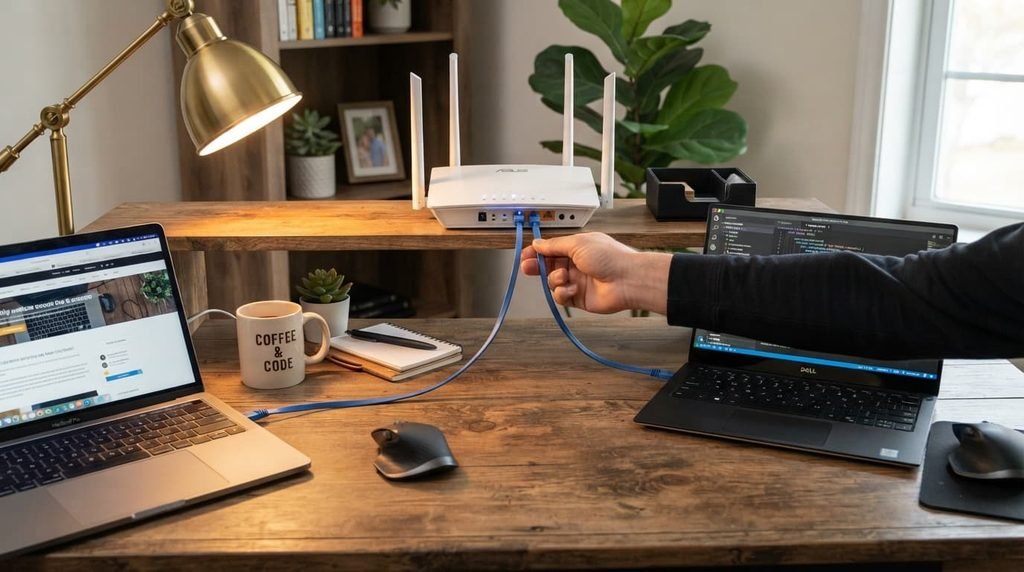
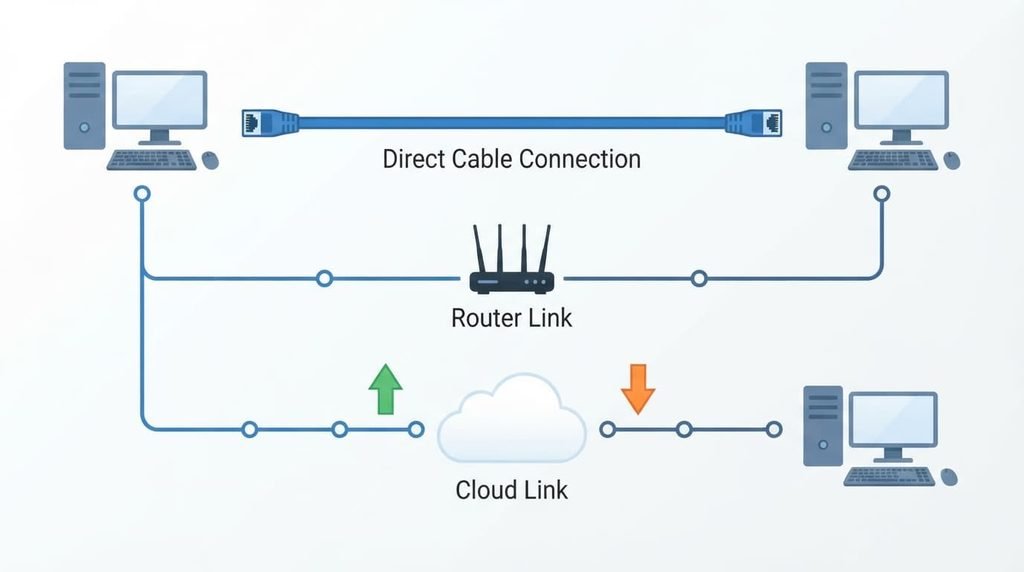
Sending the files directly over your home network. Two computers connected to the same router can share a folder, and one machine pulls the files from the other. A network cable from each computer to the router is faster and steadier than Wi-Fi, so for large transfers it is worth the small effort. The cost is a first-time setup: turning on sharing, finding the other computer, and remembering to switch sharing off afterwards. Use this only on a network you trust.
Sharing a link through an online storage service. You upload once, send the link, and the other person downloads. It works when the computers are in different places, and the receiver needs nothing but a browser. The cost is the upload. Home connections are often much slower at sending than at receiving, an interrupted upload may need restarting, and free plans have size limits. Restrict the link or set it to expire, and encrypt or password-protect anything private before it leaves your computer.
Connecting the two computers directly with a transfer cable. Some computers support a direct link through specific ports and cables, and where it works it is fast and needs no router at all. The cost is compatibility. An ordinary charging cable will not create a transfer link, and the wrong cable between two computers can cause problems, so check the documentation for both machines before buying anything.
A simple setup for the home-network route
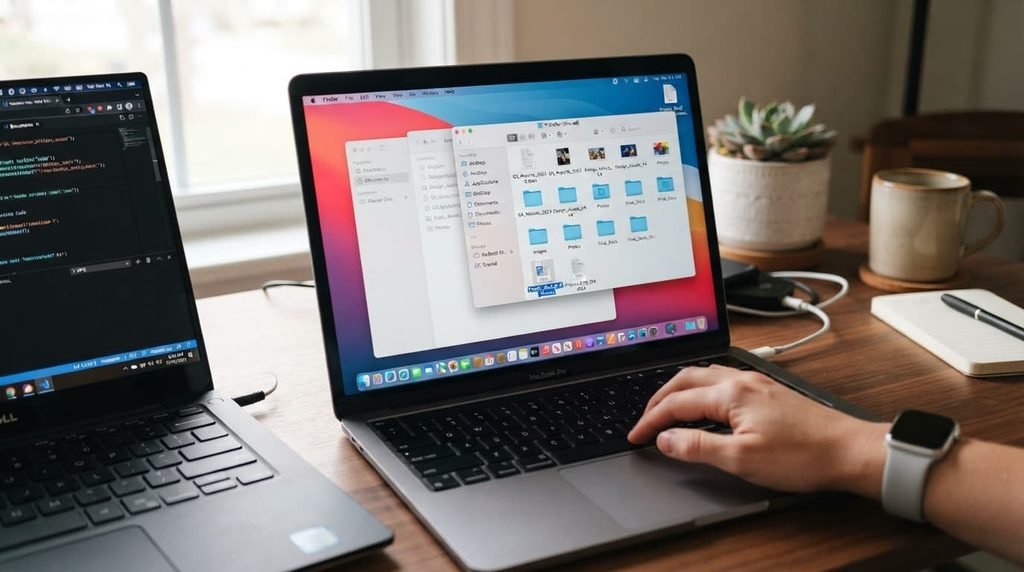
If you try the first alternative, the whole setup takes a few minutes. Connect both computers to the same router, by network cable if you can. On the computer that holds the files, share one folder instead of the whole disk, because sharing less exposes less. Open that shared folder from the second computer, copy the files across, and then switch sharing off again. Keep the shared folder named clearly and empty it afterwards, so that a forgotten share never sits open on your network for weeks.
The trade-off nobody warns you about
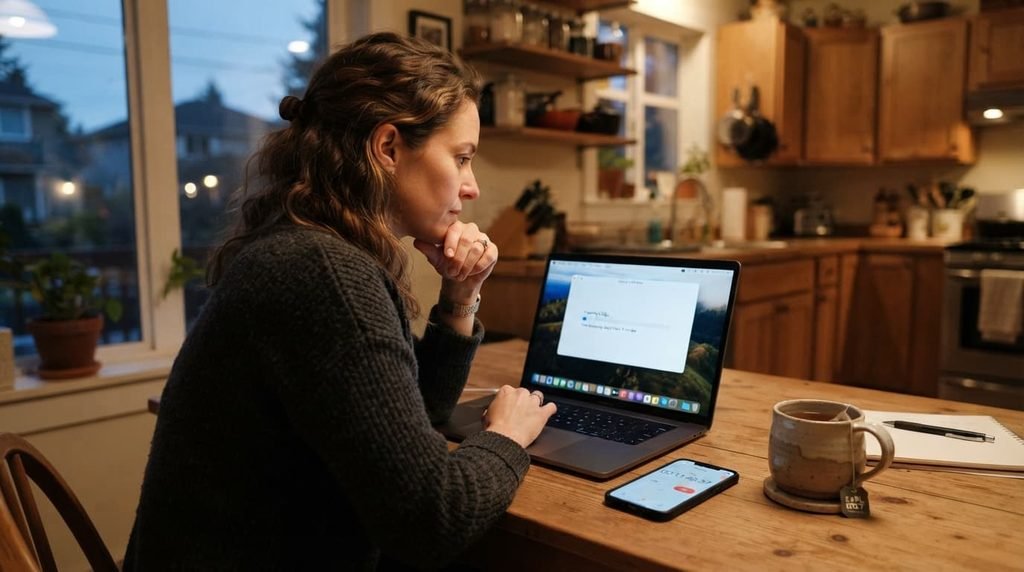
The cost that shows up is not money. It is time you cannot see in advance.
A gigabyte is about eight thousand megabits, so a 100 gigabyte folder is roughly 800,000 megabits. Divide that by the speed of your link and you have the time in seconds. At an upload speed of 10 megabits per second, the folder takes about 22 hours. Over a good Wi-Fi link running at 300 megabits per second, about 44 minutes. Over a wired link at 800 megabits per second, about 17 minutes.
Those figures are arithmetic, not promises. Real speeds are usually lower than the advertised maximum, and a long transfer also needs both computers to stay awake, because a computer that goes to sleep halfway can pause the whole job.
How to work out which route fits
Three questions settle most cases.
Where are the two computers? The same room or house points to the home network. Different places point to a link or to the drive.
How big is the transfer, and how often will you repeat it? A one-off 20 gigabyte folder is a different problem from a weekly 200 gigabyte export. Repeated transfers justify spending an evening on setup, because the effort pays back each time.
Do the files include anything private? If yes, prefer the routes that never leave your own network, or encrypt before uploading.
When the external drive remains the reasonable choice
I’ll say this plainly: the external drive gets dismissed as old-fashioned more readily than the situation justifies.
For hundreds of gigabytes, a slow upload connection, two computers on different networks, or a deadline that leaves no time for setup, the drive is often the fastest, simplest and most private route. It has no ongoing cost, no account and no dependence on anyone else’s service. Choosing an alternative is only an improvement when the alternative is actually faster or easier for your situation.
The one check worth doing before you decide
Copy a one gigabyte test folder by the route you are considering and time it. Multiply the result by the number of gigabytes in the real transfer. A two-minute test turns a guess into an estimate, and it tells you whether the route is practical before you commit an evening to it.
What people get wrong
The first mistake is trusting the advertised speed of a router or an internet plan. The speed you get between two specific machines is what counts, and the test above measures that.
The second is forgetting that sleep settings interrupt long jobs. Set both computers to stay awake for the duration.
The third is assuming an online link is automatically faster than carrying a drive. For very large folders on an ordinary home connection, the drive often wins.
The fourth is deleting the originals too early. After any large transfer, compare the number of files and the total size on both sides and open a few files from the copy. Delete the originals only when you are satisfied, and only when the files exist somewhere else as well.
Questions readers keep asking
Is Wi-Fi good enough for large transfers?
It works, but it is usually slower and less steady than a network cable. If you move large files often, a cable from each computer to the router is the cheapest upgrade.
Can I just email big files?
Email attachments have small size limits, so a share link through a storage service is the usual replacement for anything large.
How do I know a transfer went wrong or went fine?
Compare file counts and total sizes on both computers and open a few files at random. A mismatch in count or size means the copy is incomplete.
Should I keep using the drive as a backup even if I move files another way?
Yes. Moving files and backing them up are different jobs. Whichever route you use to transfer them, keep another copy somewhere that is not the computer they live on.