Why would a fan roar over a page of text? Because the page isn’t the only thing running. That’s what makes a laptop fan spin up while you’re only browsing, and the quickest cut is closing the tab with the moving advert. Four small jobs add up to more heat than the case can shed quietly. The fixes run from free to one purchase.
The figures assume a UK home and a thin laptop whose case sheds about 10 W without raising the fan. Treat them as round examples and check your own task manager before changing anything.
Why does a laptop fan spin up when you’re only browsing
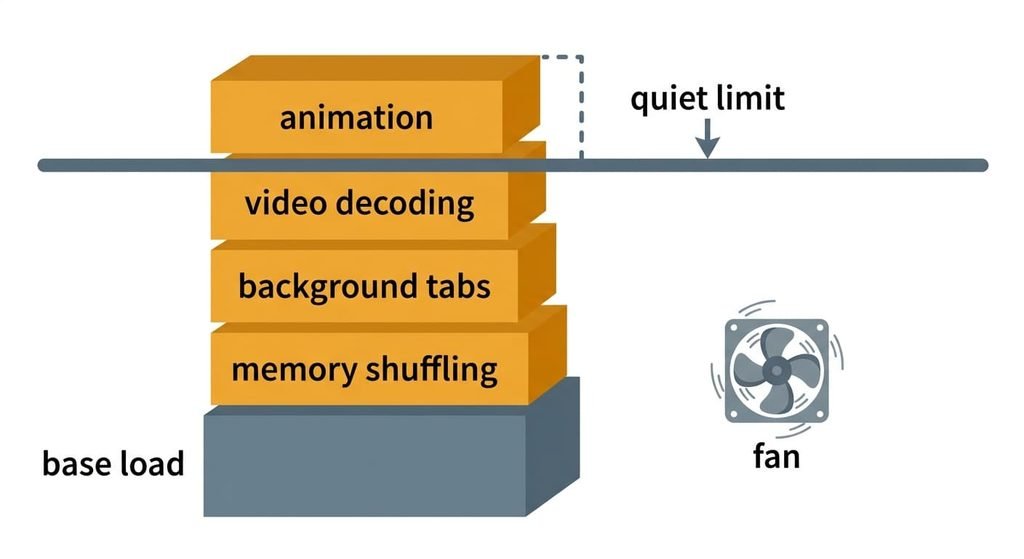
A watt is the rate at which a chip turns power into heat, and the fan answers the total in watts, not how hard the page looks. Reading text feels like no work at all. Behind it, four jobs run side by side, and each one is small enough to ignore alone. The fan can’t tell a quiet page from a busy one, so it simply reacts once the heat builds up.
Start with a base of 4 W that covers the screen and the wireless chip while the processor idles. A moving advert redrawing the screen 60 times a second adds about 3 W. A video decoded by the processor instead of the chip’s own video block adds about 5 W. Twenty-five background tabs, each waking its timers once a second, add about 3 W. A full memory forces the system to shuffle data to disk, which adds about 2 W.
The sum is 17 W against a quiet budget of 10 W. That’s 7 W over the line, so the fan runs. Remove 7 W and it stops, which is why one job alone rarely decides anything. As a rule of thumb for this example, every 10 points of processor load in the task manager is worth about 1 W.
Four checks for why the fan on your laptop will spin up
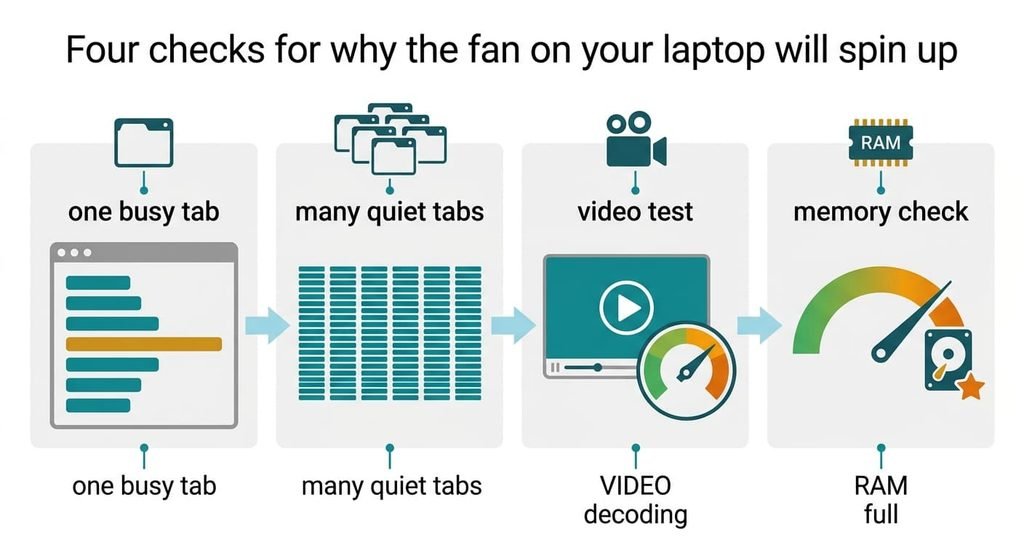
Every check gives you a figure to note down, and none costs money. Do them in order, with the fan already noisy.
First, close everything except the browser. Open its own task manager, which lists every tab’s processor use, and sort by load. A single tab above 20% is moving content, because 20 points are about 2 W. A page that sits at zero points to something else.
Second, add up the quiet tabs. Twenty-five tabs at about 1% each make 25 points, or 2.5 W. If the quiet ones total over 20 points, background timers are part of the bill.
Third, play a five-minute video in a window. A total above 50 points means the processor is decoding it, and that costs about 5 W. A total under 15 points means the video block is doing the work.
Last, look at memory use with your usual tabs open. Above 85% of the installed amount, the system is shuffling data to disk.
The four fixes, in order
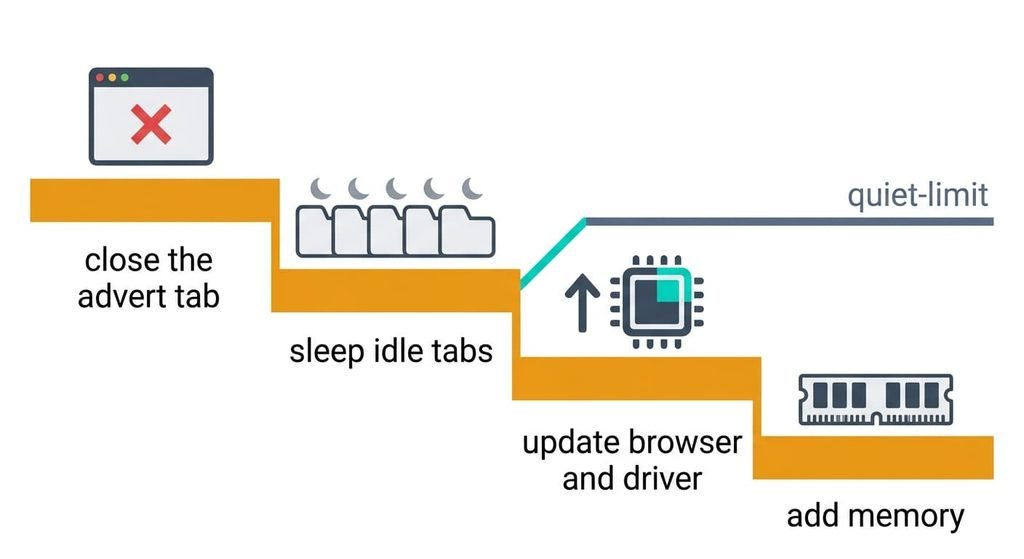
Each fix below removes one of the jobs that make a laptop fan spin up, so work down the list and re-read the task manager after each. The target is a total under 10 W, which is 100 points of load by our rule.
Closing the tab with the moving advert removes the redrawing job, which is worth about 3 W. It costs nothing, and the total drops from 17 W to 14 W. You lose the page, so bookmark anything you still need. Some sites restart the animation when you return, so close the tab for good instead of pausing it. If the advert lives on a page you read daily, expect it back tomorrow. The saving then lasts only until your next visit.
Turning on the browser’s tab-sleeping option puts idle tabs to rest after a few minutes. It’s a setting and takes a minute. Twenty-five tabs at 0.12 W each cost 3 W, and sleeping cuts that to about 0.5 W, so the total falls to 11.5 W. The price is that a sleeping tab reloads when you return, so a half-written form can vanish. A page playing audio is exempt, and so is the tab in front of you. Give it a day before you judge whether the delay bothers you.
Updating the browser and the graphics driver lets video use the chip’s own video block again. It takes about 20 minutes and a restart. Decoding drops from 5 W to about 1 W, and the total reaches 7.5 W, below the 10 W line. The fan should now stay quiet. Note the old version number first, since an update occasionally changes behaviour. Restart the browser afterwards and play the same five-minute video again. If the load stays above 50 points, the decoder isn’t being used, and that points to the driver rather than the browser.
Adding memory, if your laptop allows it, removes the shuffling job. It costs money, and it saves about 2 W, which takes the total to 5.5 W. Many thin laptops solder their memory to the board, so check your model before you buy anything. Opening the case can also affect the warranty. If the memory is soldered, the only route is a newer laptop, which isn’t worth buying for this alone.
If none of that worked
Whatever makes a laptop fan spin up on a bare page is no longer a browsing problem. Close every tab and note the total processor load of the machine at rest. Then take a screenshot of the task manager so a technician can see it too. Also write down how many minutes pass between a cold start and the first fan noise, because a shop can compare that with a healthy unit.
Ask the shop whether they test the fan on its own, and whether they check the vents for dust. A worn fan bearing delivers less cooling at the same speed, so the machine gets hot sooner than its load suggests.
Take a photo of the vents before the laptop leaves your hands.
Resetting the browser to its defaults wipes saved sign-ins and settings, so write down anything you need first. Export your bookmarks too.
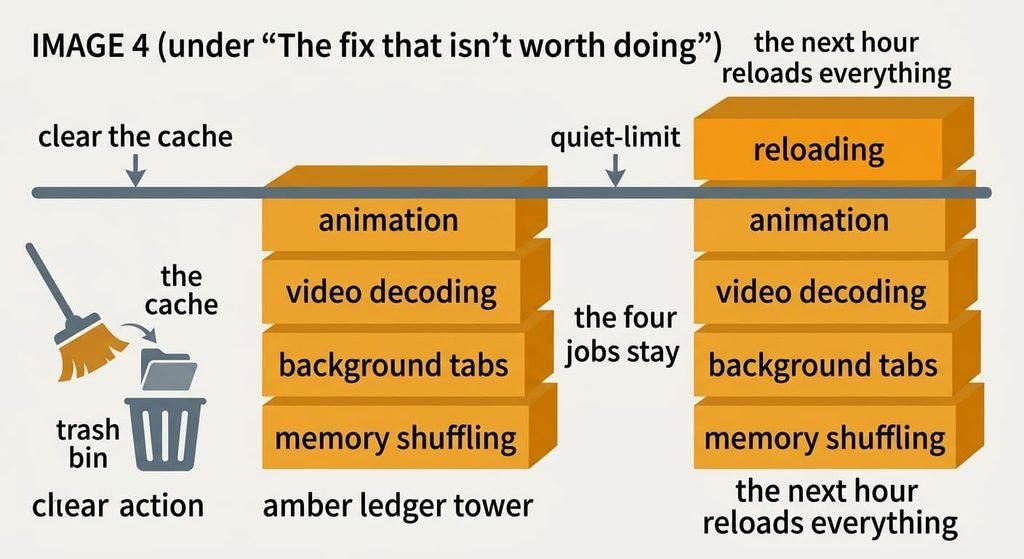
The fix that isn’t worth doing
Clearing the browser’s cache and history is the standard answer online, and it sounds like housekeeping. A cache of 800 MB sitting on disk draws no power at all, so emptying it removes none of the four jobs. The next morning every page reloads from scratch, which adds a burst of work for the first hour. Saved sign-ins go too, so you spend ten minutes logging in again, and none of that touches the moving advert or the video decoding. It also resets the tab-sleeping timers, so the first hour is the noisiest of the day.
The fan may well run harder afterwards.
The habit persists because the browser’s own help pages mention it first, and because a freshly cleared browser feels quicker for a minute. A busy tab doesn’t care how tidy the cache is.
That’s why the task manager comes first. What makes a laptop fan spin up is a sum of watts, so remove the biggest line in the sum before anything else. Close the moving tab, switch on tab sleeping, then update. Treat memory as the last step, and stop when the total sits under 10 W for a week. Seven days will show whether the new habit holds.
Questions readers keep asking
Can I stop the fan spinning up while browsing without buying anything?
Usually, yes, with no spending at all. The first three fixes removed 9.5 W in the example, which took the total from 17 W to 7.5 W. Only extra memory costs money, and it helps solely when the system is shuffling data to disk.
Why does the fan run on a page with only text?
The text page may be innocent. Background tabs can keep drawing, and so can a hidden video or an advert further down the page, even when the part on screen looks still. In the example, 25 idle tabs alone cost about 3 W, which is almost a third of the quiet budget.
What signals a hardware fault rather than busy tabs?
If the fan climbs within a couple of minutes of a cold start, with every tab closed, suspect the machine itself. So does a whine or rattle in a cool room. If the task manager shows a total under 20 points of load while the fan is loud, ask a shop to inspect it.