The “disk almost full” warning tends to arrive just after you import the holiday photos. In about 40 minutes you’ll be able to free up space on a laptop to at least 15% of the disk, with every photo still readable. One decision shapes the rest: whether clearing files you can fetch again is enough, or whether older photos must move to another drive. Step four makes that call with one subtraction.
The figures come from an invented laptop with 256 GB of usable space and 24,000 photos of 5 MB each. Take them as illustrations and swap in yours. No menu paths or program names appear, since the method outlasts both.
Before you free up space on a laptop
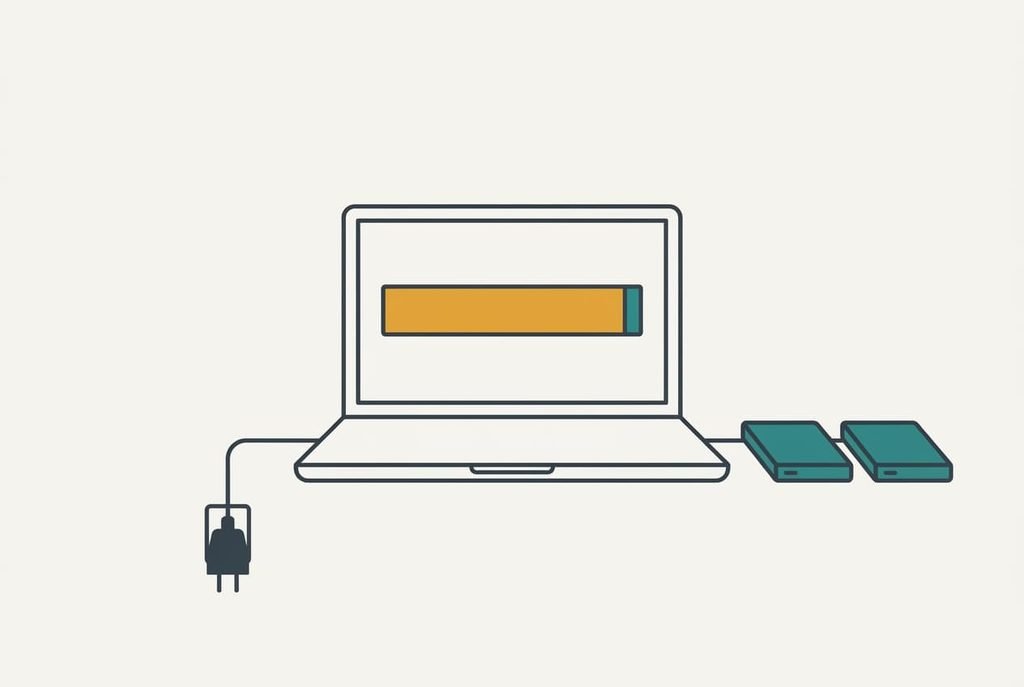
Three conditions must hold when you begin. You need an external drive with room for the folders you’ll move, and without it you can still do steps one to three and stop. The laptop must stay on its charger, because a copy cut off halfway leaves folders that look complete and aren’t. The drive’s format must accept single files over 4 GB, since an older format refuses them. A phone video at an assumed 60 Mbit/s reaches 4 GB in about nine minutes.
The prerequisite people skip is a second place to hold the photos before the laptop’s copies go, and they regret it when the lone drive fails. A second drive is enough, or any spare machine with room. Lacking both, stop after step three, because moving photos onto a single drive turns one copy into one copy that is easier to drop.
Gather a pen and paper too. Writing down the free-space figure at each stage tells you which step helped, and it gives you the numbers you’ll need in step four.
Six steps to free up space on your laptop
1. Open the screen that sorts folders by size and write down the five biggest. Space can’t be freed until you’ve located it, and the largest folder is rarely the one you’d guess. In our laptop the photo library is 120 GB, which is 47% of the disk, and free space stands at 9 GB. The list should add up to roughly the used space, with the rest taken by the system. If it falls far short, something hidden holds the space, and step two explains the likeliest cause.
2. Look in the bin before you empty it, because emptying removes everything in it for good, photos you binned by mistake included. Then empty it. Deleted files keep their space until the bin is cleared. In our case the bin holds 4 GB, and the free figure should rise by about that much. If it doesn’t move, carry on. Step six and the stall notes cover that.
3. Remove what can be fetched again: installers and finished downloads. Update leftovers go too. These go because the internet holds another copy, so a file you can’t name should stay. Our downloads folder gives back 11 GB and the update leftovers 3 GB. Sort by date first so the newest files sit at the top, where you can leave them alone. Free space now reads 27 GB, which is 10.5% of 256.
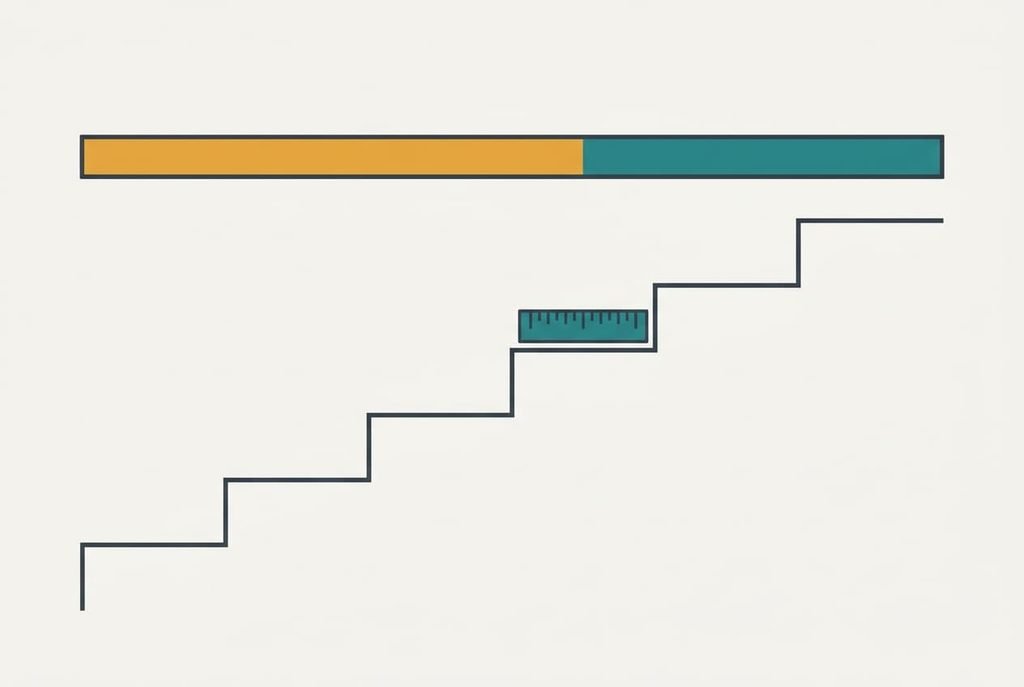
4. Compare that figure with the target, which is 15% of the disk, or 38.4 GB. The gap is 11.4 GB, and at 5 MB a photo that’s 2,280 photos. Round up to 3,000 of the oldest photos, which are 15 GB, so a slip in your estimate can’t leave you short. Oldest first, because you open them least. If the gap is zero, stop here.
5. Copy those 3,000 photos to the external drive, then copy the same folder to the second place. A copy leaves the originals where they are, which is why it’s safe. Over a fast port, 15 GB takes 150 seconds at roughly 100 MB/s. A slow port at about 35 MB/s needs seven minutes. Compare the file count and total size of the copy with the original. Open ten files picked at random from the copy, and a pass means every count and size matches and all ten open.
6. Delete the laptop’s copies only now, and empty the bin again. The photos still exist twice elsewhere, so a failed drive costs you nothing permanent. Free space should read 42 GB, which is 16.4% of the disk.
Check that the result is real
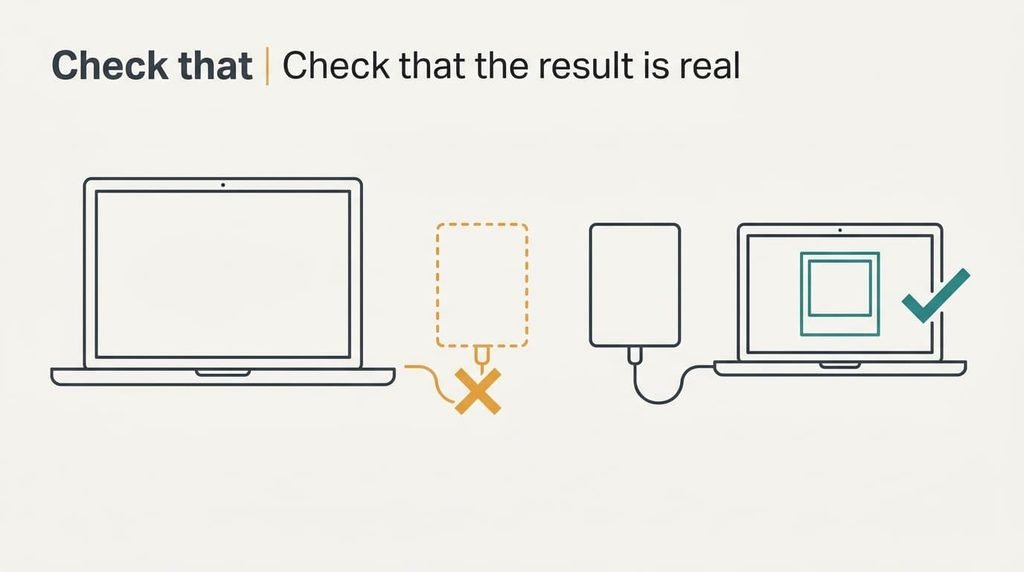
Counting files tells you the folder arrived. It says nothing about whether the photos open, and you can’t free up space on a laptop safely until they do. Test the finished state by opening three of the moved photos from the second place on a different device, with the first drive unplugged. If they open at full size, both copies are good. The second test is the laptop’s own figure: restart and read the free space a minute later.
A full pass means the three photos open and the free figure matches what you wrote down. Photos that open while the figure sits lower than expected make a partial pass, because something still holds space. If a photo refuses to open from either copy, that’s a fail. Put the originals back in that case, if you still have them, and repeat the copy.
If a step did not work
The commonest stall as you free up space on a laptop is that the figure doesn’t rise after deleting. Deleted files stay in the bin until it is emptied, and some systems keep local snapshots that hold space for a while.
Empty the bin and restart, then check again.
A second stall is a copy that crawls. The drive may sit on a slow port, or the laptop may go to sleep mid-copy. Use a port at the fast end and stop the laptop sleeping until the copy ends. A copy that restarts from zero after a sleep wastes the minutes you’ve already spent.
A third is a refusal on one file, usually one over 4 GB or with an odd character in its name. Reformat only a drive with nothing on it, then copy again. If the drive holds other things, shorten the name. Work down them in that order, as each rules out the next.
The step not worth taking
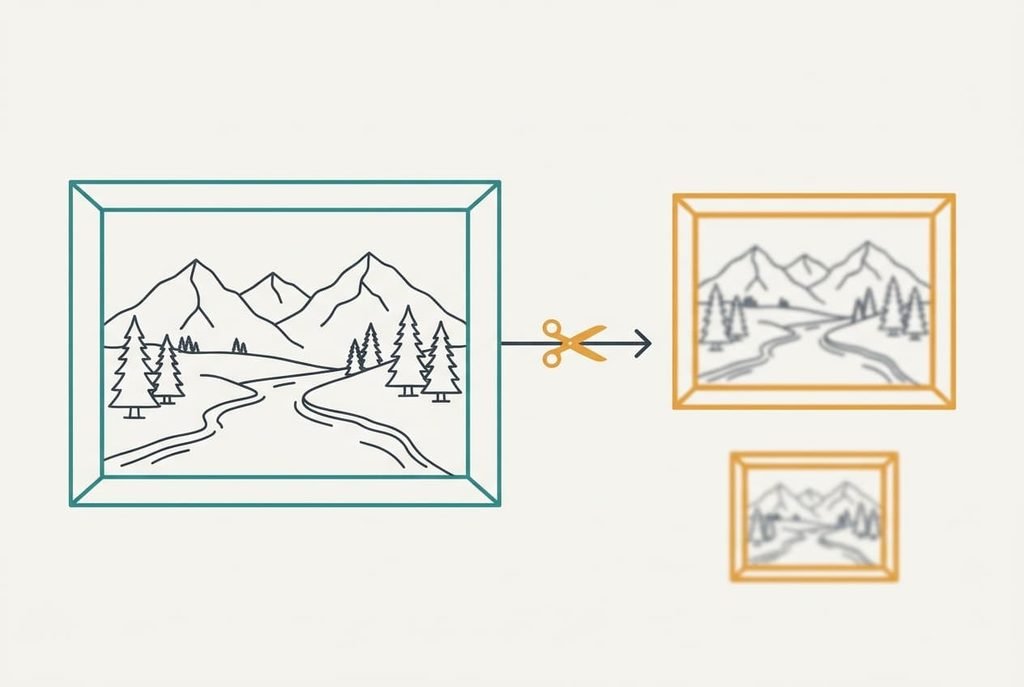
Re-saving the library at a lower quality is the shortcut that guides love to offer. It can halve a 120 GB library, which looks like 60 GB freed for no deletion. It also discards detail that can’t come back, and each further save of a compressed photo discards a little more. A print or a crop next year will show it.
The method above frees 15 GB from a laptop that needed 11.4. Compression would give you five times what you needed and cost you the originals’ sharpness. Skip it unless the library has no other use than viewing on a screen. Even then, keep one untouched copy elsewhere first. The step also removes the very thing a second copy is meant to protect, so you’d be spending your only good version to save a little room.
Moving the old photos is how you free up space on a laptop for good, and the sharp originals stay safe.
You now have a laptop at 16.4% free and 3,000 photos that live in two places beside it. Check the free figure monthly, because a single new import can use 3 GB in an afternoon. When it drops under 15% again, repeat steps four to six with the next oldest batch, and note the new total in your paper log. A single test confirms all of it: open a moved photo from the second place, with the first drive unplugged.
Questions readers keep asking
How long does it take to free up 40 GB?
About 40 minutes in total. Measuring and clearing take around 15, the copies take 5 to 15 depending on the port, and checking takes 10. The copying runs without you, so the real hands-on time is shorter. A slow drive stretches it, and a full bin adds a minute.
Will moving photos to an external drive change them?
A copy leaves the pixels unchanged, so the files stay identical byte for byte. The risk is in the deletion afterwards. That’s why the method keeps two copies elsewhere and tests an opened photo first. A photo app that manages the library should move it with its own tool, because it keeps an index of where files live.
Does this work for videos as well as photos?
Yes, with one change. Videos are larger, so a single clip can pass 4 GB and be refused by an older drive format. Check the format before copying, and count by size rather than by number of files. Eight minutes of high-quality phone video can weigh as much as 700 photos.