A laptop day works like a household budget. The pack holds a fixed amount of energy, and the only lever you own is how fast it’s spent. To stretch your laptop battery for a whole shift, you’ll turn the day into a figure in watts, then measure what the machine spends. You finish with a written budget and a measured draw that meets it or shows the gap, after about fifteen minutes of arithmetic spread across a morning.
One decision shapes the rest. This guide cuts the draw and leaves the battery alone, so a bigger pack belongs to another guide. All the figures below are worked examples on an assumed pack used in the UK.
What to have ready before you begin
You need the laptop and a phone calculator, with the charger within reach. Work at normal room temperature, since a cold pack delivers less than its label says and would skew each reading. Start every test at 95% or above.
Most guides skip the item that lets you stretch your laptop battery by evidence: a repeatable 30-minute block of ordinary work. The percentage gauge moves in whole steps of 1%. On a pack holding 42 Wh, that’s 0.42 Wh per step, or 0.84 W over half an hour. A change smaller than that vanishes into rounding, and a video call in one block against writing in the next would swamp it.
The block is the ruler.
Pick one task mix, such as reading a document with a few tabs open. Set a timer, and note the percentage on paper when you start and when it rings. Leave the charger out for the whole block. If you can’t repeat the mix, stop here, because steps 4 to 6 would then compare two different workloads.
The procedure to stretch your laptop battery, step by step
1. Find the battery’s health page or report. It lists the capacity the pack was built with and the capacity it holds when full today. You want the second figure, in watt-hours (Wh), the unit of stored energy. A pack a few years old often holds less than it was built with, and every later sum starts from today’s value. Check: one number is written down. The example pack was built with 48 Wh and now reads 42 Wh.
2. Turn the day into a budget. Choose the hours you need, multiply the full-charge figure by 0.9, then divide by those hours. The 0.9 keeps a tenth in hand, because the laptop sleeps before it’s empty. Check: you hold one figure in watts. For nine hours, 42 × 0.9 is 37.8 Wh, and 37.8 ÷ 9 is 4.2 W.
3. Measure what you spend now. Unplug at 95% or more, run your block, then read the drop. Multiply the drop in percent by the full-charge figure, divide by 100, then double the result for a half hour. Check: two blocks agree within about 1 W. The example drops 9%, which is 3.78 Wh, so the draw is 7.56 W.
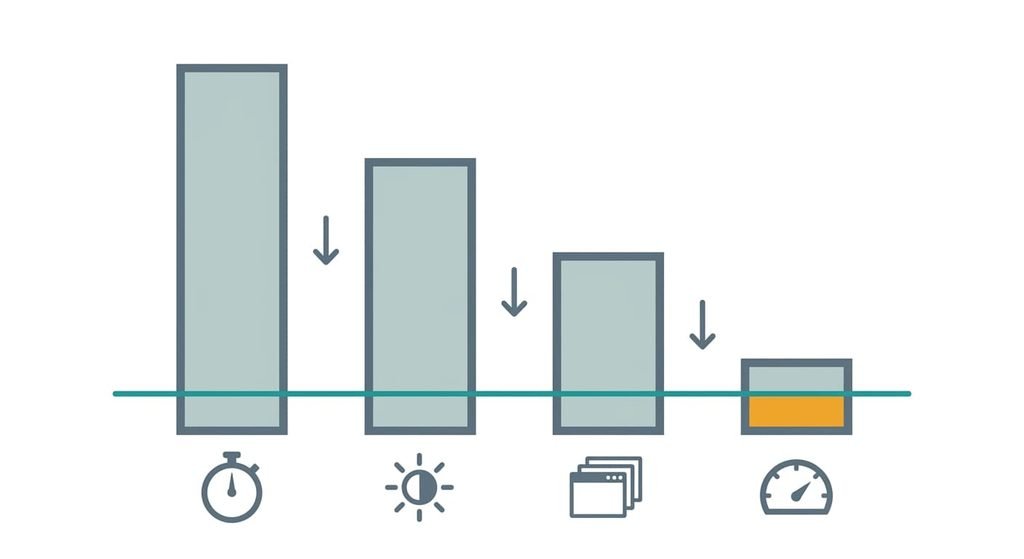
4. Dim the screen and measure again. Lower the brightness until the page is still readable, then repeat the block. The backlight is a lamp that burns the same whatever the processor does, so it’s often the largest steady item. Check: the drop shrinks. The example falls to 7%, which is 5.88 W, a saving of 1.68 W.
5. Quiet the background work. Open the system’s activity list and sort it by processor use. Save open documents first, since quitting an app discards unsaved changes. Pause sync clients and close tabs that play video, then quit apps you aren’t using. Each one holds the chip out of its deep idle states, where it draws a sliver of its working power. Check: the list sits near idle while you read and the next block drops again. The example reaches 6%, which is 5.04 W.
6. Switch on the power mode that limits top speed when unplugged, then measure once more. This option loses no data and reverses in seconds. Divide 37.8 Wh by the last draw to get your hours. Check: you can state them. In the example the cap changes no reading, since writing seldom asks for burst speed, so 37.8 ÷ 5.04 gives 7.5 hours. The missing 1.5 hours cost 7.6 Wh, which a 30 W charger replaces in about fifteen minutes at lunch.
Check that your laptop battery really stretches a full day
The test is to unplug at full charge, work as you normally do and read the percentage at the four-hour mark. It checks the day and skips the steps. Write the reading down with the time. Pick a day with ordinary meetings, so the reading reflects your real load. With the example’s 5.04 W, four hours spend 20.2 Wh, which is 48% of 42 Wh, so you should read about 52%.
Between 47% and 57% is a pass. A partial pass reads 42% to 47%, which usually means one heavy hour such as a call, so repeat the day before changing anything. Below 42% says the draw you measured wasn’t your typical work. Return to step 3 and run the block with a call in it. Above 57% means your day is lighter than the block, which leaves spare hours.
If a step did not work
The first stall is a gauge that jumps or reads oddly right after you unplug. The system infers charge by watching voltage and tallying current, so the figure is an estimate. Ignore the first five minutes and keep to 30-minute blocks.
The second is a screen change that saves nothing. An update or an indexing job may be running hot in the background, or a sync client may be catching up. Both finish on their own, usually within two hours. Check the activity list and repeat the block later.
The third is two blocks of the same work that differ by more than 1 W. Either the work wasn’t the same or the room was colder. Repeat both. If you still can’t stretch your laptop battery after that, the full-charge figure from step 1 is probably lower than you assumed, and the budget needs rebuilding from it.
The step not worth taking
Many guides suggest installing a battery-saver utility, and I’d skip it. Such a program runs in the background itself, so it spends power to claim savings. It can adjust only the screen and power-mode options your system already exposes, and you’ve just changed those by hand with a measurement beside each change. Utilities that “clean” memory force apps to reload from storage, which costs energy again a minute later.
A number you measured beats a score the utility shows.
The block you ran in steps 3 to 6 is the proof that you can stretch your laptop battery on any machine. Whether the speed cap helps depends on whether your work ever asks for bursts. Writing rarely does. Builds and exports often do. For those, run a block with a build in it and keep the cap only if the draw drops.
You finish with a written budget of 4.2 W for nine hours on a 42 Wh pack and a measured draw that meets it or shows the gap. Usable energy divided by hours gives the budget, and usable energy divided by your draw gives the hours you really have. The four-hour reading is the single test that confirms the plan. Run it on a normal workday before trusting the plan. If it lands under 42%, return to step 3.
Questions readers keep asking
How much time should you set aside to measure a laptop’s power draw?
One block takes half an hour, and you spend it working anyway. The full routine uses four or five blocks, so a morning covers it, plus a few minutes of arithmetic. Repeat a block if two readings differ by more than 1 W, since the gauge moves in whole-number steps.
Do power modes or a dimmer screen lose any work?
No. Power mode and brightness are plain settings, so changing them closes nothing and deletes nothing, and each undoes in seconds. Closing apps and tabs in step 5 does end them, so save open documents first and let sync clients finish before you pause them.
Does this method work for a laptop used mostly for video calls?
Yes, with one change. Make the block a call, since a call loads the camera and the processor together, and the draw runs well above writing. Build the budget from that block, then expect a shorter day. In the example, a 9 W call block gives 37.8 ÷ 9, which is 4.2 hours.