The usual complaint is that a VPN app says it’s connected and nothing seems to have changed. To set up a VPN on your phone and laptop in a way you can verify, you install the provider’s own app on each device and set two options. Then you compare your public address before and after. It takes about twenty minutes.
You’ll finish with both devices connecting to a nearby server through a UDP-based protocol, with all traffic blocked if the tunnel drops. One decision shapes the steps. This guide uses the provider’s app on each device and leaves manual profiles to a separate guide. It assumes broadband at home in the United Kingdom.
Before you set up a VPN on your phone
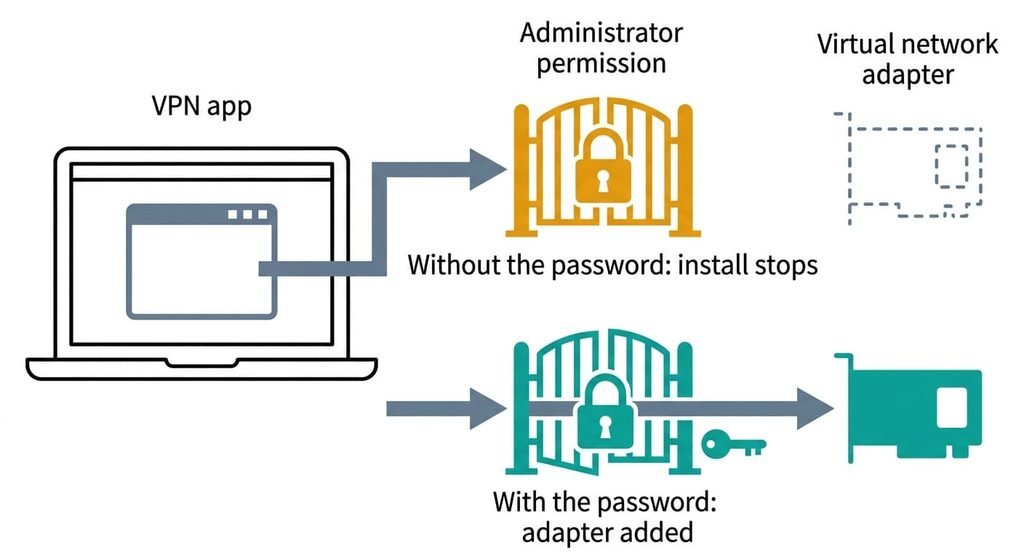
Make sure you know the laptop’s administrator password, because a VPN adds a virtual network adapter. That is a software network card, and the system allows it only with permission. A work-managed laptop may refuse the install outright, and then this guide can’t help you.
Skipping the password check strands you at step 2.
Four other things need to be ready. You need an account with the provider and the sign-in details, including any code sent to another device. You need to know how many devices the account allows at once [VERIFY: simultaneous connection limit], because two are connecting here. A working connection on both devices matters too, since you can’t tell a VPN fault from a broken network otherwise. Close or uninstall any other VPN app on the phone, because a phone runs only one at a time and the older app would switch this one off. Makers rename controls all the time, so match each description below rather than a label. Your menus may differ from what I describe.
The procedure to set up a VPN on a phone and laptop
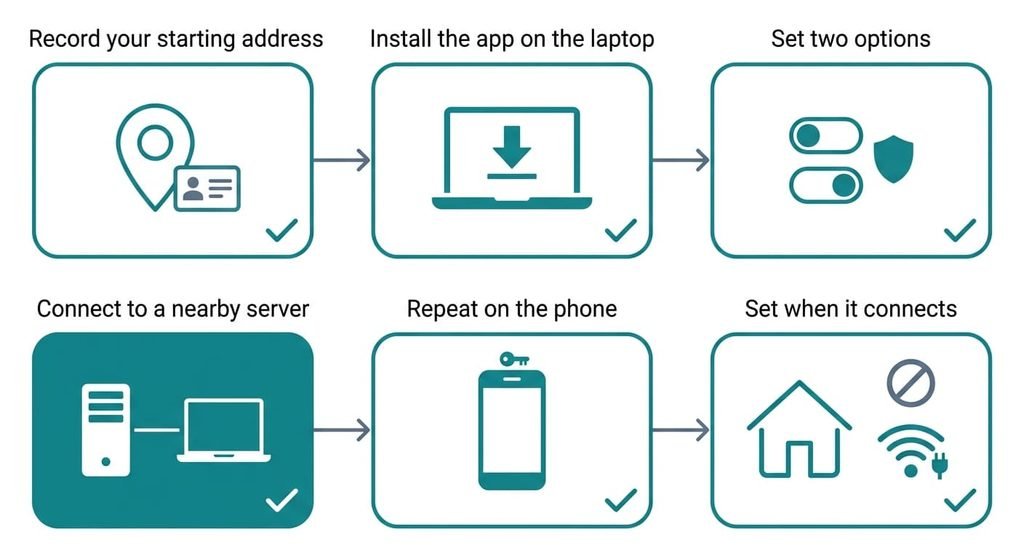
1. Record your starting address. Search for a page that shows the public address your connection appears from. Note the address and the town it names. That baseline anchors every later check, and without it a connected badge proves nothing. You’ll know it worked when you hold one address and one town on paper, taken on the laptop with no VPN running.
2. Install the provider’s app on the laptop. Get it from the provider’s own site or the system’s official app store, and check that the publisher name matches the provider, because look-alike apps exist. The install asks once for permission to add the network component. You’ll know it worked when the app opens on a sign-in screen.
3. Sign in, then set two options before you connect. Look for the setting that names the tunnel protocol and choose a UDP-based one. Then find the option that blocks all traffic if the tunnel drops. With it on, a failed tunnel cuts your internet until you reconnect or switch the option off, which is the purpose. You’ll know it worked when both options show as on.
4. Connect to a nearby server. Pick the location nearest to you, since distance sets how slow pages feel. Wait for the app to report connected, then reload the check page. You’ll know it worked when the address and town differ from your baseline and the town matches the server you chose.
5. Repeat on the phone. Install from the official store, sign in with the same account and set the same two options. The phone asks permission to add a VPN configuration and may want your passcode. Starting this tunnel switches off any other VPN on the phone. You’ll know it worked when a status symbol shows whenever the tunnel is up and the same page names the server’s town.
6. Set when each device connects. Look for the automatic-connection option and limit it to networks other than your home one. A tunnel at home can hide local devices such as a printer, and your own network is the one you trust. You’ll know it worked when joining a mobile hotspot makes the app connect by itself and your home network doesn’t.
Check that the VPN on your phone and laptop actually works
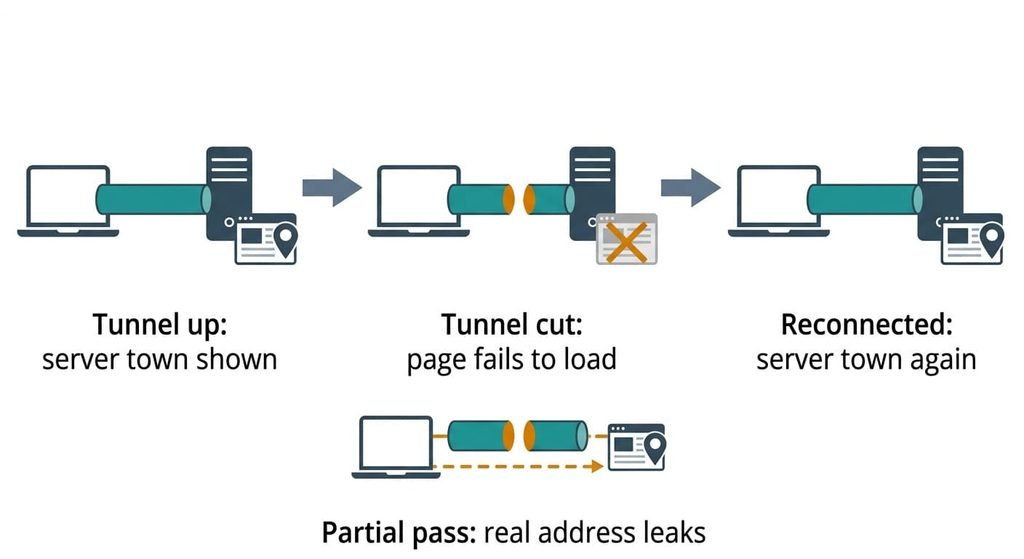
Run one test on each device. Join a network that isn’t your home, load the address page, cut the connection for a moment and load it again. The test checks the result, not the steps you used to set up a VPN on your phone and laptop. A pass looks like this: before the cut the page names the server’s town, during the cut the page fails to load, and after the reconnect it names the server’s town again. The failed load proves the traffic block is working.
A half pass happens often. The page names the server’s town, yet for a few seconds after the cut it shows your real address. That means the block option isn’t in force, so repeat step 3. Then open a page that lists which name servers answer your lookups. If it names your broadband provider, lookups are leaving the tunnel, and a hand-set name server is the usual cause.
If a step did not work
If the app says connected and nothing loads, the block option is working and the protocol is the likely problem. Certain hotel and office Wi-Fi refuses UDP. Switch to the TCP-based option and test again. Pages will load more slowly, because the tunnel then resends lost packets twice over, but they will load.
If you set up a VPN on your phone and it drops the tunnel after the screen locks, battery saving is stopping the app in the background. Look for the app’s battery option and allow it to run unrestricted. The fault shows up as a status symbol that vanishes after a few minutes of an idle screen, and the block option then cuts the phone off.
If the address page still shows your home town while the app says connected, reload the page in a private window first, since a cached page can mislead. If it persists, another VPN profile is active or step 3 didn’t save.
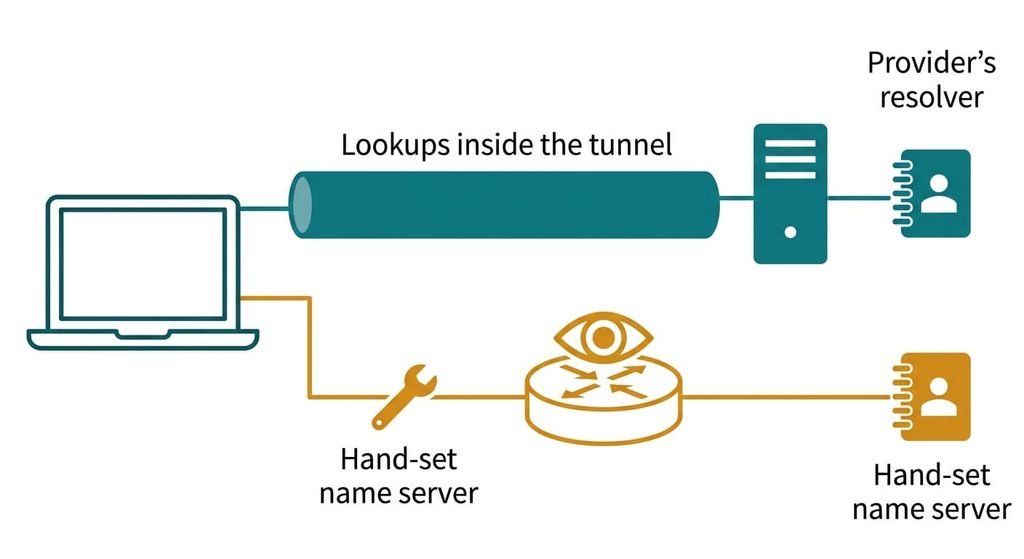
The step not worth taking
Setting a name server by hand on top of the app is advice you’ll see in many guides. The app already sends your lookups through the tunnel to the provider’s resolver. A manual override on the device can send them straight to the café’s network instead, on some systems, so the sites you visit become readable again. That is the leak the check above looks for. You gain a name server you chose, and you lose the assurance that the lookups stay inside. I’d leave the setting on automatic and let the app manage it.
A chosen name server buys little and risks the tunnel’s main job.
If a lookup leak does appear in the check, remove the manual override before anything else. Whether your system routes lookups this way depends on its network configuration, which varies by system, so the lookup check settles it.
To set up a VPN on your phone and laptop is to end with two devices that connect to a nearby server, block traffic when the tunnel drops and show the server’s town on the address page. The cut-and-reload test on each device is the single check that proves it. Run it once on the laptop and once on the phone before you rely on either one. If the page names your home town even for a few seconds after a cut, go back to step 3.
Questions readers keep asking
How many minutes does a VPN setup on two devices take?
About twenty minutes for both. The first device takes most of it, because the permission prompt and the two options are new there. The phone is quicker, since you sign in with the same account and repeat the same two options. Both the baseline address and the final check take a few minutes each.
Will setting up a VPN erase anything on my phone or laptop?
No data is erased. The laptop gains a network component, and the phone gains a VPN configuration. A phone runs only one VPN at a time, so starting this one switches off any other. Uninstalling the app removes both additions, so you can undo the whole setup.
Does the same account work on a tablet?
Usually yes, if the account’s device limit allows a third device [VERIFY: simultaneous connection limit]. A tablet follows the phone’s steps, including the permission prompt. A router or a games console follows a different method, which this guide doesn’t cover.