The update button inside a router is the weakest way to learn whether your router firmware is up to date, because it asks the maker’s own server and can report “up to date” for a model the maker stopped supporting long ago. By the end of this guide you’ll hold a verdict: current, behind by a stated number of releases, or past the maker’s support. It takes about 12 minutes. The one fork is whether you or your broadband provider controls the router.
Our setting is a UK flat with an owner-bought router. Its version numbers are invented, so use the method with your own.
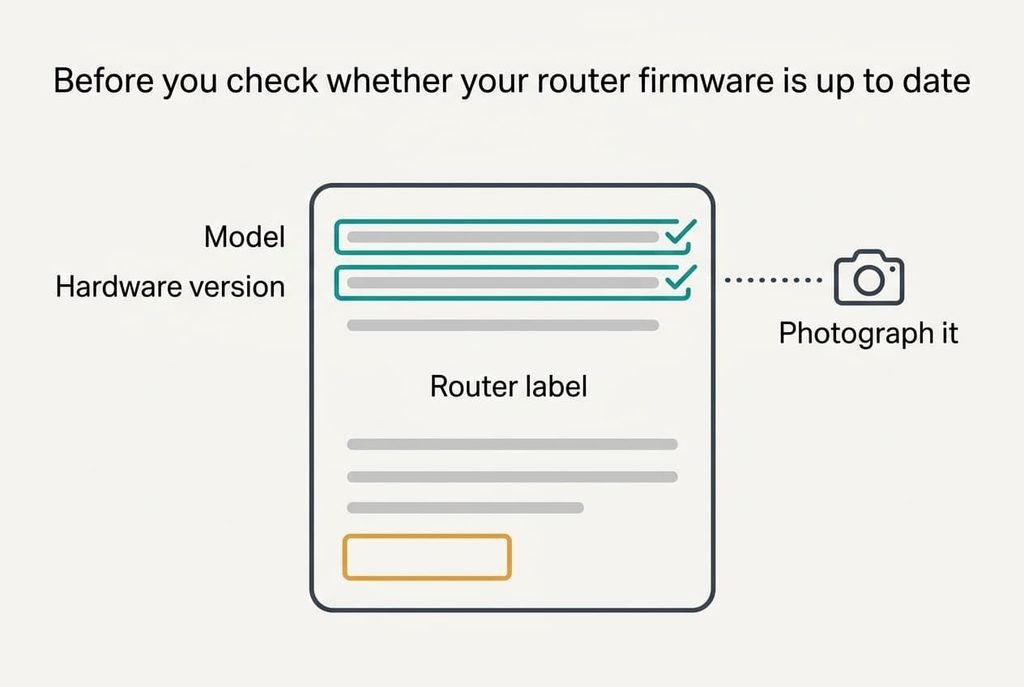
Before you check whether your router firmware is up to date
Three things must be in place. You need a phone or computer on the router’s network. You need the router’s admin password, the one you set yourself. And you need about 12 minutes of attention. Without the password, stop. A factory reset to get in wipes the Wi-Fi name and password, and every device in the home must rejoin.
The item people skip is the hardware version printed on the label beside the model name. Makers publish separate firmware for each hardware version, and a file for version 1 can be refused by version 2 or, rarely, leave the router unusable. Our label reads model X200, hardware version 2. Photograph it now, and keep that photo with your verdict, since you’ll need it again in three months.
If your broadband provider supplied the router, you probably can’t log in at all. Providers usually push updates themselves and hide the version. Ask their support whether the router updates automatically and how you can see its version, then skip to the questions at the end.
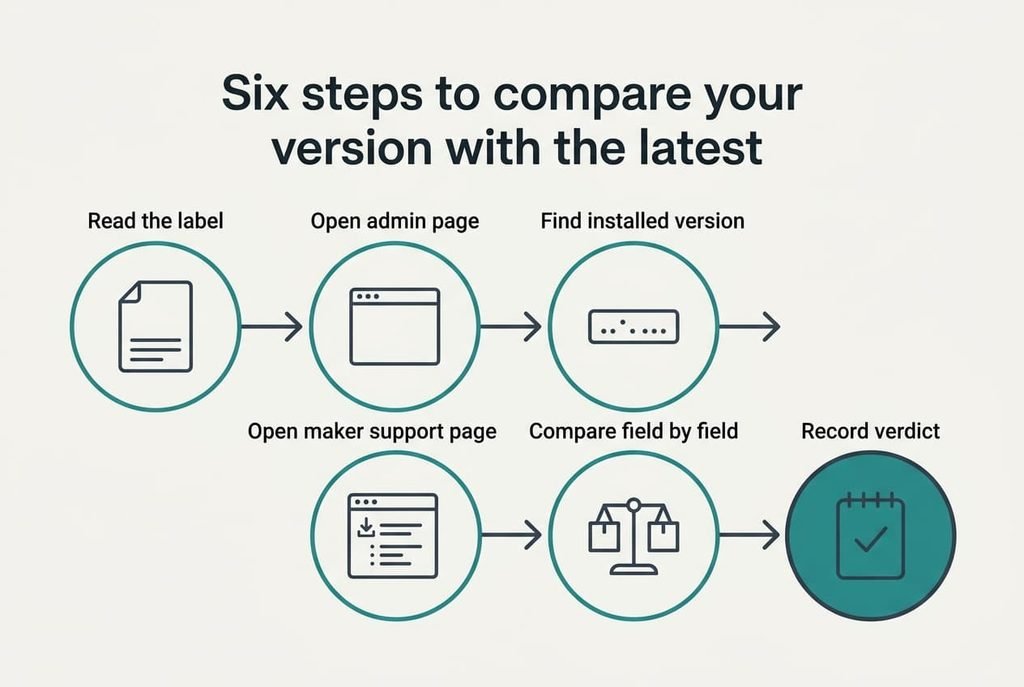
Six steps to compare your version with the latest
1. Read two strings off the label: the model and the hardware version. You’re looking for exactly those two, because the search later depends on both. A photo saves a trip back to the router. Both strings should be readable, with neither blank.
2. Open the router’s admin page. The address sits on the label, and your computer’s network details list it as the default gateway. This is the only place the installed version appears. A status page that loads over your home Wi-Fi and asks for the password confirms you’re in the right place.
3. Find the installed firmware version. Look in a status or about area that shows a string such as 2.4.9. Some makers call it the software version. Copy it exactly with every trailing letter, since a letter can mark a different release. Proof is a string of dotted numbers copied into your notes.
4. Open the maker’s support page for your exact model and hardware version. Search the model name with the word support, then read the downloads list for your hardware version. The maker’s page is the one complete list of releases. The page should name your model and version and show a newest release with a date.
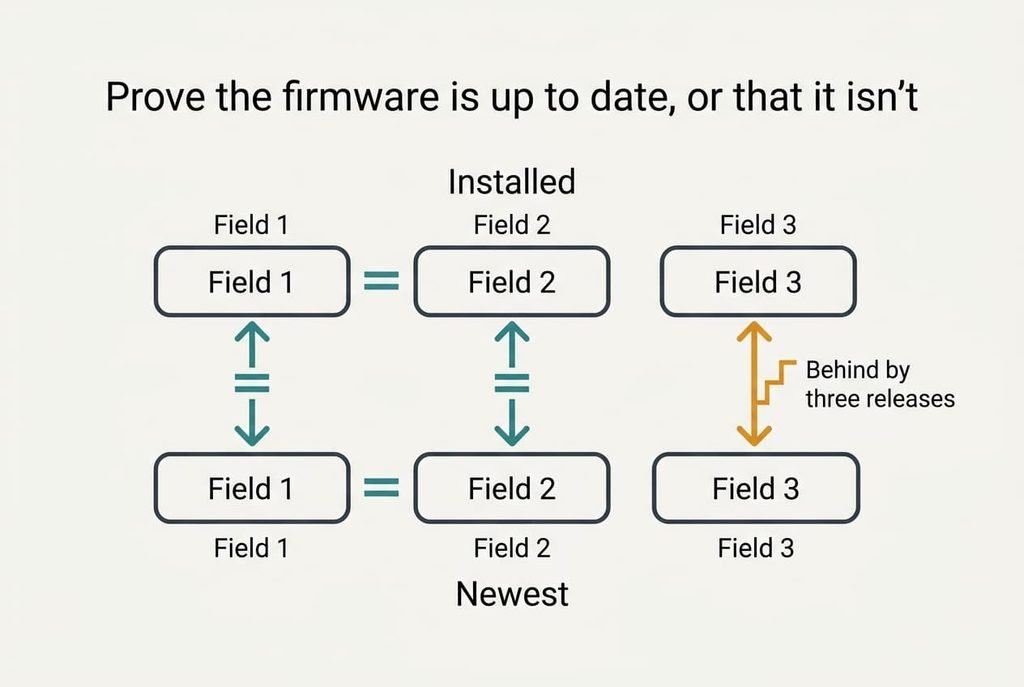
5. Compare the two strings field by field. Split each at the dots and compare each field as a whole number. Our installed 2.4.9 against a newest 2.4.12 gives 9 against 12, so the router is three releases behind. Read as decimals, 2.4.9 becomes 2.49 and 2.4.12 becomes 2.412, which makes the older one look newer. The result is one phrase, such as “behind by 3” or “same”.
6. Write down the verdict with today’s date, then decide. If the strings match, your router firmware is up to date, so recheck in three months. If you’re behind, read the maker’s release notes first. Notes that mention security fixes make the update worth doing this week. To update, download the file for your hardware version, save the settings to a file and apply the update with the router on a steady socket, because cutting power mid-write can leave it unusable. Afterwards the admin page should display the new string.
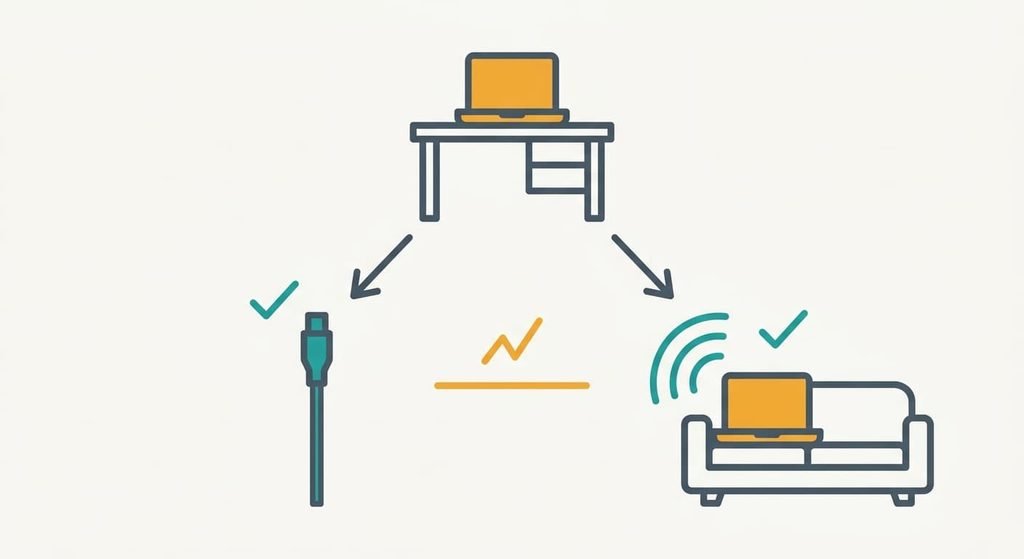
Prove the firmware is up to date, or that it isn’t
A verdict you haven’t tested is a guess.
Before you trust the verdict, search the maker’s version history for your exact installed string. Passing looks like your string sitting in the list with a release date, as the newest entry. A newer entry above it is a partial pass, with the gap already measured as a count. No match anywhere is a fail. Then the router runs a provider-modified or beta build, and you should ask the maker which release it matches.
Most makers publish release notes. If yours doesn’t, treat the comparison as weaker evidence and look at the date of the newest file instead. After an update, run the same test again: the admin page should show the new string, and that string should appear in the maker’s list with its date. Note when the router came back, because a restart that runs past ten minutes is a stall.
If a step stalls
Why can’t you find the version? Without a version you can’t say whether your router firmware is up to date. Some routers bury it under a name like system information. Search the admin page for the word firmware before you assume it’s missing. If the page has no version at all, that’s a sign the model is old, and the verdict becomes a question for the maker.
The support page may list several files for similar models. Match the model and the hardware version exactly, since a near match can be refused or, rarely, fail halfway. Allow ten minutes to check the page’s title and file name before you download anything.
The third stall is an update that seems to hang. Wait a full ten minutes before you touch the power, and leave the page open with the phone’s screen on. Routers rewrite their storage slowly, and an early restart is the one way to turn a slow update into a dead router.
The step not worth taking
Factory-resetting after every update is advice that circulates widely, and it adds work for almost no gain. A reset erases the Wi-Fi name and password along with every setting, so each device in the flat must be joined again, which takes about 20 minutes. The router also reverts to the factory admin password printed on its label, and anyone who has seen that label knows it. Updates keep your settings unless the release notes say otherwise. The advice dates from old firmware that sometimes carried stale settings forward. I’d defend skipping the reset against the habit of starting clean each time. If a release notes page tells you to reset, the cost is worth paying then and not before. Some people reset because the router feels slow afterwards. A slow router after an update usually needs a plain restart. That keeps every setting and takes two minutes.
Keep the saved settings file as your safety net.
What you now hold is a written verdict with a date on whether your router firmware is up to date: current, behind by a stated count, or past support. The maker’s own version history confirms it, because your installed string either appears there or doesn’t. Do the comparison field by field and never as a decimal. A check made in the maker’s own list beats any button. Set a reminder for three months, since a router that was current today is only current until the next release.
Questions readers keep asking
How long does it take to check router firmware?
About 12 minutes: two for the label, three for the admin page, four for the support page and three for the comparison. An update adds roughly eight more for the download and restart. Allow the full restart before you judge the result.
Will updating router firmware erase my settings?
Usually not. A failed write can reset them, and so can a release that says so. Save the settings to a file first, and write down the Wi-Fi name and password on paper. With both in hand, even a reset costs about 20 minutes, not an evening.
What if my broadband provider supplied the router?
Ask their support whether it updates automatically and how to see its version. Providers often control the firmware and may not let you log in. If they confirm automatic updates, your job is done. If they refuse to say, a router you own is an option.