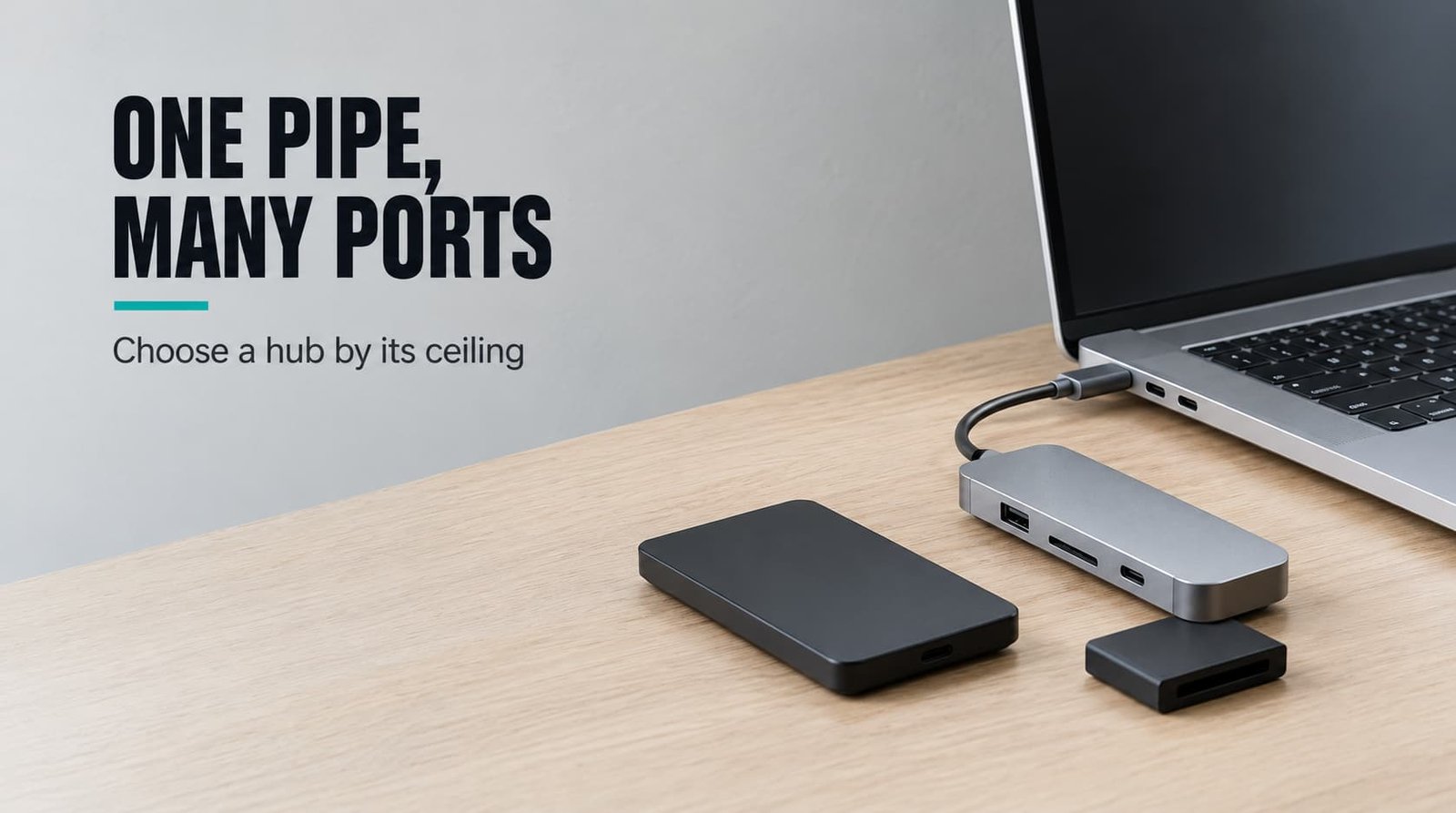
How many devices can share one 5 Gbit/s link before each of them slows down? That shared bandwidth is the criterion that decides how to choose a USB-C hub, because every port on a hub hangs off one connection to your laptop. A hub with ten ports and a hub with four usually share the same pipe. The number printed on the box therefore says little about speed.
This guide assumes a UK laptop with two USB-C ports, one of them kept free for the charger. The desk holds a display and two storage devices. The figures are round numbers, and your own gear will differ.
How to choose a USB-C hub: what actually decides it
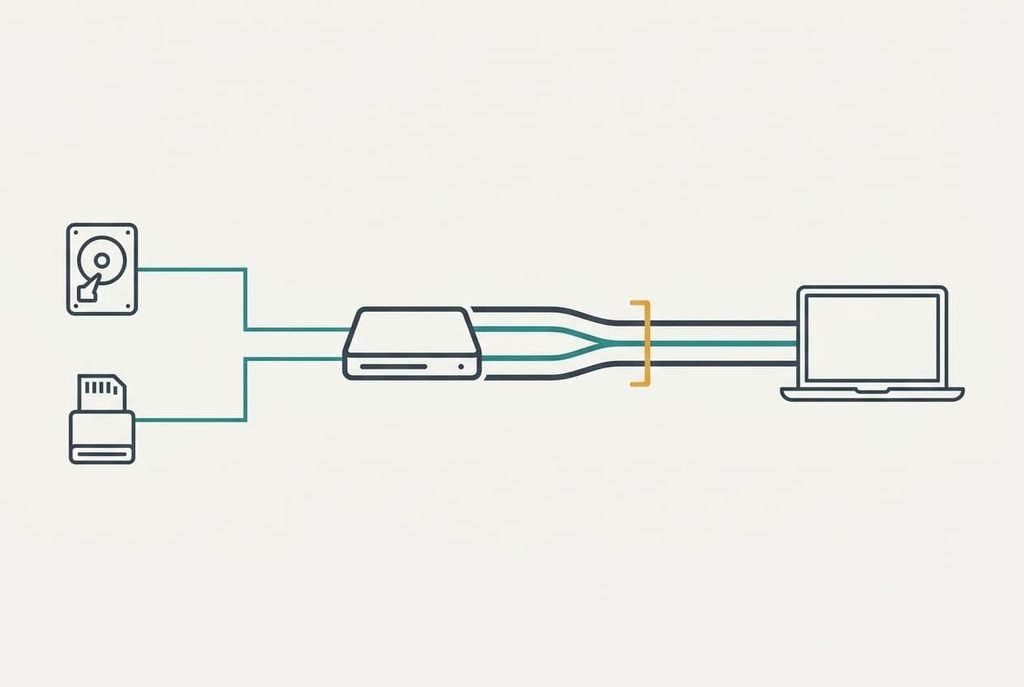
A hub splits one connection into many, so the speed of that single upstream link caps everything plugged into it, whatever the ports claim. Take the 5 Gbit/s class: it carries about 400 MB/s in practice, which one fast solid-state drive can fill alone. The oldest class still sold runs at 480 Mbit/s and carries about 40 MB/s. Both figures are ceilings that every device behind the hub shares, including the ones you forget are plugged in.
Add a card reader sending photos at 90 MB/s and the two together ask for 490 MB/s. The link can give 400, so each device gets about 82% of what it wants. The drive drops to roughly 327 MB/s and the reader to 73 MB/s. A 20 GB copy that took 50 s alone now takes about 61 s. The slowdown appears only when both devices are busy, which makes it look like a random fault.
A hub shares one pipe and never adds a second.
Video and power hang off the same connection too, and so does heat. Each gets its own criterion below, in the order that changes your day most.

How to choose a hub for USB-C, in order
1. Upstream speed. This is the data rate of the single cable between hub and laptop, usually 5 Gbit/s, sometimes 10. It decides whether a copy slows when a second device wakes up. On the product page, find the line naming the speed of the connection to the host. Set it against the sum of what you run together. Our 490 MB/s needs the 10 Gbit/s class, because the sum is the budget you’re buying against. A page listing only per-port speeds hides the ceiling, and every busy moment on that hub will feel slow.
2. Lane split between video and data. A connector carries four high-speed lanes, and a display can claim two or all four. Claim all four and data falls back to 480 Mbit/s, about 40 MB/s. The 20 GB copy that took 50 s then takes about 8 minutes. Look for a resolution and a refresh rate quoted together with the data speed. A page that says only “4K” has skipped the question, and few buyers think to look.
3. Net power to the laptop. A 65 W charger, 7 W kept by the hub and 4 W drawn by a bus-powered drive leave 54 W. A laptop that peaks at 60 W then asks its battery for the other 6 W. Look for a stated pass-through rating at or above your charger’s, and for a maker who admits the hub keeps some. A low rating means slow charging whenever the machine works hard.
4. Physical fit. A wide body on a short cable can cover the second port when both ports share an edge. Measure the gap between your ports and compare it with the width in the photos. A cable of 10 to 15 cm lets the body rest on the desk beside the laptop. Check the cable length in the specification, since a photo can’t show it. Get this wrong and the hub dangles from the connector, which levers on it every time you move the machine.

What matters less than the box says
Port count dominates the packaging and changes little. Ports are cheap to add, because a hub chip splits the same upstream link into more sockets, and a figure like ten is easy to print. A high port count counts sockets, and the speed behind them sits in a different line of the specification. I’d defend paying for upstream speed and power before extra ports, against the idea that more sockets are better value.
The second oversold claim is “4K support” on its own. It was decisive when many laptop ports couldn’t output video at all, so it stayed on the box long after it stopped separating one hub from another. Today the refresh rate decides, because the same claim can mean a smooth 60 Hz picture or a 30 Hz one that makes the pointer stutter. The headline wattage on the box has the same flaw. It names the largest charger the hub accepts, and criterion three shows how much less reaches the laptop.
Matching the choice to your situation
Three readers shift the ranking without rewriting it. A photographer with a card reader and a drive keeps upstream speed first and moves physical fit up, because the reader’s body crowds the neighbouring port. For a remote worker with a monitor and a webcam, the lane split comes first. The monitor decides how much data speed survives, and a webcam needs little of it. A traveller who plugs into a projector once a month drops speed to the bottom and lifts power and fit. Pocket size beats throughput on the night before a talk. The method for how to choose a USB-C hub stays the same for each of them: only the size of the sum changes.
What to walk away from
Anyone who knows how to choose a USB-C hub drops a page that never states the upstream speed at once, because the ceiling can’t be judged. Video claims with no refresh rate get the same treatment. Any pass-through rating below your charger’s joins them, since it guarantees slow charging whenever the laptop works hard. A maker who can’t say what happens to data speed once a display is connected has probably never measured it.
Thin cables that are permanently attached explain many short lives. When one frays, you replace the whole hub.
The cable fails long before the chip does.
Whether your own laptop port can output video at all depends on that port’s specification, shown by the symbol beside it. The manual states it too, so check before you pay for a video feature. Heat counts too. A hub that heats up during a long copy can slow itself to protect its chip, and any mention of throttling in a long-term review ends your interest.
The two-minute check before you commit
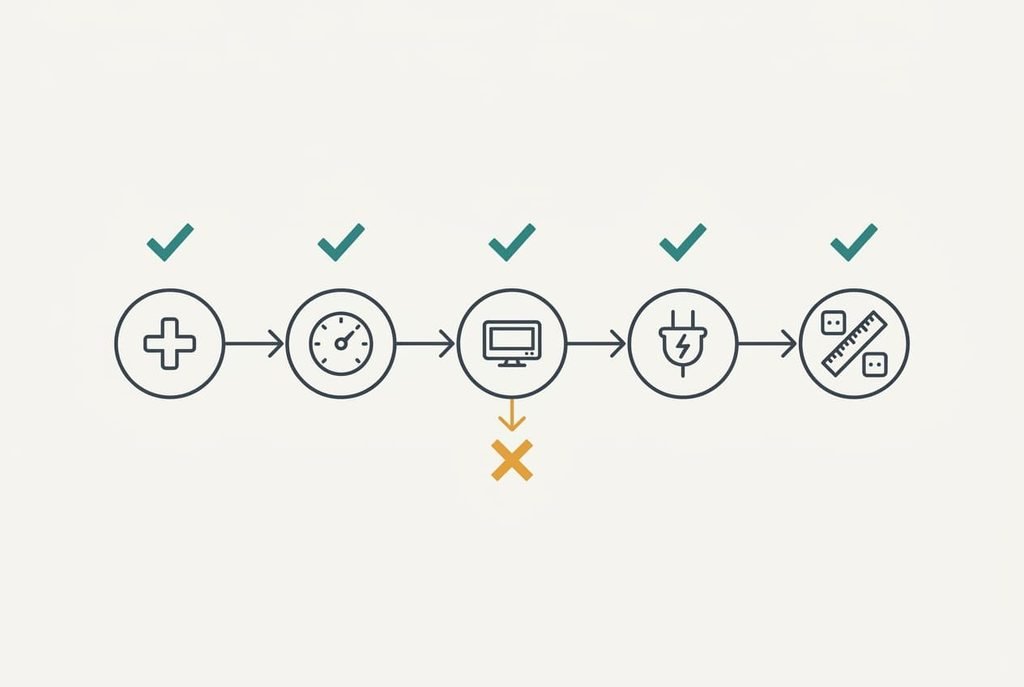
A two-minute check shows how to choose a USB-C hub from the product page alone. First, write down the sum of what you’ll run at once, in MB/s, using about 400 MB/s per 5 Gbit/s of upstream as the yardstick. Next, find the upstream speed. It has to cover that sum. Then read the video line and confirm it names a resolution and a refresh rate with data running. After that, read the pass-through watts against your charger’s rating. Last, measure your port gap against the hub’s width. Any line left unanswered is a reason to look at another hub. Reading them takes about two minutes once you know where they sit.
Shared bandwidth decides how to choose a USB-C hub: add up what runs at once and compare it with the upstream speed. A page that never states that speed ends the search. Other flaws can be tolerated or worked around, and a ceiling you can’t see can’t, so look for it first.
Questions readers keep asking
Do I need a 10 Gbit/s hub?
Only if what you run together adds up to more than about 400 MB/s. A fast drive and a card reader copying at the same time can do that. For a keyboard and a webcam, the 5 Gbit/s class is plenty. Add up your own devices first and let that sum decide.
How much should I spend on a hub?
Spend in the middle of the range and put the extra into upstream speed and a stated power rating. The cheapest hubs tend to omit the specification lines this guide relies on, and the most expensive ones often add sockets you will never fill.
Will a hub still be useful when I replace my laptop?
Usually, if your next laptop uses the same connector. The hub’s upstream speed and video split stay fixed, though, so a faster laptop gains nothing from a slower hub. A hub with a replaceable cable lasts longest, because cables wear out before chips do.