A brush of the palm on the touchpad is what usually makes the cursor jump to another line while you type, and moving the pointer into an empty margin before you start writing removes the damage. The brush registers as a tap, and a tap clicks at the pointer’s position. Our model is a kitchen table in Bristol, where a writer spends two hours on a laptop whose touchpad measures 10.5 × 7.5 cm. These figures are illustrative only, and your own sessions will give different counts. People tend to blame their fingers. The tests below point to the real culprit.
What Makes a Cursor Jump to Another Line While You Type
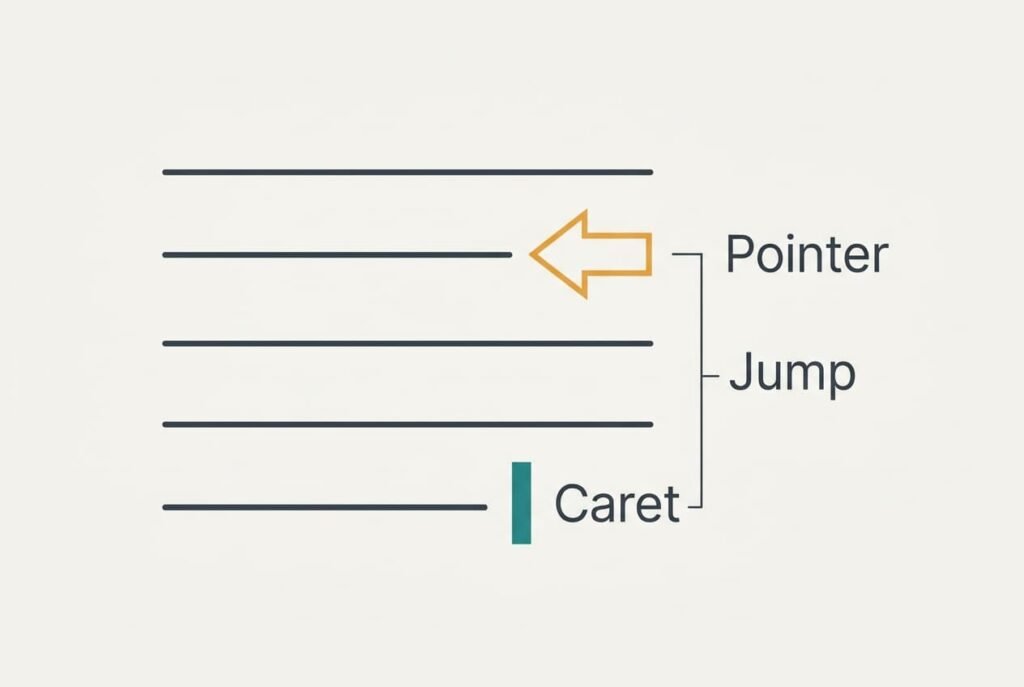
Two markers share your screen. The caret is the thin blinking line showing where letters will appear. The pointer is the arrow that the touchpad steers. Keys move only the caret, while the pointer stays exactly where you last parked it.
A tap on the touchpad counts as a click, and a click carries the caret to the pointer. That is why a stray tap clicks where the pointer rests, not where you are typing. Say the pointer sits 3.2 cm above the caret and one line of text is 0.53 cm tall. The caret then lands 3.2 ÷ 0.53 = 6 lines higher.
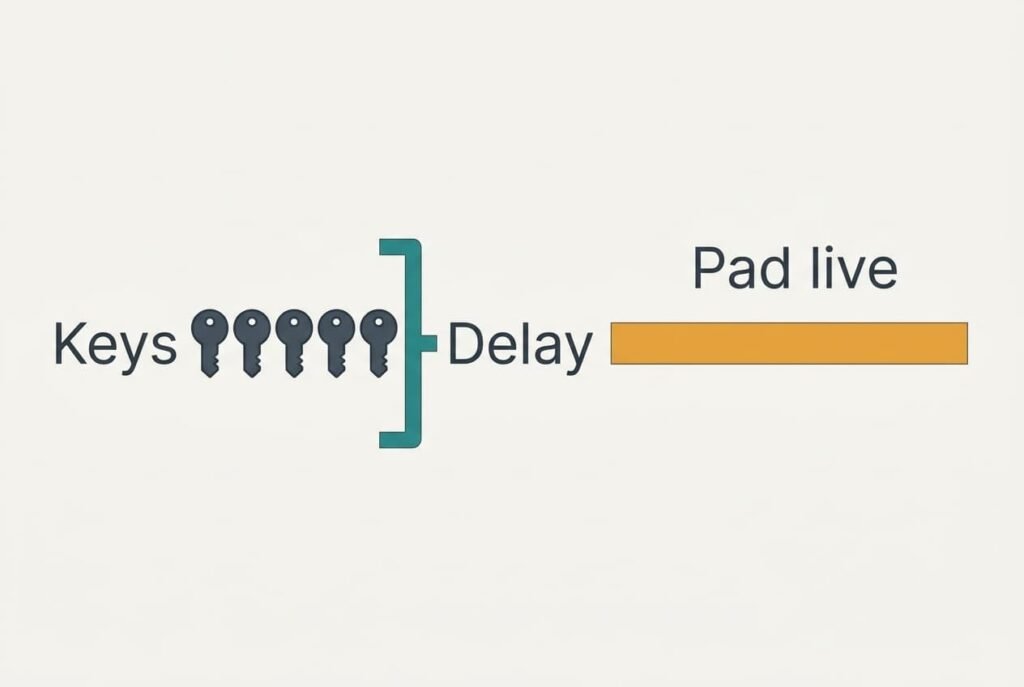
Laptops try to guard against this. After every key press the pad is switched off for a short delay, which we assume is 0.5 s. A writer who stops to think outlasts that delay. Suppose a pause longer than 0.5 s arrives about every 12 s. Half an hour then holds 1,800 ÷ 12 = 150 of them. A palm or thumb meets the pad in 4% of those pauses, giving 6 touches. Assume a touch under about 180 ms that moves less than 2 mm counts as a tap, and we assume one touch in three qualifies.
The result is 2 stray clicks every half hour, or 8 in the two-hour session.
Four Tests for a Jumping Cursor on Another Line
None of these tests needs a purchase, and together they take about forty minutes. Write the outcome of each in a notebook as you go.
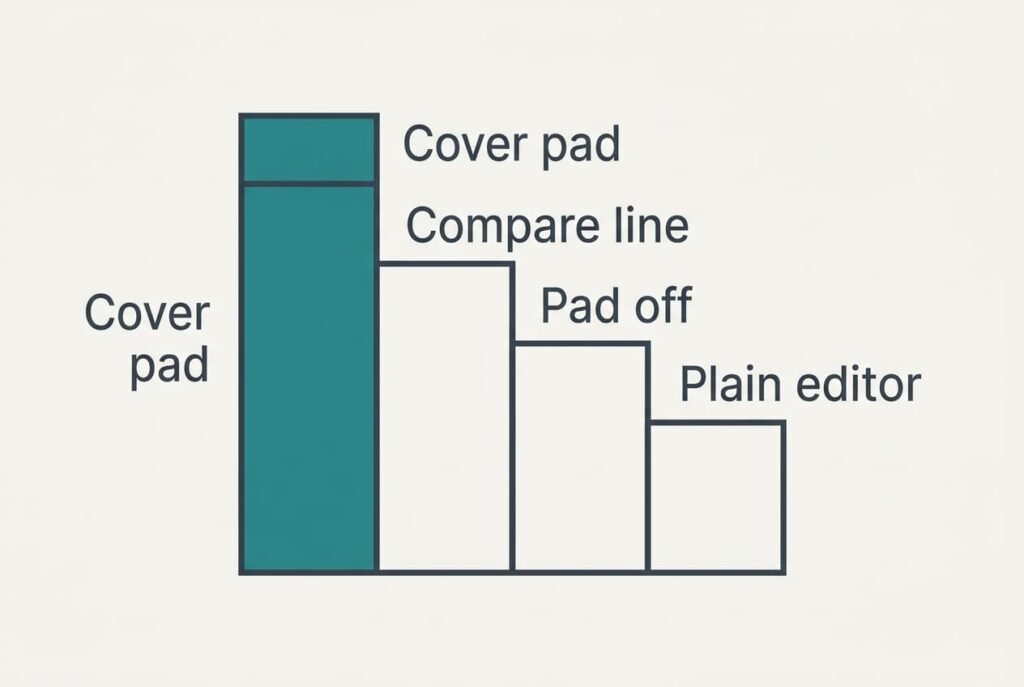
Test one: tape a stiff card across the touchpad and type for ten minutes. Jumps that stop mean a touch on the pad was responsible. Jumps that persist clear the pad of blame. Skip the next test.
Test two: before typing, note which line the pointer rests on. The moment you see the cursor jump to another line, compare the two. A match each time confirms stray taps. A landing spot that changes at random means something else is moving the caret, such as a shortcut pressed by accident or a feature inside the program.
Test three: switch the touchpad off in your settings and type for ten minutes. If nothing jumps, the pad was the source. Jumps that survive point elsewhere. Check the keyboard before the software.
Test four: type the same paragraph in a plain text editor. A cursor that behaves there but misbehaves in one program has been taken over by that program. Autocorrect or a syncing tool is a common reason.
Four Fixes for a Jumping Cursor, From Free to a Mouse
Every fix here answers a cause that can make the cursor jump to another line, arranged from mildest to strongest. After every step, type for ten minutes. Then tally the jumps.
Park the pointer in the margin before you type. The target is the stray click itself. Move the arrow to the blank strip beside your text, or onto the window’s title bar, and a tap lands somewhere harmless. In our model the 8 jumps become 8 harmless clicks. The only outlay is a second of attention each time. In exchange, you must hunt for the pointer again when you stop writing. The right-hand margin of most editors is empty, which makes it a safe place to leave the arrow.
Lengthen the typing delay from 0.5 s to 1.5 s in the touchpad settings. The target is the unguarded pause. Suppose 70% of your pauses are shorter than 1.5 s. Then the unprotected pauses fall from 150 to 45, and the strays drop from 2 to 0.6 every half hour. The setting takes a minute to change. The pad then stays dead for 1.5 s after your last key, which makes grabbing the pointer straight after typing feel sluggish. Turning off tap-to-click goes further, because only a firm press then clicks. The cost is pressing down for every click, and some people dislike that.
Wipe the pad clean and give it an hour to dry. The target is a layer of skin oil or a smear of drink that the pad reads as a constant touch. Use a cloth that is barely moist and wipe the surface once. Press nothing until it is dry. This costs an hour and gives up nothing. If the jumps come back within a few days, the film wasn’t the cause. The pad itself may be going, and a dry spell of clean typing won’t change that.
Switch the touchpad off and use an external mouse. Every palm touch disappears at once, which makes this the cure whatever the cause. A mouse and some desk space are the outlay. Gestures go too, along with the pad’s convenience on a sofa or a train, where you’d need a flat surface. A wired model avoids battery and pairing questions. I’d keep this for last.
If none of that worked
Gather evidence before spending anything. Count the jumps in a 30-minute spell with the pad on, and repeat with it off. Note which programs were open each time. Create a second user account on the laptop and type there for ten minutes. A fault that vanishes in the new account lives in your settings. A fault that follows you into it points at the pad or the system itself.
If you still see the cursor jump to another line with no hands on the keys, write down the date it began and your counts, because support staff ask for both. One warning about resets: restoring the touchpad settings erases your gestures and your scroll direction. Photograph them first. If the base of the laptop bulges or the pad no longer sits flat, stop using the machine. A repair shop should look at it.
The fix that is not worth doing
Setting touchpad sensitivity to its lowest level sounds sensible, and it backfires. A fingertip covers about 1.2 cm² and a palm edge about 12 cm². The pad therefore receives a much bigger signal from the palm. Any level that still notices your fingertip will notice your palm as well. Meanwhile your deliberate taps begin to fail, and you press harder to make them count.
Reinstalling the touchpad driver gets you nowhere either. A wrist pad doesn’t help much either: it may improve your posture, but it doesn’t keep the thumb away from the pad’s upper rim, where our model’s touches begin. The driver reports whatever touch it receives, and a real palm produced that touch.
Slowing the pointer is equally pointless, because speed changes how far the arrow travels and has no say over whether a tap clicks.
The whole problem rests on one sum: pauses longer than the delay, multiplied by the chance of a touch. Count the jumps. Park the pointer, then widen the delay. Keep the mouse in reserve. Test for ten minutes after every change. Keep the counts from before and after each step, because they show which change earned its place. Revisit the numbers after a week of writing, since a changed habit shifts them.
Questions readers keep asking
Can I fix a jumping cursor at home?
Almost always. Free steps cover most cases in our model. Parking the pointer and lengthening the delay lead the list, and wiping the pad comes after them. None costs more than an hour. Only a pad that jumps with nobody touching it needs a repair, and a second user account helps you rule out your settings first.
Why does it jump only when I stop to think?
During a pause longer than the typing delay the pad is live again. A resting palm or thumb can then tap by accident, and the click lands where the pointer sits. In our model that happens twice every half hour. Writers who never pause meet the problem far less often.
How do I know the touchpad itself is failing?
Watch for jumps while nobody touches the laptop, a pad that clicks by itself, or a base that bulges. Any one of those means hardware. Keep the pad off and use a mouse meanwhile, and have a repairer check the base soon.