A laptop that reads plugged in but not charging is often behaving as instructed, and the most frequent remedy is to lighten its workload until the charger has power to spare. Most people suspect a dead battery or a failed charger. Far more often the laptop is spending every watt the charger sends on running itself, or it has reached a limit set months ago. This guide uses a made-up laptop with a 52 Wh battery and a 45 W charger in a flat in Leeds, so each figure is an illustration to replace with your own.
What Happens Inside a Laptop That Is Plugged In but Not Charging
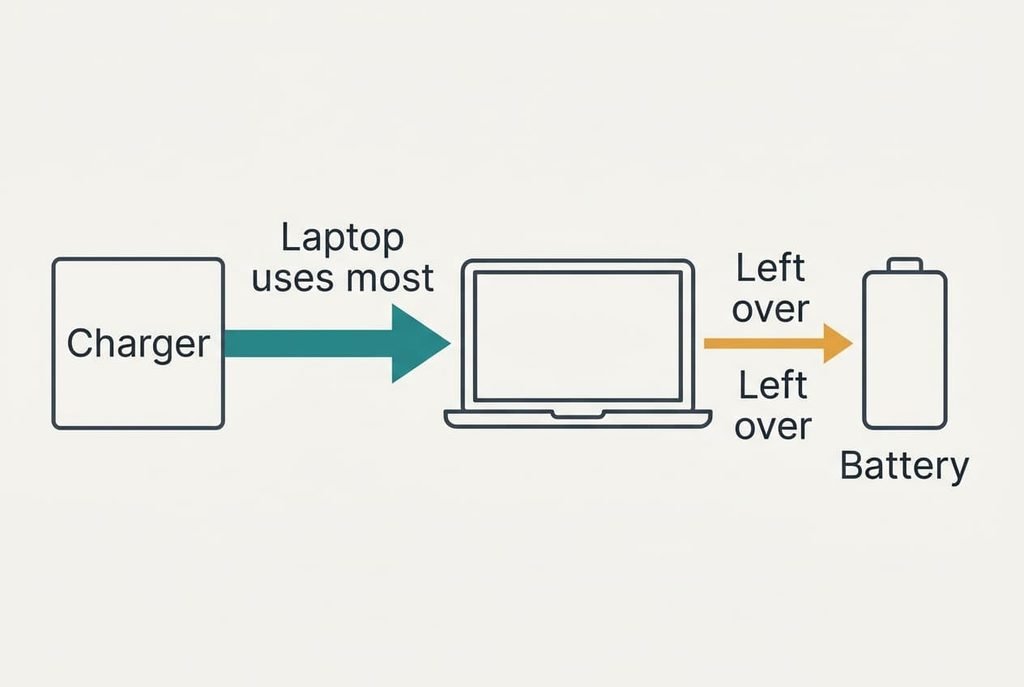
A charger doesn’t fill the battery directly. It feeds the laptop first, and only the watts left after the laptop has taken its share continue on to the battery. Subtract and you have the charging power.
Run the sums for the made-up laptop. At idle it draws 10 W and leaves 35 W. Dividing 52 by 35 gives about 1.5 hours for a full charge, ignoring the slowdown near the top. Ordinary work at 30 W leaves 15 W, and the same sum gives 3.5 hours. Heavy work at 42 W leaves just 3 W, and 52 ÷ 3 is over 17 hours, which looks like no charging at all.
At 60 W the sum turns negative: 45 − 60 = −15 W. Here the battery supplies the missing 15 W and empties in 52 ÷ 15, about 3.5 hours, while the status line still says plugged in.
Remember the rule: the battery receives only what the laptop leaves over, and that remainder is the figure to watch.
Two other things can pause charging on purpose. One is a limit that stops at a chosen percentage, and the other is heat.
Plugged In, Not Charging: Four Tests With Clear Results
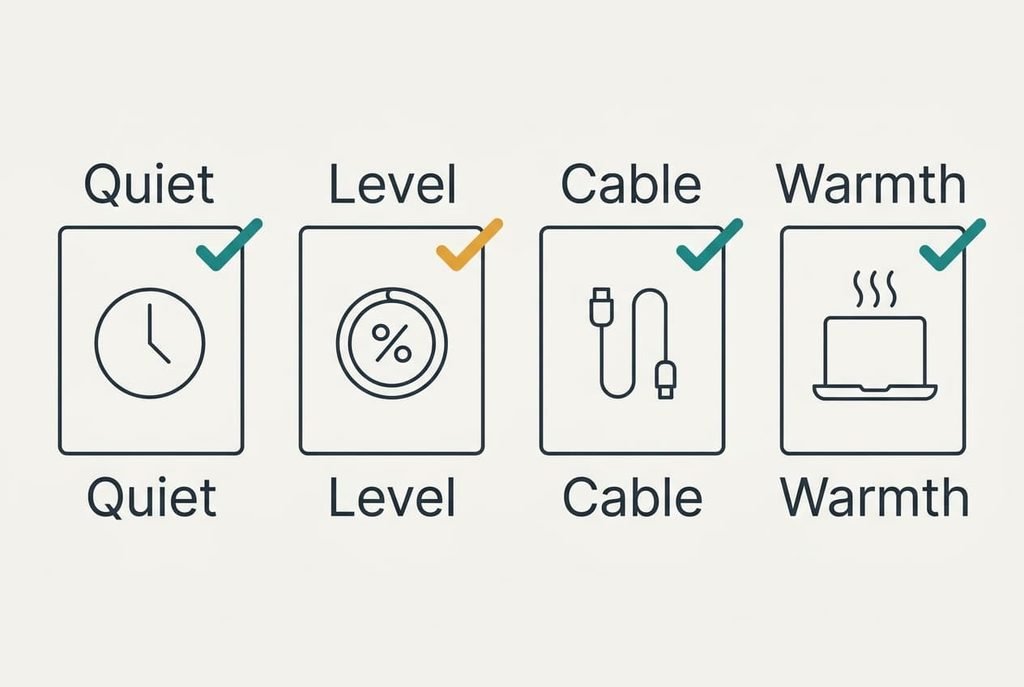
Run the tests in the order given, and write down the percentage at the start of each.
Quiet test. Close every app, dim the screen, then leave the laptop idle for 15 minutes. A percentage that climbs by a few points means the workload was eating the supply. A percentage that stays put moves you along to the level test.
Level test. Look at where the number stopped. A round figure below 100, such as 70, that never moves points to a charge limit rather than a fault. A limit stops at a figure someone chose, so the same number repeats from day to day.
Cable test. Borrow a charger and cable rated for at least the same watts, then repeat the quiet test. Charging that resumes points to the first cable or charger. An identical result points elsewhere.
Warmth test. Feel the underside after an hour of use on a cushion or a bed. Fans running hard and a hot base are the giveaways. Move the laptop to a hard flat surface for ten minutes, and charging that picks up again points to a heat pause.
Four Fixes in Order, From Free to Final
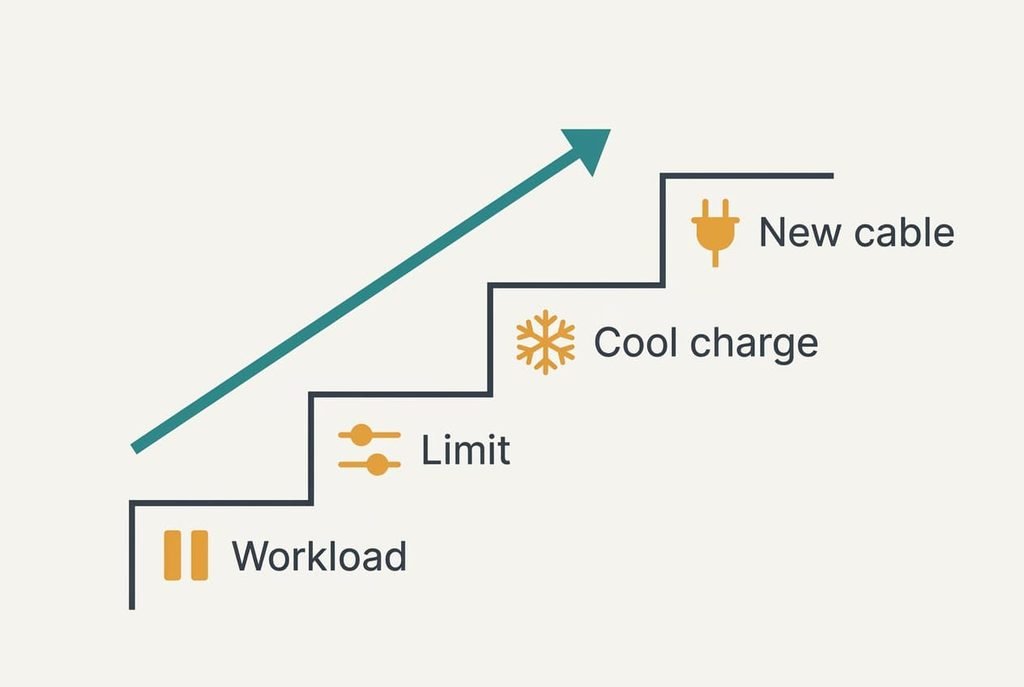
Four fixes cover a laptop that is plugged in but not charging. Each lists a cost and a loss, and they climb from free to final.
Lighten the workload while it charges. This costs nothing and answers a quiet test that passed. Dropping from 42 W to 30 W lifts the leftover from 3 W to 15 W. That shrinks the 17-hour sum to about 3.5 hours. Pause an export and close heavy browser tabs, or work from the lighter of two profiles. A browser with many open tabs and a running backup are common culprits, and it’s worth checking what’s busy before assuming anything else. Expect a slower heavy job while the charger stays attached.
Review the charge limit. It’s a setting change, on laptops that offer one, and it answers a level test stopping at a round number. A cap of 70 per cent stores only 36.4 Wh of the 52. Lifting it to full adds 15.6 Wh, roughly 43 per cent more runtime. The price is wear, because batteries held near full tend to age faster. Put the cap back afterwards, which is just as quick, so nothing is locked in.
Give it a cool, quiet charge. This costs time and answers a warmth test that helped. Shut the laptop down, set it on a hard surface and charge for three hours, longer than the 1.5-hour sum to leave room for the slow final stretch. Leave it untouched, otherwise the leftover shrinks again. It can also reset a percentage reading that has drifted. You lose three hours without the laptop. If the percentage still sits unchanged after those hours, the heat wasn’t the cause.
Replace the charger or cable. This costs money and answers a cable test that worked. A weak cable may pass only 15 W instead of 45 W. At 10 W idle that leaves 5 W, and a full charge takes about 10 hours. Read the wattage on the old label before buying. Match it, or choose something higher from a reputable source, and try the new cable in the quiet test first, because a cable that fails there will fail in daily use. You lose the spend, and a charger of a different plug type may not fit.
If None of the Fixes Worked
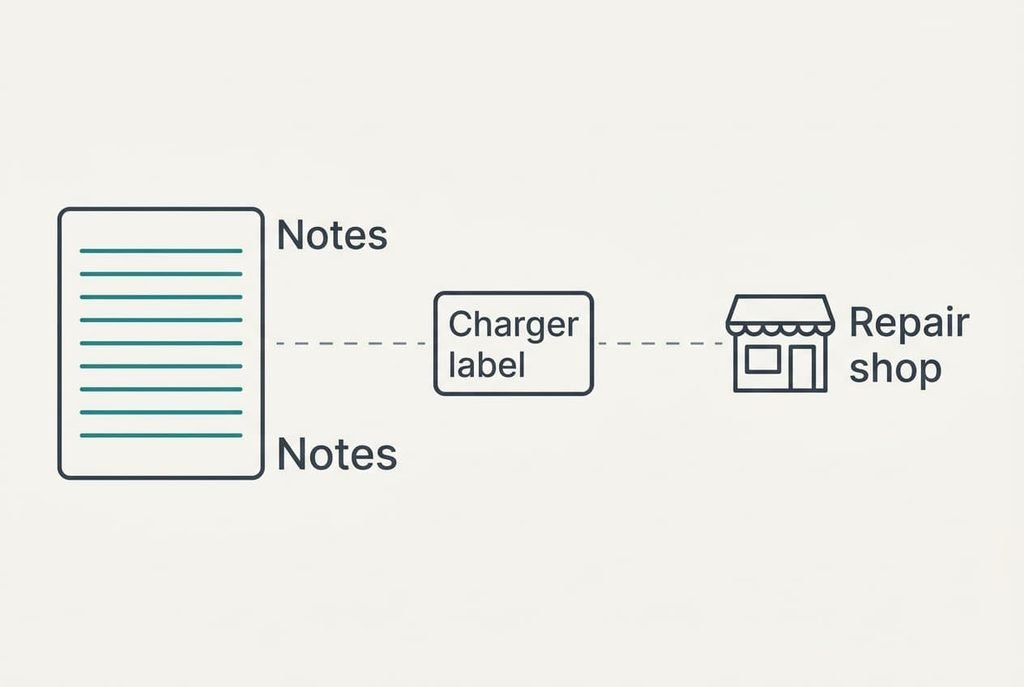
Collect before you ask. Note the percentage where it stops, the quiet test result, the wattage on the charger label, how warm the underside gets and roughly how old the battery is. A repair shop or the maker’s support team can act on that note far faster than on a bare report of plugged in but not charging.
Ask a direct question: is the battery worn enough to hold less than its label promises? A worn cell can behave like a limit that nobody set.
Be wary of the reset. Resetting firmware settings or wiping the system can erase custom options and boot choices, and it can’t repair a worn cell. Keep it for the very end, after your files are copied somewhere safe. Take pictures of the charger’s label and the battery screen together, because a repair shop will ask for both.
The Fix That Isn’t Worth Doing
The most popular wrong turn is reinstalling the operating system to cure the charging. Charging power is set by the hardware and its firmware, and a fresh system leaves both unchanged. A reinstall costs an evening, risks files you forgot to copy and can leave you with the same pause.
It also removes your evidence. On a fresh system you can’t tell whether the old one was simply busy, and the tests above lose their meaning. A driver can occasionally be at fault, though the quiet test has already told you whether the laptop is merely busy. If you ever suspect software, a small update is far cheaper than a wipe. A laptop that shows plugged in but not charging is usually giving a clear answer through those tests. Software fixes make sense only once the hardware tests have run clean and the quiet test has failed to explain anything.
Go through the steps in sequence and measure after each one. A climbing percentage names the cause and marks your stopping point. If it doesn’t, move to the next fix rather than leaping to the last, because every earlier fix is cheaper to undo. Jot down each result with the time, since a pattern over several days says more than one reading, and a repair shop will value it.
Questions Readers Keep Asking
Can I fix this at home?
Usually, yes. Load and a charge limit account for most cases. Heat and a weak cable follow close behind, and each has a test that needs only a clock and a second cable. Replacing the battery itself is a repair-shop job on many models, so stop where the tests run out.
What is the most common cause?
The laptop is spending the charger’s watts on itself. With a 45 W charger and a 42 W workload, only 3 W reaches the battery, so the percentage barely moves. Closing heavy apps for 15 minutes shows this quickly and costs nothing.
When does it point to failing hardware?
Suspect hardware when the percentage stays frozen even at idle with a borrowed charger, when the case gets hot without any load, or when the battery empties very quickly after unplugging. A bulging case or a lifting trackpad means stop using the laptop and take it to a repair shop.