A phone held upright fills only 25 per cent of the width of a television, which is why a mirrored picture often looks like a postage stamp. The end state here is a mirror that stays connected and fills 80 per cent of the screen. To mirror your phone on a television takes 10 minutes at first, then under one minute. The one choice is what you’ll show. Photos cope with a slow link, while video needs the faster 5 GHz band. The figures assume a 1080 × 2400 pixel phone and a 1920 × 1080 pixel television, so check your own figures first.
Before you mirror your phone on a television: the check people skip
Most people skip confirming that the television can receive a mirrored screen at all, yet every later step fails without it. Look in the television’s own settings for a screen sharing or casting entry. If there is none, no phone setting will help, and you’ll need a small receiver plugged into the television first.
Then do the sums for your own pair of screens. The phone is 1080 × 2400 pixels and the television is 1920 × 1080. Held upright, the phone’s height is squeezed to 1080, so its width becomes 1080 × (1080 ÷ 2400) = 486 pixels. That is 486 ÷ 1920 = 25.3 per cent of the screen’s width. Turned sideways, it measures 2400 × 1080 and scales to the television’s width. That gives 1920 pixels across and 864 high, or 80 per cent of the screen.
Photos survive a slow link. Video doesn’t, so find out which band your router offers before you begin.
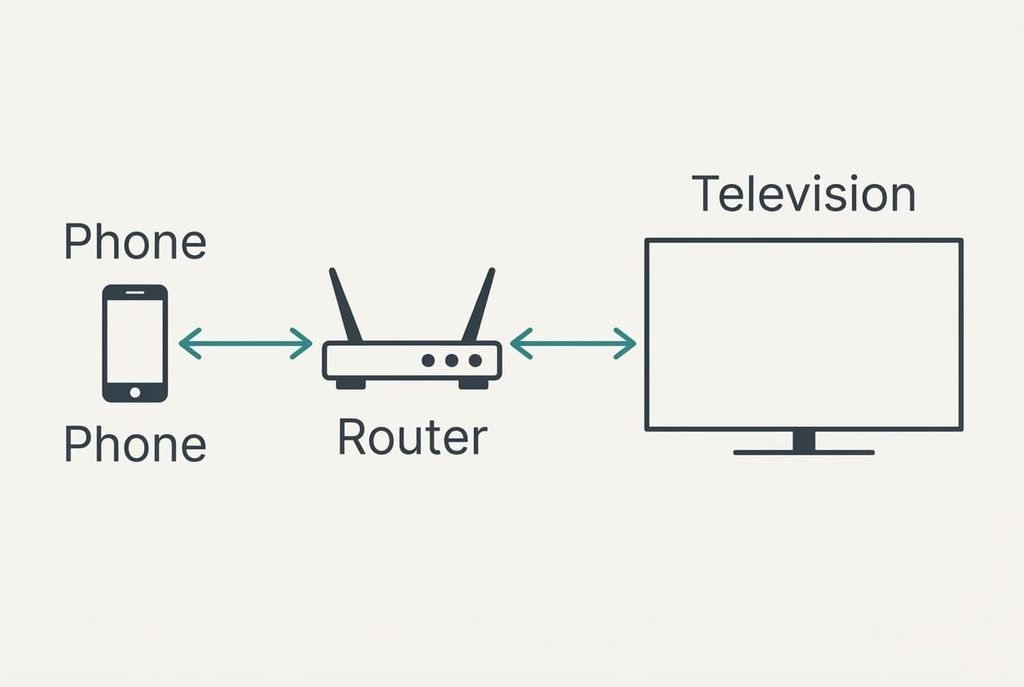
The reason is how mirroring works. The phone sends its screen as a video stream across the router to the television. Both devices must therefore reach each other, and neither can sit on a network that hides devices from the rest.
Six steps to mirror your phone to the television
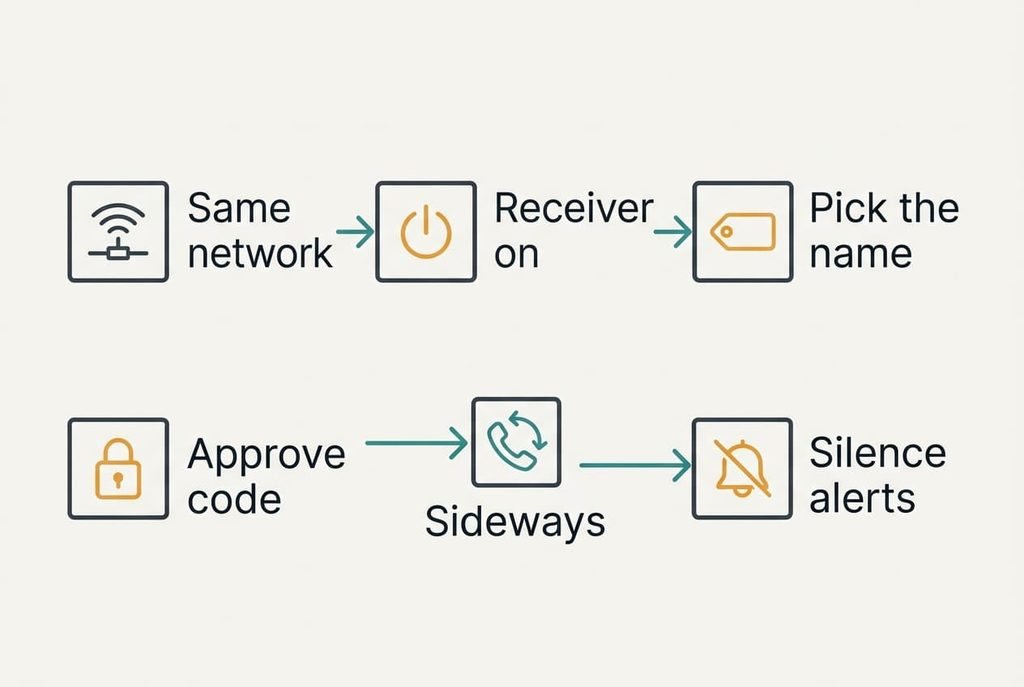
1. Put the phone and the television on the same network name. A phone on mobile data can’t see the television, and a guest network usually hides devices from each other. Moving the phone onto the television’s network drops any download in progress, so let it finish first. The check: both devices show the identical network name, and the phone’s mobile data symbol is off. If the router offers two names, one for each band, choose the one for the faster band on both devices.
2. Wake the television’s receiver. Set it to its screen sharing input, so that it waits for a signal and isn’t playing a channel. Pausing a programme this way loses your place in it, so choose a moment between shows. Many sets drop into a deep standby and ignore the network until they are woken by hand. The check: the television shows a waiting screen with its own name on it.
3. Read the name the television gives itself. A model code is easy to confuse with a neighbour’s set, so rename it to something like Living Room if the settings allow. A name you can read from the sofa saves a wrong guess later. The check: the name on the waiting screen matches the one you’ll pick on the phone.
4. Start mirroring from the phone’s quick controls and pick the television by name. Some sets show a four-digit code, which protects against a stranger on the network taking over the screen. The check: the code prompt disappears and the phone’s picture shows up in about 10 seconds. Waiting 30 seconds or more means the devices can’t see each other.
5. Turn the phone sideways and switch off its rotation lock for now. The sideways picture spans the full screen and reaches 80 per cent of its height, against 25 per cent of the width in the upright position. The check: thin bars show above and below the picture only, and nothing is cut off at the sides. Leave the lock off only while you present, since a phone that spins in your hand mid-slideshow is a distraction.
6. Silence notifications before you show anything. A banner with a private message appears on a screen everyone can read. Silencing also mutes incoming calls until you switch it off again. The check: a test message to the phone makes no banner and no sound on either screen.
Test the finished mirror before you trust it
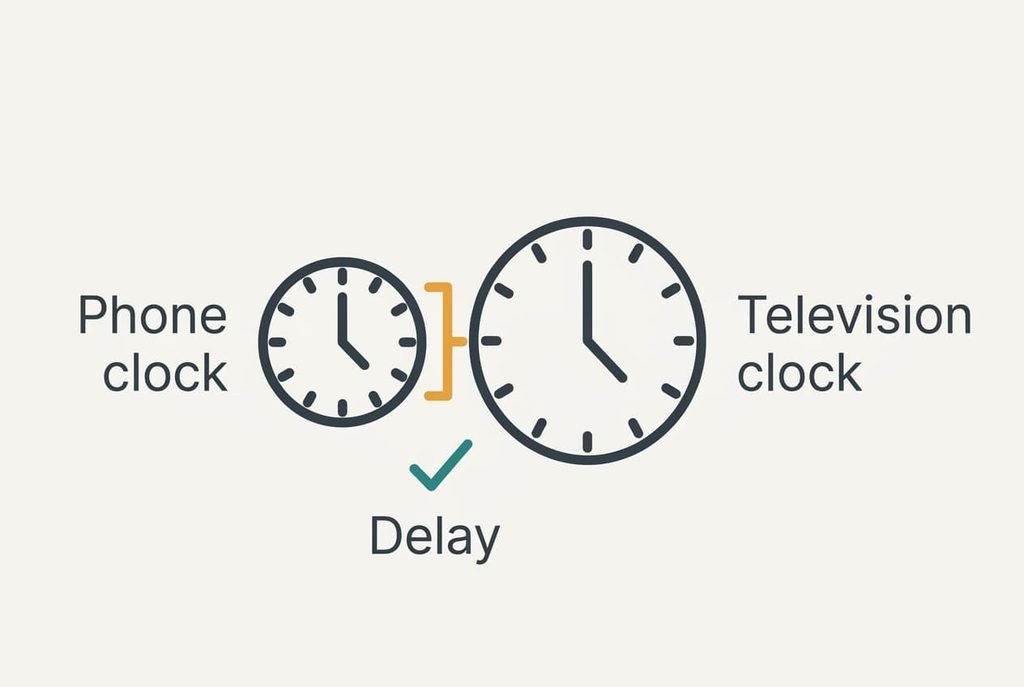
Run the test twice, once on a still photo and once on a moving clip, because a link that copes with a photo can still choke on motion. Do it with the room still empty. The test that counts is to put a running stopwatch on the phone and compare its seconds with the television, not to judge the picture by eye. A fixed picture hides delay completely, while a stopwatch exposes it in one glance.
Allow half a second as the limit for photos and a quarter of a second for video, both as rules of thumb. A larger gap means the link is struggling. Photos in a slideshow can look fine at 0.5 seconds. A game or a video with speech drifts out of step.
To mirror your phone on a television reliably, repeat this test once late in the evening, when more homes are streaming.
Where the job usually stalls
The television not appearing in the list is the commonest stall. A router that offers two network names, one for each band, can place the phone on one and the television on the other. Move the phone to the television’s name and the list fills.
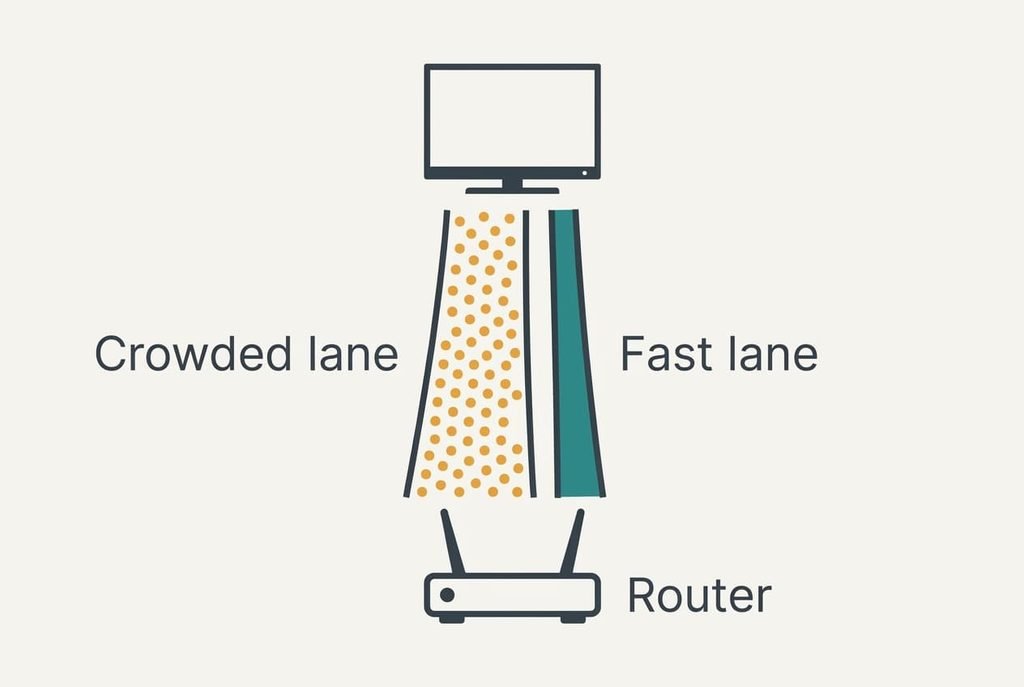
Freezing every few minutes comes second. In a block of flats, a link to mirror your phone on a television competes with dozens of neighbouring networks on the 2.4 GHz band. Assume the mirrored stream needs about 8 Mbit/s. A crowded 2.4 GHz link delivers about 15 Mbit/s, so the stream takes 53 per cent of it. A 5 GHz link delivering about 100 Mbit/s uses only 8 per cent. Choose the faster band, or stand nearer the router.
A black picture with sound only is the third. Some video apps block mirroring of protected content, so the phone looks fine and the television stays dark. Use the app’s own cast button for that title instead.
Test again after each change.
The step that isn’t worth taking
Restarting the router whenever the picture stutters costs more than it fixes. A restart takes about 2 minutes and drops every device, about 12 in the home assumed here, including whatever else someone is streaming. Anyone halfway through a video call loses it, and the call has to be rejoined from scratch. Stutter usually returns afterwards. The cause was the band and the distance, not a fault in the router, and the router comes back with the same settings.
Better to mirror your phone on a television using the faster band from the start. A single change of network name takes 20 seconds, against 2 minutes of everyone’s connection for the restart. If the picture still stutters from the 5 GHz name, the walls between the handset and the router are the next suspect. Moving the phone a few metres tests that in 30 seconds.
Settle the band first, then the orientation, then the notifications. Follow that order and the picture will sit at 80 per cent of the screen without a hiccup. Run the stopwatch test once and note the working network name on a card by the television. A visitor with a different phone can then follow the same steps. The first evening is the only slow one. Afterwards the whole routine needs less than a minute, and nobody has to repeat the set-up.
Questions Readers Keep Asking
How long does the first set-up take?
About 10 minutes, because most of it goes on finding the right network name and the television’s receiver setting. After that it takes under a minute: pick the television from the list and approve any code. A newer phone or television may skip the code, which saves another 10 seconds.
Will mirroring change or delete anything on my phone?
No, mirroring only copies what the screen shows. It does take over the television, though, so whatever was playing there stops until you switch the input back. Silence notifications first, since a private message banner appears on the big screen as well as on the phone.
Does it work the same with a laptop?
Largely, yes. The laptop must sit on the same network name, and you pick the television from its display settings. A laptop screen is already landscape, so it fills the television without any rotation, and step five is met from the start.