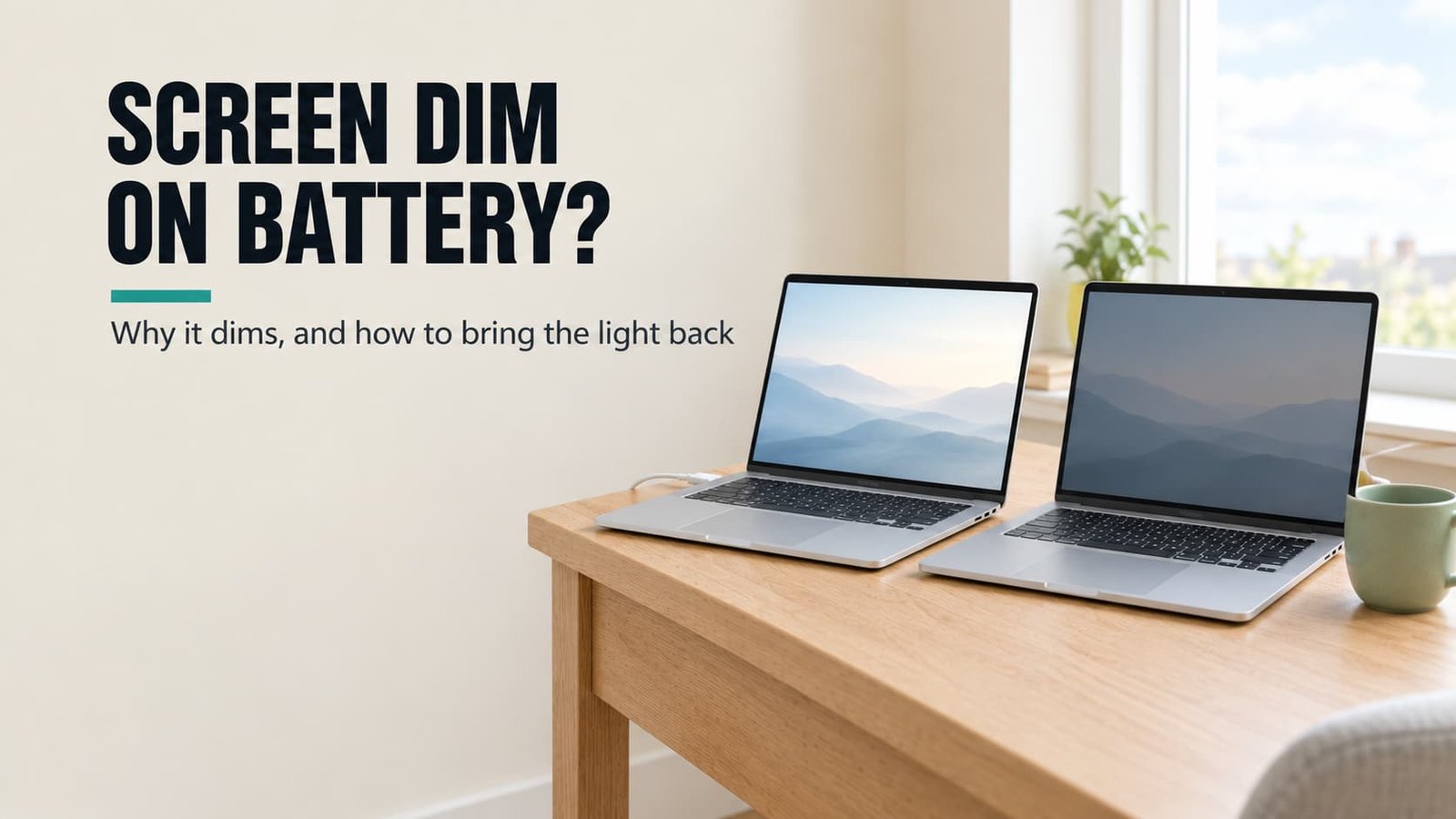
Is the laptop broken, or just thrifty? Why does a laptop screen look dimmer on battery? Because the machine is spending your battery for you, and it makes that choice in three separate places. I’d stop treating it as a fault and start treating it as a trade you can reprice: each dimmer buys a little battery life, and each one can be turned back. The same trade explains why the screen brightens the moment you plug in.
The example uses a UK desk and a 54 Wh battery. All the wattages are rounded, so check your own machine before you change a setting.
Why does a laptop screen look dimmer on battery
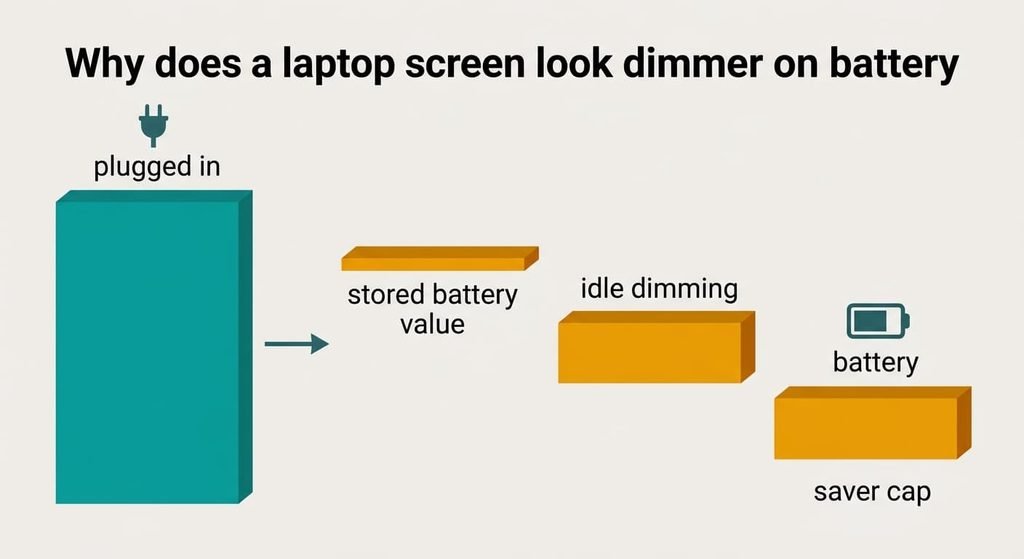
The laptop stores brightness twice. One value belongs to the charger and one belongs to the battery, and it swaps between them the moment you unplug. That swap is the first dimmer, and two more stack on top of it. After a couple of minutes without a touch, many machines dim again to save power. Below a set charge, a saver mode caps the backlight.
Take a screen that makes 400 nits at full setting and draws 4.0 W doing it. The stored battery value of 80% gives 320 nits. Idle dimming to 50% gives 160, and the saver’s cap of 70% below 30% charge brings it to 112. The eye judges lightness roughly by the cube root of luminance, so 320 nits looks only 7% dimmer, 160 looks 26% dimmer, and 112 looks 35% dimmer. No single dimmer seems dramatic, yet three together do.
Each one pays its way. The rest of the laptop draws 8 W, so the full 4.0 W screen gives a 12 W total and 4.5 hours from 54 Wh. At 112 nits the screen draws 1.1 W, the total is 9.1 W, and the life stretches to 5.9 hours.
Four checks on why a laptop screen starts to look dimmer on battery
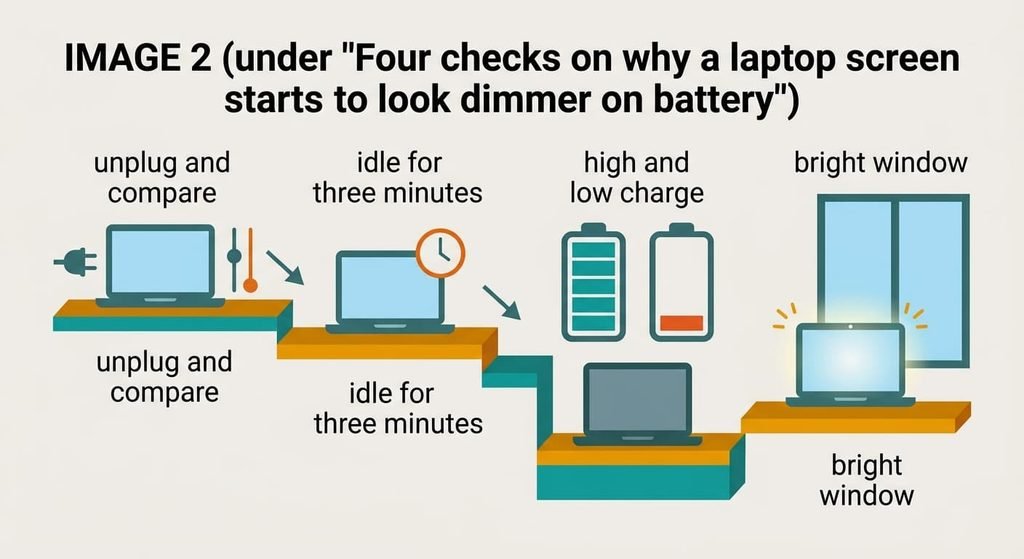
Four short tests show what makes a laptop screen look dimmer on battery, and each is free. Do them in sequence with the room lights left as they are. Use a plain text page for all four, so the picture content doesn’t change what you see.
First, set the slider to full while plugged in, then pull the plug. If the slider jumps to a lower setting, the stored battery value is lowering it. Note the slider position before and after.
Second, open a long page on battery and leave your hands off the keys for three minutes. If the screen steps down while you read, idle dimming is at work.
Third, view the same page with the battery at 60% and again at 20%. A drop that appears only at the low charge points at the saver cap.
Last, carry the laptop to a bright window and leave the slider alone. If the brightness changes by itself, a light sensor is adjusting it, and that effect acts on both power sources.
Keep a note of the results, because the combination points at the dimmer to remove first.
The four fixes, in order
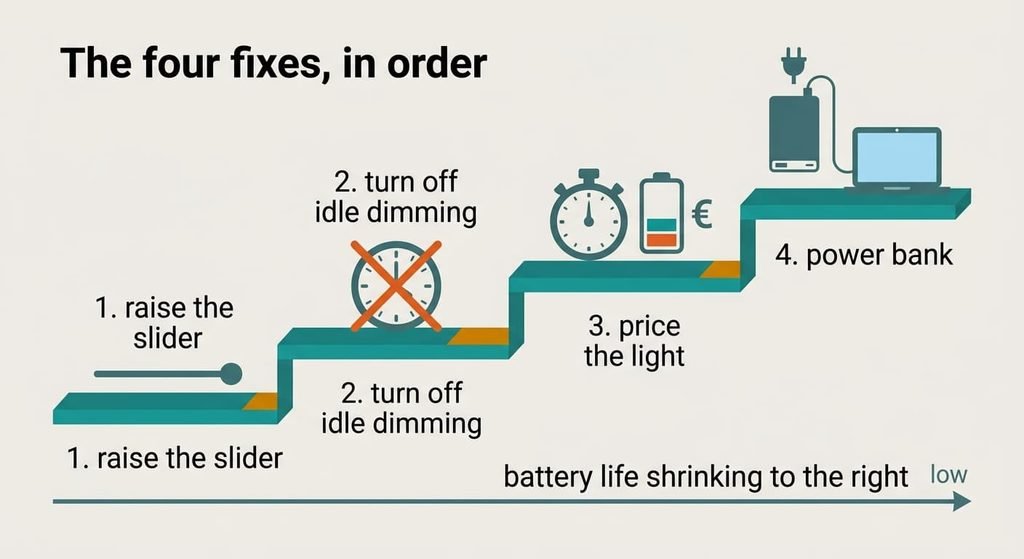
Each of these steps takes away one cut that lets a laptop screen look dimmer on battery, so compare the screen after each of them. Battery life will shrink as the light returns, and the figures below show how much.
Raising the slider while you’re on battery is the free one. The laptop stores that new value for battery use, so you only do it once. It lifts the screen from 112 to 140 nits and costs about 0.2 hours, bringing the life from 5.9 to 5.7 hours. The price is the shorter day, and you’ll set it again if a software update resets your preferences. Do it in the lighting you actually work in, since a slider that suits a bright office looks harsh in a dim kitchen.
Turning off idle dimming, or lengthening its timer, is a setting. Find the option that sets how long the screen waits before it steps down on battery, and if the sensor check showed an adjustment, switch off the automatic brightness beside it. The screen rises to 280 nits, which costs about 0.7 hours and leaves 5.0 hours. Afterwards, read for three minutes without touching the keys to confirm that the step-down has gone. If it returns, a second timer elsewhere is still active, so look for it before moving on.
Pricing the light yourself takes about forty minutes. Run the laptop at full brightness for ten minutes and note the charge lost, then repeat at the lowest setting. The gap tells you what your screen costs in watts. In the example each 100 nits costs 1.0 W, so 400 nits is 4.0 W. Then move the saver’s trigger from 30% to 15% so the cap waits until you’re nearly empty, and you’ll know what each step costs. The screen reaches 400 nits and the life settles at 4.5 hours.
Carrying a power bank rated for laptops is the one purchase, and it works only if your laptop charges over its USB-C port. The laptop sees a charger and keeps the bright profile. It costs money and adds weight to your bag. A bank with too little output may leave the laptop reporting battery power, so check the rating against the laptop’s charger first. Connect the bank before you start work, so the profile never changes mid-session.
If none of that worked
If the screen still looks dim with every dimmer off, photograph it at full brightness on battery and again plugged in, using the same fixed exposure. A visible difference means a cap you haven’t found, such as a power-mode limit. No difference means the backlight is the same and your eyes are adapting, perhaps to a bright room. Write down the charge level and the room’s light. Note whether the dimming appears on the charger too.
Then test the laptop with an external display for ten minutes. A bright external image beside a dim built-in one points at the built-in panel or its backlight, and the maker should hear about it.
Returning the laptop to factory state comes last because nothing can undo it: your files and every setting disappear. Copy your files elsewhere beforehand.
The fix that isn’t worth doing
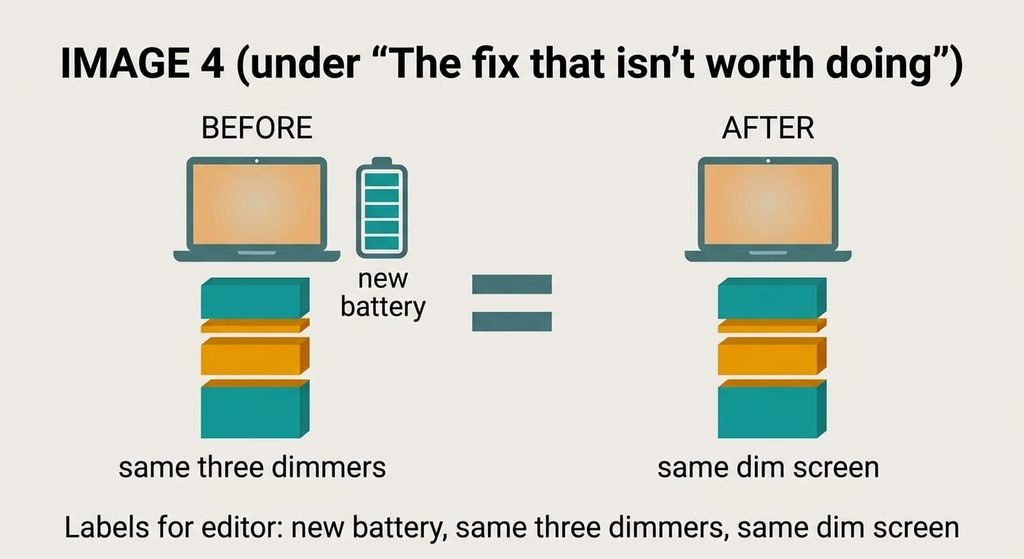
Replacing the battery is what people reach for, because the symptom began on battery and the battery seems the likely culprit. A new pack lifts the capacity from, say, 36 Wh to 54 Wh. It leaves the stored value exactly where it was. The idle timer and the saver cap stay put too. You’d pay for a part and see the same 112 nits. A fresh cell would only give you longer hours at the same dim screen.
The dimming is a rule in the software, and no cell can change a rule.
Nobody wants to watch a laptop screen look dimmer on battery, so buying a fix feels logical. Yet the rule only reads the power source. A new battery changes how long you last, and the three dimmers keep running on top of it.
What makes a laptop screen look dimmer on battery is a stack of cuts, so remove them from the cheapest. Raise the battery slider first. Then check idle dimming and the saver trigger. Leave the power bank until last, and stop once the screen looks right for the hours you need. An evening of testing will show which dimmers your machine runs, and which of them you’d rather keep for the long days.
Questions readers keep asking
Should the screen change when I unplug the charger?
Yes. Most laptops store separate brightness for each power source and swap them on unplugging. In the example, an 80% battery value gave 320 nits against 400, which looks only 7% dimmer. The stacked cuts from idle dimming and the saver cap are what make it obvious.
Does brighter mean a shorter battery life?
It does, and the example shows how much. The full 400 nits drew 4.0 W and gave 4.5 hours. At 112 nits the screen drew 1.1 W and the life reached 5.9 hours. So the extra light costs about 1.4 hours, which is the trade the dimmers make for you.
Why does the screen dim while I’m reading?
That’s idle dimming. After a couple of minutes without a touch, the laptop assumes you’ve left and steps the backlight down on battery. The timer is a setting, and lengthening it keeps the page bright while you read, at the cost of about 0.7 hours in the example.