Is the laptop asleep or hibernating when you shut the lid? That one answer is what makes a laptop take so long to wake up, and the usual remedy is a longer delay before sleep turns into hibernation. Four stages add up to the wait, and the cheapest remedies come first.
Figures here come from a UK laptop with 16 GB of memory, 11 GB of it in use when the lid closes. Speeds and times are round examples, so time your own wake with a stopwatch. Every number below is yours to swap. A stopwatch and one lunch break will show where yours falls.
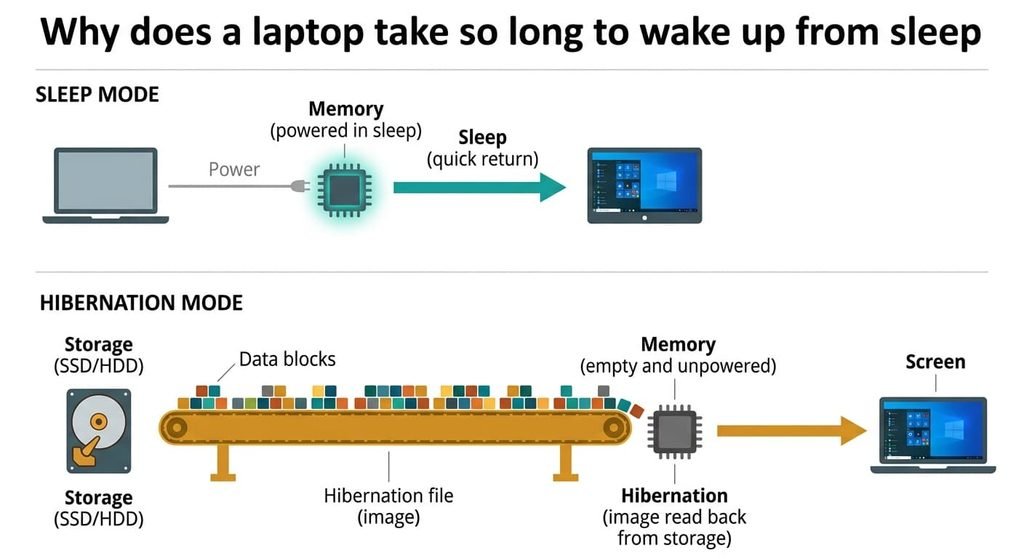
Why does a laptop take so long to wake up from sleep
A laptop can park in two ways. In sleep the memory stays powered, so your work is still in place and waking takes about 1.5 s. In hibernation the memory is switched off, and the laptop must read everything it held back from storage before you can use it. That saved image is about the size of what was in use, which is 11 GB here.
Storage speed sets the rest, since time equals size divided by speed. A hard drive reads about 100 MB/s, so 11,000 MB takes 110 s. SATA SSDs read about 450 MB/s and take 24 s. Fast NVMe SSDs read about 2,000 MB/s and take 5.5 s. Reconnecting Wi-Fi and a VPN adds 8 s to each, so a hard drive wakes in 118 s while a SATA SSD manages 32 s. The NVMe drive finishes in 13.5 s. A sleep wake needs only 1.5 + 8 = 9.5 s.
Few people choose hibernation, yet it’s what makes a laptop take so long to wake up after a long break. Many laptops drift into it by themselves once sleep passes about an hour, and the wake time jumps without warning. From outside both modes look alike: lid shut, light off. The sums treat the image as 11 GB, a round worst case.
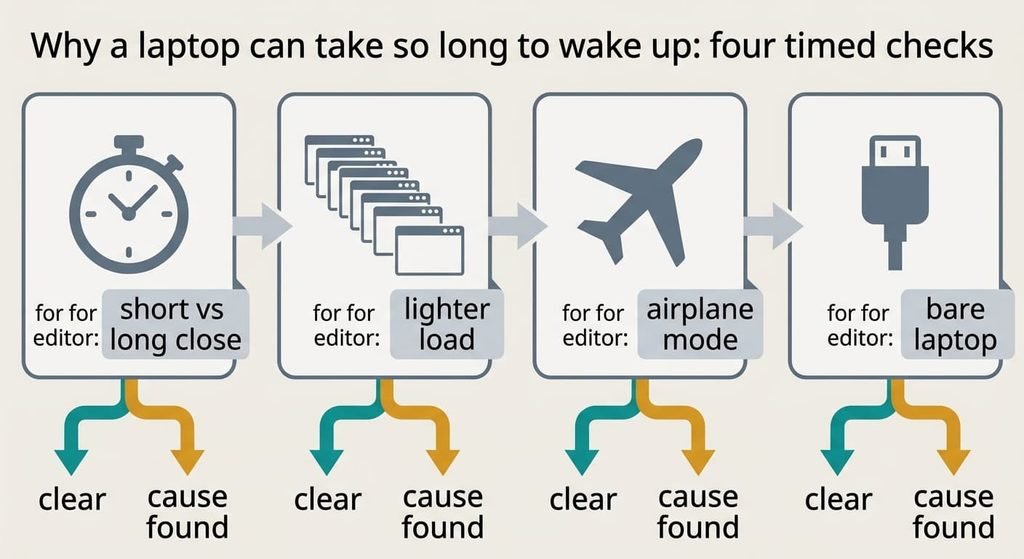
Why a laptop can take so long to wake up: four timed checks
Use a stopwatch and your usual set of open apps. Each result is a figure you can compare, and nothing here requires buying anything.
First, the two-lengths test. Close the lid for 5 minutes while on battery, then time the wait for a usable desktop, then repeat after 3 hours. About 10 s and then 32 s means the laptop switched to hibernation in between. Two slow, similar times point to the catch-up stage instead. Repeat on mains power, since some laptops use separate delays there.
Second, the lighter load. Close everything except a browser using about 5 GB, then repeat the 3-hour test. A wake near 19 s shows that image size is the cause, since 5,000 ÷ 450 + 8 comes to 19 s.
Third, turn on airplane mode before closing the lid. If 8 s vanishes from the wake, reconnecting is the cause.
Fourth, strip the laptop bare. Unplug the dock and every USB device before closing. A wake shorter by 3 or 4 s points to devices registering again.
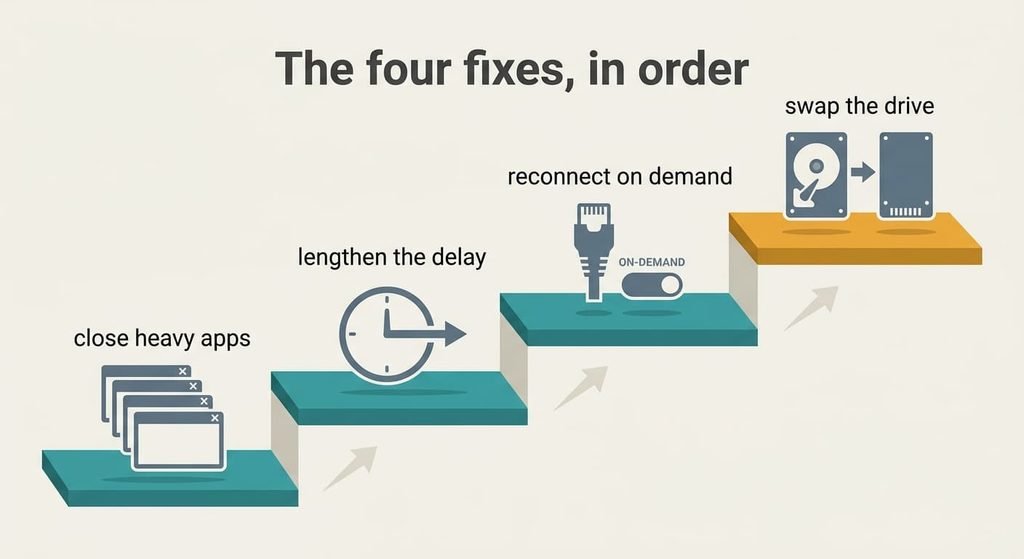
The four fixes, in order
A single stage is enough to make a laptop take so long to wake up, so change one stage per test and time it again.
Closing the heavy apps before the lid shrinks the image. It costs nothing. Dropping from 11 GB to 5 GB cuts a SATA SSD hibernation wake from 24 s to 11 s, which saves 13 s. Browsers and video editors hold most of the memory, so close those first. A chat client holds little. You’ll reopen the apps later. A long document or video tab you were mid-way through loses its place.
Lengthening the delay before sleep turns into hibernation keeps short breaks in RAM sleep. It’s a power setting and takes a minute. Check the battery column and the mains column; they’re set separately. Moving the delay from 1 hour to 3 hours turns a lunch break into a 9.5 s wake. The price is battery: a sleeping laptop uses roughly half a watt, so 3 hours costs 1.5 Wh, or 3% of a 45 Wh pack. A long delay suits a desk, while a rucksack journey wants a shorter one.
Letting the VPN and sync tools reconnect on demand trims the catch-up stage. It takes an evening of trial and error. Switch off one reconnect, sleep the laptop for 3 hours and time it before touching the next. A VPN that reconnects at wake costs about 5 s, so dropping it brings 9.5 s down to 4.5 s. The first request that needs the VPN then waits a moment, and a sync client you pause stays behind until you restart it.
Swapping a hard drive for an SSD removes the storage limit, and it’s the one fix that costs money. The 11 GB image drops from 110 s to 24 s, so the whole wake falls from 118 s to 32 s. You’ll need an afternoon to clone the old drive, and the swap only works if the model lets you reach the drive. A SATA SSD gives the 24 s figure, and an NVMe slot, if the laptop has one, brings the wake to 13.5 s.
If none of that worked
Write down the stopwatch time after a 5-minute close and after a 3-hour close, for a week. Note the dock and the apps in use each time. A 5-minute wake above 30 s with no dock and no VPN sits outside everything above. Two clues help a support agent: whether the wait started after an update, and whether it follows the lid or the power button.
Ask the maker’s support whether your model has a firmware update for sleep. Resetting the power settings to their defaults is a fair next step, but it wipes your custom delays, so note them first. A clean reinstall is the final step, and it wipes whatever you haven’t copied elsewhere. Photograph your timing notes first, so the next person starts with the numbers rather than a description.
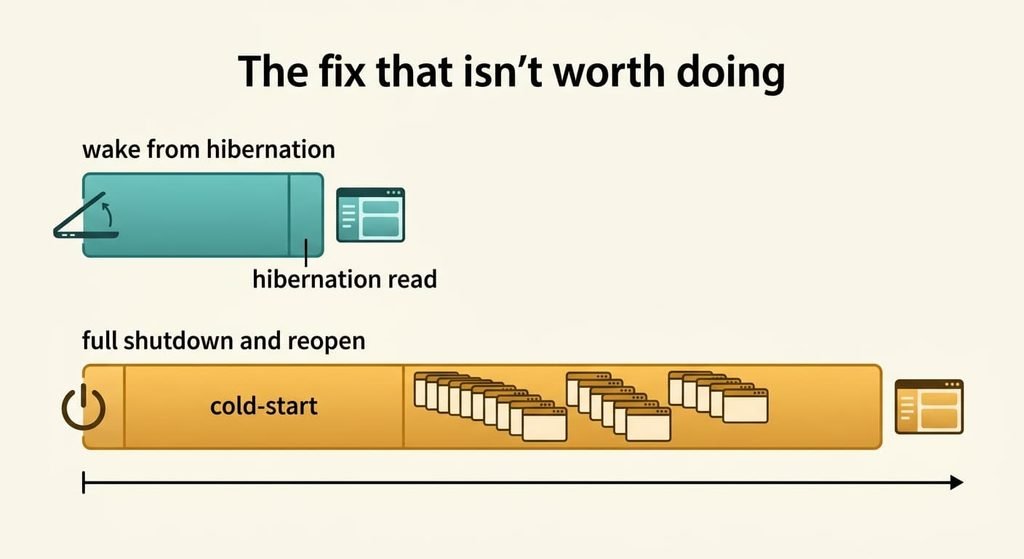
The fix that isn’t worth doing
Shutting the laptop down every time sounds sensible, yet it loses on the clock. A cold start takes about 25 s to reach the desktop. Reopening the apps that held 11 GB takes another 60 s or so. That’s 85 s against the 32 s of a SATA SSD hibernation wake, a ratio of 2.7 to 1, and against 9.5 s for a RAM sleep.
A full shutdown throws away the one thing a wake saves, and it never fixes what makes a laptop take so long to wake up.
Even a hard drive’s 118 s wake keeps your windows exactly where they were. Hibernation also keeps your session if the battery runs flat, which a RAM sleep can’t promise. Shut down only before a flight, when the laptop will sit for days. A shutdown restores nothing until you reopen it by hand, so it also costs the minutes you spend finding your place.
What makes a laptop take so long to wake up is rarely the wake itself. It’s the image size and the delay before hibernation, with a catch-up on top. Time the two lengths first, then close the heavy apps, then stretch the delay. Leave the VPN and the drive swap until the numbers still disappoint. Time it again after every change, and stop once a typical wake lands near 10 s.
Questions readers keep asking
Can slow wake-up be fixed without buying anything?
Usually, yes. Closing heavy apps, lengthening the delay before hibernation and letting the VPN reconnect on demand cost nothing. Together they cut the example wake from 32 s to about 10 s. Only a drive swap costs money, and it matters only on a hard drive.
Why is my laptop slower to wake after a long break?
After an hour or so many laptops hibernate instead of sleeping. That swaps a 1.5 s resume for reading an 11 GB image back from storage, which takes 24 s on a SATA SSD. Short breaks keep the memory powered, so they wake in seconds.
When does a slow wake point to a failing drive?
If a 5-minute wake takes over 30 s with no dock and no VPN, hibernation can’t explain it. A drive that freezes at other times, or shows errors, may be failing. Back up first, then ask the maker’s support to test the drive.