A six-digit code that only you know and two timers are the core of this job, which takes about 25 minutes. Afterwards a seven-year-old gets 90 minutes on school days and 150 on weekend days, and the tablet then goes dark at 19:30 until morning. Video calls to relatives and the reading app stay available throughout. One decision comes first: you can restrict single apps or the whole device, and here we restrict the whole device, because a single total is easier to explain to a child. Menu wording differs between makers, so follow the purpose of each step and not the label. Our example is a family in Leeds.
Before You Start: Choosing Daily Time Limits on a Tablet
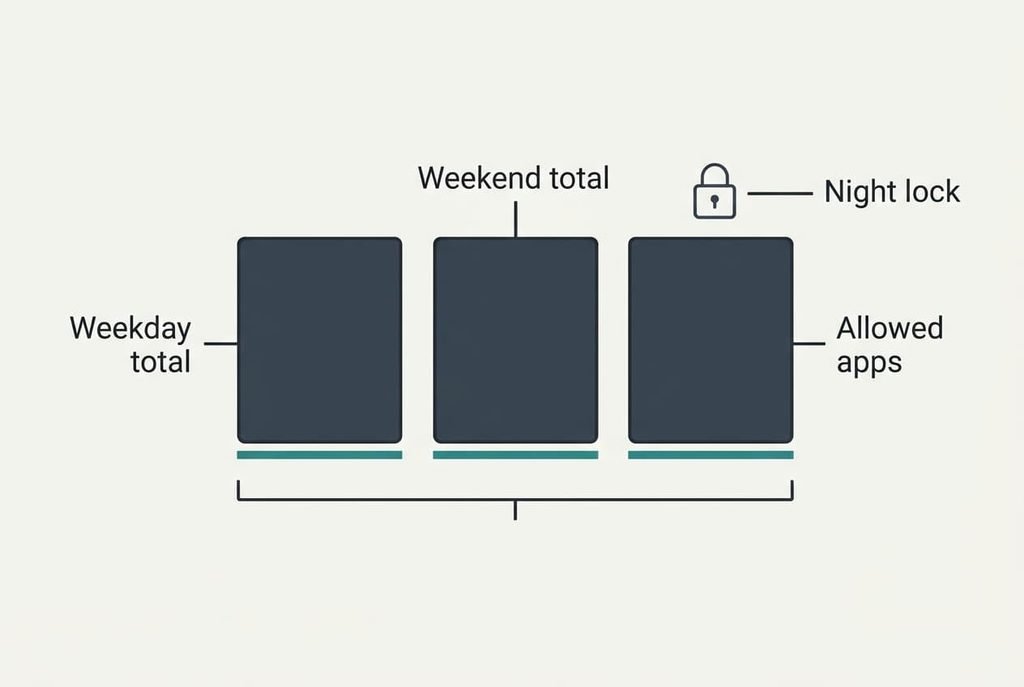
Fix the numbers on paper before touching a setting. Three figures matter. One is a weekday total and another a weekend total. The last is the hour when the tablet shuts for the night. Ours are 90 and 150 minutes, with a 19:30 cut-off.
Test them with some arithmetic. Five school days at 90 minutes give 450, and two weekend days at 150 give 300, so the week comes to 750 minutes, which is 12.5 hours. If you couldn’t defend that figure aloud to your child, trim it now.
Write the numbers before the settings.
Then decide which apps stay open whatever happens. Reading and calls to grandparents are the usual pair. A limit that cuts a call to a relative mid-sentence teaches a child to resent every rule, so write the exceptions down before you begin.
Finally, check that the tablet has its latest update and that you hold its main account. Without that account you can’t change the controls later, and a second-hand tablet often arrives with none. Charge it to at least half as well, because a step that stalls on a flat battery wastes the whole evening.
Six Steps to Daily Time Limits for a Tablet
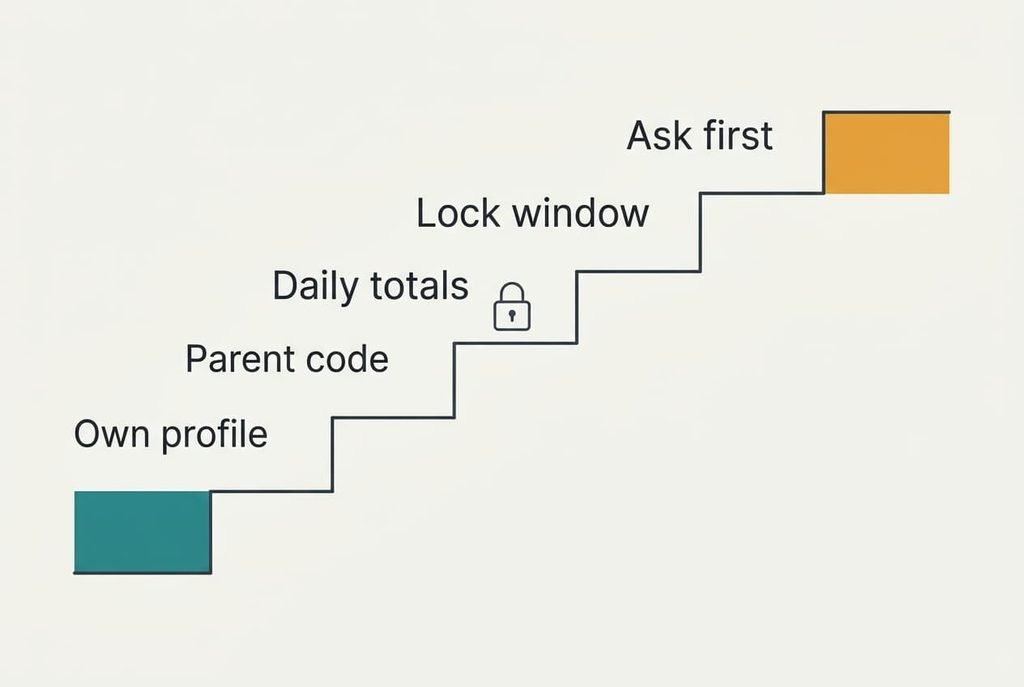
1. Copy the three numbers and the exception list onto a card. Look for a list that fits in your palm, with two apps at most under always allowed. Settings screens nudge you to round every figure upwards, and a written card resists that nudge. The card is right when its weekly total reads 750, and you can tape it inside a kitchen cupboard so the numbers stay in view.
2. Create a separate profile for your child. Look for an option that adds a user or a child account bearing the child’s own name. Limits attach to a person, so placing them on your own profile would lock your email as well. Check that the lock screen shows the child’s name and none of your apps appear. A shared family tablet often has your email open. Close it and sign out of anything personal before you hand the profile over.
3. Pick a parent code that your child can’t guess. Look for a field asking for a code known only to the adult, and enter six digits that aren’t a birthday. Forgetting it is costly, because a reset can wipe the controls and sometimes the profile itself, so store the code somewhere private. Test it by opening the controls from the child’s profile, which must ask for the code.
4. Enter the daily totals. Look for separate weekday and weekend values, since one number for all seven days either squeezes the weekend or loosens school days. Set 90 and 150. If the tablet shows a weekly counter, it should read 12.5 hours. Some tablets count only active use, and others count any time the screen is on, so watch the first day’s total against a clock.
5. Set the lock window and the always-allowed list. Look for a window such as 19:30 to 07:00 and a short list of apps that ignore the totals. A total applied to everything ends a video call at the 90 minute mark, which nobody wants. Confirm that the allowed list holds two entries and no more. A third entry usually becomes a loophole within a week.
6. Decide what happens at zero. Look for a rule that sends a request to your phone rather than granting time by itself. Automatic extra time turns a limit into a suggestion. A locked app should offer to ask you for more, and nothing should open until you agree. Choose a small grant, such as 15 minutes, so the answer to any request stays easy to give.
Testing the Finished Setup With a Five-Minute Limit
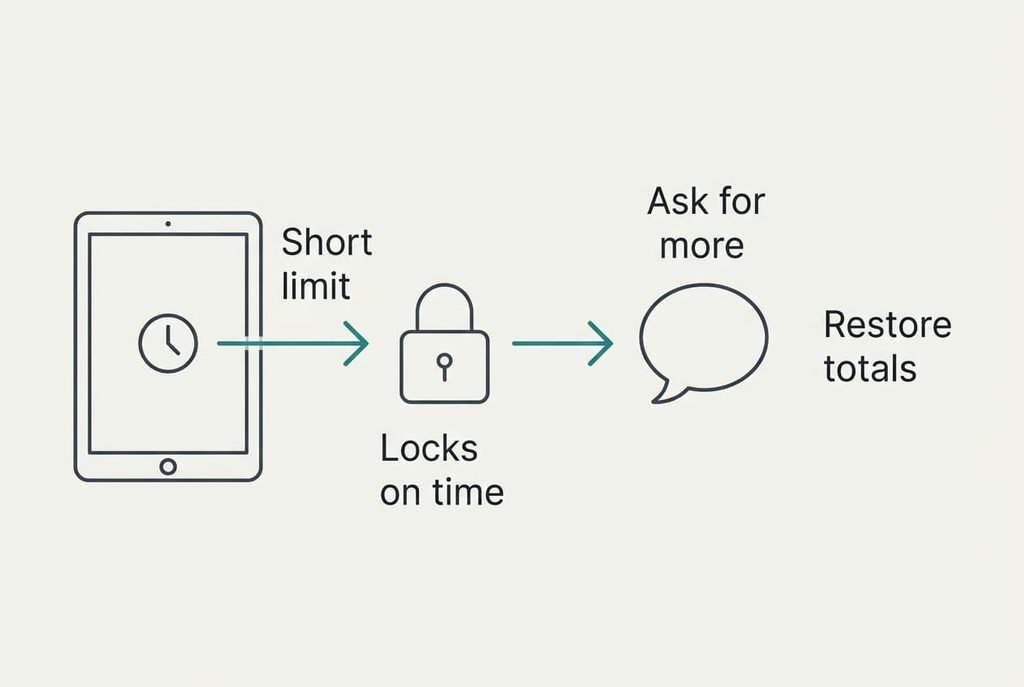
Lower the daily total to five minutes and play until the tablet locks, which shows you the whole sequence in a few minutes. Daily time limits on a tablet are easiest to trust once you’ve watched one fire. Open any game on the child’s profile and let it run. The tablet should freeze the game and show a short message. It should also offer to request more time. Send the request and approve five minutes from your own phone. The tablet should reopen for exactly that long.
Next, set the lock window to begin two minutes from now. The tablet should shut on time, apart from the two allowed apps. Last of all, put the totals back to 90 and 150. A test value left in place is the commonest reason a child announces that the rules are broken, and you’d have no answer. Tick each result on your card as you go.
If the Setup Stalls: Three Common Snags
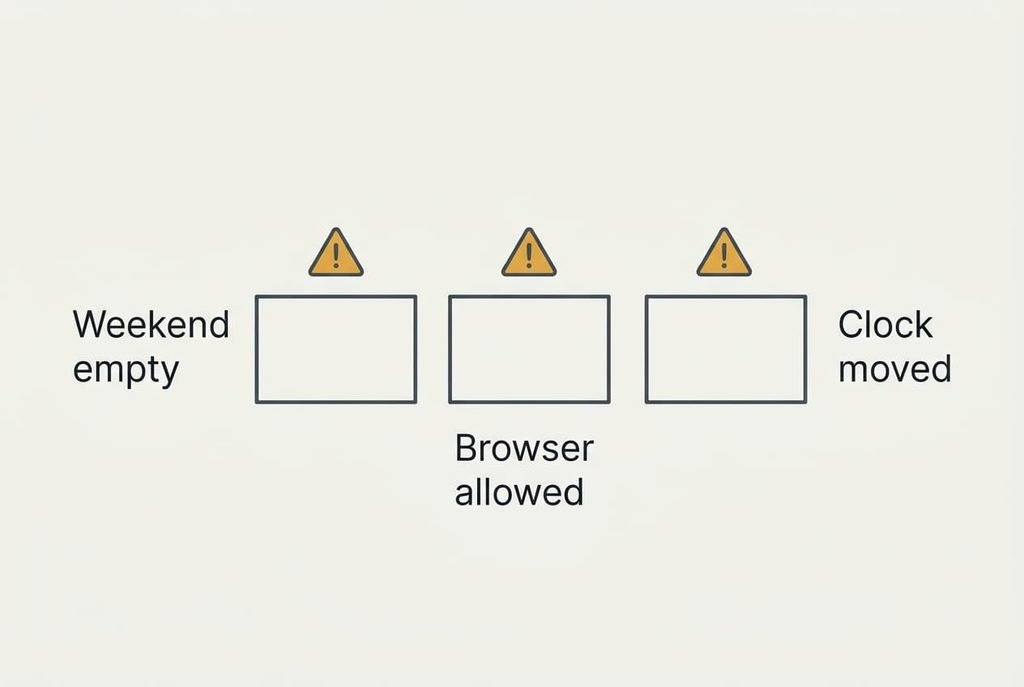
A limit seems to vanish at weekends. Either the weekend value was left empty or the schedule covers weekdays only. Open the day settings and confirm that Saturday and Sunday each carry 150.
Play carries on after the lock. A video site inside the web browser is the usual cause of daily time limits on a tablet failing, since a browser counts as a single app and you may have left it allowed. Add the browser to the limited list, or apply the same total to web content.
The allowance seems to reset itself. A child who finds the clock setting can push the date forward and so earn a fresh day. Make the tablet follow the network clock, and keep that setting behind your code, because a clock that anyone can change defeats any daily limit.
The clock is the weak point.
The Step That Isn’t Worth Taking
Unplugging the router at 19:30 looks tidy, yet it switches off every device in the house. Calls with grandparents end, a work laptop drops its connection and the doorbell goes quiet. It also fails at its own purpose, because games already downloaded to the tablet run happily offline.
Daily time limits on a tablet achieve the aim without any of that. The tablet locks at 19:30 while the router stays on, so everyone else’s evening continues.
Hiding the charger is a similar dead end, because a child soon finds the spare cable. Another tempting shortcut is a very tight total, such as 30 minutes, with generous extensions on request. It sounds strict, but a child who asks six times a day wears you down, and each yes teaches that the number is negotiable. A fair total that holds beats a tough one that bends.
Set the limits, run the five-minute test once and leave the rules alone for a month. Revisit the totals when your child turns eight or changes school. Your setup needs only a brief list and one tested lock behind a private code. A glance at your card each term keeps the numbers honest as your child grows. That takes two minutes, and a daily time limit on a tablet then becomes part of the family routine instead of a weekly argument.
Questions Readers Keep Asking
How long does it take to set up?
Allow about 25 minutes on the first attempt. Choosing the numbers and the parent code takes the biggest share. The settings need around ten minutes, and the five-minute test adds a few more. After it works, the tablet needs no attention until a total changes or your child outgrows the profile.
Will it overwrite what is already on the tablet?
A separate child profile leaves your own apps and files alone. Switching limits on for an existing shared profile can replace an old schedule, though, so note the current times first. Any reset of the controls may also clear that profile’s settings, so the parent code deserves a careful hiding place.
Can the weekend limit differ from school days?
Yes. Most tablets accept separate values for weekdays and weekend days, which is why this guide uses 90 and 150 minutes. Add the weekend value once the weekday one passes its test, then try a Saturday by checking the setting directly, and confirm that the 19:30 lock still applies on both.