You can save a web page as a PDF that keeps its layout in about 6 minutes, and the file will open on any device. One question picks the route: a text article prints cleanly through the browser’s own PDF option. A wide table or dashboard needs the repairs in the stall section. This guide follows the article case. Treat every time and page count here as a sample from one article of 2,400 words and six pictures, and run a page you care about through the steps to get your own figures. You need only the browser you already use. Nothing has to be installed.
Before You Save a Web Page as a PDF: the Step People Skip
The step people skip is confirming you’re signed in. A page behind a login, such as a booking confirmation, shows a sign-in screen to anything that isn’t you, and the saved file can end up as a copy of that screen. Open the page and look for your name or reference number. Only then carry on.
Priya in Leeds needs a hotel confirmation for an expenses claim. She finds the page, sees her booking reference at the top and keeps the tab open. Then she scrolls to the bottom and back, because many pages load pictures only as they come into view. A grey box where a picture belongs will become a grey box in the file.
Pick the destination folder now. A folder named for the month, with the date in each file name, stops a fourth copy of “page” from replacing the first. Last of all, look for anything floating over the text, such as a cookie banner or a chat bubble. Such items print on top of the words they cover.
Six Steps to Save a Web Page as PDF
1. Scroll the whole page slowly down to the end and back up. Look for every picture to be sharp rather than a grey box. Pictures load as they come into view. A page saved without this pass drops them. It’s working when the last picture matches the thumbnail you saw at the start. Allow 1 minute.
2. Dismiss anything that floats over the text. Scan the window edges for a banner or a bubble that stays put while you scroll. These elements print wherever they sit. One banner can therefore hide a line on every page. Proof: a full scroll shows only article text. Allow 1 minute.
3. Open the print preview and read the page count before changing anything. Look for the menus and adverts to vanish and for the text to run the full width. The preview is the browser applying the page’s own print rules, which shows what the file will hold. Expect about 7 pages from the sample article: 2,400 words at 500 a page is 4.8, and six pictures of 60 mm add about 1.4. The pass mark is a count within a page of that sum. Allow 1 minute.
4. Choose A4 portrait with the default margins and 100% scale. The right edge of the text must stay inside the page, because a layout drawn wider than the paper loses its last words. Turn on background graphics only if the page relies on coloured panels, since that makes the file larger by a megabyte or so. A pass looks like every line in the thumbnails ending before the edge. Allow 1 minute.
5. Pick “save as PDF” as the destination instead of a printer, then save into the month folder under a dated name. Look for the destination to read as a file rather than as a printer name, because choosing a printer by mistake can send a real sheet to paper. Done means a file in the folder, about 1.2 MB in the sample. Allow 1 minute.
6. Open the saved file at once and flick through it. Look for the page count to match the preview and for no picture sliced across a page break. The file is a fixed record of the moment you saved it. Any fault stays until you save again. The final sign is a word you can select from the body text. Allow 1 minute.
Test the Saved File Before You Rely on It
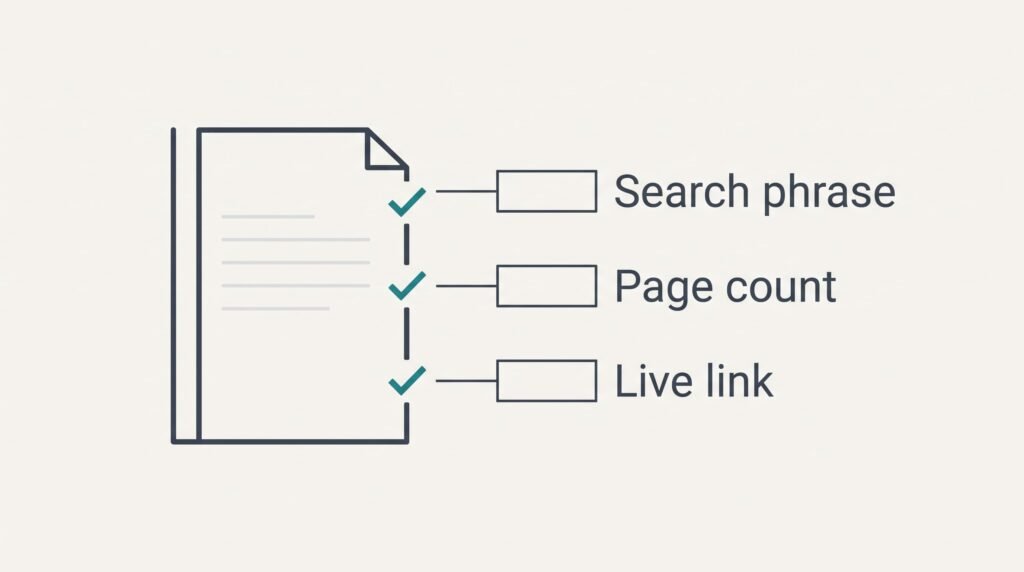
A file may look fine and still be faulty. Search the file for one middle phrase and see whether it turns up. If it does, the words exist as text and not as an image of text, and later searches will work too.
Next, count the pages. The total should match the preview from step 3. A file of 7 pages whose last page holds two lines points to a stray block. Scroll down and look.
When you save a web page as a PDF for a claim or a receipt, also compare the reference number with the live page, digit by digit. Then tap a link near the top. Most routes keep links live, though a few drop them, and you’d rather learn that before sending the file to someone who needs them.
A failed test costs a minute and nothing else.
Where a Saved Web Page Gets Stuck
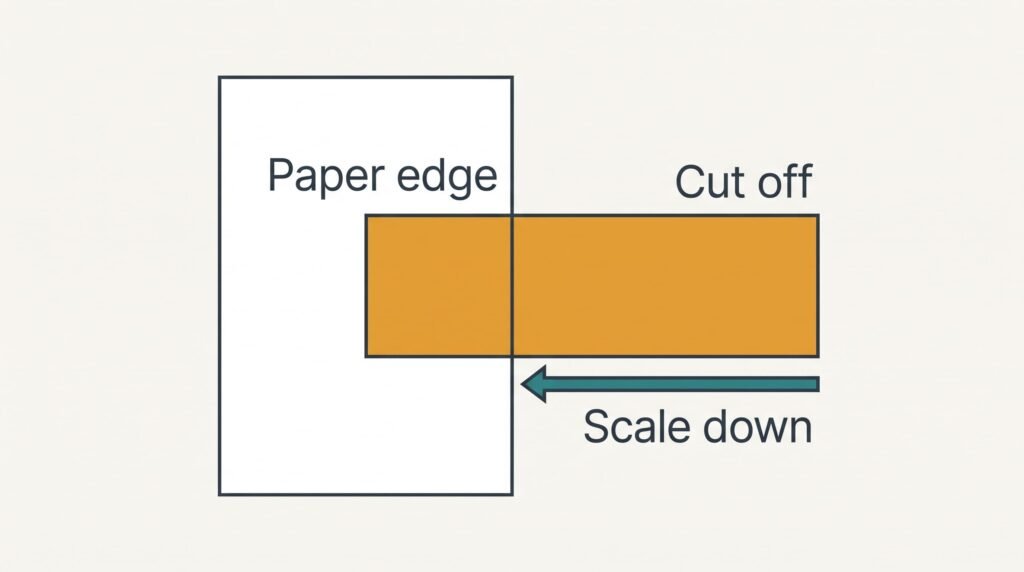
Expect three stalls when you save a web page as a PDF. The right edge is cut off, because a page built wider than the paper loses its last words. Lower the scale in the same preview until the edge returns, and accept smaller type: 80% turns 11-point text into about 9-point text.
A picture splits across two pages, because the break falls wherever the sheet ends. Change the scale by a few per cent to move the break. That shifts every later page too. Read the page count again.
The page loses its colours. Background shades are dropped unless background graphics are on. Switch them on and the file grows by a megabyte or so, an acceptable cost for a page that relies on a coloured panel. A table wider than the paper can’t be rescued this way, and it needs a landscape page instead. No data is gone, since the web page remains available to save again.
One Step Not Worth Taking
Don’t stitch screenshots into one long picture. A stitched screenshot is only pixels. You can’t search it or select a word, and the six-picture article swells to several megabytes against about 1.2 MB for the real file. Every join between shots can also cut a line in half. A real file also lets a search find the page months later, by any word it contains.
Printing to paper and scanning it back is a second detour. That costs roughly ten minutes plus a sheet per page, and the result is again a picture rather than text. A third detour is an online converter. It adds an upload and a wait, and your page travels to a server you don’t know, while the browser’s own option finishes in seconds.
To save a web page as a PDF you need no tool beyond the preview and a careful eye.
Keep the dated file in the month folder, and close the original tab only once the PDF opens correctly. If the page is a receipt or a confirmation, the saved copy is often the only proof once the live page changes. A habit of saving it the day it arrives costs 6 minutes and avoids a hunt later. Write down the page count you expect before each save, since a mismatch is the lowest-cost early warning you’ll get.
Questions and Answers
How long does it take?
About 6 minutes for a six-picture article when the routine is familiar, and nearer 10 on a first attempt. The scroll pass and the preview take longest. A short page with no pictures can be saved in about 2 minutes, since no pictures need loading.
Will links and colours survive?
Links usually survive, but test one before sending the file. Colours depend on a setting: background shades vanish unless background graphics are on, and the file grows by about a megabyte when they are. Pictures keep their quality, and the text stays searchable.
Can I do the same on a phone?
Yes, the idea is the same. Open the share or print option. Check the preview, then save as a file. The preview is smaller. Zoom in to read the page count and the edges. Allow a couple of extra minutes, because phone pages often hide the margin and scale choices.