Bluetooth audio reaches your ears about as late as a shout from 70 m away, and your eyes notice the gap. Why does Bluetooth audio lag behind the video? Because the sound waits in six places on its way from the laptop to your headphones, and each one holds it for a few tens of milliseconds. I’d shift the video’s timing first and shrink the chain second, because the first cure is free and the second takes effort.
The figures describe a UK living room with one laptop and one pair of wireless headphones. Treat each delay as a rough figure and swap in your own readings.
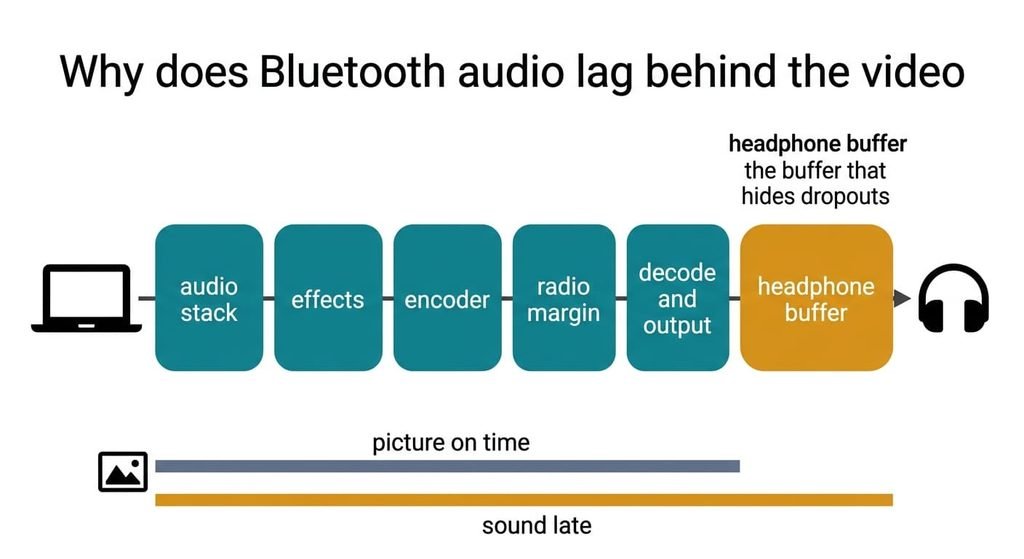
Why does Bluetooth audio lag behind the video
Think of the path as a ledger with six lines, each in milliseconds. The laptop’s audio stack holds a short buffer, worth 30. Any sound effects you’ve switched on add 20. Next, the encoder collects a slice of sound before it compresses it, which costs 25. Then the radio keeps a margin for resending lost packets, worth 40. After that, a buffer of 80 in the headphones holds the sound before it plays, so a stumble in the link goes unheard. Decoding and output cost 15. The total is 210 ms.
At 343 m/s, sound covers about 72 m in 210 ms, which is where the shout comparison comes from. A video player asks the system how long audio takes and compensates by that amount. Many wireless headphones report nothing, so the picture arrives on time while the sound trails by 210 ms, more than five frames at 25 frames a second. I’ll treat 100 ms as the line where speech starts to look wrong, and your own eyes may set it elsewhere.
Each buffer exists for a reason. The largest one, in the headphones, hides dropouts, so shrinking any line trades delay against stability. The ledger stays the same for every clip, which is why each film you play suffers the same offset.
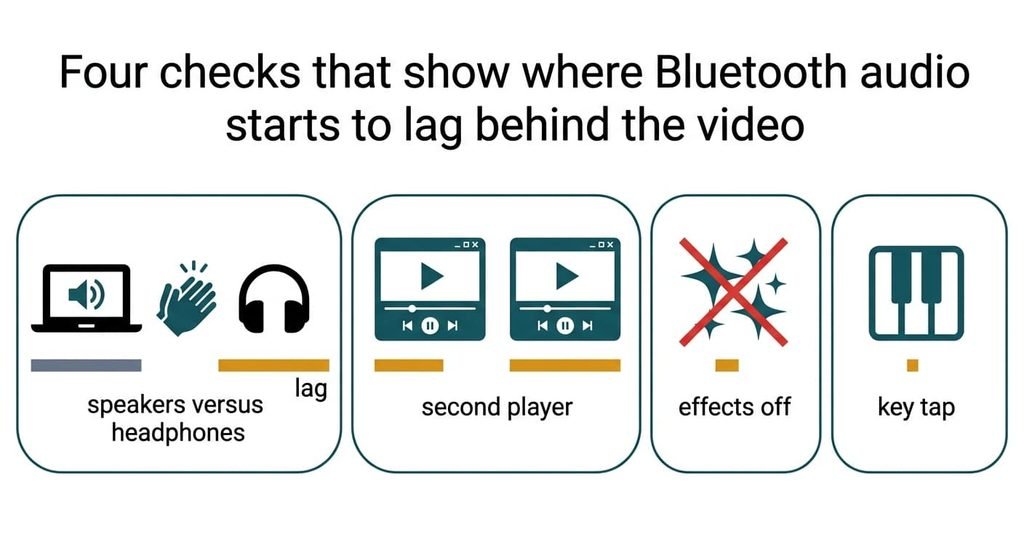
Four checks that show where Bluetooth audio starts to lag behind the video
Four short tests reveal what makes Bluetooth audio lag behind the video on a laptop. None costs a penny. Use a clip with a clear hand clap or drum hit, and judge it by watching and listening.
First, play the clip through the laptop’s own speakers, then through the headphones. If the speakers match the picture and the headphones trail it, the chain after the laptop is the cause.
Second, play the same clip in a second player or a browser tab. A different lag means one player compensates better than the other, so the weaker one is where the offset control will earn its keep.
Third, switch off the system’s sound effects and repeat. A shorter gap means the effects stage was adding to the ledger.
Last, open an on-screen piano, since it plays a sound for each key you press, and tap one. A lag there too means the real chain is long, and no player setting will reach it.
Jot each answer down, because the set of answers names your starting fix.
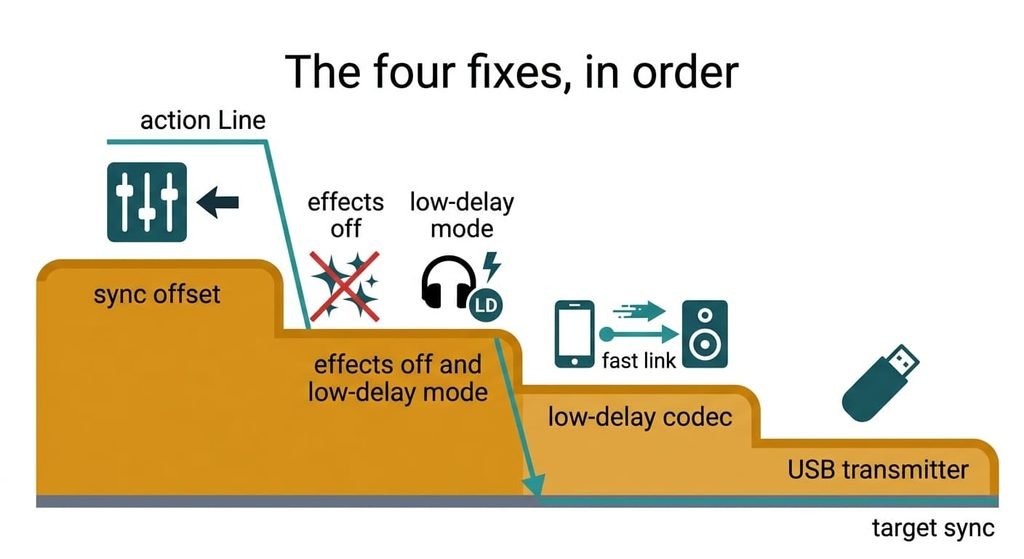
The four fixes, in order
Each step that follows trims a different part of what makes Bluetooth audio lag behind the video. Replay the clap after each one and aim for a gap under 100 ms.
Setting the player’s audio sync offset answers the video case and costs nothing. Step the offset until the clap matches. The value you land on is your measured lag, here 210 ms. It brings the sound forward by that amount. The setting belongs to one player. Calls and other apps gain nothing, and some players forget the value when you open the next film, so keep the number to hand. Reset it when you return to speakers, or the sound will lead the picture by 210 ms.
Switching off the sound effects and choosing the headphones’ low-delay mode is a quick settings change. Effects such as bass boost or spatial widening each process a block of sound before passing it on, which is where the 20 comes from. Dropping that line removes 20, and the mode, if your model has one, halves the headphone buffer from 80 to 40. The total falls to 150 ms for every app. The price is a thinner margin, so dropouts arrive sooner at the edge of the range.
Pairing on a low-delay codec takes about thirty minutes, because you read both manuals and find a codec built for low delay that both ends support. That trims the encoder to 10 and the radio to 30. The buffer falls to 25 and decoding to 10, so the total reaches 105 ms. Speech usually survives the heavier compression well, while detailed music shows it more. Some low-delay codecs compress harder and tolerate less distance. If only one end supports it, the pair silently falls back to the default, so replay the clap to confirm.
Buying a USB transmitter that carries the codec is the one purchase, for laptops whose own radio lacks it. It lands on the same 105 ms. It costs money and a spare port, and the headphones must speak the same codec. A transmitter that sticks out of the side gets knocked, so check where the port sits before you buy. Pair the headphones with the transmitter and let the laptop see only that, so the laptop’s own radio stays out of the path.
If none of that worked
If the gap stays above 200 ms after every step, connect the headphones to a phone and play the same clip. A lag there as well means the headphones’ own buffer is the cause, and only the maker can change it. Write down the model and your clap results, then ask whether a low-delay mode or an update exists for it.
Next, move the headphones onto the same table as the laptop. A distant or blocked link makes the radio line grow, because more packets are sent twice.
Resetting the headphones to factory state comes last, since it can’t be undone: it erases the paired-devices list and the stored settings. Note your pairings first. Also record the date of any update you installed and whether the lag changed afterwards, because a pattern across two or three updates is easier for a support desk to act on than a single complaint.
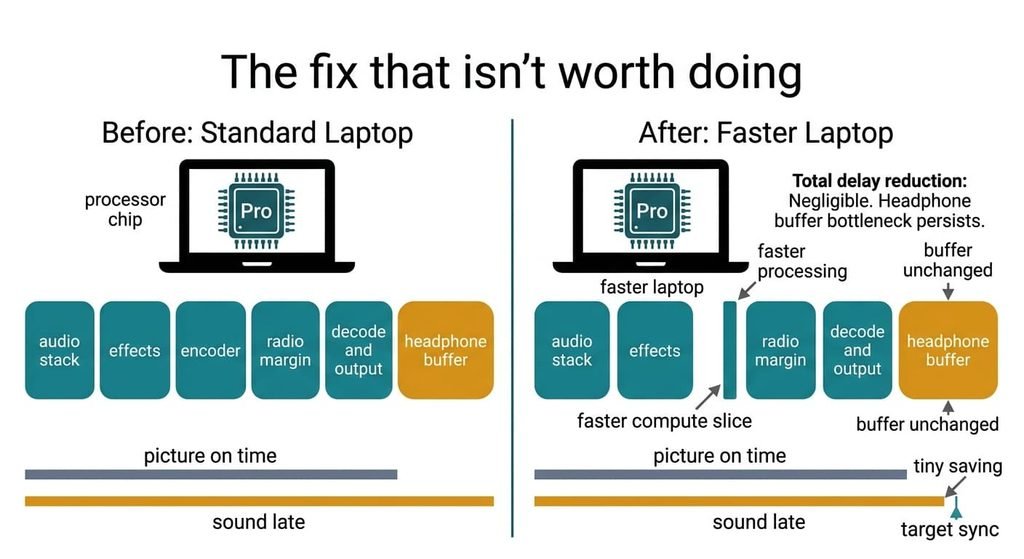
The fix that isn’t worth doing
Buying a faster laptop is what many people reach for, and it aims at the wrong line. The encoder needs about 5 ms of computing per slice. A laptop twice as quick saves 2.5 ms of the 210. The other 20 ms of that line is the time spent collecting the slice.
The collection time is set by the codec, and no processor shortens it.
Nobody wants to watch Bluetooth audio lag behind the video, so spending on speed feels logical. The chain is made of waiting, and waiting doesn’t get shorter with a stronger chip. A better laptop would give you the same 210 ms and a larger bill. Faster Wi-Fi or a stronger router changes nothing either, because the chain sits entirely between the laptop and the headphones. Closing every other app frees processor time and frees none of the waiting.
What makes Bluetooth audio lag behind the video is a chain of buffers, so work on the lines you can change. Set the offset first for films. Then trim the effects and the headphone mode. Treat the codec and the transmitter as the final steps, and stop once the clap sits under 100 ms. One evening with a clip is enough to find the order that suits your gear.
Questions readers keep asking
Is a lag of 200 ms normal for wireless headphones?
In the example, yes. The six lines add to 210 ms, and the biggest is the headphones’ own buffer of 80. Many people notice speech slipping out of step from about 100 ms, so a gap of 200 ms is common and still worth fixing.
Does the offset setting fix calls and games?
No. It shifts timing inside one player only. A call or a game ignores it. The example’s real fix was a pair of settings. They brought the chain from 210 ms to 150 ms for every app. That’s the route for those uses.
Why is the lag worse in some apps than others?
Players differ in how much delay they compensate for. One may subtract a known figure from the picture, while another assumes the headphones add nothing. That’s why the same clip can sit in step in one tab and trail by 210 ms in another.