Pressing the at sign types a quote mark when the laptop is running a different keyboard layout from the one printed on its keys, and switching the active layout back usually fixes it in under a minute. Amira, who works in Leeds on a UK laptop, hit this on the morning she needed to type her email address. The address has 19 characters, and one wrong symbol was enough to make the form reject it. This guide finds the cause, ranks four fixes by cost and says when to stop. Every time and count quoted is a sample, so check your own.
Why Pressing the At Sign Types a Quote Mark
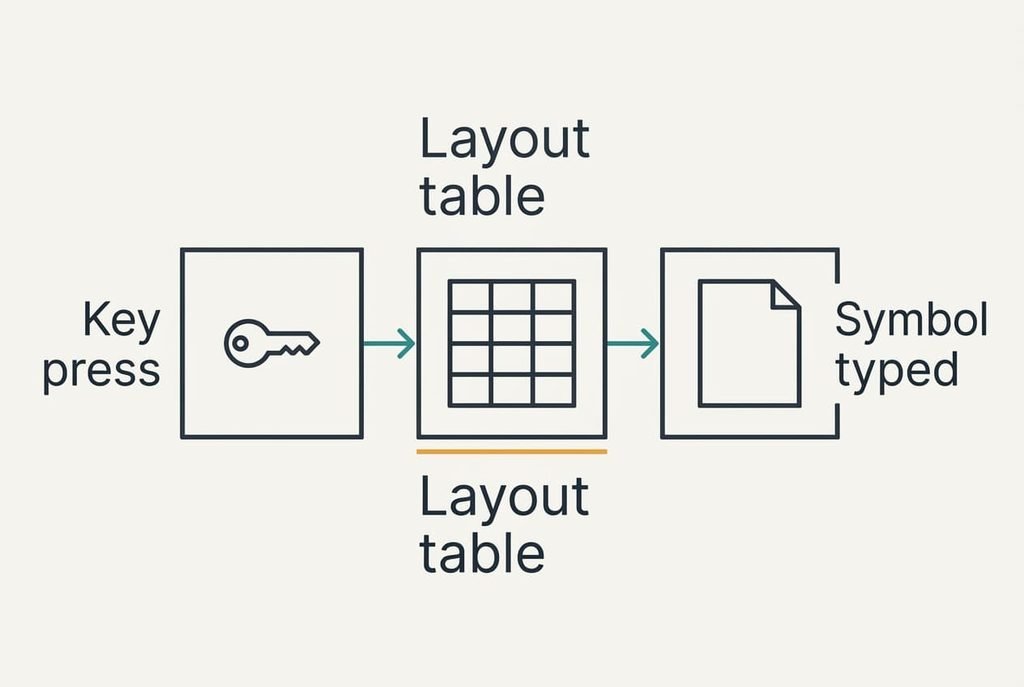
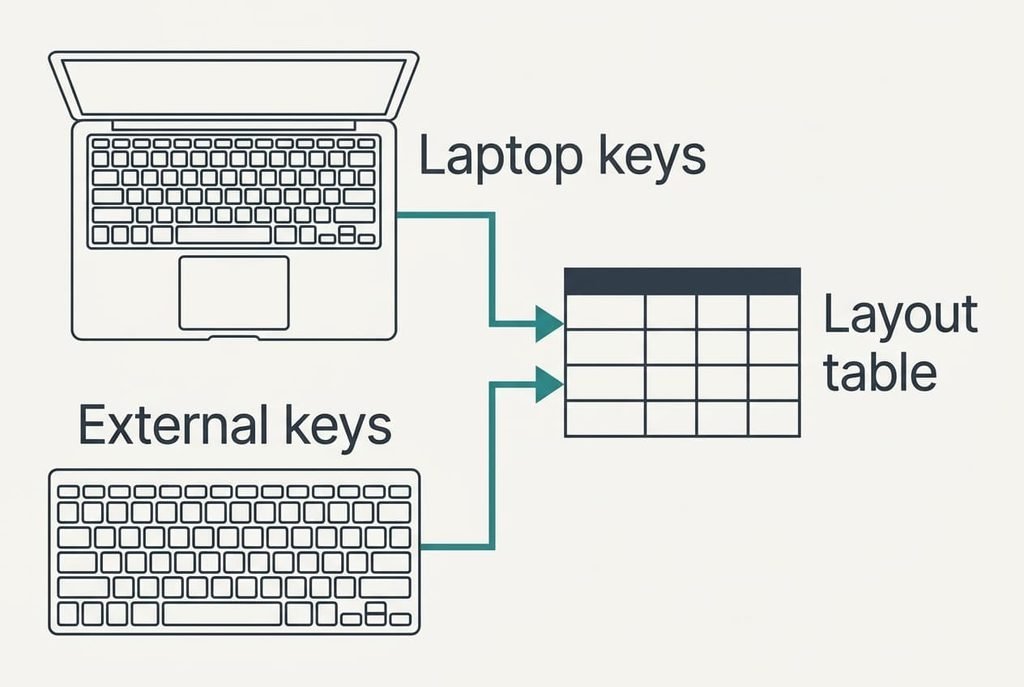
A key doesn’t carry a symbol. It sends a position, a code that says “second key in the number row”, and the laptop looks that position up in a layout table to decide what to type. The letters printed on the plastic are only paint, which is why a laptop sold in one country still works with the labels of another.
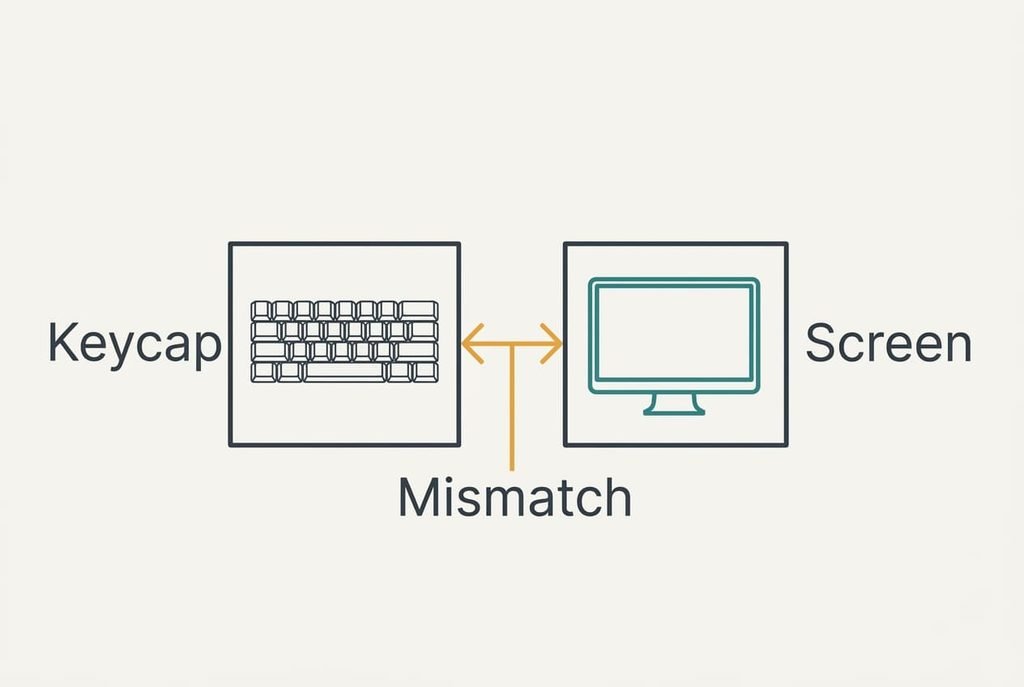
Two common layouts share nearly every letter position and disagree on a few symbols. Shift plus the 2 key types a quote mark on one and an at sign on the other, while the apostrophe key swaps the same pair the opposite way round. A laptop with UK keycaps can therefore type US symbols without one letter looking odd.
The keycaps are only labels, while the layout table alone decides what appears on screen.
A single wrong table entry can change one character in an address of 19, and a form that checks the address rejects it. Amira’s address, amira.k@example.org, came out as amira.k”example.org. Layouts usually flip because a two-key shortcut gets pressed while reaching for the space bar, and three slips a week would mean a dozen a month.
Four Tests for Pressing the Keys Around the At Sign
Run these in a blank note. Each test needs under a minute and no tools.
1. Type Shift plus the 2 key, then Shift plus the apostrophe key. When the first types a quote mark and the keycap shows an at sign above the 2, the two disagree.
2. Find the short code beside the clock. It is made of two or three letters. A code that differs from your own country’s means a second layout is active. A match means the table is the one you chose, so look hard at the next test.
3. Bring up the screen keyboard, then hold Shift. It draws the table in use. A quote mark above the 2 on screen blames the table, whereas matching symbols point at the keys themselves.
4. Repeat the first test in a second app. A different result there means the system remembers a layout per window, and the same result everywhere means one table for the whole machine.
Two of the four tests usually settle it.
Four Fixes, Ordered From Free to Irreversible
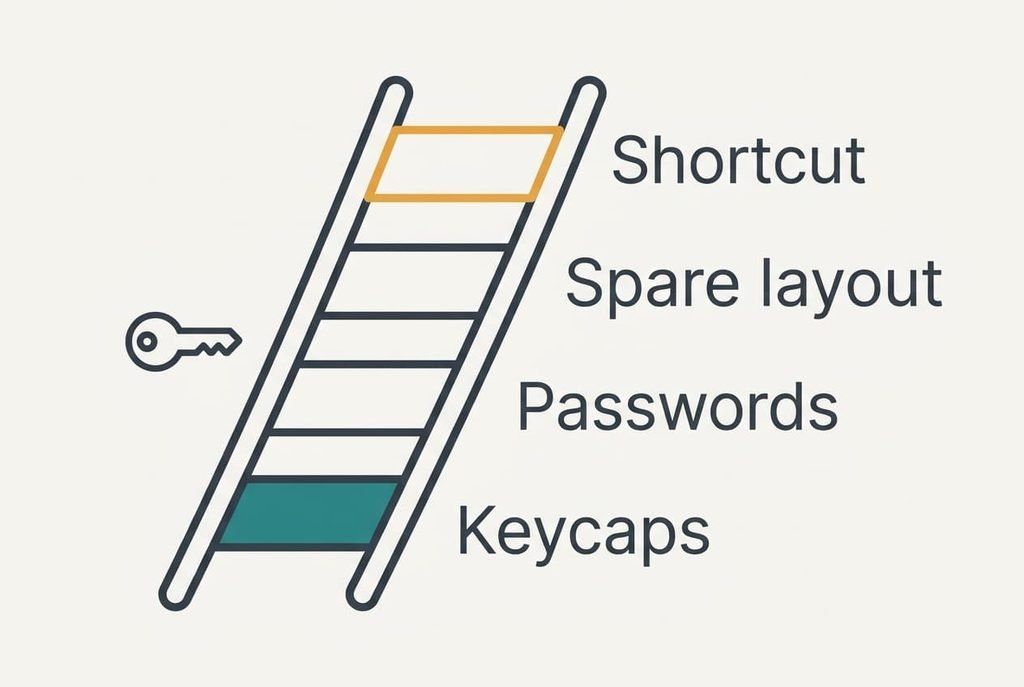
Go down the list and halt once pressing the at sign types what the keycap shows. Each fix maps to one cause from the tests, and each entry names what it costs you.
Switch the layout back with its shortcut. The cause is an accidental flip. Use the shortcut once or twice while watching the code near the clock, then type the test pair again. Watch the code change as you press, and stop on the one that matches your keycaps. Cost: nothing, and about 30 seconds. One snag is that some systems remember a layout for each window, so you may have to repeat the step in every window you use.
Remove the layout you never use. The cause is a spare layout left in the list, which lets the shortcut flip to it again. Delete the entry in the language settings and the flip can’t happen. It costs five minutes and nothing else, apart from the spare layout itself, which you’d have to add again if you ever type a second language. Then keep the layout and give it a different shortcut. Some people carry three layouts for languages they rarely type. Each extra entry is one more place for the shortcut to land.
Re-enter any password set on the wrong layout. The cause is an account made while the wrong table was live, so its password holds different symbols than you believe. Amira’s work login has 14 characters including an at sign and a hash. Reset it, or type it on the table that made it. Logins with the most symbols in them suffer first. Allow about ten minutes per account, which makes an hour for six accounts. The old password is gone.
Match the keycaps to the layout. The cause is a keyboard whose printed symbols differ from the table you need. Choosing the table that matches the keycaps is free, but it changes symbols you already know. Buying a keyboard or keycap set with the right labels costs money, and stick-on labels can’t be peeled off cleanly. Only touch typists can ignore the keycaps, so this is worth it for people who type by sight. Weigh the cost of a keyboard against ten minutes of relearning before you decide.
If None of the Fixes Worked
Collect two facts before you contact anyone: the code near the clock, and whether a plugged-in external keyboard behaves the same. If it does, the table is to blame while the laptop is fine. Say which tests you ran, because a clear list saves a support call from starting at the beginning. If pressing the at sign still types a quote mark on the external keyboard too, a managed work laptop may reapply its own layout after every login, and whoever configured it can change that.
A key that types nothing, or repeats on its own, points to hardware rather than layout. That’s a repair question, and it looks nothing like swapped symbols.
A reset is a last resort with side effects. It reverts language options and region options together, which can shift the date format and the time zone. Write your settings down first.
A Fix Not Worth Making
Installing a key-remapping utility to swap the two symbols feels neat, because one small program seems to cure the problem. It often runs only after you’ve logged in, and a remap changes what pressing the at sign sends only from that point. The login screen still uses the layout table, so Amira’s 14-character password would be typed wrongly at every sign-in, and five failed attempts could lock the account for a while. Editing system files to swap the table is riskier still, and a new laptop is far too much for one pair of symbols. Copying symbols one at a time from a character map is another dead end. At about 20 seconds each, twelve a day adds up to four minutes, far more than the four fixes combined. A utility also has to start every time. When it fails, you get the wrong symbols with no warning.
Change the table, not the machine. Start with the shortcut. Then remove the spare layout and re-enter any password made on the wrong one. Treat any symbol that has moved as a layout fault first, because it’s the likeliest cause and the cheapest to test. Jot down which code beside the clock matches your keycaps, and the next swap takes five seconds to check.
Questions Readers Keep Asking
Can I fix this myself?
Yes, in nearly all cases. The first two fixes are free and take minutes, and they cover the usual cause, an accidental layout flip. Use the shortcut, check the code near the clock and remove any layout you don’t use. Only a mismatched keyboard needs anything bought.
What makes the symbols swap in the first place?
Usually an accidental press of the two-key shortcut that flips layouts, or a second layout added for another language. The key sends a position and the layout table turns it into a symbol, so a different table gives different symbols from identical keys. Letters mostly match, which hides the change.
Does it mean my keyboard is broken?
Not if the wrong symbols are consistent. A swapped pair that behaves the same every time is a table problem. A key that types nothing or types twice points to hardware, and so does one that works only sometimes. The on-screen keyboard test separates the two within a minute.