Your plan says 10 GB and your phone warns that data is low by the 20th. In about four weeks, with under ten minutes of actual effort, you’ll know the mobile data you really use to within 10% of your carrier’s own figure. The fork is simple. A result under 70% of your allowance means you can drop a plan size. A result over it shows you which app to tame. The numbers below come from an invented household in the UK, so use your own readings in their place. Allow four weeks, because a month is the unit your carrier bills in. A shorter test would catch only one pattern of usage.
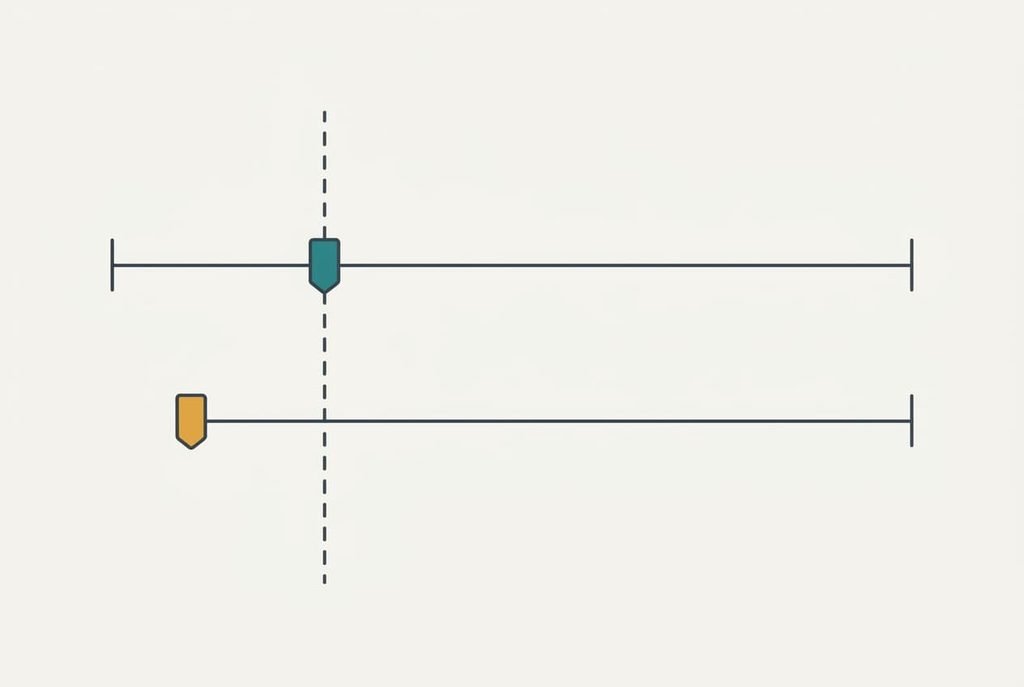
Before you measure the mobile data you really use
Most failed attempts fail on timing. Your carrier counts from a billing date. Your phone counts from whenever its counter was last cleared. The two totals can therefore differ by a week of usage before anything has actually failed. Measuring the mobile data you really use starts with a prerequisite that people skip: find out the date your billing month starts. Your phone’s counter has to begin on that same day or no comparison will mean anything.
You also need a way to record readings. A note on your phone is enough, and a screenshot each week is even better because it can’t be mistyped. Allow four readings in all, one a week on the same weekday. Units matter too. The phone lists apps in megabytes, and 1,000 MB make 1 GB, so convert before you add anything up. The phone’s counter measures only data sent over the mobile network, so anything that travelled over Wi-Fi sits outside it. Check whether your plan counts a month from a fixed date or from the day you joined, since a few carriers use a rolling month.
Start on the billing date, never mid-month.
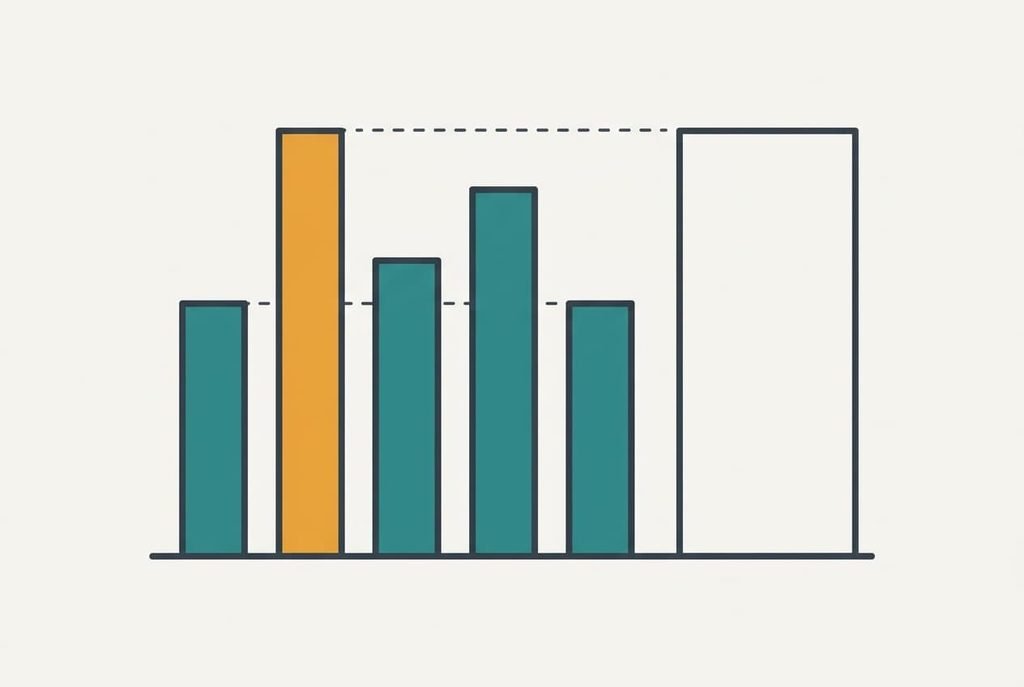
Six steps to see how much of your mobile data you use in a month
1. Clear the phone’s counter on your billing date and capture the empty total on screen. Do it on a quiet evening, since a counter can lag by a few minutes while apps are still syncing. Look for a figure of zero and the date it began. A counter that began earlier will inflate every later reading. Proof: the date shown matches the date on your bill.
2. Do nothing different for seven days. The point is a normal week, so look at the total only after the week ends. Leave automatic updates and downloads exactly as they are, along with your streaming habits. Changing habits to test the number would measure the test and not you. Proof: the week looks ordinary to you, with nothing unusual to explain a spike.
3. After the first week, read the total. Then read the list of apps beside it. In our household the total is 1.4 GB, with video at 0.6 GB. Note both, since the split shows what drives the total from the start. Take each top app in turn and ask whether it streams or keeps working in the background, because that decides what you could change later. Proof: the app figures add up to the total within 0.1 GB.
4. Repeat on the same weekday for three more weeks. Our readings add 1.7, 1.3 and 2.0 GB, which makes 6.4 GB over four weeks. Proof: you hold four weekly increments rather than one running total, since the gaps show the swings. Our busiest week, the fourth, took 2.0 GB, which is 54% more than the quietest at 1.3 GB.
5. Rank the apps by share of the final total. Ours gives video 2.6 GB, or 41%, then maps at 1.1 GB, social at 1.0 GB, music at 0.8 GB and everything else at 0.9 GB. Proof: the shares come to 100% and the top app is one you recognise. An unfamiliar top entry deserves a closer look before you go on.
6. Add a margin and compare with plan sizes. Take the busiest week, 2.0 GB, and multiply it by 4.3 weeks. That gives 8.6 GB as a worst case. Then round up to the next plan size above it, because plans come in fixed steps and not in the exact figure you measured. Our average of 6.4 GB plus 20% is 7.7 GB. Proof: one plan size sits at or above the worst case, or you can say which side of it you’ll live on.

Test the finished total against your bill
Open the carrier’s usage page once the month has closed and read its total. Judging the mobile data you really use depends on one test: the phone’s total should land within 10% of the carrier’s figure. Ours does. 6.4 GB against 6.9 GB is a gap of 7.8%. Carrier figures run higher because they count the overhead of each connection and round every session upward. The phone’s counter does neither, so a small gap in this direction is normal and not a sign of error.
If the gap is wider than 10%, the likeliest cause is a counter that began before your billing date or one that was cleared mid-month. Check the first screenshot. A wide gap the other way, with the phone showing more, usually means a tethered second device.
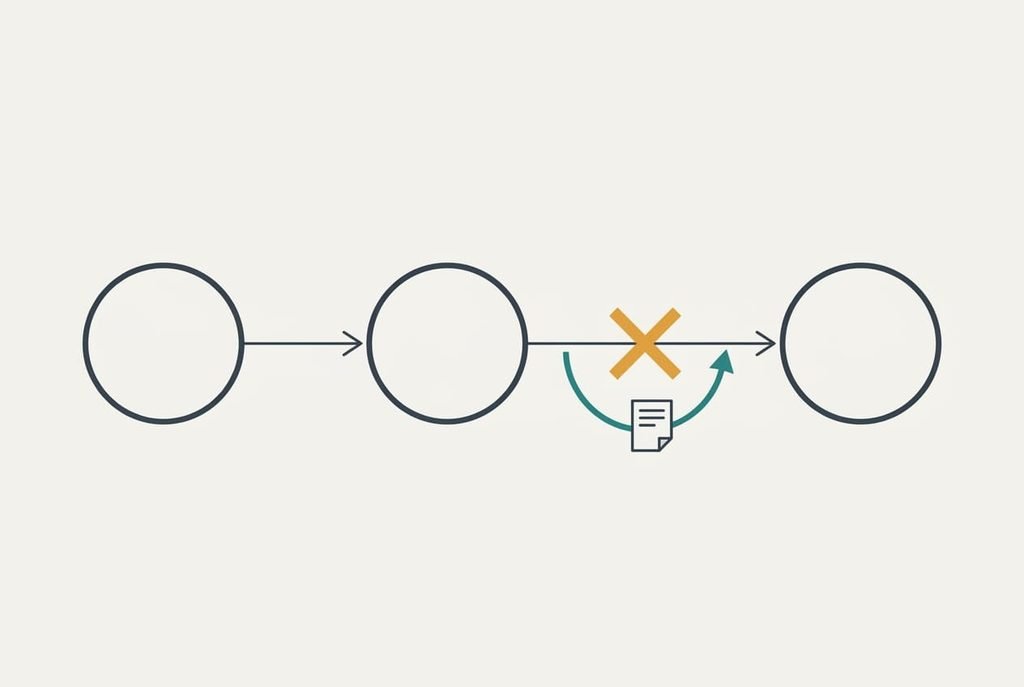
When a step stalls
Three things go wrong most often. The first is a counter that vanishes. Restarting the phone or installing a major update can clear it, which destroys the running total. The fix costs nothing if you’ve taken a weekly screenshot, because you can add the pieces. Without them you lose the weeks before the reset.
Take the screenshot before any update.
The second is a total that won’t add up to the apps beside it. The phone often files hotspot sharing or system updates under a separate line. That explains the missing 0.3 GB or so. Include that line in your sum. The third is a shared family plan, where the carrier’s figure covers every line and the phone covers one. Compare against your own line’s page and not the account total. A line that looks high usually belongs to the household’s heaviest streamer.
The step that wastes your time
One common tip is to log usage daily, and it’s the one worth skipping. A daily log gives you the same decision as a weekly one at seven times the effort. The extra precision is noise, and the mobile data you really use shows up just as clearly in weekly readings. Daily readings of 30 days take about 30 minutes a month, against 4 minutes for four weekly readings. Our weekly increments swing by 0.7 GB, which is far wider than any daily rounding. The decision about plan size turns on the 20% margin. A daily log can’t move that margin by even 0.1 GB.
Keep the weekly habit and skip the rest. If you’d like more detail on one app, check its figure once at the end. The answer rarely changes the plan you’d pick. A single weekly screenshot, taken at the same time on the same day, gives the clean trend you need.
The plan size follows from two numbers and a cushion: the average and the worst week, with 20% on top. Our 6.4 GB average and 8.6 GB worst case point to an 8 GB plan with a small risk in a heavy month. A 10 GB plan carries none. The choice between them rests on how much a surprise would annoy you. Repeat the measurement whenever your habits change, since last year’s figure then describes someone else.
Questions readers keep asking
How long does measuring a month of mobile data take?
About four weeks of calendar time, but only around ten minutes of real effort. Each weekly reading takes a minute or two, and the final comparison takes a few more. Nothing needs doing in between, which is why a screenshot each Monday works better than a daily check.
Will clearing the usage counter delete my history?
It clears the counter on the phone, not your carrier’s records. The cost is the running total you’ve built, so take a screenshot first. Your carrier still holds its own figure for the month, which is what you’d compare against in the end.
What if I have two SIMs or share a family plan?
Measure each line separately. A two-SIM phone usually keeps one counter per SIM, so read the right one. On a shared plan, compare your phone with your own line’s page. The account total makes the gap look far bigger than it is.