Text looks fuzzy on a new monitor when the computer sends a smaller picture than the panel holds and the monitor stretches it, which makes setting the panel’s own resolution the usual cure. Nadia works from a spare room in Cardiff with a 32 inch monitor and a laptop, and every letter on her screen has a soft rim. Below, you’ll find where the softness starts and three tests that name the cause. After them come four remedies, from a free setting to a new cable. All the measurements come from one made-up desk, so use your own.
Why Text Looks Fuzzy on a New Monitor Even When the Resolution Is Right
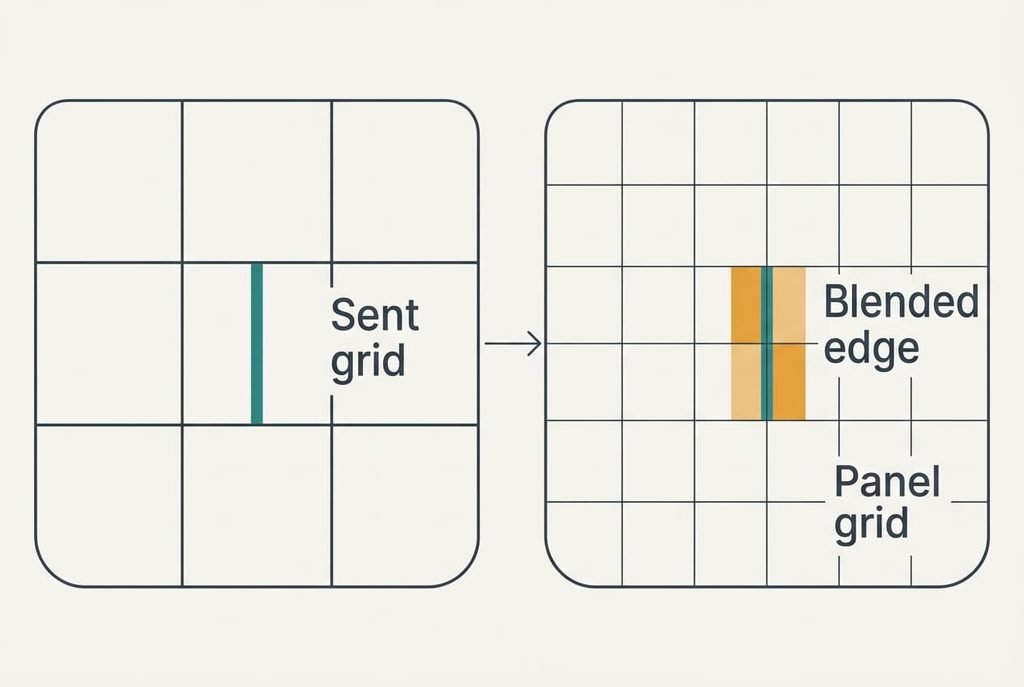
A monitor shows a picture on a grid of tiny squares that can’t change size. Nadia’s grid is 3840 across and 2160 down. Her laptop sends only 2560 by 1440, so the monitor must lay each incoming square over 1.5 of its own. Squares can’t be cut in half, which forces the panel to blend neighbours. The desktop fills the whole screen either way, so a stretched picture hides itself.
Follow a letter stem that is one incoming square wide. Half of all stems land exactly on one panel square. The other half straddle a boundary and share their ink between two squares at half strength each. The blur comes from the gap between the grid that was sent and the grid on the panel, since the monitor has to guess shades the laptop never drew.
Interface scaling works the same way. An older app that draws at 100% while the system asks for 150% gets stretched by half, so each of its squares covers 1.5 panel squares. That explains why one window can look soft beside a crisp neighbour.
A third source hides in the link, where a cable that can’t carry full colour detail smears coloured edges. Three sources of softness exist, and each leaves a different clue.
Three Tests That Locate the Soft Edge
Run the tests in order when text looks fuzzy on a new monitor, and jot every result beside its test. Use one page of black text on white throughout.
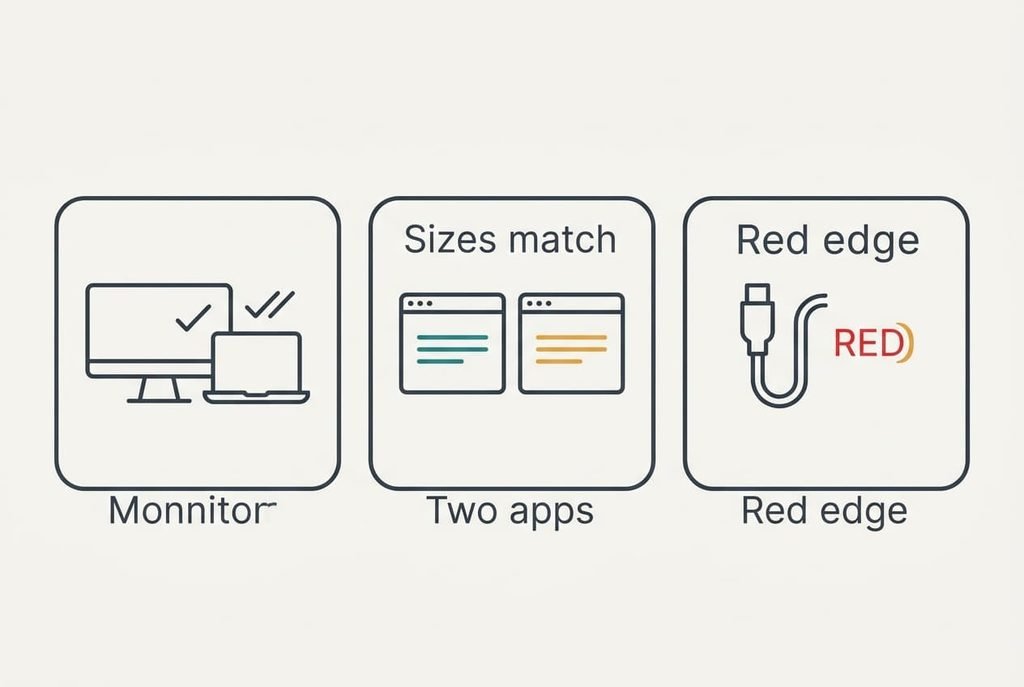
Test one: compare two numbers. Look up the panel’s native size in its manual or on the box, then read the size the computer sends in its display settings. A mismatch, such as 3840 by 2160 against 2560 by 1440, means the stretch is to blame. A match means you move to test two.
Test two: open the same page in two apps. If one app shows crisp letters and the other soft ones, the soft app is being stretched and the system is fine. If every app is soft, the fault lies lower down.
Test three: put one red word on a white page and study its edges from 60 cm away. A thin colour fringe or smear around the letters suggests the cable or port carries reduced colour detail. Clean edges clear the link.
Each outcome points to one remedy below.
Four Fixes When Text Looks Fuzzy on a Monitor
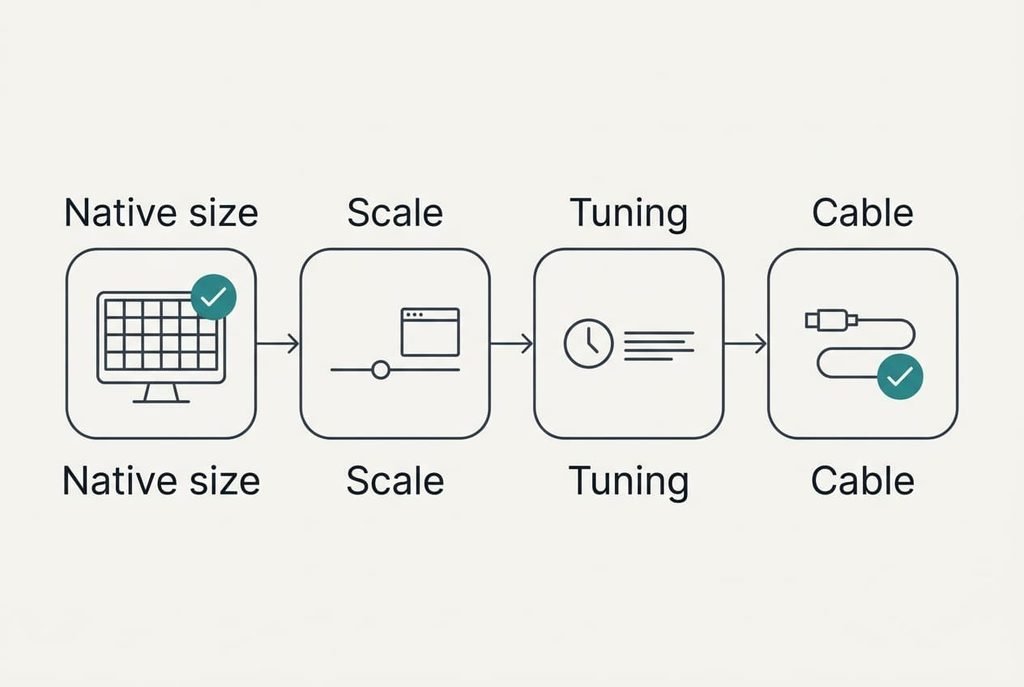
Send the panel’s native resolution: this free change removes the stretch that test one found. Choose 3840 by 2160 in the display settings and each letter lands on whole squares. The price is size, because text now looks smaller on the same 32 inch panel, and Nadia’s 12 point text shrinks by a third. Raise the system scale to compensate, which leads to the next remedy. A missing native size means the port or the cable limits the signal. Try the other port first. Look at a full page of text afterwards, since a single window can hide a leftover setting.
Change the scale and tame the stubborn app: this setting answers test two. Pick a scale that gives a tidy result, such as 150% on a panel 3840 squares wide, which behaves like a 2560 wide screen with finer letters. Then ask the soft app to handle scaling itself, wherever its properties allow. You lose some working space, since larger text means fewer lines on screen. A few old programs ignore the request, so they stay soft whatever you pick. Close and reopen them after each change, because many read the scale only at launch. Judge the result on the same page you used for the tests.
Spend 15 minutes tuning the text: this one spends minutes but no money. Run the text-tuning tool that ships with the system and pick the clearest sample each time it asks. Do it in your usual room light, since glare changes which sample looks best. It adjusts how edges are smoothed to suit the stripe pattern of your panel. The limit is that tuning belongs to one user account on one machine, so you’d do it again for another laptop. It can’t undo a stretched picture either, which is why the first two remedies come first.
Fit a cable rated for the panel: this is the one remedy that takes money, and it answers test three. A cable that supports the panel’s full size at its refresh rate restores the colour detail the old one dropped. You give up a few pounds, and a run longer than 2 m can bring the trouble back. Buy the shortest lead that reaches, and keep the old lead in a drawer until a full working day has passed.
If the Letters Stay Soft
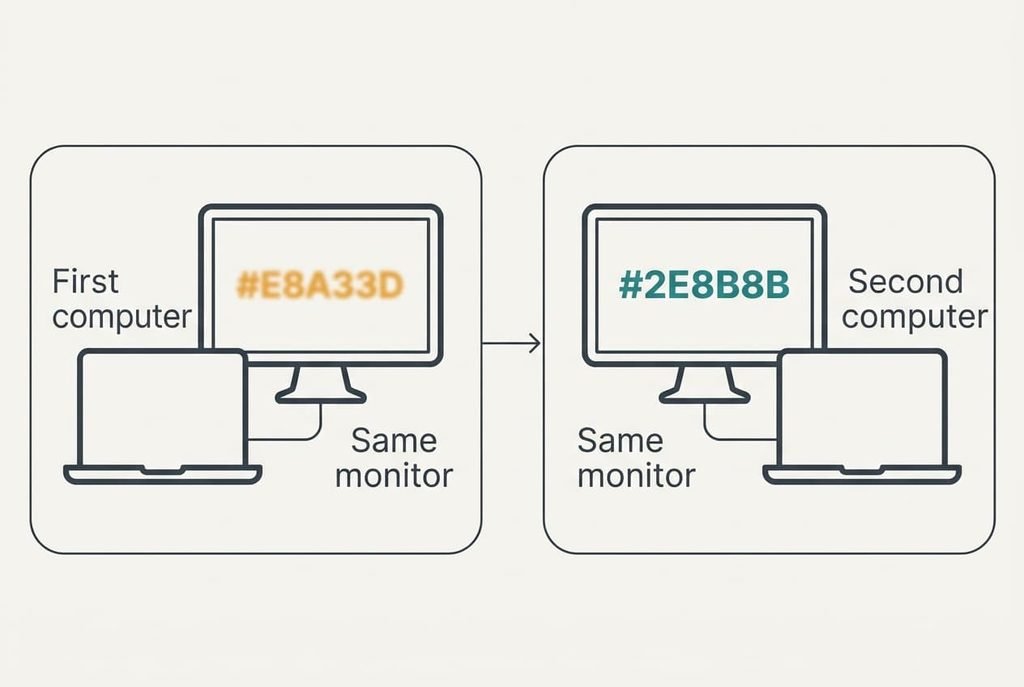
Before you contact anyone, gather what you can. Note the monitor’s model and the size the computer sends. Add the system scale and the type of cable. Photograph one word of text from one fixed position each time you change a setting, and put the answers in one message so that support staff can reproduce your setup first time. Then try a second computer on the same monitor. If text looks fuzzy on a new monitor there as well, the panel is the likely culprit and its maker can advise. If the second computer looks crisp, blame the first computer’s settings or its port.
A factory reset should come last. It wipes the brightness and colour choices stored in the panel, so note them down beforehand. Try it only when every source looks soft in the same way.
The Setting That Makes Matters Worse
Many people reach for turning the monitor’s sharpness control up to the top, and it rarely helps. That control adds no detail. It draws a bright outline beside each dark edge and a dark one beside each light edge, so letters gain halos while their shapes stay soft underneath. A blurry word becomes a blurry word with a ring round it.
Sharpening a stretched picture is like photocopying a photocopy.
A lower value often does more good. Most panels look cleanest around the midpoint of the slider, and the factory setting is picked with that in mind.
Buying a sharper monitor is the other tempting move. It’s the costliest answer to a problem that a setting usually solves, and a bigger grid makes the stretch worse if the laptop still sends the old size.
If text looks fuzzy on a new monitor at your desk, take the three tests after dinner today and work down the remedies until the picture sharpens. The first pair settles most desks. Write the winning resolution and scale on a sticky note behind the stand, so that swapping laptops doesn’t send you back to zero. Check again after a system update, because a driver change can quietly return the output to the wrong size.
Questions Readers Keep Asking
Can I fix fuzzy text without buying anything?
Usually, yes. Setting the native resolution and choosing a sensible scale are free and take a few minutes. The tuning tool adds about 15 minutes. The only thing you might buy is a cable, and test three tells you whether that’s needed. Run the tests first, so you spend nothing on a problem that a setting could solve.
What causes the softness most often?
A picture smaller than the panel’s native size. The monitor stretches it, and the blend of neighbouring squares softens every edge. An old app drawn at the wrong scale is the second most common cause, and it shows when only one window looks soft. The third is a cable that limits colour detail.
Does it mean the monitor is faulty?
Rarely. A fault looks different. Dead squares and patches that change brightness are typical signs, and so is softness that follows the monitor from computer to computer. If a second machine shows crisp text, the monitor is healthy. The first computer’s setup is then the problem.