You lift your hand off the mouse to read a paragraph, and the arrow begins to crawl towards the edge. A mouse pointer drifting slowly is a frequent gripe about mice that have seen some use, and a wisp of fluff across the sensor lens often lies behind it, so wiping the lens is the quickest cure. Below you’ll run three brief tests that name the cause, then pick one of four fixes, the cheapest first. Our example is a wired mouse on a 1920 by 1080 screen in a Cardiff flat, and each figure is there to be replaced with your own.
What Sits Behind a Mouse Pointer Drifting Slowly
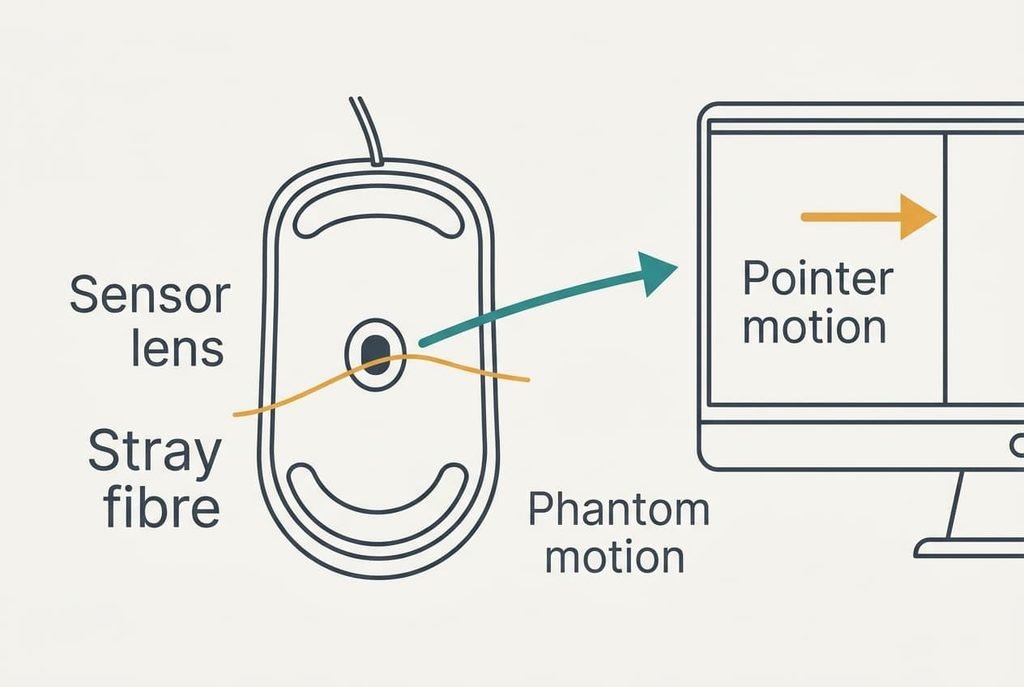
An optical mouse doesn’t feel your hand. It photographs the desk many times a second and measures how far each picture has slid against the one before it. Any slide it sees becomes pointer movement, so a drifting speck counts for as much as a moving hand. Three causes can produce the same symptom on screen.
The first is real creep. The mouse body inches along, pulled by a tight cable or nudged by a slightly sloping desk. At 630 counts per centimetre, with one count worth one pixel, an arrow travelling 2 pixels a second means the mouse is creeping about 0.03 millimetres a second, roughly 2 millimetres a minute, a creep too slow for your eye to catch yet plain to the sensor.
The second is phantom motion. A fibre caught by the lens moves with every breath of air, and the sensor reads that wobble as the desk sliding past. The third is another device, perhaps a touchpad, that sends movement the mouse never made.
At 2 pixels a second the arrow crosses a 1920 pixel screen in 960 seconds, which is 16 minutes. Slow drift hides while you’re moving the mouse and shows itself the moment you stop.

Three Tests to Run Before You Touch Anything
Each test is over within a minute and asks only for patience. Keep your hand off the mouse throughout.
1. Watch the mouse itself, and not the arrow, for ten seconds. Lay a pencil beside it as a marker if that helps. A body that shifts against the pencil means real creep, so go straight to the cable and the desk. A body that stays put leads to test two.
2. Unplug the mouse, or switch it off. Then watch the arrow for thirty seconds. An arrow that keeps moving was never the mouse’s doing. Look to another device or to the software. An arrow that stops puts the mouse under suspicion.
3. Reconnect it and set it on a plain sheet of white A4 paper. Drift that stops on paper means the desk surface was confusing the sensor. Drift that carries on across the paper means the lens or the sensor itself.
Record each result in a note, because a mouse pointer drifting slowly can stem from any of the three causes. Ours stayed put against the pencil. It stopped when unplugged but kept drifting on paper, which points at the lens.
Four Fixes for a Pointer Drifting Slowly, Cheapest First
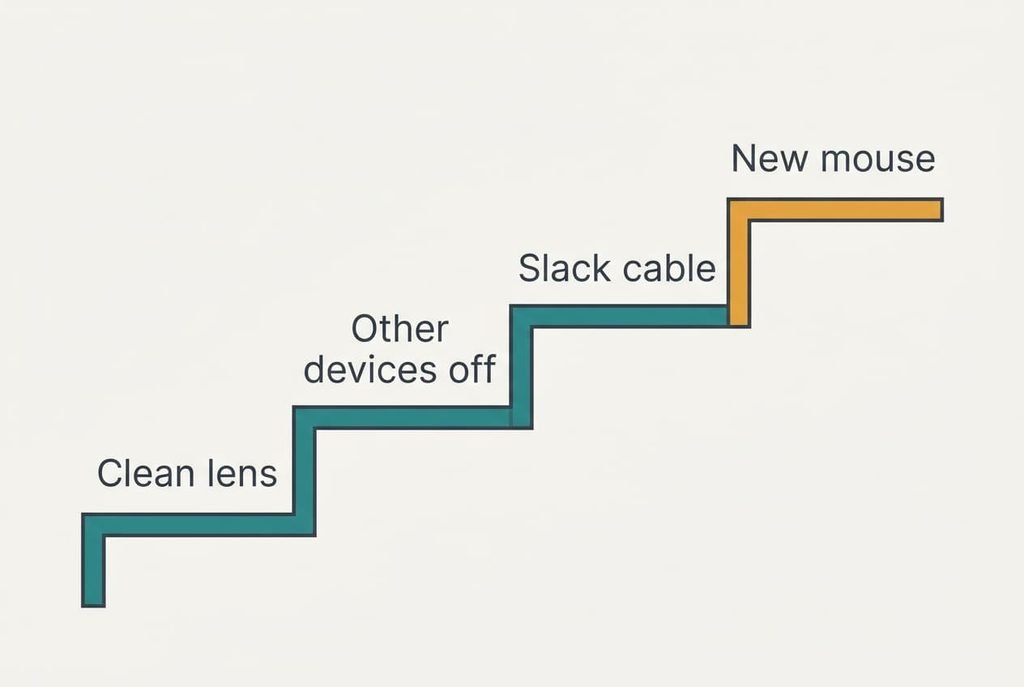
Whichever test named the culprit, one of these four fixes answers a mouse pointer drifting slowly. Each names the cause it targets and what you give up.
Clear the lens and the feet, which targets phantom motion. Turn the mouse over, blow across the small round opening and look for a hair or a ball of fluff. Lift anything you find with the corner of a dry cloth, then check the feet for grit. In our example a hair a few millimetres long lay across the opening, and removing it took the drift from 2 pixels a second to nothing. It’s free, and two minutes is enough. The catch is that fluff returns, so a dusty room means repeating it every few weeks.
Switch off every other pointing device, which targets the third cause. On a laptop, turn the touchpad off while a mouse is connected. Unplug game controllers and drawing tablets. The change lives in the computer’s settings and costs nothing. You lose the touchpad until you switch it back on, so remember that before you pack the mouse away for a trip.
Slacken the cable and level the spot, which targets real creep and a confusing surface. Give the cable a loose loop so it can’t tug, and keep it clear of the desk edge. Lay a round pencil on the desk. A pencil that rolls tells you the top slopes. The mouse needs a flatter place then. Moving cables and finding a level patch takes about twenty minutes. If test three stopped the drift on paper, keep a plain matt mat under the mouse. A shiny or patterned desk can confuse the sensor. In return the loop takes up room, and the mouse may sit further from the keyboard than you like.
Replace the mouse, which targets a faulty sensor. An arrow that still drifts on paper once the lens is clean and the desk is bare points to a fault inside a part you can’t repair at home. Only this fix spends money, and you can’t take it back. A new mouse feels different in your hand, and buttons you programmed will need setting again. Keep the old one as a spare for the tests above. Choose the first fix that stops the drift and stay with it.
If None of Them Worked
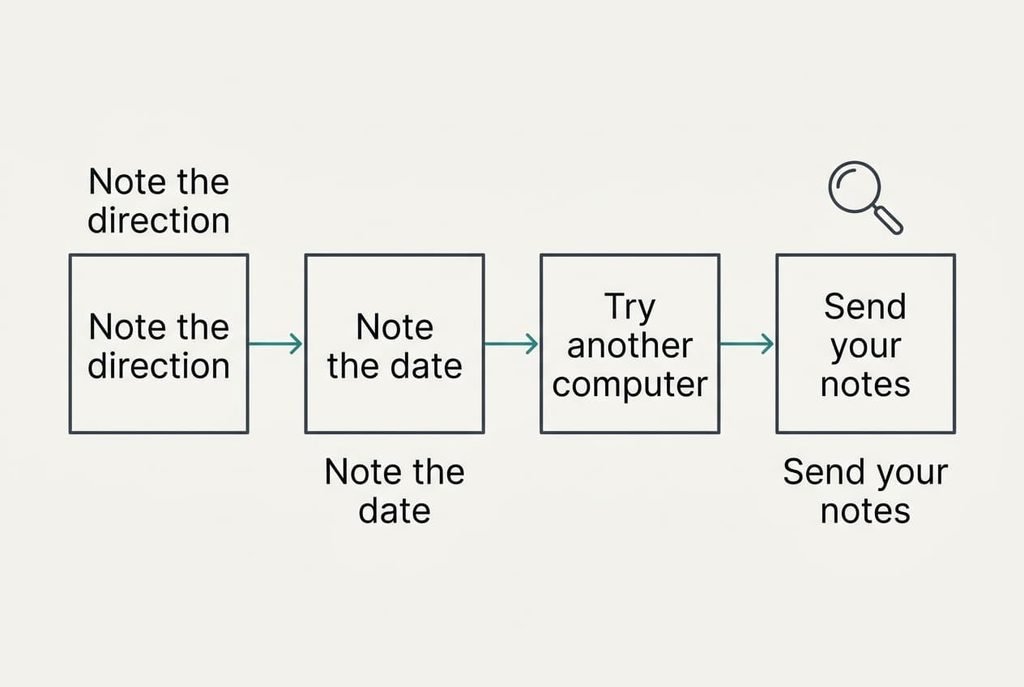
Gather three facts first. Note whether the arrow always slides in the same direction or wanders at random. Note when the drift began, and whether anything new arrived just before it. Then try the mouse on another computer for a minute, and plug it into a different USB socket on your own machine, because a loose socket rules itself out that way.
If the arrow drifts on the other computer too, the mouse is the culprit.
Take care with resets. Returning the pointer settings to their defaults wipes your speed and button choices, so jot your own values down first. Reinstalling the driver is a gentler step than a full reset. If the mouse is still under guarantee, send the maker your notes, because a clear record of three tests saves a round of questions and speeds up a replacement.
The Fix That Isn’t Worth Making
Turning the pointer speed right down looks like a cure, yet it only hides the drift. Halving the speed halves the movement, so 2 pixels a second becomes 1 and the crossing takes 1920 seconds, or 32 minutes. The cause is still there. Every deliberate move now needs twice the hand travel, so you’ll tire your wrist across a working day to postpone a fault you could remove.
Raising the sensitivity runs the wrong way. At 1260 counts per centimetre the same 0.03 millimetres a second of creep gives 4 pixels a second, and the arrow reaches the far edge in 8 minutes. A new mouse mat helps only when test three blamed the desk surface. Neither a fibre on the lens nor a stray touchpad responds to it.
The sensor reads the desk and not your intention.
Nothing else turns a mouse pointer drifting slowly into a nuisance as reliably as a cause you haven’t named. Count how many pixels the arrow moves in one minute and compare the count with the 120 pixels in our example. A figure that stays the same on every surface points at the lens. Name the cause with the three tests first. Only then think about a replacement.
Questions Readers Keep Asking
Can I fix this myself at home?
Usually. Clearing the lens and unplugging other pointing devices cost nothing and take minutes. Only a faulty sensor needs a replacement mouse. Run the pencil test and the paper test first, because each one rules a cause in or out before any money is spent.
What is the most common cause?
Dirt near the lens. A hair or a ball of fluff catches the sensor’s attention and sways slightly, so the sensor reports a slide that never happened. Blowing across the opening and lifting the fibre with a dry cloth clears it in two minutes. It returns more often in dusty rooms.
Could drifting mean my mouse is failing?
Sometimes. An arrow that still moves on plain paper, once the lens is clean and every other device is unplugged, most likely means a faulty sensor. A mouse that behaves on a second computer but drifts on yours points at your setup instead. Test it there before you replace anything.