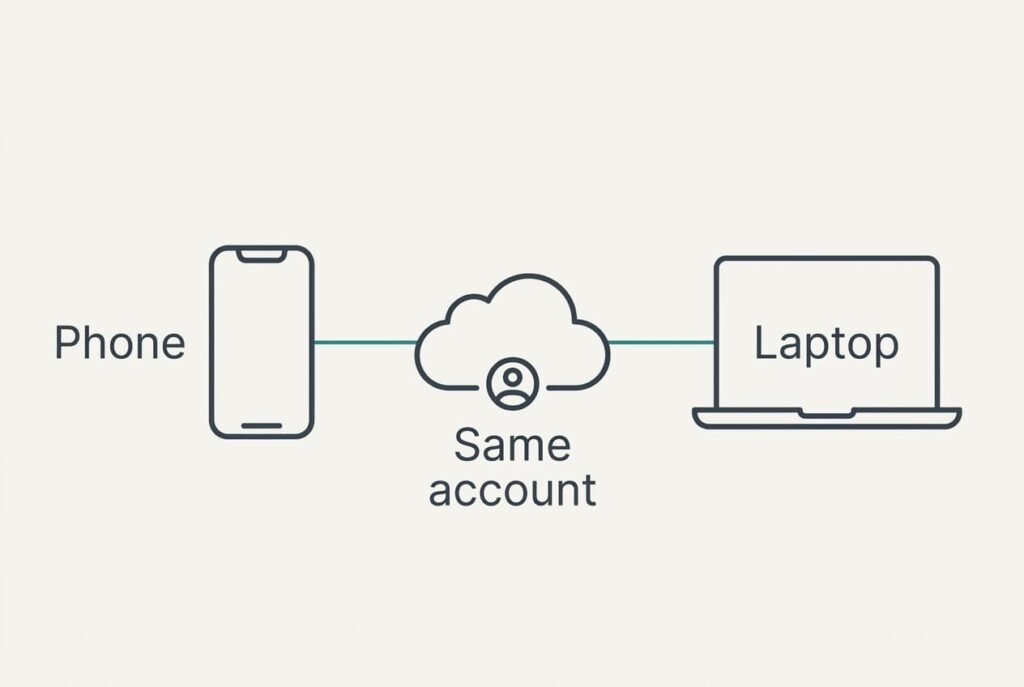
Setting up one task list that syncs across both your devices takes around 20 minutes, and after that an item added on either one appears on the other within a minute. The fork comes first. You can keep the list inside the account both devices already use, or install a separate list app that asks for its own login. This guide takes the first path, because a second login gives items a second place to go stale. The result is one list you can open anywhere, with identical items in identical order. Nothing needs installing or buying. Menu names vary between makers. Match the idea and not the wording.
Before You Start: What One Task List That Syncs Needs
You need three things, and each is simple. The first is a count of what’s loose right now. Our example reader found 24 tasks: 9 sit on a notes page and 8 on paper, while the other 7 are flagged emails. A good connection on both devices for the next quarter of an hour is second. Third comes a stretch without interruptions.
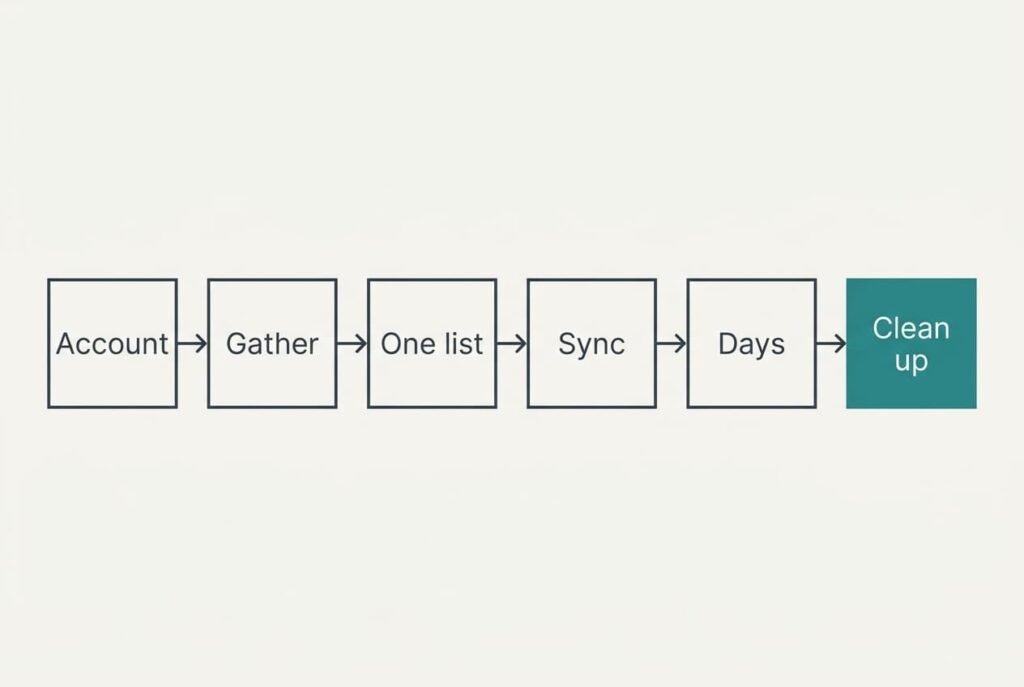
The steps run in order, and they need 20 quiet minutes without a break.
Both devices need the same account signed in, with the same address on each, or nothing will cross between them. People skip this prerequisite more than any other, and it explains most failed attempts. Two addresses that look alike, such as one with a stray full stop, create two separate lists that never meet. That one check decides whether you’ll end up with one task list that syncs or two lists that don’t.
Decide on a cap before you begin. Three lists is plenty for most people, and a fourth is usually a list of things you’ve already stopped doing. A long list also hides the item due today. Aim to see no more than 7 items on the today view.
Six Steps to Get Your Phone and Laptop Sharing a List
1. Confirm the shared account on both devices. Look for the same address, letter for letter, in each device’s account list. Sync follows the account and not the device. A near match quietly builds two lists. It’s right when the two addresses are identical, dots included. Each device should also show the account as active.
2. Gather every loose task into one place. Count them, then type them into the new list in one sitting. Items kept in three places can’t sync, and a task you forgot to move is a task you’ll miss. Leave the originals untouched for now, because deleting them early removes the only copy. The new list should hold the count you started with, 24 here. Search for any task by name to be sure.
3. Create a single list and name it plainly. Look for a name that fits on one screen without scrolling. The phone shows only the list that’s open. Extra lists mean extra checks every morning. It’s working when a new item typed on the laptop lands in that named list and not in a default one that you didn’t choose.
4. Switch sync on for tasks on each device. Look for its own switch for tasks. Mail and calendar can sync while tasks stay local, because sync is controlled per type of data and tasks are often off by default. Add an item called “sync test” on the phone. It should reach the laptop within a minute, and allowing background refresh on the phone makes that reliable.
5. Give each item a day, and a time only where a clock matters. A day puts the item on the today view. A time rings an alert, and the same alert may ring on both devices. Choose the phone for alerts. Setting a time on all 24 means 24 interruptions. Fewer than ten should carry one.
6. Delete the old copies. Do it only after you’ve compared counts, because emptying the old notes page can’t be undone once the bin is emptied. Tick off each original as its twin appears in the list. At the end the new list is the only place holding your tasks. The notes page and the paper are blank.

Testing the Task List That Syncs Before You Trust It
Add one item on the phone, then tick it off on the laptop, and watch it disappear from the phone within a minute. Run the loop once with the laptop awake. Run it again after the laptop has been closed for ten minutes. Open the lid and wait. A working setup catches up within a minute of reconnecting.
That single loop proves you have one task list that syncs in both directions.
Note how long each result takes. If the item crosses in a few seconds, the devices are told when something changes. If it takes 15 minutes, they’re only checking on a timer, and 15 minutes is 900 seconds of waiting. Both are fine for a task list, but the second matters if you work between devices all day.

If the List Stalls: Three Common Snags
An item never arrives. Nearly always one of two things is behind it: sync for tasks is off on one device, or the two devices use different accounts. Check the account address before anything else, since it takes five seconds. Meanwhile both devices hold separate lists, and one task list that syncs remains a goal.
Both devices ring for the same task. Alerts were set on the laptop and the phone together. Keep the alert on the phone only and let the laptop show the item silently.
Finished items keep coming back. Another copy of the list exists in a different service, and it keeps handing over what you ticked off. Look for two lists with the same name, keep the one with the right count and delete the other. Check the count before you delete, because deleting the wrong one loses any tasks added since the split.
The Step That Isn’t Worth Taking
Many people run a second app as a backup, copying the list into it each night. At 10 seconds an item, 24 items take 4 minutes a night, which is 28 minutes a week. The copy also drifts out of date the first time you forget a night, and then two lists disagree about what’s done. The sync you’ve just built already keeps a copy on each device and in the account. A second one adds work and no safety.
A weekly check does more good. Scroll once through the list on Sunday evening and tick off what’s done. Move what isn’t done to a day that’s realistic for you this week. Ten minutes of that beats 28 minutes of copying, and it keeps the list honest. Pick a fixed evening for it, and the check turns into routine instead of another decision.
Spend the spare time on the list itself. Keep the number of tasks small enough to take in at a glance, and delete anything you’ve carried for three weeks without touching. A task that hasn’t moved in that long probably isn’t a live task any more. Add the weekly check as a repeating item, and the list will remind you to review itself. After a month the whole routine takes about ten minutes a week and nothing else.
Questions Readers Keep Asking
How long does the setup take?
Around 20 minutes with 24 items. Most of it is typing the loose tasks in. The sync switch itself is quick, and the test takes a minute more. If you have far more than 24 tasks, split the typing over two sittings and keep both counts on paper.
Will I lose tasks I already wrote down?
Not if you follow the order. The originals remain untouched until the new list holds the same count. Only then should you delete them, because an emptied bin can’t be recovered. If a count doesn’t match, find the missing item before you throw anything away.
What if my phone and laptop come from different makers?
Use an account that works in a browser on the laptop. The phone keeps the list in its app, and the laptop shows it through a web page. The steps are the same, and the test is the same. Pick the account you check most often, and keep the login for it somewhere safe.