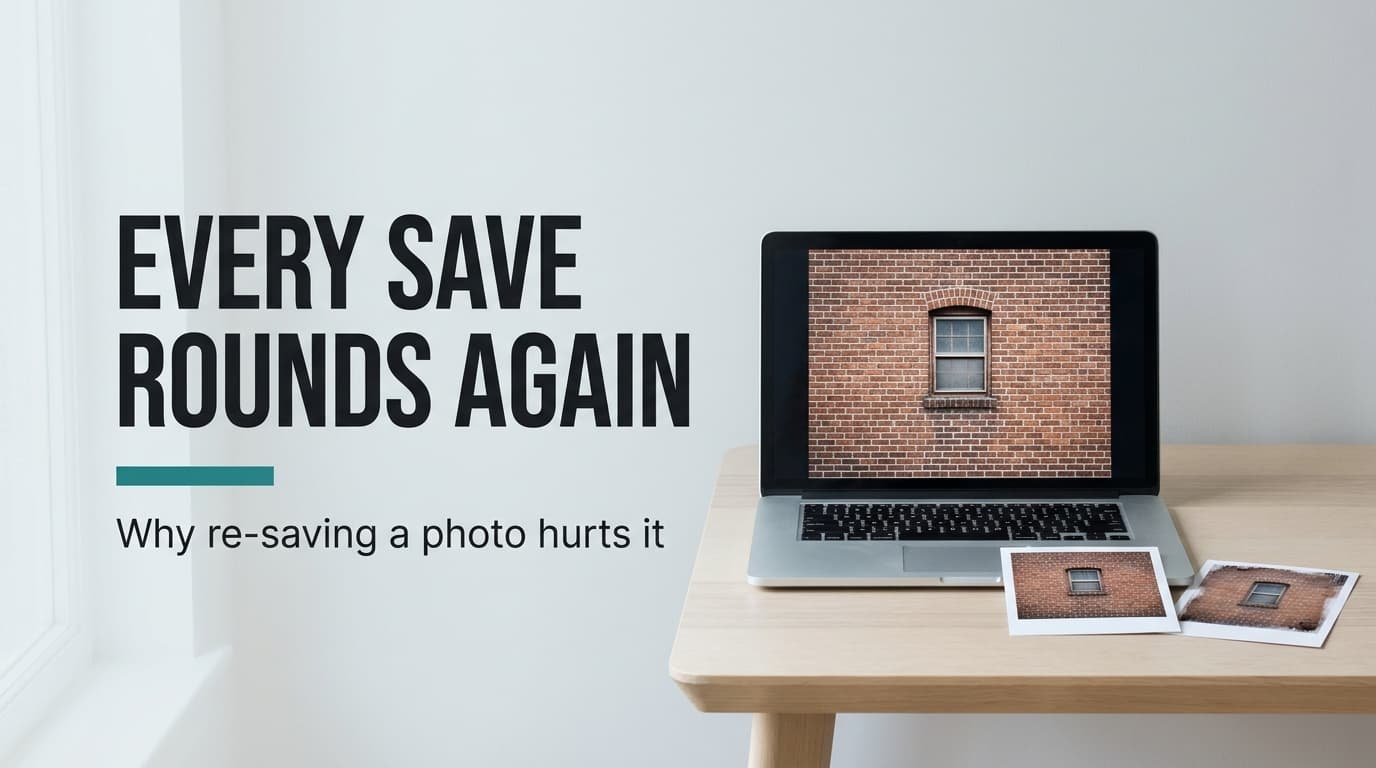
Lossy compression shrinks a file by throwing part of it away for good. Re-saving a photo makes it worse because each save throws a little more away. People often ask what is lossy compression when a picture that looked fine last month now shows blotches around its edges. The short answer is rounding. Every save rounds the picture’s fine detail to coarser numbers, and a rounded number can’t be rebuilt as the original. The rest follows one 12-megapixel phone photo through five saves, using round invented figures. As we go, you’ll see where the loss hides and how to stop it building up.
What Is Lossy Compression, and What Does It Leave Out?
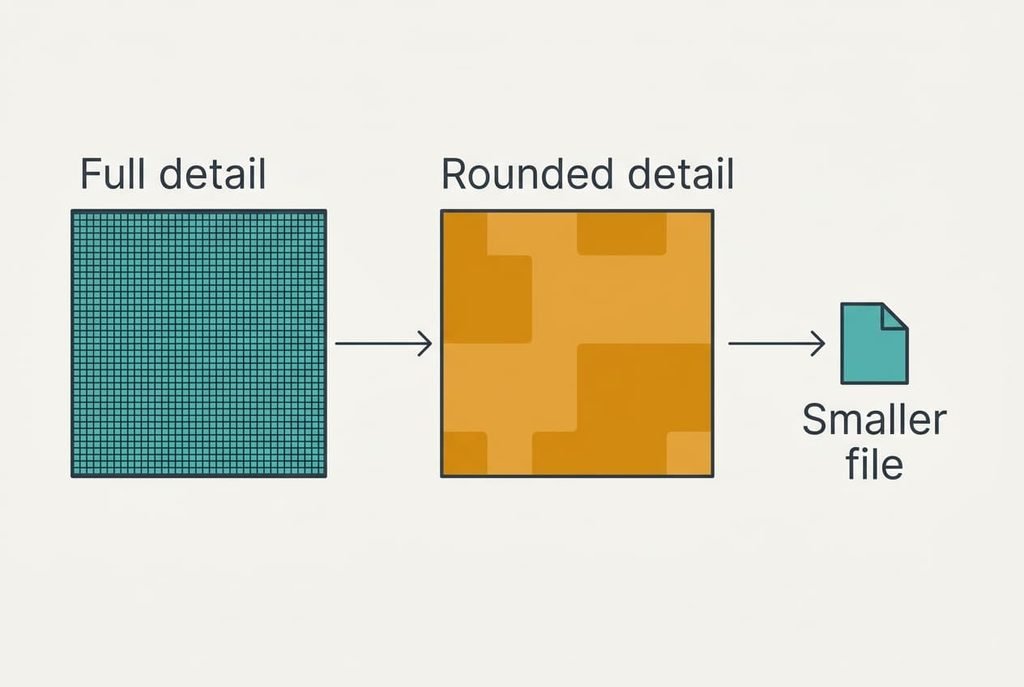
Lossy compression rounds away detail that the eye barely misses, and the rounded values are all the saved file keeps. A photo in this kind of format is far smaller than the raw picture, often by a factor of about nine. The fine texture that costs the most space is simplified first. The word “lossy” simply means the loss is permanent. A typical phone saves its pictures this way, and so do messaging apps. The saving is large: 36 MB of raw values becomes about 4 MB, and most of what vanished sat in detail you’d struggle to see at normal size.
That short answer leaves out several things. The answer is silent on how much is lost, because the amount depends on a quality setting and on what the picture contains. Lossless formats work differently: they keep every value and rebuild the picture exactly. Nor does the answer claim that every save hurts, since the harm depends on what happens between two saves, as the next section shows.
A description of a brick wall can be short, and the shorter it gets, the more the reader has to guess.
What Lossy Compression Does to One Photo, Step by Step
A phone photo of 4,000 × 3,000 pixels holds 12 million pixels. At 3 bytes each the raw picture takes 36 MB. The camera saves it as a file of about 4 MB, a ratio near 9 to 1. Here is how that happens, and what a second save does to it.
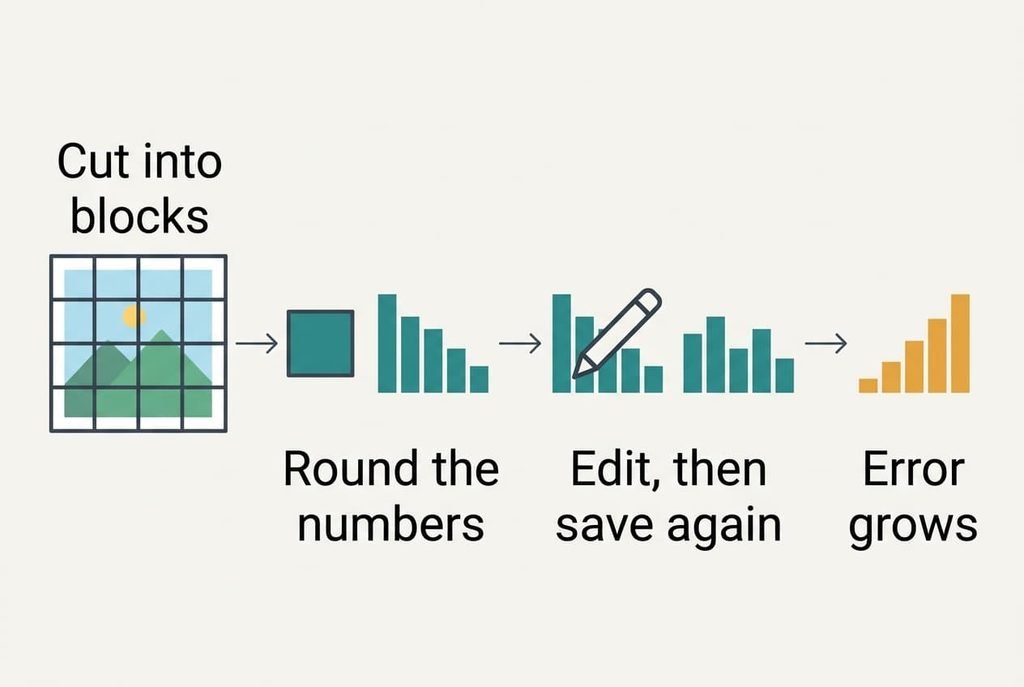
First the picture is cut into blocks of 8 × 8 pixels. That makes 500 × 375 = 187,500 blocks, each of 64 pixels. Each block is then rewritten as 64 numbers that describe patterns, from broad shading to fine grain. Next each number is divided by a step size and rounded. Take a number of 37.4 and a step of 6. It becomes 6, and the file stores only the 6. On opening, the program multiplies by 6 and displays 36.
Now edit the photo. Suppose the edit nudges that number from 36 to 39. Saving again divides 39 by 6, which gives 6.5, and the rounding lands on 7. The program stores 7 and later shows 42, which sits 4.6 away from where the number began. That is one block and one number, and the other 187,499 blocks go through the same process.
Now save a third time without touching anything. The 42 divides to exactly 7 and returns 42. Almost nothing changes. Damage grows mainly when an edit or a resize shifts the numbers between saves.
Take five saves with a brightening and a resize for messaging. The average error per pixel might climb from about 1.5 levels out of 255 to about 4. That sounds small. It gathers along edges and lettering, where it appears as halos and blocky corners. Ask what is lossy compression doing at that moment, and the answer is repeated rounding of numbers that had already been rounded.
A Photocopy of a Photocopy, and Where It Breaks
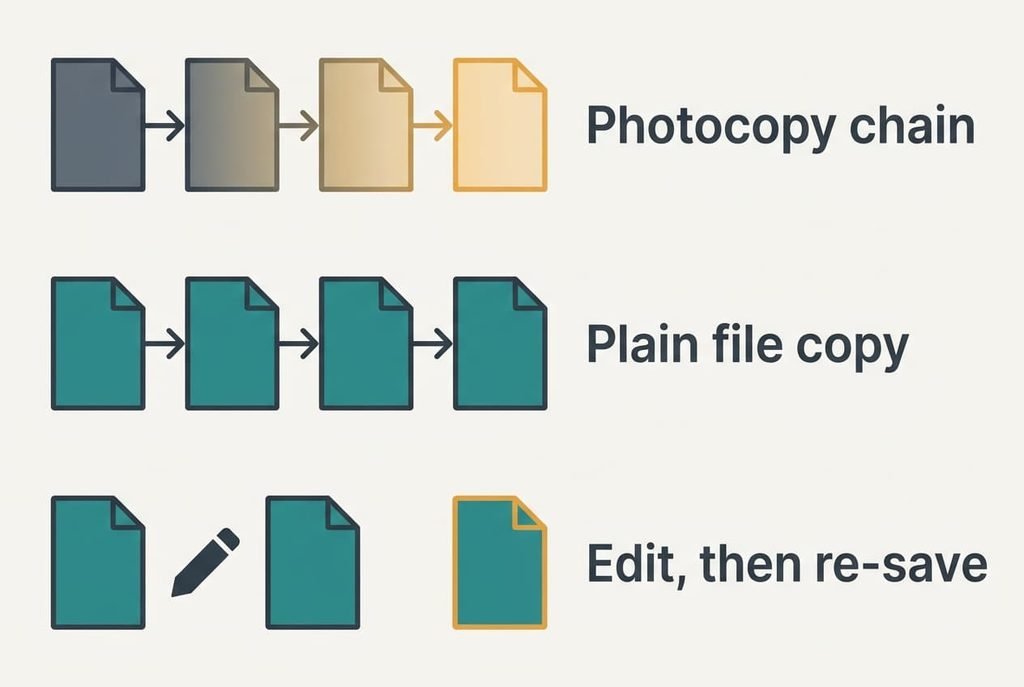
The usual comparison is a photocopy of a photocopy, which grows greyer with each pass. It captures how permanent the loss is and how it accumulates.
It breaks in one place. A photocopier adds fresh noise on every pass, whatever you do. A digital file doesn’t, so copying a JPEG from one folder to another yields an exact duplicate with nothing lost. Re-saving an unchanged photo at the same setting barely moves the numbers either. Loss arrives only when you alter a decoded picture and the program rounds the altered numbers again. The comparison therefore holds for chains of edits and fails for plain copying. A photo that has only been forwarded can look fine, while one edited at every stop looks ruined.
What the Quality Setting Can’t Restore
A quality setting decides how coarse the rounding is. It can’t bring back detail that an earlier save removed. If a photo was saved once at a low setting and you re-save it at the highest, the file grows, but the missing detail stays missing. A higher setting on the second save only protects what survived the first, and it repairs nothing.
Other limits matter too. The loss isn’t spread evenly. Smooth sky shows banding and text shows halos, while a busy lawn hides the same error. Sharpening afterwards makes edges look crisper by adding contrast, never detail. Quality numbers don’t compare across programs either, since one editor’s 80 isn’t another’s.
A print is a harsher judge than a screen.
Anyone learning what is lossy compression for the first time tends to expect a fixed penalty per save. The real penalty depends on the edit, and a loss invisible on a phone can appear on an A4 print, where each pixel is spread over far more paper.
Three Beliefs About Re-Saving, and Where They Come From
“Opening a photo wears it out.” The belief forms because people see a picture look worse after sharing and blame the viewing. Viewing reads the file and writes nothing, so a photo opened a thousand times stays identical. What changed it was a save somewhere along the way, often inside a messaging app that may re-save at its own setting.
“Saving at the top setting means nothing is lost.” The label suggests perfection. Rounding still happens at the highest setting, only with finer steps. The conversion between colour systems rounds as well.
“A big file means a clean photo.” A large file looks as if it holds more detail. A picture re-saved at a high setting can be big and still carry the damage of an earlier low-quality save. The extra size only stores the roughness more faithfully.
A Simple Rule for Which Copy to Keep
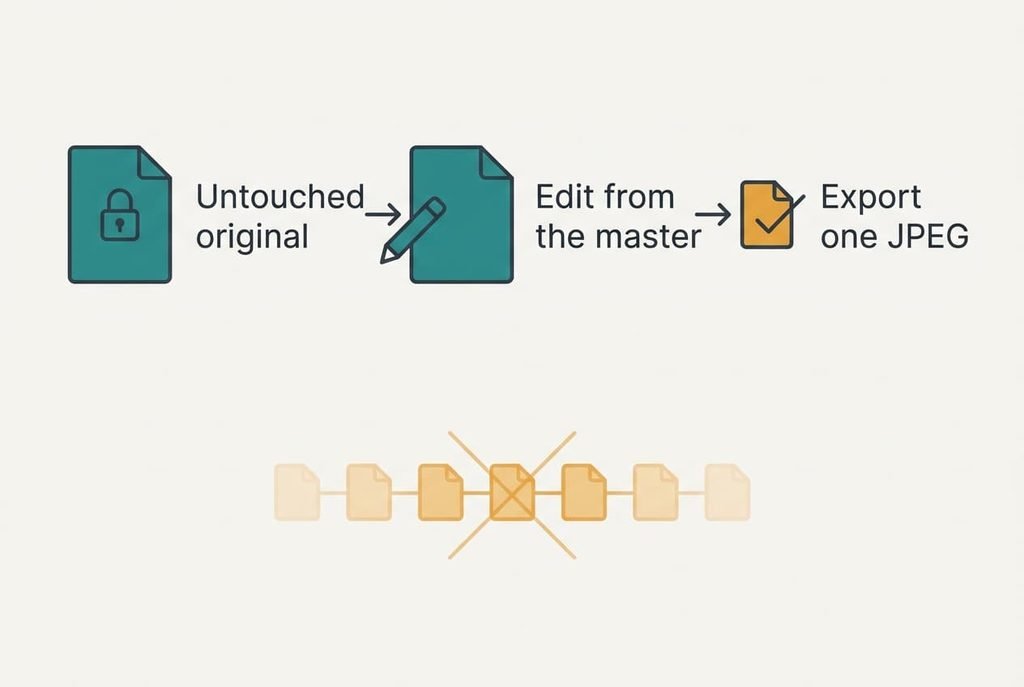
Keep one untouched original and make every edit from it, then export a lossy copy once, as the very last step. A picture you expect to edit often deserves a PNG or TIFF master as well. Treat the JPEG as a disposable output. Label the master clearly, since a crowded folder is where the wrong one gets edited.
That rule costs a little storage, since a lossless master of the photo above runs to about 20 MB against 4 MB for the JPEG. It saves you from rounding the same numbers again and again. When you send a picture only once, a single save is already enough.
The test of the rule is simple: could you redo today’s edit tomorrow from a file nobody has touched? If you can, what is lossy compression to you stays a small price paid once, and no longer a slow erosion. Try it this week on one favourite photo. Edit a copy of the original and export a single JPEG. Then compare it with an old picture that went through several chats. The corners of the frame will settle the question.
Questions Readers Keep Asking
Is there a limit to how often I can re-save a photo?
No fixed number exists. Re-saving without edits at the same setting changes almost nothing, while edits between saves add error each time. Damage often shows somewhere around eight to ten edited saves, though it varies with the picture. Work from the original and the question stops mattering, because every export starts from fresh numbers.
Do I need lossless files for ordinary holiday photos?
Usually not. A single JPEG from the camera looks fine on screens and prints. Keep lossless masters only for pictures you’ll edit often, such as scans of family prints or images with text. Everything else can stay in the format the camera produced.
How does this compare with a zip file?
A zip file is lossless, so unzipping gives back every byte exactly. Lossy compression gives back only an approximation. That is why a zip can’t shrink a photo much while a JPEG can shrink it nine times over. The two tools do separate jobs, so don’t swap one for the other.