Think of an extender as a relay runner who can only pass on what the last runner hands over. That’s why your Wi-Fi extender makes your connection slower for anything that sits between the router and the far room. It can also drag down rooms that were fine before you plugged it in. The fastest relief is to give the extender its own network name, so the devices near the router stop clinging to it. The example is a UK terraced house with the router in the front room. Every rate is real throughput in Mbps, rounded.
Why a Wi-Fi extender makes your connection slower
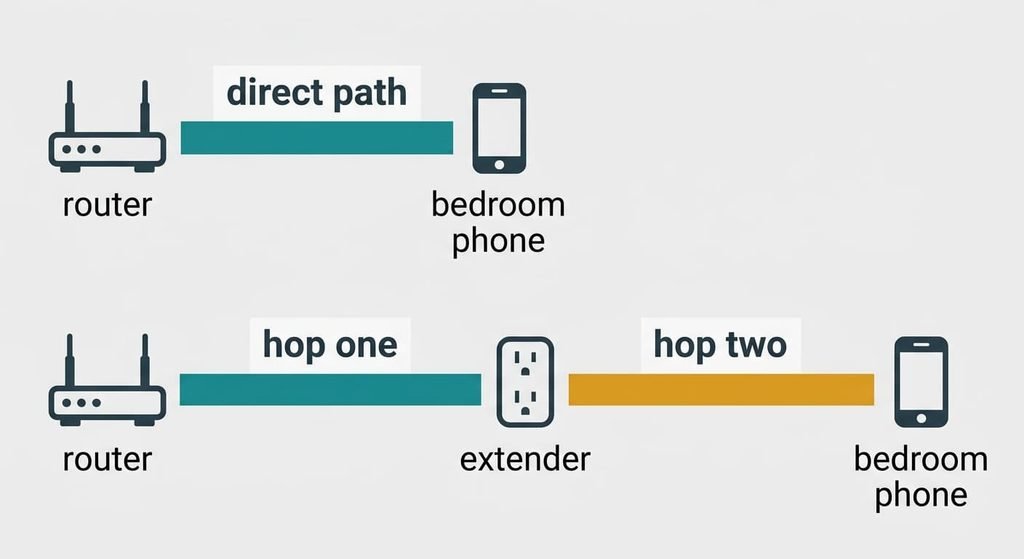
A single-radio extender can’t listen and talk at the same moment. It takes turns: it hears the router, then it speaks to your device. The time for one megabit to cross both hops adds up. Your speed is 1 divided by (1 ÷ hop one + 1 ÷ hop two). That result stays below both hops.
Take the back bedroom. The phone there gets 20 Mbps straight from the router. An extender on the landing hears the router at 30 Mbps and reaches the bedroom at 90 Mbps. A megabit needs 1 ÷ 30 = 0.033 seconds on the first hop and 1 ÷ 90 = 0.011 on the second. That makes 0.044 seconds in all, which is 22.5 Mbps. The bedroom gains 2.5 Mbps, and that’s all the extender adds.
Now take the kitchen laptop, which got 90 Mbps from the router directly. If it joins the extender, the first hop is still 30 and the second is 120. That gives 0.033 + 0.008 = 0.042 seconds, or 24 Mbps. That laptop has lost 66 Mbps, or 73% of its speed, by connecting to a box that was bought to help.
Four checks when an extender makes your Wi-Fi connection slower
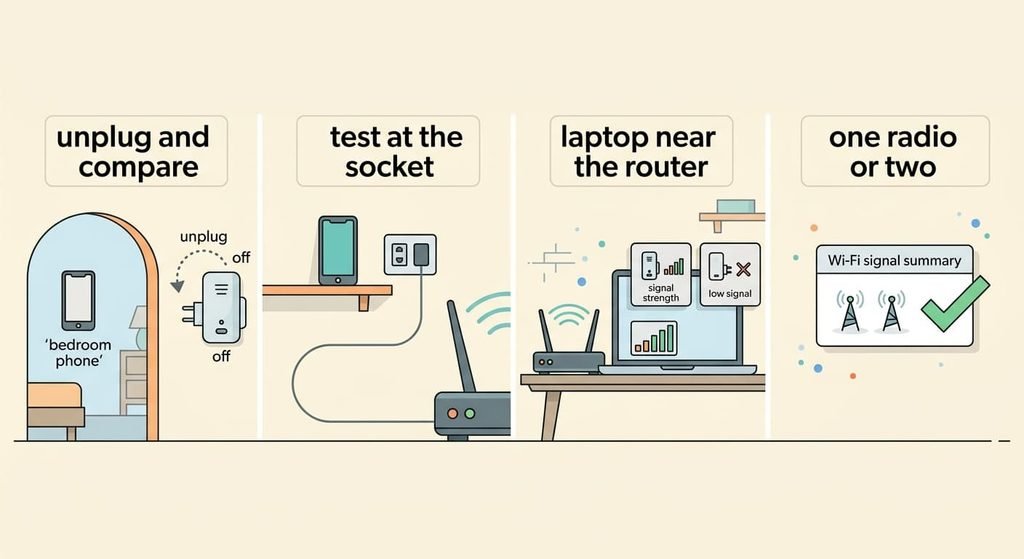
Each check gives you a reading you can act on, and none costs money. Run them when the house is quiet, so other devices don’t muddy the readings, and use the same free speed test page for all of them.
First, test in the far room with the extender unplugged. Then plug it back in and test again. If the second figure is under about 1.3 times the first, the first hop is weak.
Second, stand at the extender’s socket with your phone joined to the router’s own network, and test there. That reading is roughly the first hop. Aim for at least double what the far room got before, which is 40 Mbps in the example.
Third, test a laptop near the router with the extender plugged in, then with it unplugged. A rise after unplugging proves the laptop was clinging to the extender.
Last, look for the words dedicated backhaul or tri-band on the packaging or the settings page. With neither on the list you have one radio, so the sum above applies in full.
The four fixes, in order
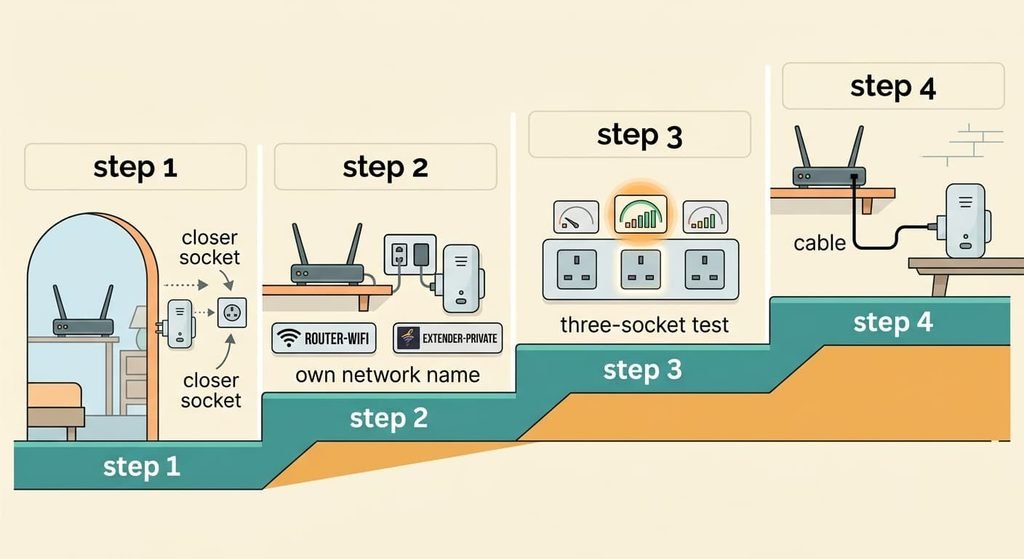
Whenever a Wi-Fi extender makes your connection slower, change one thing per evening. Repeat the far-room and kitchen tests after each change. Write the figures down so you can see which step paid.
Moving the extender one socket closer to the router takes a minute and costs nothing. In the example the hall socket hears the router at 85 Mbps and reaches the bedroom at 38 Mbps. That gives 1 ÷ (0.0118 + 0.0263) = 26.3 Mbps, up from 22.5. You give up reach, because the second hop weakens as the distance grows, so test the room that matters most. Give the extender a minute to pair with the router again, then rerun both tests before you decide.
Giving the extender its own network name is a setting on its page and takes about five minutes. The kitchen laptop joins the router’s name again and returns to 90 Mbps. The cost is manual hopping. A phone carried upstairs stays on the router’s weak signal until you pick the extender’s name, and some devices will need joining again. Many extenders let you add a suffix to the router’s name, which keeps the two easy to tell apart on a phone’s list. If yours can’t hold a separate name, skip this step. Write both passwords down before you touch the page.
Testing three sockets in turn takes about half an hour. At each one, read both hops, then work out the sum. Mark the three sockets on a sketch of the floor plan, so you remember which figure belongs to which. The landing gives 22.5 Mbps and the hall gives 26.3. At the half-landing on the stairs the router is heard at 55 Mbps and the bedroom is reached at 70. That makes 1 ÷ (0.0182 + 0.0143) = 30.8 Mbps. That socket sits between the one nearest the router and the one nearest the bedroom. You pay in time, plus a socket that may sit behind furniture you’d have to move.
Cabling the extender to the router is the purchase: an Ethernet cable cut to length and laid along the skirting. A wired first hop removes the sum, so the bedroom gets the second hop alone, 90 Mbps from the landing socket. The extender’s radio now spends all its airtime on the bedroom side. The loss is the cable run, which has to cross the stairs and stay put. A rented home may not allow fixings. It only works if the extender has a LAN port and an access point mode, so check its settings page first.
If none of that worked
If your Wi-Fi extender makes your connection slower after all four fixes, log the far-room speed for a week at one fixed hour daily. Test once with the extender plugged in and once with it unplugged. Write down the age of the router as well, because an old router with a slow first hop limits everything behind it. If the router sits in a cupboard or behind a cabinet, moving it to open shelf space can lift every hop at once. Retest all four checks afterwards. Ask the provider whether a wired test at the router reaches the speed of your plan. A slow line makes the extender look guilty when it isn’t. Resetting the extender to factory settings erases its saved network name and password, so copy those down before you press anything. Note the extender’s model name too, since the maker’s support page lists its radios.
Photograph the extender’s label before you start.
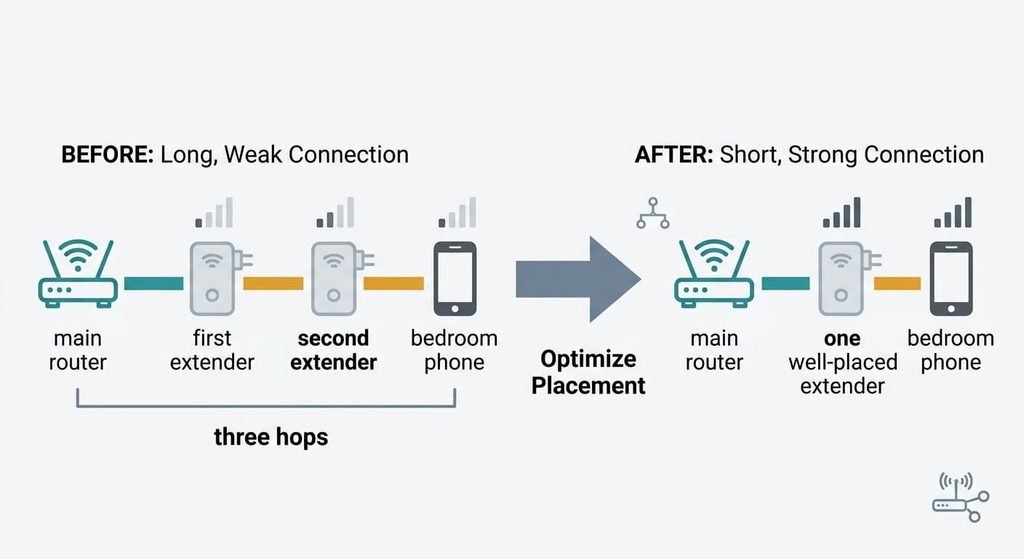
The fix that isn’t worth doing
A second extender to boost the first is the common answer to a weak far room. It seems to carry the signal one step further. Every extra hop adds another term to the sum. The path now has three hops. Hop one runs at 55 Mbps and the other two run at 70 Mbps each. The far room gets 1 ÷ (0.0182 + 0.0143 + 0.0143) = 21.4 Mbps, which is below the 30.8 from one well-placed unit. The first extender now carries the second one’s traffic as well, so it takes airtime from the rooms it already served. Money spent here masks the real fault, which is the weak first hop, and you’ll end up testing two boxes where one was enough.
Every hop you add is another term in the sum.
When your Wi-Fi extender makes your connection slower, the cause is nearly always the sum or the clinging. Separate the names first. Then find the socket, and run the cable if you can. Redo the kitchen and bedroom tests after each step. Stop once the far room is clearly better and the kitchen is back at 90. A short log of the figures makes the next decision easy.
Questions readers keep asking
Do extenders always slow Wi-Fi down?
No. The speed behind an extender always sits below its slowest hop. A far room that got 20 Mbps can still reach about 30 Mbps with good placement. Devices near the router lose speed when they join the extender. Keep them on the router’s own network and let only the far rooms use it.
Where is the best place to plug it in?
Choose the socket where both hops are decent. A first hop at double the old far-room speed is a good aim. The three-socket test finds it in half an hour. Right beside the router wastes the extender’s reach, and right beside the far room leaves the first hop too weak.
Would a mesh system fix this?
A system with a dedicated backhaul skips the sum, because its hops use separate radios. The speed then equals the slower hop, which is 30 Mbps in the example instead of 22.5. It costs more than an extender, and the placement rule still applies to the first hop, so measure before you buy.