By the end you’ll have one entry per person, all held in one account. The job takes about 45 minutes for a list of a few hundred names, and it needs no special software, just a little patience. The fork is whether the repeats sit inside a single account or are one person saved in several accounts. How to merge duplicate contacts after switching depends on that fork, since the first kind merges in place while the second has to be moved first. The sums use invented figures for a UK household phone showing 412 entries, and nothing names a make or an app.
Before You Merge Duplicate Contacts After Switching Phones
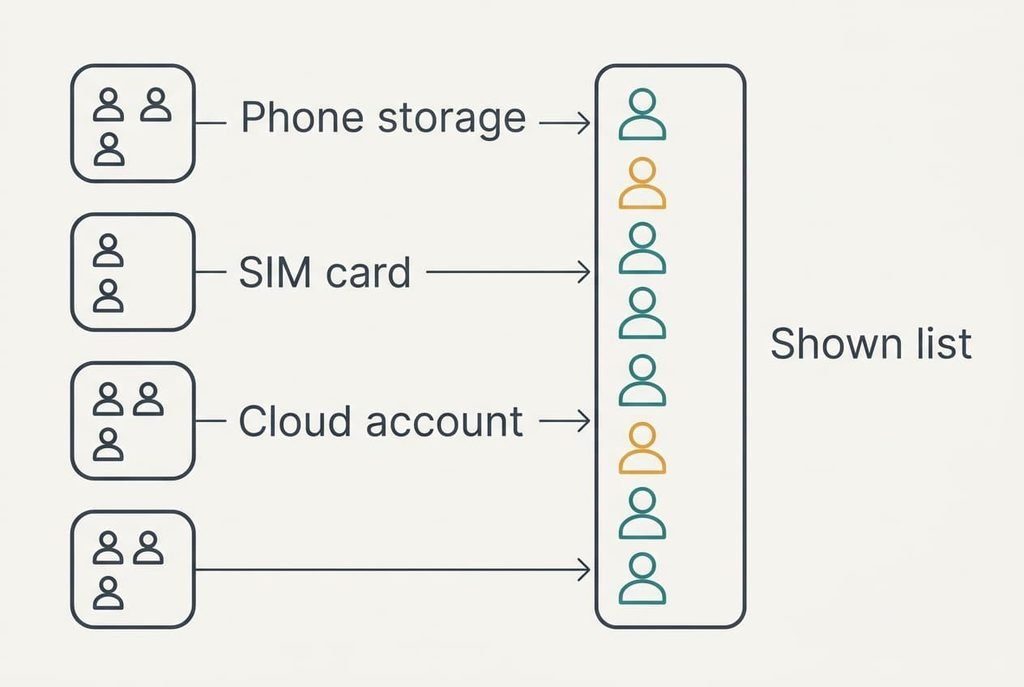
You need about 45 minutes and a charger, plus the old phone if you still have it. Pause automatic sync on the new phone while you work. A half-finished merge can spread to other devices and leave you tidying twice. Contacts can sit in several places at once, such as the SIM card and an email account. Each place can keep its own copy of the same person.
Export every contact to a single file and keep that file off the phone, because a merge can’t be undone from inside most contact apps. Most people skip this step, and it costs two minutes. If a merge goes wrong without a file, you’ll be retyping names from memory.
Last, decide what finished looks like. A household list like this one should hold about 330 people. The screen shows 412, so roughly 82 entries are repeats, and the aim is to bring the screen down to the real count. Write that target on paper, because a number you can see keeps you honest during the review step.
Switching Phones: Merge the Duplicate Contacts in Six Steps
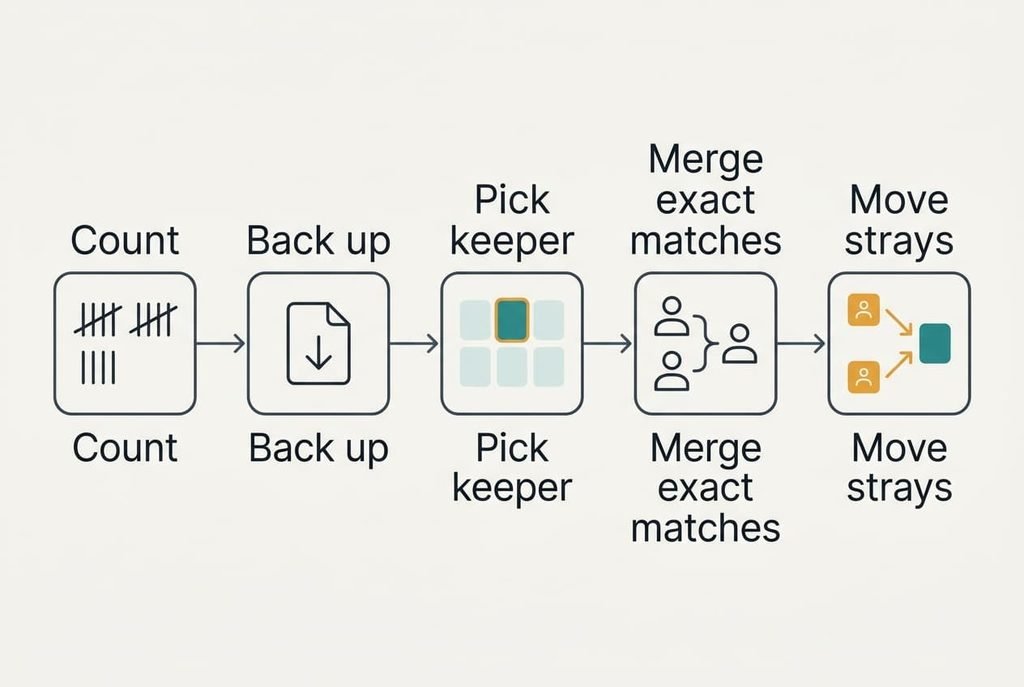
To merge duplicate contacts after switching, work through these steps in the order shown, because each one makes the next safer.
1. Count what you have. Take the count when the session begins, since later you’ll compare it with a fresh figure. Note the total on screen and your best guess at the true number of people, then write both down. The shortfall between those totals is the size of the task, and a falling count is how you’ll know the work is happening.
2. Find where each entry lives. Filter the list by account and note the count for each one. Ours has 262 in the cloud account and 118 in phone storage. The SIM adds 36 and a messaging service adds 74, a total of 490. The screen shows 412, so the phone has already linked 78 obvious matches and left 82 repeats. Skip any account that shows no contacts.
3. Pick one keeper account, preferably the one that syncs to every device you own, so that edits travel everywhere. Avoid choosing an account only because it’s the biggest. Add a test contact there and check a second device within a minute. If it shows up, the account is the right keeper.
4. Merge exact matches first, meaning entries with the same name and the same number. Do this before any fuzzy suggestions, since a name-only match can fuse two different people called Sam. The count should fall by roughly the number of exact pairs, about 55 here. A spot check of ten entries confirms nobody vanished.
5. Review the remaining suggestions in batches of ten. Two entries with the same name and different numbers usually belong together. Two with different numbers and different towns may not, and a wrong merge costs you a number that only the backup file can restore. Check each batch against what you know before accepting it. Keep a pen and paper beside you for any pair you can’t judge, and ask the person later.
6. Move the strays from other accounts into the keeper, then hide those accounts’ contacts from the list. Hiding is reversible, whereas deleting isn’t, so hide first. Delete from the SIM or phone storage only after the count has held steady for a day, since removing the source early removes your fallback as well. It has worked once only the keeper account shows any contacts.
A Test That Proves the List Is Clean
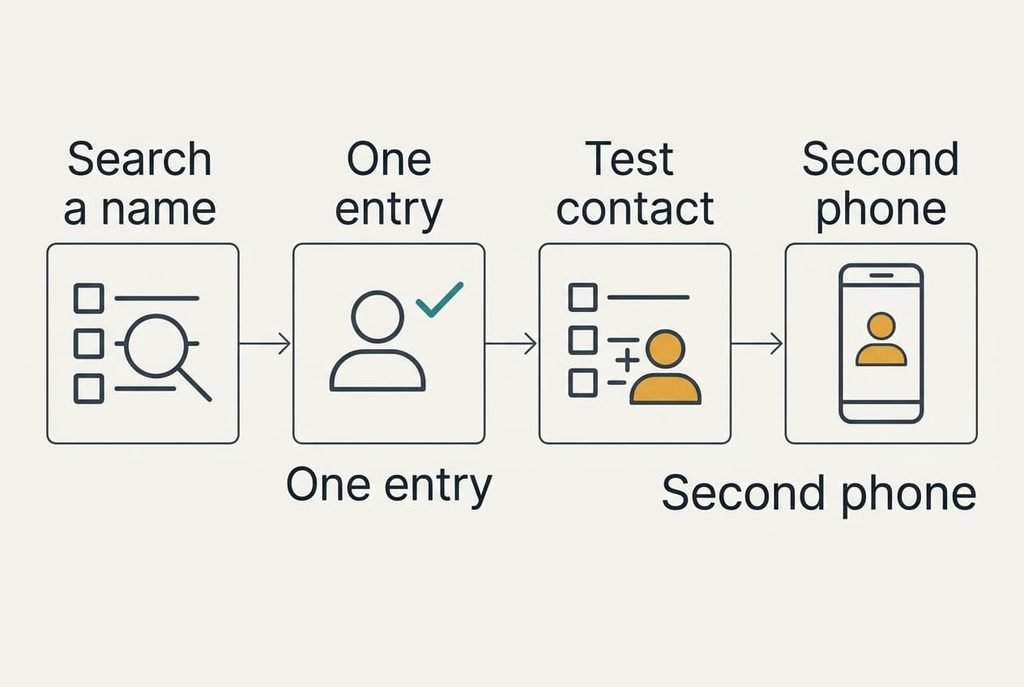
Search five names you know were duplicated and count the results, because each search should return exactly one entry. Pick names from different accounts, since a fix that works for one source can still fail for another.
Then add a new test contact on the new phone. Wait a minute, then look for it on a second device. A restart and a recount come last.
The count should match your target of about 330, and it should hold after the restart. If it creeps back up, an account you thought was hidden is still syncing. A number that stays put tells you the merge is finished and the sync is behaving, and that you can switch automatic sync back on without fear. The same check works a week later: if a sync has brought repeats back, one search will reveal them.
Where the Merge Stalls
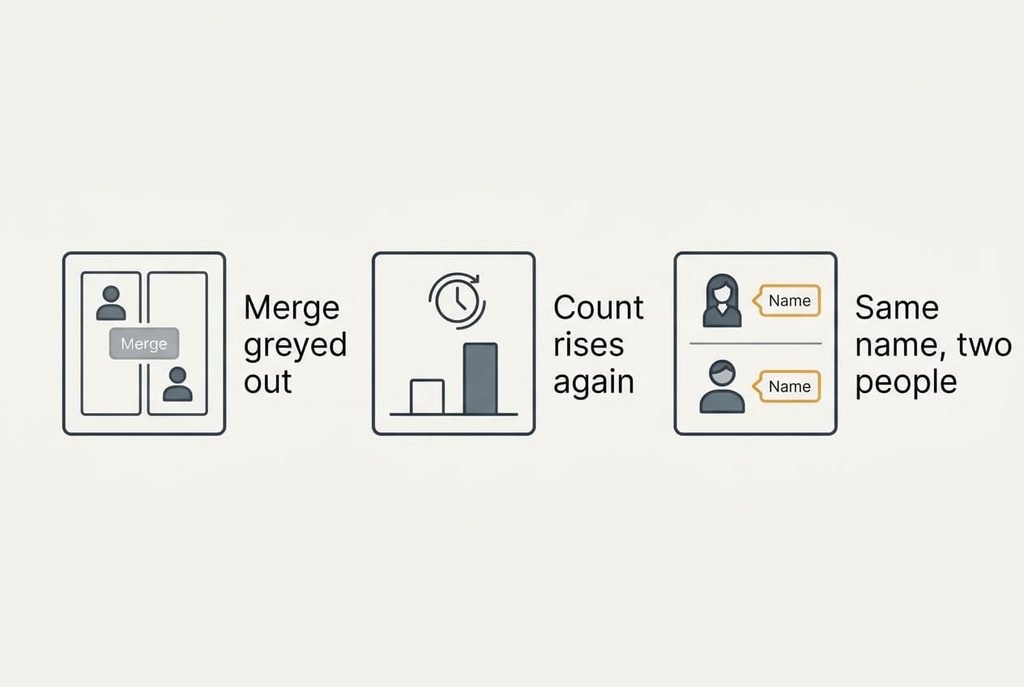
Even a careful attempt to merge duplicate contacts after switching stalls in three places.
The merge button greys out when two entries sit in different accounts. The app can only join entries inside one account, so move one of them into the keeper first, then merge. This is why step 6 matters even though it comes last on the list.
The count rises again after a day. A second account is still syncing, usually an old email account that the phone added during setup. Switch its contacts off in the list view and the count falls back to your target. Compare what you see with these cases before you change anything.
Two real people share a name. Keep them separate and add a short note to each, such as a surname. The note takes ten seconds and spares you from merging the pair again at the next tidy-up.
A Step Not Worth Taking
Deleting every contact and importing the file again sounds like a clean start and fixes nothing. The file you exported contains the duplicates, so the import brings all 412 back. In many apps it also strips photos and notes, and group labels go too. The whole detour takes an afternoon. The steps above cost 45 minutes and keep everything.
Retyping the list from scratch has the same flaw at higher cost. Every number you retype carries a small chance of a typo, and a list of 330 names gains little from the effort.
The one-tap clean-up button that some apps offer is a third shortcut that doesn’t deserve your trust. It accepts every suggestion at once, including the wrong ones. A name-only match then fuses two different people called Sam, and there’s no undo inside the app. Use the tool only for the exact matches in step 4, and only after the backup exists.
The job comes down to the count. Take one backup and choose one account. Merge the exact matches, then move the strays. Check the result by search and restart. To merge duplicate contacts after switching and keep them merged, leave automatic sync on afterwards, so the next phone starts from a clean list. Keep the backup file for a month and then delete it, since it holds private numbers. A tidy list also turns the next switch into a ten-minute job.
Questions Readers Keep Asking
How long does it take?
About 45 minutes for a few hundred contacts, most of it in the review step. A list of under 100 names can take ten minutes, because exact matches clear most of it. A list of 1,000 may need two sittings, so stop at a stable count and resume later.
Will I lose photos or notes when I merge?
Usually not, because a merge keeps the fields from both entries and stacks them. Occasionally an app keeps only one photo, so check a few before you merge hundreds. The backup file helps here, since it still holds the original photo and every number.
What if some contacts only exist on the SIM?
Move them into the keeper account first, because the SIM is a tiny store and many apps can’t merge across it. Copy them across, then check the count. Leave the SIM untouched for seven days as a fallback. The names there are usually few and old.