Zipping a folder doesn’t always make it smaller, and a mixed folder often shrinks by only 12%. In about 20 minutes you’ll know which files in a folder are worth zipping and what saving to expect, to within 10%. The fork is one test: zip a sample from each group and see whether it loses at least a fifth of its size. Step three makes that call, and every other step feeds it.
The numbers below describe a made-up folder of 1,850 files totalling 3.8 GB, so swap in yours. Nothing here names a program or a menu, since every zip tool offers the same two actions.
Before you work out which files in a folder are worth zipping
Three things should be true before you start. The drive needs free space equal to the folder’s size, since the archive is written beside the originals and a full drive stops it halfway. The originals must stay where they are until the very end, because deleting them early leaves you with one copy and an untested archive. You also need a pen and ten minutes to spare. Check the free space on the drive itself rather than trusting memory, because 3.8 GB copied onto a drive that shows 4.1 GB free leaves almost no margin.
What gets skipped is knowing which of your files arrive already compressed, and it decides which files in a folder are worth zipping. Photos and videos are compressed when they’re saved. Music and office documents are too, so a zip finds little left to squeeze. Plain text and raw audio are the usual exceptions.
If you can’t tell which type a file is, look at its ending. You’ll sort by that ending in step one, so a blank means the file goes in a group of its own.
Don’t guess, because a wrong guess skews the sums in step five.
Six steps to see which files in a folder are worth the zip
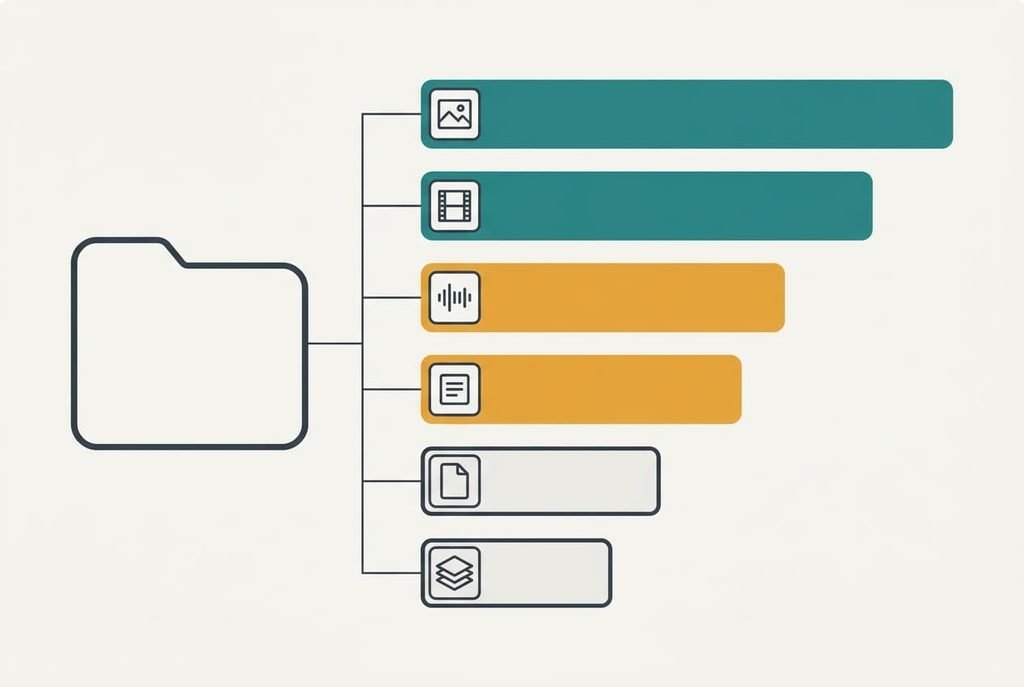
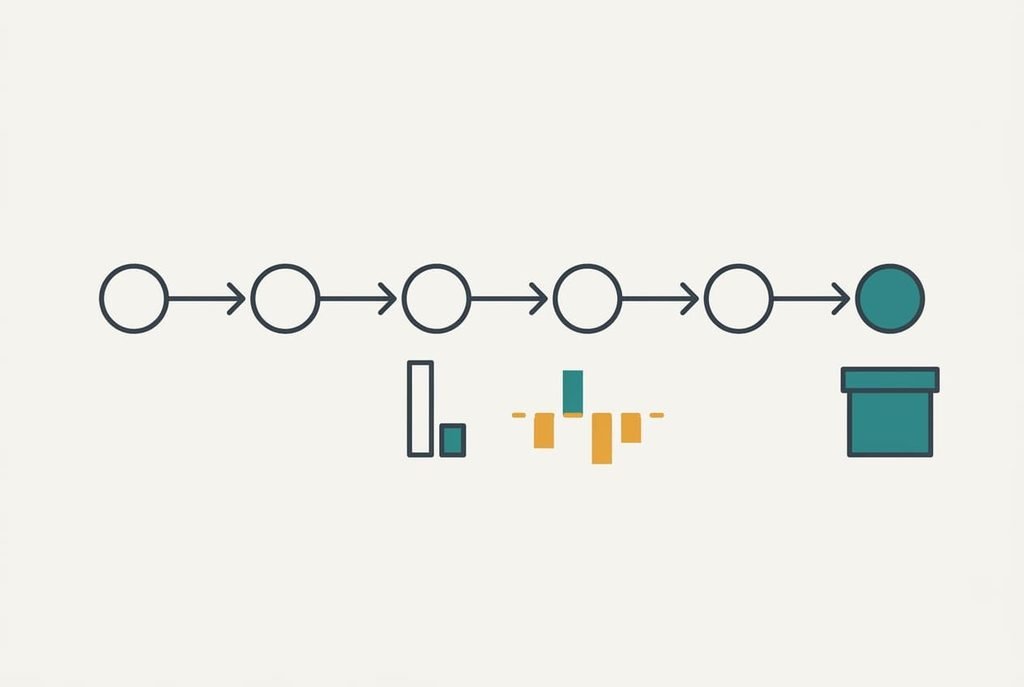
1. Group the files by type and write down each group’s total size. You’re looking for the groups that hold most of the bytes, because only they can move the result much. Photos take 1,800 MB and videos 900 MB. Audio takes 400 MB and plain text 250 MB. PDFs add 300 MB and office files 150 MB. The check is that the six totals add up to the folder size within 1%.
2. Copy one sample from each group into a scratch folder, about 20 MB each. Take the whole group instead if it’s smaller. Work on copies only, since a slip on an original can cost you the file and a slip on a copy costs you seconds. A 20 MB sample is big enough to give a steady ratio. The check is a scratch folder of six files, with the original folder unchanged in size.
3. Zip each sample on its own and note the new size beside the old one. The saving is the old size minus the new one, divided by the old one. The photo sample comes out at 19.6 MB, a saving of 2%, while the text sample drops to 4 MB, a saving of 80%. Audio gives 45%, PDFs 10%, and both videos and office files 1%. The check is six percentages, with every zip extracting to its original size.
4. Draw the line at 20%. A group below it costs the recipient an extra unpacking step and costs you the zipping time for a saving you’d barely notice. Our shortlist is the text and the audio, and the other four groups stay as they are. The check is every shortlisted group beating the line on its own sample.
5. Estimate the saving by multiplying each shortlisted group’s total by its percentage. Text gives 250 × 0.80 = 200 MB and audio gives 400 × 0.45 = 180 MB, so 380 MB in all. That’s 83% of the 457 MB you’d save by zipping everything, from only 17% of the bytes. The shortlist is right if it captures at least 80% of the possible saving.
6. Zip the shortlisted groups into one archive and leave the other four beside it untouched. Compare the archive’s size with your estimate, which here is 650 − 380 = 270 MB. Keep the originals until the recipient says the archive opened, because deleting them first leaves one copy of everything. The check is a real size within 10% of your estimate.
Test the finished archive
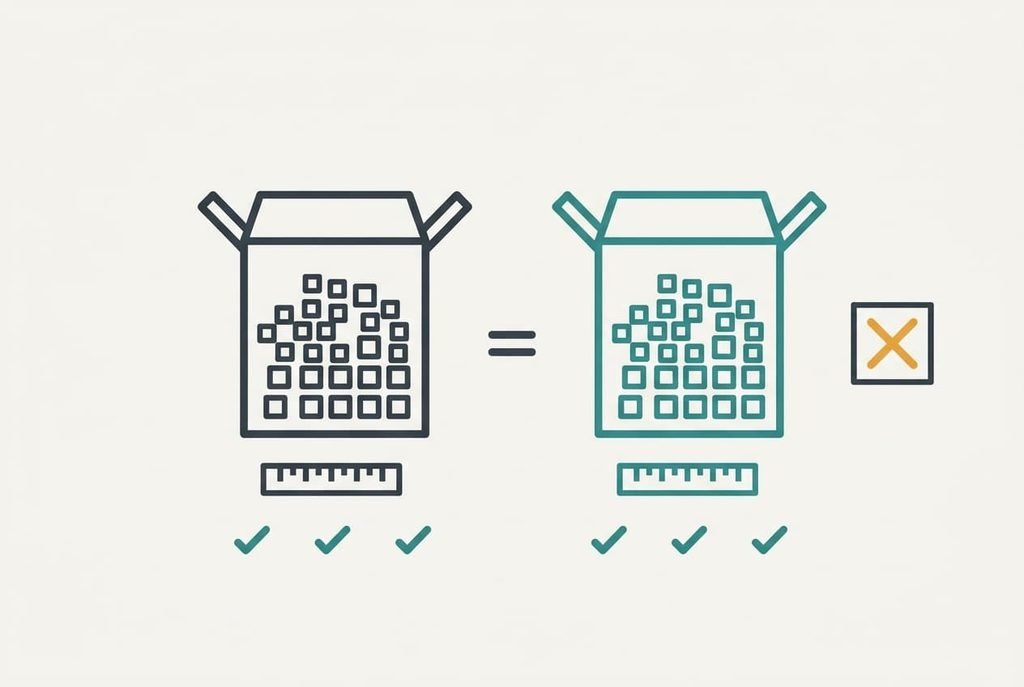
A zip isn’t finished until someone has opened it. Check the end state by extracting the archive into a new empty folder and comparing both file totals and byte totals with the originals. Then open three files at random. A pass also proves the shortlist was right, since files in a folder are worth zipping only when the saving shows up in the real archive.
You pass when the counts and bytes match and three files open. The size must also sit within 10% of the estimate. Counts that match while the size sits further out make a partial pass. Your estimate was off, so repeat step three with a second sample. A missing file or one that won’t open is a fail. Repeat step six, which is safe because the originals are still where you left them.
When a step goes wrong
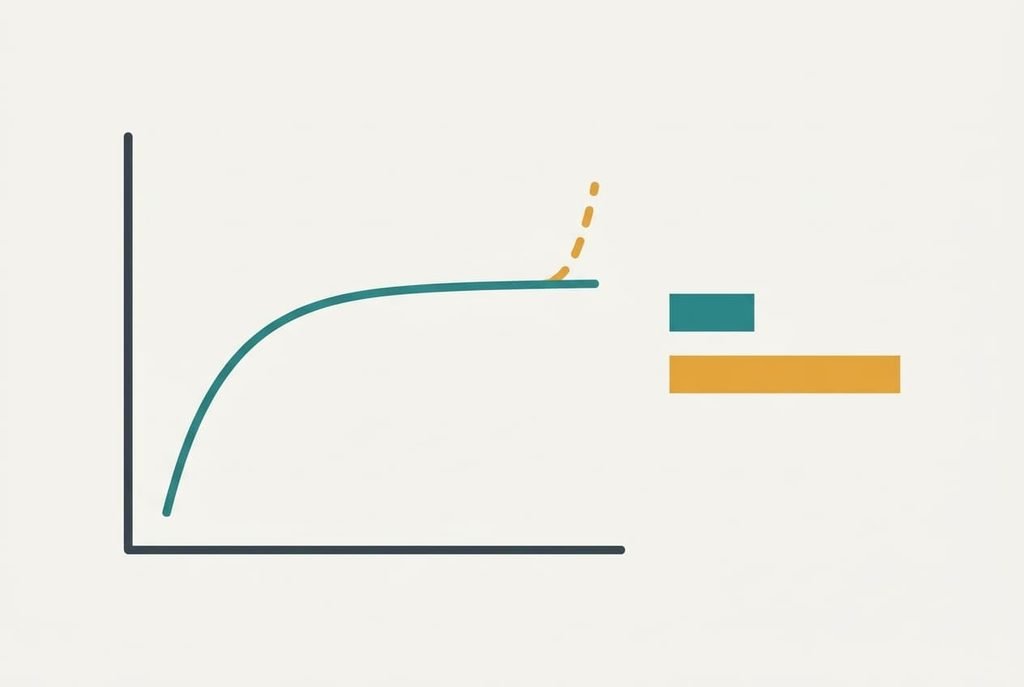
The commonest stall is a text group that saves under 20%. A file named as text is sometimes something packed, such as a spreadsheet stored in a compressed office format. Open one sample in a plain viewer. Readable characters mean it’s plain.
Anything else belongs in the office group, and the text group shrinks to match.
A second stall is an archive that lands more than 10% from your estimate. The sample wasn’t typical of its group. Take another from the biggest group and average the two percentages, then redo step five.
A third is one file that refuses to enter the archive because another program has it open. Close that program and decline to save changes you didn’t mean to keep, since saving would overwrite the version you’re about to zip. Or skip that file and add it later. The same message appears when the drive runs out of room, so check the free space first.
The setting that wastes your time
Pushing the compression to its highest level is the tweak every tool dangles in front of you. On our text group it moves the saving from 80% to perhaps 82%, which is 5 MB of 250, and it takes roughly three times as long. Packing the finished archive a second time saves almost nothing, and it adds one more layer for the recipient to undo, because the first pass leaves data that looks random to the second.
Skip both unless the link you’re sending over is very slow. At a typical 60 MB/s the default level handles the 650 MB shortlist in about 11 seconds, and the top level needs about 33. That’s 22 extra seconds to save 5 MB, which a 2.5 MB/s upload repays in two seconds. The default level already sits near the best trade, so the extra pass costs you more than it gives back.
You now hold a shortlist of two groups, an estimate of 380 MB and an archive that you’ve opened and checked. Redo step three whenever the folder changes character, because a folder full of new photos has a different answer than one full of logs. The same test tells you which files in a folder are worth zipping every time, and it takes the same twenty minutes. Keep the percentages in a note beside the folder so the next check starts from numbers you trust.
Questions readers keep asking
How long does the sample test take?
About 20 minutes on a folder of this size. Grouping takes five, the sample zips take a couple. The archive and the check take the rest. The tools do the heavy work in seconds. Most of your time goes on writing the percentages down and comparing the final sizes.
Will zipping change or damage my photos?
No, because a zip is lossless and every file comes back identical to the original. The risk lies elsewhere. Deleting the originals before you’ve opened the archive can cost you the only copy. Re-saving a photo at lower quality is a different action, and that one does discard detail.
Does the same test work for other archive formats?
Yes. Other formats may beat a zip by a few percentage points on text, and they’ll still gain almost nothing on photos or video. Run the same sample test with the format you intend to use, and use the 20% line the same way. The recipient must have a tool that opens it.