A short clip beats a long email, and you can record your screen when something goes wrong with about 20 minutes of effort. You finish with 45 seconds of footage that shows the fault with your voice over it and exposes nothing private. The fork is whether to talk as you record or add captions afterwards, and this walkthrough takes the spoken route because it is quicker on a first attempt. Our example is Sam, a Manchester resident hitting an error when a web form refuses to send. Her numbers come from a single made-up case, so time your own sequence before you trust them.
What to Settle Before You Record Your Screen When Something Goes Wrong
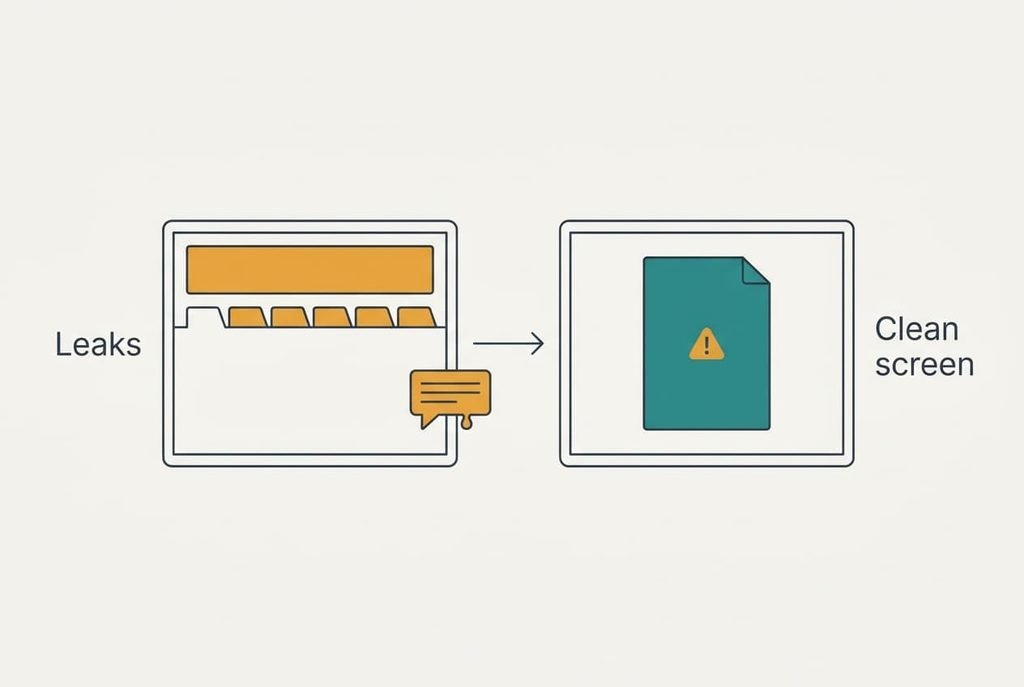
Start by checking what the clip will show beyond the fault. Open the screen as it stands and look at every corner. Sam’s showed a banner from a family chat, the first line of a bank alert and 14 browser tabs, some with names in their titles. A clip keeps all of that for good once it leaves your hands.
Switch off notifications and close every window that isn’t part of the problem before you press record, since that is the step people skip and regret. Calls and messages go quiet for the whole job, which is a small price, so choose a calm moment.
Next, make sure the device has room to save the clip. A recording at about 4 Mbit/s grows by roughly half a megabyte a second, so 45 seconds takes about 22.5 MB. Free at least 100 MB so a longer take can’t fail halfway. Keep the charger plugged in as well, because recording makes the device work harder than usual.
A clear screen costs a minute and spares you a very awkward message later.
Six Steps to Record Your Screen Cleanly
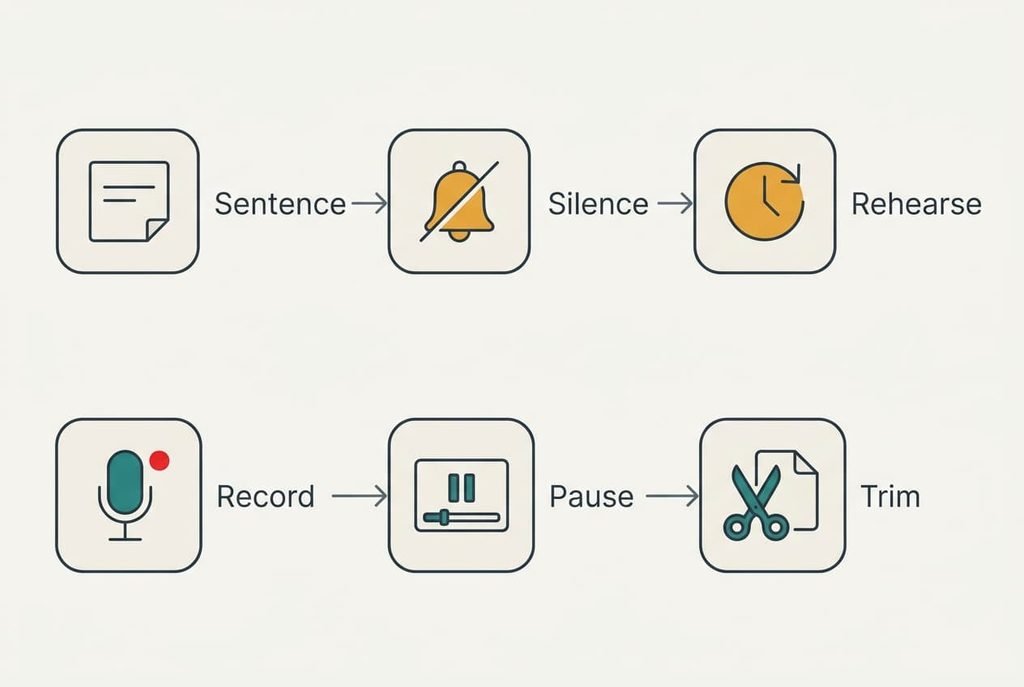
Each step below helps you record your screen when something goes wrong without leaking anything, and the clip should let anyone follow without a single question. Every step closes with a proof, so return to the first one that fails.
1. Write the problem as one sentence and list the actions that lead to it, in order. Look for a sentence under 20 words that names what you expected and what happened instead. A support desk reads the first line and decides how seriously to take the rest. The proof is a note you can read aloud in 10 seconds.
2. Silence everything that could leak. Look for banners and open tabs, and for any file on screen that you wouldn’t show a stranger. Close them, and hold notifications back until you finish. You may miss a few alerts, but you gain a clip you can send without a second thought. The proof is a screen holding only the page with the fault.
3. Rehearse the sequence once without recording. Watch the clock while you repeat each action slowly. Sam reached the error at 38 seconds, which told her where the clip would start and stop. A rehearsal also shows whether the fault repeats on demand. The proof is the same error twice, in under a minute each time.
4. Start the recording and say the problem in your first sentence. Look for the sign that capture has begun, such as a running timer or a small coloured dot. Speak before you click anything, because a listener who hears the aim first can watch the rest with purpose. The proof is a timer already counting when you say your sentence.
5. Repeat the sequence at half your usual speed and pause for three seconds when the error appears. Look for the error text sitting still on the screen. A viewer who stops the clip to read it needs the words to stay put. The proof is that you can read the message aloud, word for word, during the pause.
6. Stop the recording, then trim the quiet ends and keep the original. Look at the length, which should be under 60 seconds, and at the file size. Trimming overwrites the file on some devices, so save a copy first, and accept that the copy takes up space until the matter is closed. The proof is a clip that starts at your first word, ends just after the error and weighs under 25 MB.
Testing That Someone Else Can Follow the Clip
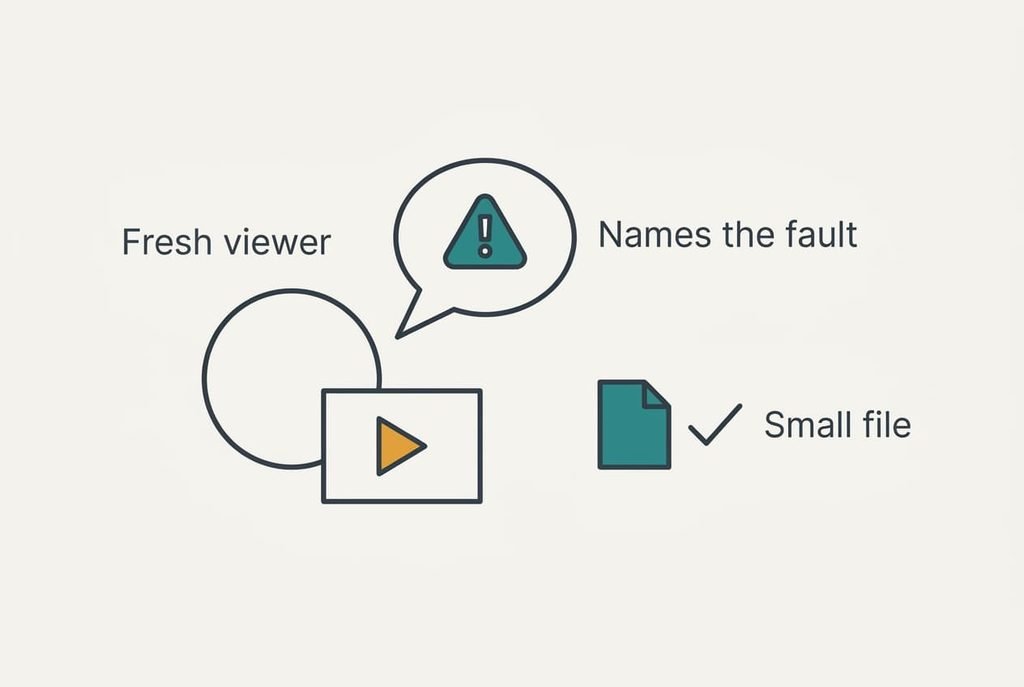
The true test is whether you can record your screen when something goes wrong and still be understood by a stranger. Ask a person who has never seen the problem to watch the clip once and say aloud what went wrong, because you can’t judge your own recording. They should name the fault within the first 20 seconds. If they ask a question, add the missing detail. Then record again.
Check the numbers too. Sam’s clip ran 45 seconds. At 4 Mbit/s that gives 45 × 4 ÷ 8 = 22.5 MB, which sat under her 25 MB ceiling. Play it once with the sound on and once with it off. The silent version should still make sense, because the pause on the error does the work that your voice would otherwise do. Last, check the first frame, since it becomes the thumbnail the recipient sees.
Judge the clip by the person watching it, and never by yourself.
Where It Goes Wrong When You Record Your Screen
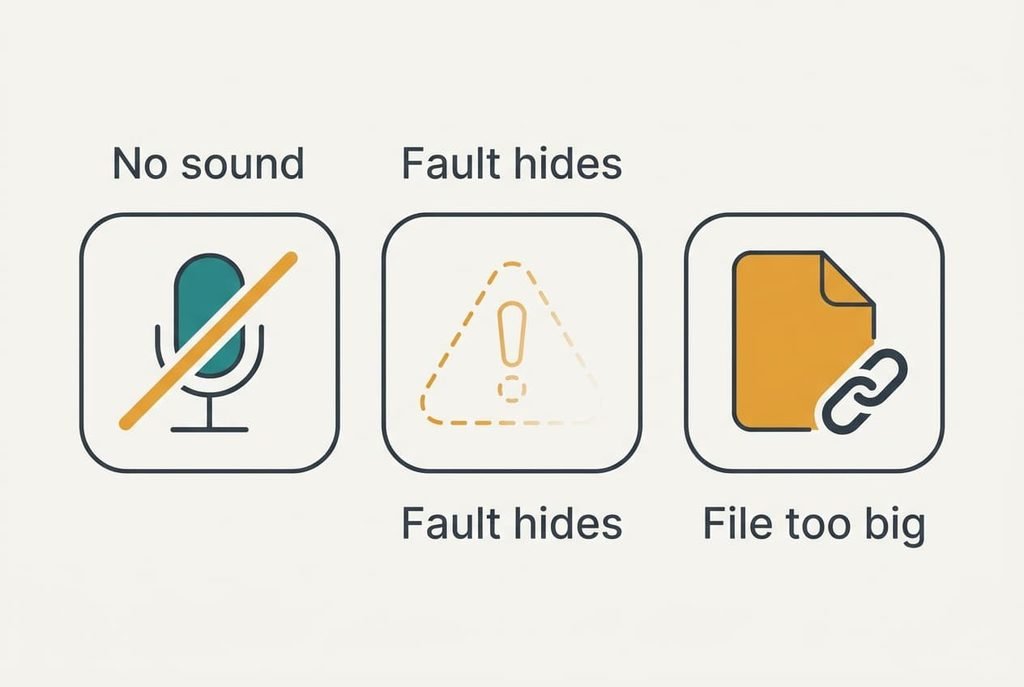
Most failed clips come from three snags. The first is silence, where the clip plays with no voice. Capture often takes the device’s own sound by default, so your microphone may need choosing before you start. Make a five-second test take and play it back before the real one.
The second is a fault that refuses to appear. Recording slows a device, and a timing fault can vanish under the extra load. Rehearse until it returns, and close other programs to free the processor. If it only shows up every few tries, record a longer take of 90 seconds and trim afterwards.
The third is a file too large to send. Many mail services refuse anything above a modest size, so share a link to the clip instead of attaching it. Trim to the minimum before you upload, and keep the original in case the link expires.
The Step Not Worth Taking
Resist spending an hour decorating the clip with arrows and captions, because the person reading it needs the raw behaviour and not a polished show. Sam’s pause on the error carried the message, and a drawn arrow added nothing. A plain clip also keeps the evidence honest, since nothing in it can be mistaken for part of the fault. Editing also changes the file, and a re-saved clip can lose the exact colours or timing that revealed the fault. An hour of decoration costs far more than the 2 minutes it takes to record again.
Keep the clip plain. One pause on the error explains a problem better than any effect, and a viewer who needs more will ask. Add one sentence to the message and leave the video alone. Support staff also tend to watch raw clips at double speed, so extra flourishes get skipped anyway, whereas a long pause on the error never does.
Next time, record your screen when something goes wrong by writing the sentence first. Clear the screen and rehearse once, then record slowly with a pause on the error. Ask a stranger to watch before you send anything. Repeat the routine on the next fault and you’ll find it takes closer to 10 minutes than 20. Send the clip together with your one-sentence note, and say what you already tried. Keep the original until the problem is solved, and delete the copy afterwards.
Questions Readers Keep Asking
How long does the whole job take?
Expect roughly 20 minutes at the start, with 10 of them spent clearing the screen and rehearsing. The recording itself takes 45 seconds. Later attempts shrink to about 10 minutes, since the preparation becomes routine and you already know where the error appears.
Will recording delete or change anything on my device?
No. Recording copies what appears on the screen into a fresh file and doesn’t touch your documents. Trimming can overwrite the clip you made, so save a copy first. Free storage falls by about 22.5 MB for our 45-second take.
What if the problem happens on a phone and not a laptop?
The routine is the same from start to finish. A phone adds one wrinkle, because touches don’t show unless you switch on a visible tap marker. Tap slowly so the viewer can follow each press, and pause a little longer on the error.