“My phone buzzes five minutes after the message was sent.” That’s the usual report, and the delay almost never starts with the sender. That’s why your email takes minutes to arrive: the message reaches your provider in seconds, then sits there until your phone next asks for it. How often the phone asks sets the wait. Our case is a UK phone with one mailbox, and every time is a round figure. Put your own readings in after the checks below. The ladder starts free and ends with a purchase, so read it once through before you touch anything.
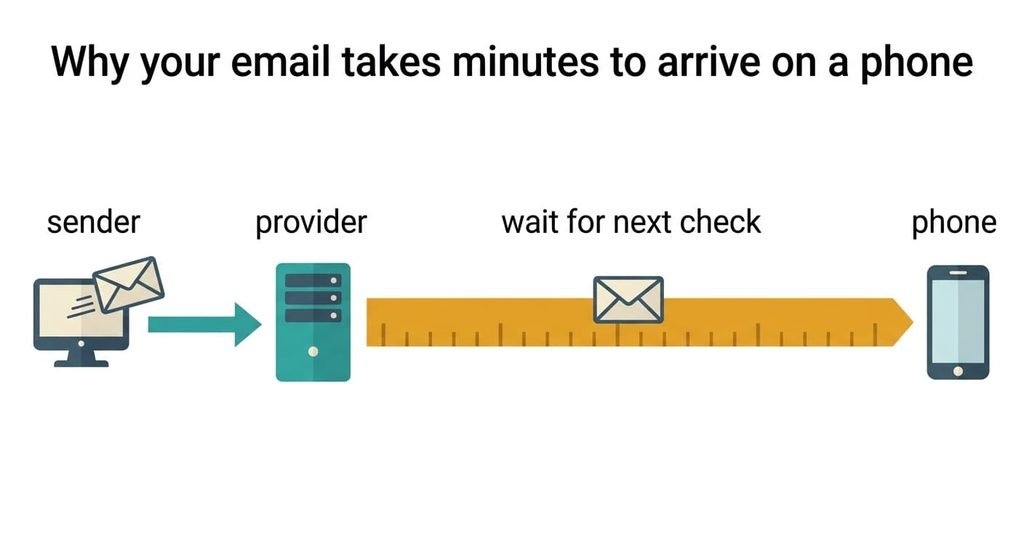
Why your email takes minutes to arrive on a phone
A message travels in two legs. The first leg, from the sender to your provider, takes seconds, while the second leg, from the provider to your phone, only starts when the phone asks. Say the phone asks every 15 minutes, because that’s what its fetch setting says. A message lands on the server at a random moment inside that cycle, so the wait runs from 0 to 15 minutes and averages 7.5. Only one message in three reaches the phone within five minutes of being sent, because 5 of the 15 minutes are the lucky ones.
Push changes the picture. With push, the phone keeps a line open to the provider, and the provider calls out the moment mail lands. The wait drops to a few seconds. Many people believe they have that setting. When your email takes minutes to arrive, the account is usually fetching, or the phone has put its push line to sleep. Say the phone is idle overnight and stretches its 15-minute gap to 30. The average wait is then 15 minutes, and the worst case is 30.
The delay follows a schedule you can read, and one number on screen sets it.
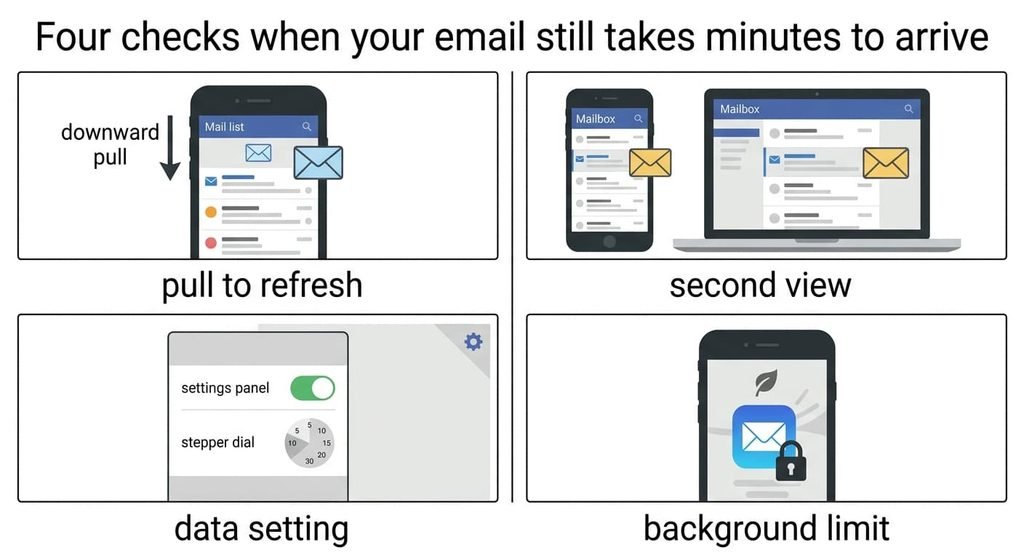
Four checks when your email still takes minutes to arrive
Each check separates the phone’s schedule from the provider’s delivery. Run them with a test message, sent from a second account so you know the exact send time. Take them in order, because each answer narrows the next question.
Start with a pull-to-refresh. Send the test message and wait a minute. Then pull down in the mail app. If the message appears at once, the server already had it, and the wait belongs to the phone’s schedule. That single test settles most cases.
Next, open the same mailbox in a browser on a computer. When the message shows at 10:00 there and reaches the phone at 10:07, the gap is on the phone’s side.
Then read the account’s data setting in the phone. It says push or fetch, and a fetch setting carries a number of minutes. Write the number down, because it is your worst-case wait. Half of it is your average. A push setting shows no number at all.
Last, look at the mail app’s background limits. A battery saver or a restricted-background switch stretches the gap, so a 15-minute setting behaves like 30.
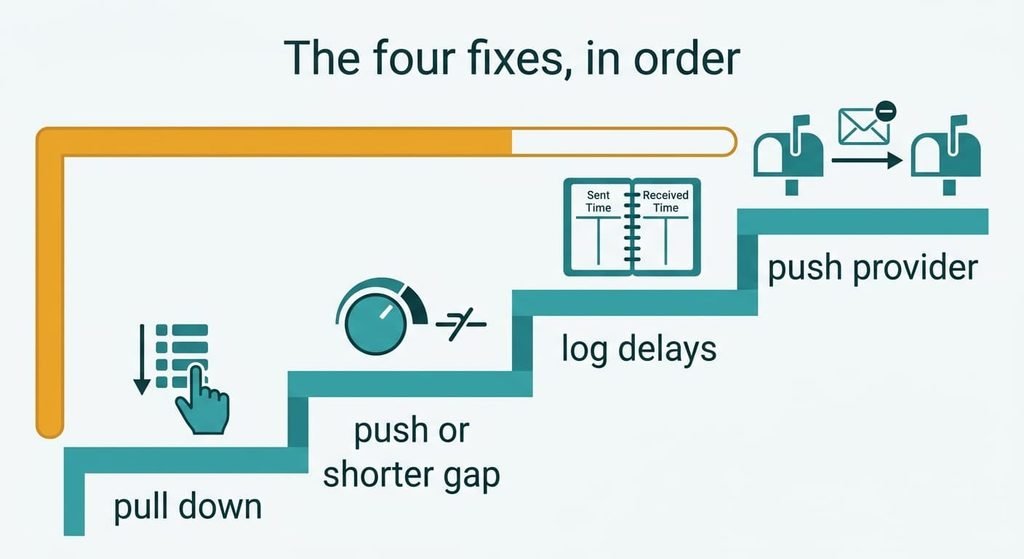
The four fixes, in order
Alter one thing, then send a fresh test message before the next step. If your email still takes minutes to arrive afterwards, go down a rung.
Pulling down to refresh when you expect something costs nothing and takes two seconds. The server’s copy appears immediately, and opening the app does the same on most phones. The drawback is that it works only while you’re looking, so the alert you rely on still arrives late. It doubles as a diagnosis, because a quick success proves the provider delivered on time.
Switching the account to push, or shortening the fetch gap takes a couple of minutes in the account settings. Going from 15 minutes to 5 cuts the average wait from 7.5 to 2.5 minutes. It also triples the checks, from 96 a day to 288. If each check costs 0.02% of the battery, the daily bill rises from 1.9% to 5.8%, a loss of about 3.8 percentage points. Allow the app to run unrestricted in the background while you’re in there, because a limit undoes the new number. Judge the result after an hour of normal use, not after one minute.
Logging a few days of real delays costs time and no money. Note the send time and the arrival time of two messages a day for three days. If the delays cluster below your fetch number, the schedule is the cause. If some run well past it, someone upstream is holding mail, and no phone setting will help. Add a column for the gap, arrival minus send. Every delay from 3 to 14 minutes fits under a 15-minute fetch, which points at the schedule.
Moving the mailbox to a provider that supports push is the purchase, and it pays off only if the provider can’t push at all. First open the provider’s own app or website. If mail appears there at once but late in your phone’s mail app, the setting is wrong. A move won’t help. A move costs an evening of work and some weeks of forwarding from the old address. Confirm that the new provider pushes to the phone’s own mail app, because some push only inside their branded app.
If none of that worked
If your email takes minutes to arrive even with push on and no background limit, open the message details. Read the sent time and the received time. A received time several minutes after the sent time means the delay happened before the mail reached your provider. Nothing on the phone can shorten that leg.
Collect five messages and note the sender plus two times for each, the received time on the provider and the arrival time on the phone. Check the spam folder too, because a filter can park a message for a scan and release it minutes later. Send the list to the provider’s support team. Vague reports get vague answers, but five timed examples let them trace the path. Keep the evidence in one note, with the times in one column, so a support agent can read it in a minute and see the pattern.
The fix that isn’t worth doing
Deleting and re-adding the account is a popular reset, because it feels like clearing a jam. It clears nothing here. The new account starts with the same default schedule, so the average wait stays 7.5 minutes. Re-adding can also reset the permissions the phone had granted, which leaves you worse off. Before you reset anything, screenshot the settings page so the numbers you tuned can be restored in a minute. You also risk losing drafts that never reached the server, and you must re-enter the settings you tuned.
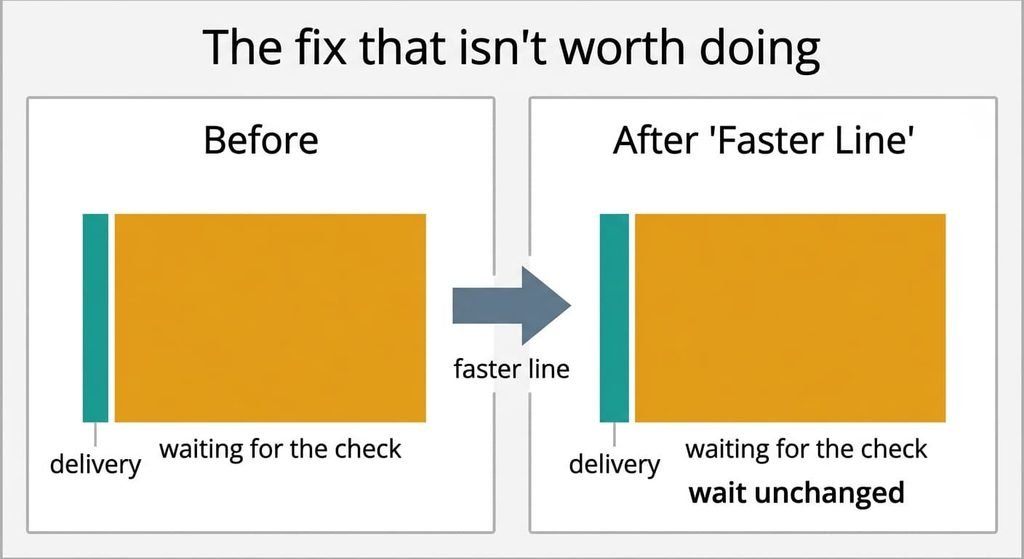
A faster connection fails the same way, and so does switching from Wi-Fi to mobile data. Both legs still wait for the phone’s next check. The first leg takes about 3 seconds, and a quicker line might save 1 of them. Against a wait of 453 seconds, that saving is 0.2%.
A faster line speeds up the wrong leg.
When your email takes minutes to arrive, the phone’s schedule is the first suspect. Send a test message, then compare pull-to-refresh with the arrival time. Move to push or a shorter gap when the server had the mail early. Leave the mailbox move for last. Retest after every change, because one change at a time is the only way to know which one worked.
Questions readers keep asking
Why does refreshing show mail that never buzzed?
The provider had the message all along, and the phone only fetched it when you pulled down. In the example the phone asks every 15 minutes, so a message can wait up to 15 minutes for the next scheduled check before the alert fires.
Does push drain the battery more than fetching?
Usually less. A phone fetching every 5 minutes wakes 288 times a day, while a push connection wakes it once per message. With 40 messages a day that’s 40 wakes. The phone still keeps one open line, but the cost of that line is small next to repeated checks.
Why do some messages arrive instantly and others late?
Each message lands at a random point in the fetch cycle. One that arrives a few seconds before a check shows up almost at once, and one that arrives just after a check waits nearly the full 15 minutes. The spread is the schedule, not the sender.