How do two parents end up booked into the same Saturday? Each wrote the plan in a different place. In about 25 minutes you can share a family calendar that everybody edits, so every event exists exactly once. One decision shapes everything after it: a single calendar with edit rights for all, or a personal calendar each with the others’ copies on view. This guide takes the single shared calendar, because a view-only copy lags behind and can’t be changed by the people who read it. The figures describe an invented household of four, so read them as illustrations of the method. The steps say what to look for, since button positions change.

Before you share a family calendar
Four things need settling before you share a family calendar. Everyone has a calendar account that can accept an invitation. All four phones are within reach for about 25 minutes. Each phone shows the right time zone. And somebody has written down the weekly pattern on paper: school runs and clubs, plus standing shifts, about 12 repeating blocks in our household.
The one people skip is the owner. The calendar has to live in an account that will outlast the arrangement, because the calendar belongs to whoever created it, while everyone invited only borrows it. If that adult closes the account or loses access, the shared calendar goes with it and every member is left with nothing. Pick the account with the longest future, then check that its recovery details are current. A teenager’s school account is a poor home. A work account is worse, because leaving the job ends it.
Set the time aside in one sitting. A half-built calendar leaves some people on the new setup while others still use the old habit.
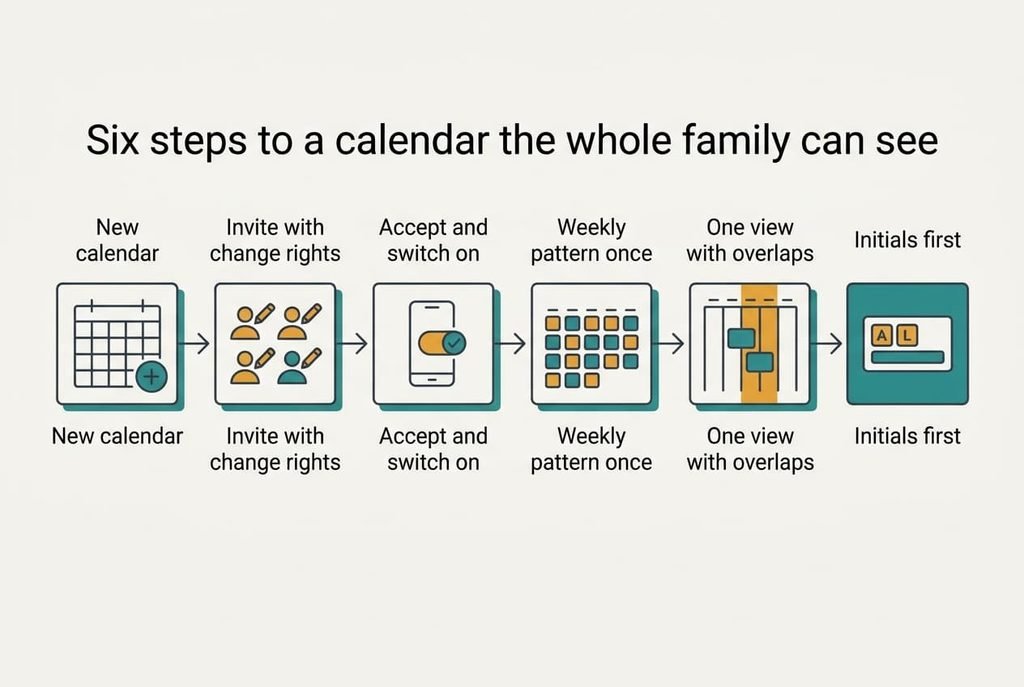
Six steps to a calendar the whole family can see
1. Create a new, empty calendar under the owner’s account and name it after the household. Find the control that adds another calendar, separate from the one carrying your own name. Sharing your personal calendar would hand over every private appointment, and the new one holds only what the family needs. The owner’s list now shows two entries, and the new one is blank.
2. Invite each person using the address of their own calendar account, and give them the permission that lets them change events. The choices usually run from seeing busy times, through seeing details, to making changes. Only the last lets a person add an event in the shared place instead of copying it into their own. The sharing list should show three names beside the owner, each with change rights.
3. Have each person accept on their own phone and then switch the calendar on in the list of calendars. An accepted calendar that stays switched off is the commonest cause of “it isn’t showing”. Success is a coloured mark or tick beside the household calendar in every person’s list.
4. Enter the weekly pattern once, as repeating events. Twelve repeating blocks at about 40 s each take 8 minutes and fill every future week. A clash can only be spotted against something already on the page. Open next week’s view and check that each block lands in the right column without being retyped.
5. Switch every phone to a week or list view with the household calendar and the person’s own calendars both ticked. Overlaps show only when both sit in one view. Say two parents share eight lifts a week across 50 one-hour weekday slots. The chance that two of those eight share an hour is 1 − (50 × 49 × … × 43) ÷ 50⁸, which is 44.6%. Success looks like a test event placed over a personal one showing as two blocks in the same column.
6. Agree one rule and write it on a card where everyone passes. Anything that needs another person goes in once, in the household calendar, with the initials of the people involved leading the title. Initials let a list view be read at a glance. The next time someone asks “did you book that?”, the answer is to look.
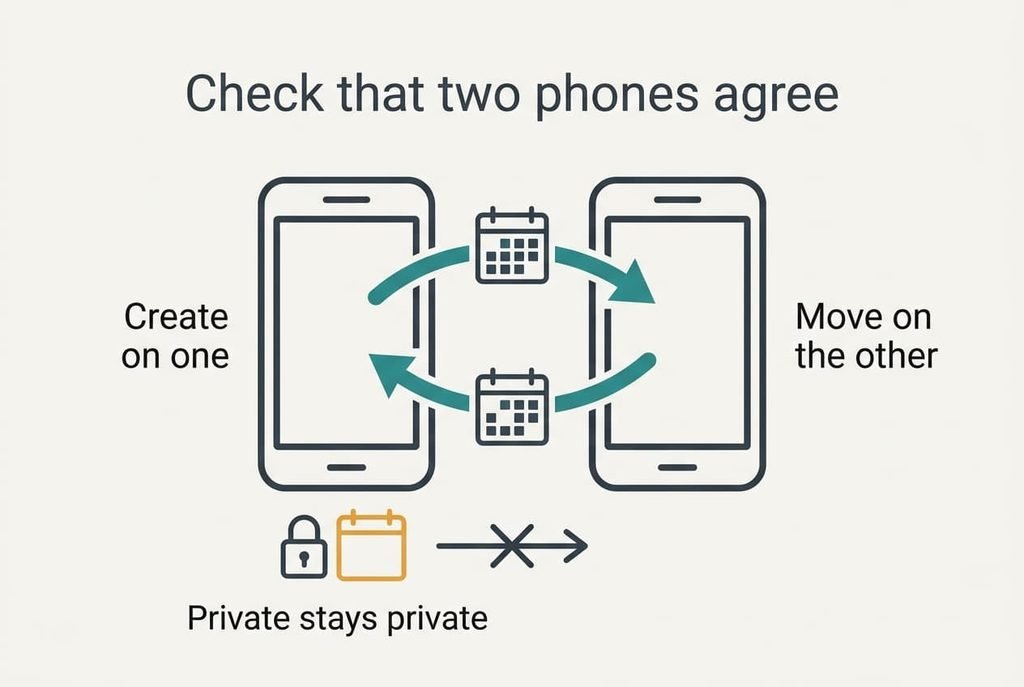
Check that two phones agree
An accepted invitation proves little about the finished setup. Test it with two phones: create an event on one, read it on the second within a minute, then move it from the second and watch it move on the first. Add a private appointment to a personal calendar as well, and confirm it doesn’t appear on the household one. The check takes 4 minutes.
Run the test the same day.
A pass means the event appeared and moved, and the private one stayed private. A partial pass means it appeared but wouldn’t move, which points to view-only rights, so reopen the permission in step 2. If it appeared nowhere, the second phone has the calendar hidden. Delete the test event afterwards, or it will sit in the shared week looking real. Anyone who plans to share a family calendar for months should repeat this check after changing phones.
If a step did not work
The most frequent stall is a new event landing in the wrong calendar. Phones save a new event to whichever calendar they used last, so a personal habit leaks into the family space. Read the event form for the line that names where it will be saved, and change it before you save. Make that glance part of the initials rule.
Fix the permission before anything else.
The second stall is edits that won’t save. The person was invited with view rights, so go back to the sharing list and raise them to making changes. A third is the same event appearing twice. Someone subscribed to the calendar by a link and was also invited by address, so remove one route. The link version is the one to drop, since it refreshes on a schedule the app sets, often hours rather than seconds.
The step not worth taking
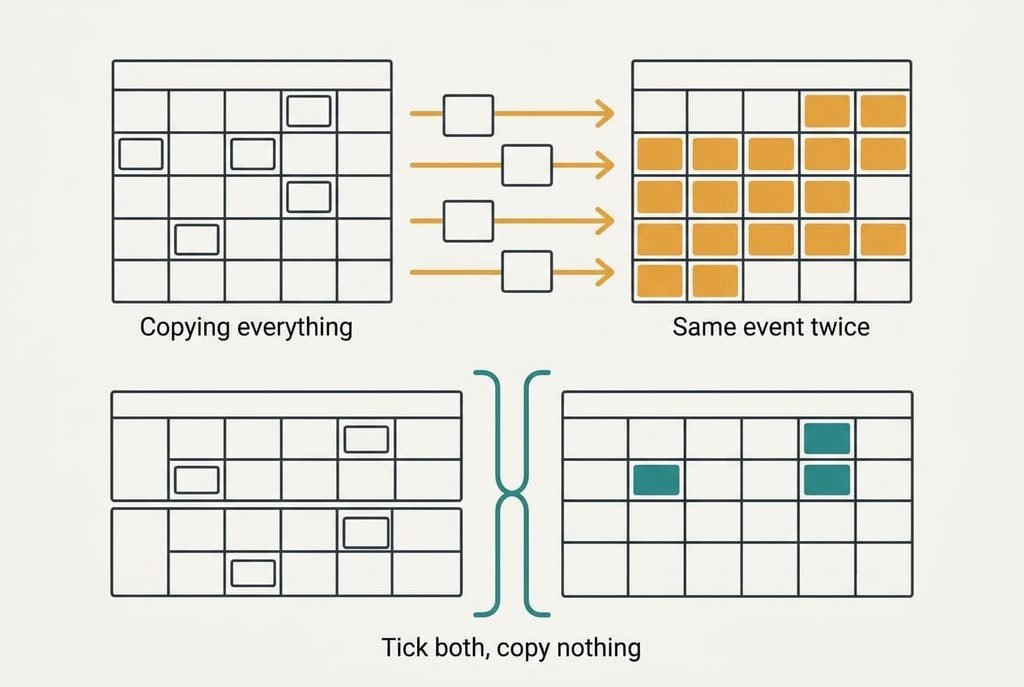
Copying every personal event into the household calendar feels thorough and quietly makes the system worse. Four people each copying 20 events a month produce 80 duplicates. At 20 s a copy that’s 26.7 minutes a month of typing, and every later change has to be made twice, in two places. The household calendar fills with items nobody else must act on, and the ones that matter drown.
I’d put only what needs another person’s action there, and leave the rest private. Some families prefer full transparency, and for them view-only access to personal calendars does the job without duplication. A cleaner habit is to copy nothing and let each person’s own calendar sit ticked beside the household one. That gives the same overlap view with no duplicates. The cost is that some personal events stay invisible to the others, which is the point.
To share a family calendar that holds up, create it under an account that lasts and give everyone change rights. Enter the weekly pattern once. Then write initials first and look before you book. Expect a clash or two in week one, and treat each as a missing block rather than a failure of the system. Check the list view each Sunday evening for a month. The first week will show whether anyone is still writing plans on the fridge.
Questions readers keep asking
How long does the setup take for four people?
About 25 minutes in one sitting. The owner needs 6 minutes for the first two steps, each person needs 2 minutes to accept, and entering 12 repeating blocks takes 8. The last 4 minutes go on the two-phone test. Spreading it across several days is what leaves people half-switched.
Will sharing overwrite or expose my existing events?
No existing event moves, because the household calendar starts empty and sits beside your personal one. Your private appointments stay private unless you save them to the household calendar. Check the calendar named on each new event form, since that choice decides who sees what, whatever the sharing step says.
What if we use different calendar apps?
Most apps can invite an address from another provider, so the owner can still add everyone with change rights. If one person’s app can’t accept the invitation, a subscription link works as a fallback, and the link gives view-only access that refreshes on a schedule, so that person should still add events through someone else’s phone.