Everyone complains that two-step login locks them out the first time they change phones. That only happens when the backup step gets skipped. In about 15 minutes you’ll have two-step login on your email account, meaning a password plus a six-digit code from an app, with a sheet of backup codes stored away from your phone. One decision shapes everything else: app codes or text messages. This guide takes the app, because a text can be diverted when someone takes over your number.
The figures below come from one invented set-up, so treat them as worked examples. No app names or menu paths appear, because both age faster than the principle behind them.
Before you start two-step login on your email account
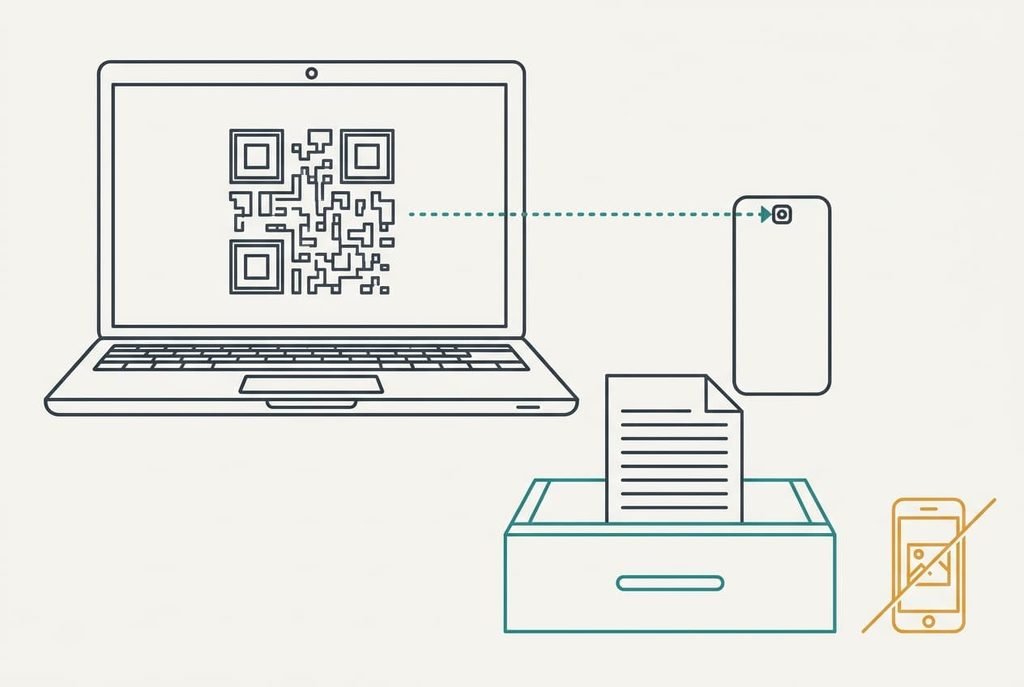
Four conditions apply before you begin. First, you can sign in right now with your current password, since the setup asks for it again. Second, the phone sets its clock automatically, because every code is computed from the time. Third, the recovery address on the account is current. Last, you have somewhere to keep backup codes. Work at a computer with the phone beside you, because the phone scans a barcode that has to appear on another screen.
The prerequisite most people miss is a place for the backup codes that isn’t the phone, and it’s the one they regret. Without it, a lost phone leaves only the provider’s account recovery. That can take days and may fail. A wrong clock makes every code fail, and a dead recovery address sends the rescue message nowhere. A forgotten password means you stop here and reset it first. Set aside the 15 minutes in one sitting, because a half-finished setup can leave the account asking for a code you haven’t stored.
Paper in a drawer is enough. A photograph on the phone itself defeats the purpose, since the phone is the thing you’re insuring against losing.
Six steps to two-step login on your account
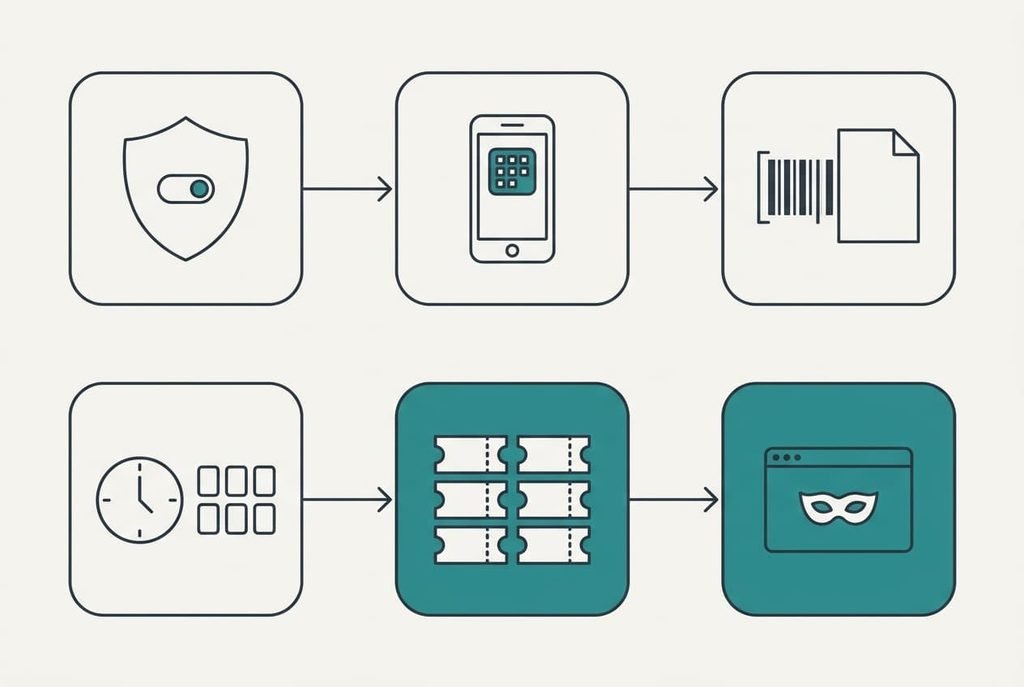
1. Find the account’s security area, which usually sits beside the password and not under your profile. Look for a section about extra verification at sign-in, currently switched off. It lives there because the second code guards the sign-in, whatever your profile says. You’ll know you’re in the right place when you see an option to turn the second step on, and no menu has asked you for anything yet.
2. Choose the code type that uses an app on your phone and not text messages. An app computes each code on the phone itself, so nothing travels across the phone network for someone to divert. If the app isn’t on the phone yet, install it first. The page should now show a square barcode with a line of characters underneath it.
3. Link the app by scanning the barcode, then copy the string onto paper. That string is the shared secret from which every code is computed, so with it you can rebuild the app on a new phone, and so can anyone who sees it. Keep it with the backup codes and nowhere else. The app now lists your account beside a six-digit number that changes every 30 seconds.
4. Type the current code into the page before it changes. This proves the phone and the provider agree on both the secret and the time. A six-digit code has 1,000,000 possible values, and a server that also accepts the neighbouring 30-second codes has three valid at once, so a blind guess lands 3 times in 1,000,000. If the number rolls over as you type, wait for the next one. The page should confirm the second step is on.
5. Generate the backup codes, which are a set of ten single-use codes. They are the only way in once the phone is gone. Creating a fresh set cancels every earlier code, so destroy the old sheet the moment you print the new one. Write them on paper, label the sheet with the account it belongs to, and make sure every character is legible.
6. Sign out, then try to sign in from a private browser window. You’re checking that the password alone no longer gets you in. Success looks like a prompt for a code after the password, and a refusal if you leave the code box empty.
Check that the second step really worksThe page saying “on” proves nothing about the finished state. Test two-step login on your email account from the outside, by signing in from a private window with the app code, and then once more with a backup code. A private window carries no saved session and no remembered browser, so it behaves like a stranger’s laptop. Do this on the day, because a fault found next month is found after the old session has expired. The second sign-in burns one of your ten, so cross it off the sheet at once.
A full pass means both codes were accepted. A partial pass means the app code works and the backup is refused, so regenerate the set. Then check your copying against the page. If neither works, keep your existing session open while you fix the cause, because closing it would leave you outside the account with no way back in.
If a step did not work
The commonest stall with two-step login on your email account is a code the page keeps rejecting. Codes come from the clock, so a phone running 90 seconds adrift falls outside even a tolerant window. Turn on automatic time, wait for the next code and try again.
Fix the clock before anything else.
A barcode that won’t scan has a simple workaround. Type the string under it into the app instead. It uses only the letters A to Z and the digits 2 to 7. A 0 or a 1 therefore means you’ve mistyped. If the page refuses to show the backup codes a second time, that’s by design. You’ll need to generate a fresh set. Your old sheet is dead the moment you do, so replace it straight away.
A third stall is the page insisting on a phone number before it lets you continue. Add it if you must, but remember it’s a text route, and the next section explains why that route deserves caution.
The step not worth taking
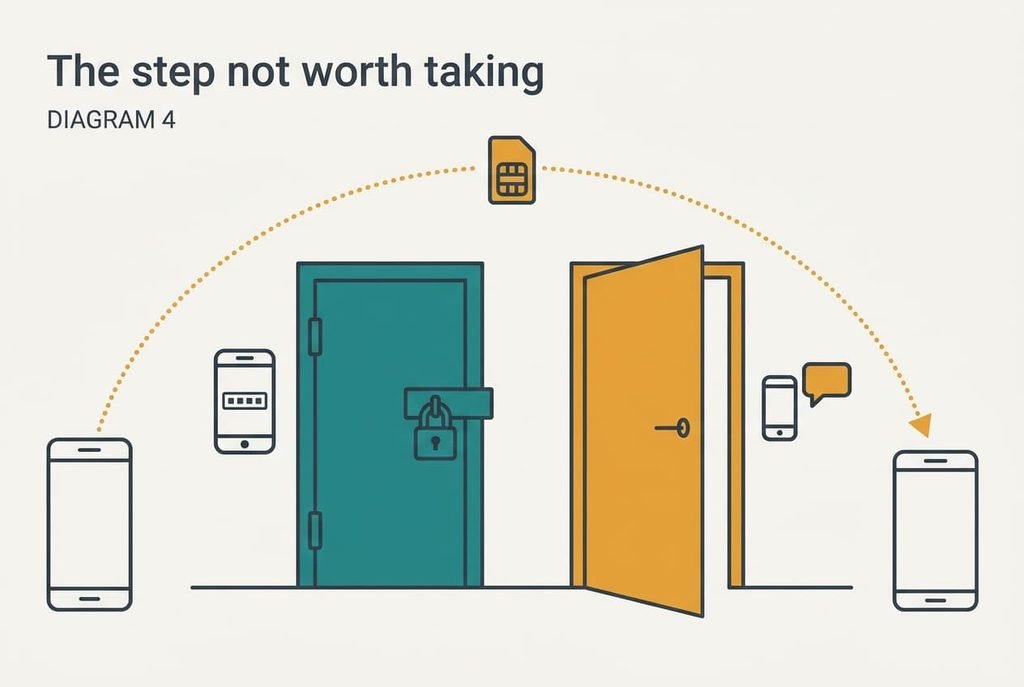
Leaving text-message codes switched on as a backup looks careful and quietly undoes the work. Number takeover works by persuading a phone company to move your number to a different SIM card, and from then on every text goes to the attacker. Anyone holding your number can use that route, and the strong app code never gets asked for. A text is the weakest door in the house, so keeping it open sets your security by the weakest one.
I’d choose paper over a text every time. Ten printed codes can’t be diverted.
A drawer has no phone number to take over.
Remove the text option once the backup sheet is stored, and the setup gives you what it promised. If the provider refuses to let you remove it, treat the account as only as safe as your phone number, and rely on the paper sheet as the real key.
You now have two-step login on your email account, with a code from the app and ten on paper. The test worth repeating is the private-window sign-in, so repeat it after any phone change. Next time you buy a phone, link the new one before wiping the old one. Keep the paper sheet where you’d look for a passport, and tell one trusted person where it is. Rehearse the sign-in once a year, because a sheet you’ve never used is only a hope.
Questions readers keep asking
How long does this take?
About 15 minutes. Linking the app needs two minutes. The backup codes need five, and the private-window test takes about four. Sign in to the account first, since a password reset in the middle doubles the time. Do it at a desk with the phone beside you and a pen ready.
What happens if I lose the phone?
Use one backup code to sign in, then link the new phone and generate a fresh set. Without the codes you’re left with the provider’s recovery process, which can take days. This is why the paper sheet matters more than anything else in the procedure.
Can I link the same account on a second phone?
Yes, but only during step three. Scan the same barcode on both phones at the same moment, because each scan copies the secret and both phones then show identical codes. Afterwards the barcode isn’t shown again, so use the string you copied onto paper.