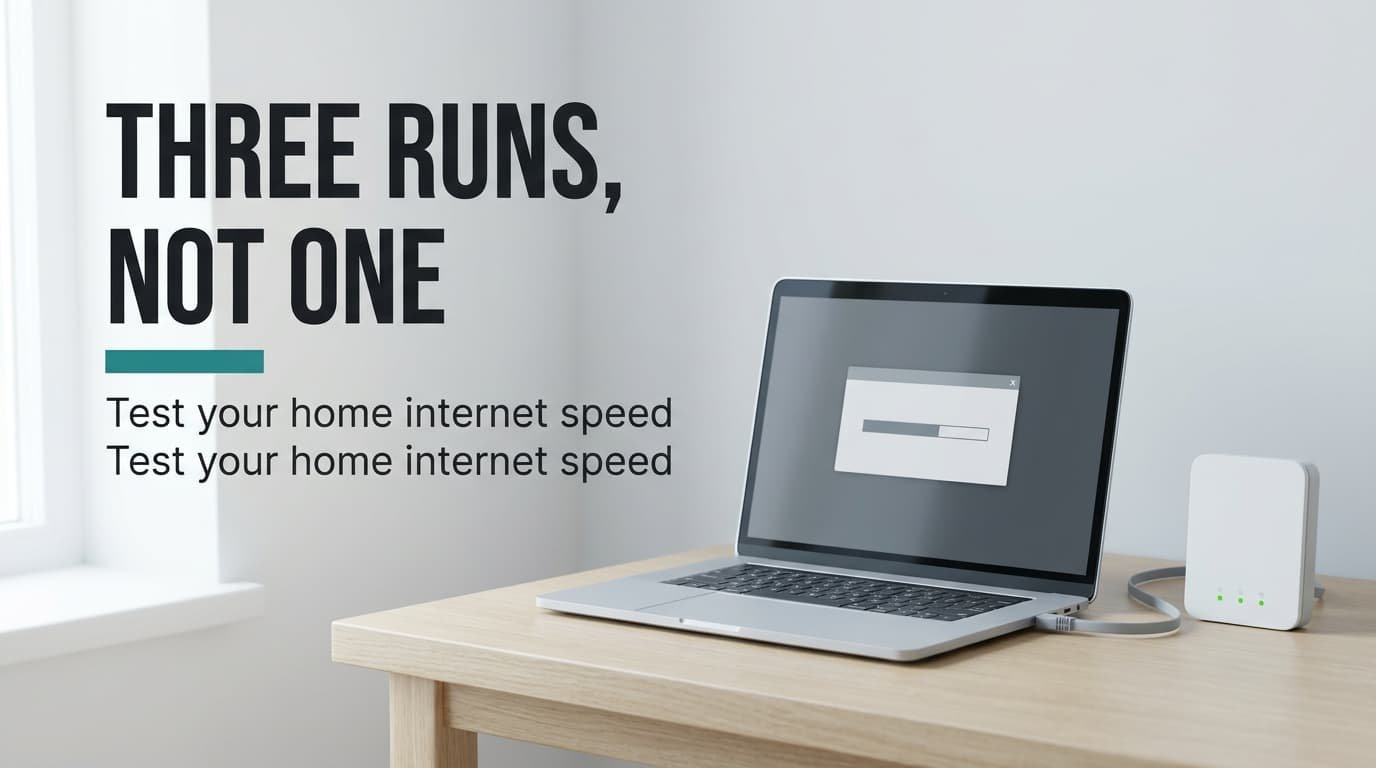
A single speed test tells you almost nothing, and three runs at the right moments tell you nearly everything. To test your home internet speed properly, you need a network cable and a quiet house. Set aside about 25 minutes, plus a second set of runs in the evening. You end up with one trustworthy number for the line and one for your Wi-Fi, each compared with what you pay for. The fork is whether your laptop has a cable port, and each branch is handled below. Our numbers belong to a made-up UK flat on a 150 Mbit/s plan, and yours will differ.
Before you test your home internet speed properly
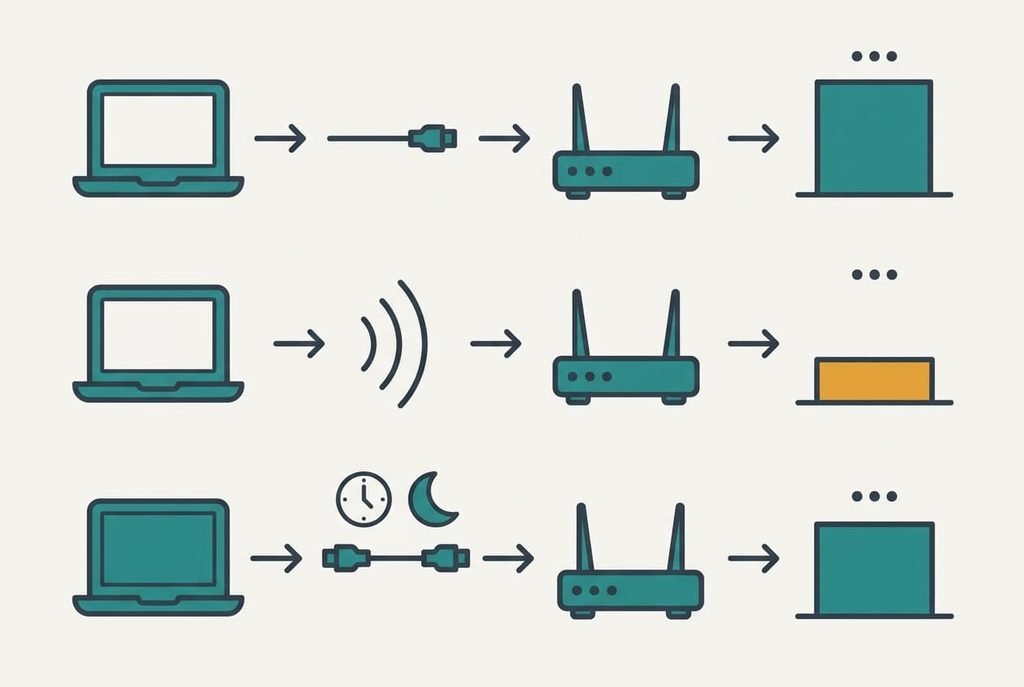
Gather four things first. You need a laptop and a notes app. Bring a network cable too when the laptop has a socket for one. Set aside a quiet half hour. Ask the household to stop streaming and downloading for the first session, because the line is shared and every other device takes a slice of it. Pick a morning for the first session, when the street is quiet, and choose a cable that reaches your desk from the router.
The kit costs nothing.
The item most people skip is the speed your plan promises, in the same unit the test reports. Plans and tests both use megabits per second, written Mbit/s, and file sizes use megabytes, written MB. One byte holds 8 bits, so 150 Mbit/s moves 18.75 MB each second. Without that figure a result of 120 looks fine or terrible depending on a guess.
Work out what a perfect line would show. Protocol overhead takes about 6 percent, so we’ll assume 94 percent: 150 × 0.94 gives 141 Mbit/s down, and a 30 Mbit/s upload gives 28.2. Write both numbers at the top of your notes.
Test home internet speed properly, step by step
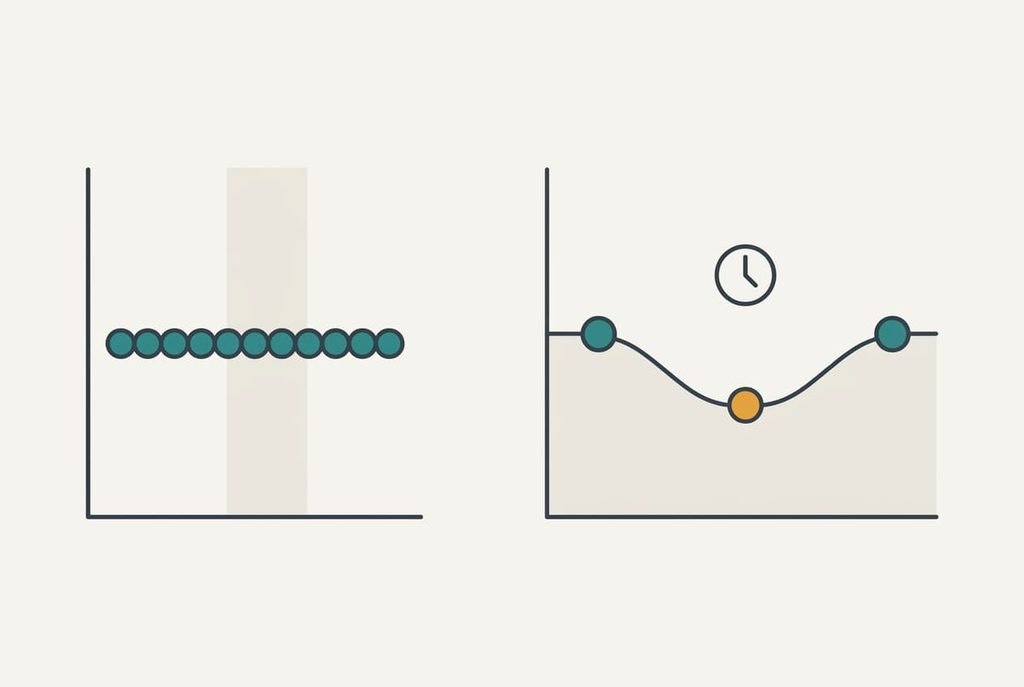
1. Close everything else that touches the network. Quit cloud-sync apps first. Pause any video, and stop game downloads. Phones and tablets count too, so put them in another room if you can. The line is shared, so a background upload steals speed from the download you’re about to measure. A live graph that climbs smoothly instead of lurching up and down is the sign it worked.
2. Plug the laptop into the router with the cable and switch the laptop’s Wi-Fi off. That removes the radio from the path, so the number belongs to the line alone. The Wi-Fi symbol being off while the page still loads is the sign you’re on the cable.
3. Run the test three times, a minute apart, using the nearest server the page offers. A single run can catch a burst or a stall. Write all three figures down, and add a fourth run if one differs by more than 10 percent. They should sit within about 5 percent of each other. Ours read 139, then 141, then 140. The median is 140 Mbit/s, or 99 percent of the 141 you expected.
4. Switch the cable for Wi-Fi and stand where you actually use the device. Run three more tests there, holding the laptop at the height you use it. Your bedroom or desk matters more than the router’s spot. The gap between this median and the cable median is the Wi-Fi loss. Ours read 62, then 70, then 66. The median of 66 is 47 percent of the expected speed.
5. Repeat the cable runs at your busiest hour, around 20:00. Many lines share capacity with the neighbours, and the evening shows what you get when the street is online. Our evening runs gave 128, then 119, then 124. That median of 124 sits about 11 percent below the morning’s 140.
6. Put the three medians side by side and divide each by the expected figure. Keep this table, because next month’s session is the comparison. Ours came to 99 percent on the cable by day. Wi-Fi managed 47, and the cable at night reached 88. The line holds up by day and weakens a little at night, while Wi-Fi is the weak link. A file of 4 GB takes 229 s on the cable and 485 s on the bedroom Wi-Fi, which is more than twice as long.
Check the finished reading before you trust it
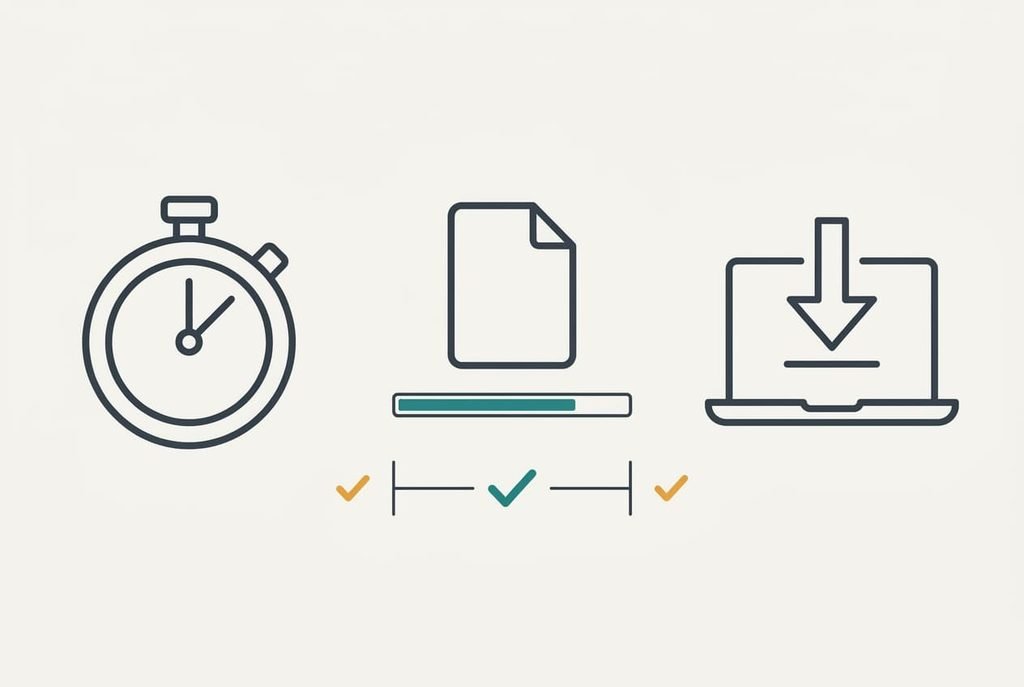
A number from a test page is a claim until something else agrees with it. Time the download of a file whose size you know, using a stopwatch and a large file that you can download from a trusted source. A 1 GB file at the cable median of 140 Mbit/s, or 17.5 MB/s, should take 1,000 ÷ 17.5, which is 57 s.
Passing means your stopwatch lands within 15 percent of that. The window runs from about 49 s to 66 s. Landing within 30 percent is a partial pass, and it usually means the server limited the download. Anything slower fails. Then the test page and the real world disagree, and you test your home internet speed properly again with another server before you act.
A pass settles the line and leaves only the Wi-Fi to fix.
If a step stalls
If every cable run sits near 94 Mbit/s whatever your plan says, the cable link may have negotiated 100 Mbit/s rather than the faster speed. Swap in a different cable and try another port. A cap at 94 is 100 × 0.94, the fingerprint of that limit.
If the test page runs slowly or the figures swing by 30 percent between runs, something else is eating the line. A VPN is one suspect and a background update is another. A VPN adds a detour that costs speed. Turn the VPN off before testing, and let the update finish. Then repeat step 3.
Without a cable port on your laptop, drop step 2 and step 5. Run steps 3 and 4 on Wi-Fi beside the router, and treat that reading as the best the line can offer. You can test your home internet speed properly this way if you label each figure with where you stood. It slightly understates the line and reads honestly for the Wi-Fi.
The step not worth taking
Running ten tests in a row feels thorough, but it measures the same minute ten times. Back-to-back runs share the same conditions, so they differ by only 3 percent or so. The morning and the evening in our example differed by 11 percent, and that gap only shows up when you wait.
Each run also moves real data. At 140 Mbit/s, a 10 s test moves about 175 MB, so ten runs use 1.75 GB against 525 MB for three. If your plan has a monthly data cap, that adds up quickly. An extra run helps only when one figure looked odd. Three runs at three different times beat ten runs at one time every time. Treat the highest figure with suspicion, too. Peaks come from short bursts, and the median is the honest number. Repeating a test teaches you little unless the conditions change.
Read the three medians, write one line about each and keep the notes. A month on, run the session again. Then compare the two. To test your home internet speed properly is to repeat a small routine under the same rules, because a number only means something next to another number, and a record spanning weeks beats one reading. I’d rather you ran three careful tests than thirty careless ones. Before you phone your provider, finish the Wi-Fi comparison, since the fault is often inside the flat.
Questions readers keep asking
How long does a proper speed test take?
About 25 minutes for the first session. Ten go on the cable tests and ten on Wi-Fi, with five left to compare the numbers. The evening session needs ten more. Once you’ve done it, repeating the routine takes about fifteen minutes.
Does testing use up my data allowance?
Yes, a little. A 10 s test at 140 Mbit/s moves about 175 MB, so a session of nine runs uses roughly 1.6 GB. On an unlimited plan that doesn’t matter. On a capped plan, run three tests in total and spread them across the day.
What if I only have Wi-Fi and no cable port?
Test beside the router, with a clear line of sight to it. That reading comes closest to the line. Then test where you work and compare. The gap tells you how much the room costs, even without a cable reading.