The brightness control on a monitor looks like a plain dial, yet low settings can make the screen behave in a way full brightness never does. A monitor that starts to flicker when you turn the brightness down is usually dimming its backlight by switching it off and on very fast. The fastest relief comes from keeping the backlight higher and darkening the room or the picture another way. Our example is a home office in Leeds with one monitor and a window that lets in grey afternoon light. Below you’ll find why the shimmer appears and how to confirm it with a phone, then fixes ranked by cost.
Why Monitors Flicker When You Turn the Brightness Down
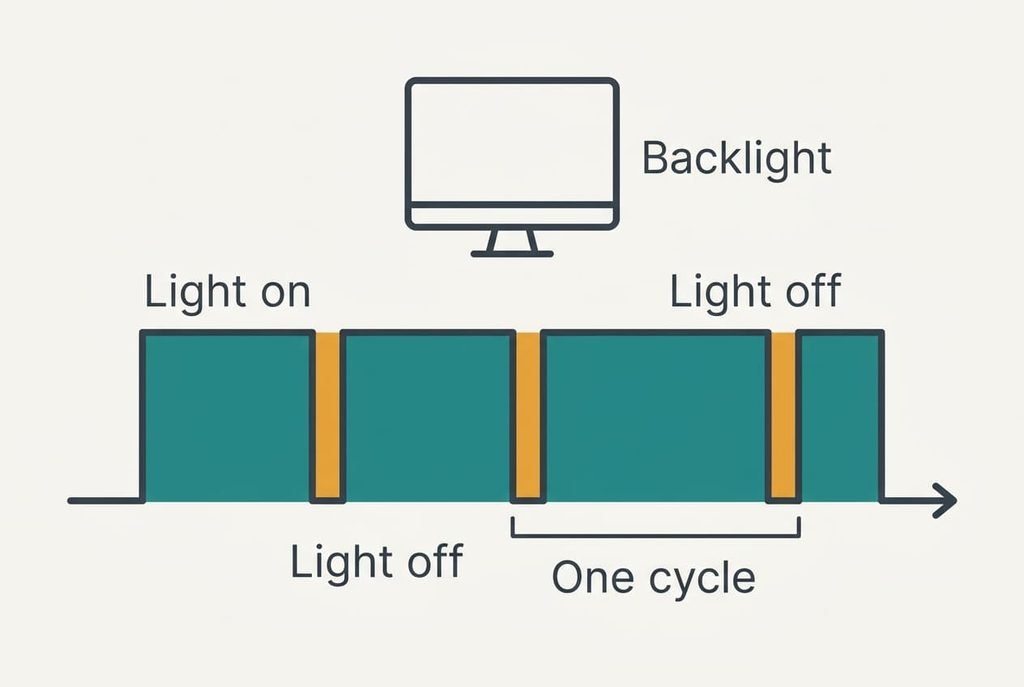
A backlight is a row of small LEDs behind the panel. An LED is awkward to dim smoothly, so many monitors dim it by pulsing. The lights switch fully on, then fully off, hundreds of times each second, and the share of each cycle spent on sets the brightness. That share is called the duty cycle.
Take a monitor that pulses 240 times a second. One cycle lasts 4.17 ms, which is 1000 divided by 240. At full brightness the light stays on for the whole cycle and nothing pulses. Drop to 75% and it’s on for 3.13 ms and off for 1.04 ms. At 25% it’s on for 1.04 ms and off for 3.13 ms, so the screen is dark for three-quarters of every cycle and looks a quarter as bright.
Your eyes average those pulses into a steady glow, which is why many people never notice them. The long off-gaps at low settings are easier to catch, whether you flick your eyes across a page or film the screen. Some monitors dim by lowering the current instead, which keeps the light steady. A few use that method in the upper range and switch to pulsing lower down, which explains why the shimmer appears only after a certain step.
Three Tests That Show Which Kind of Flicker You Have
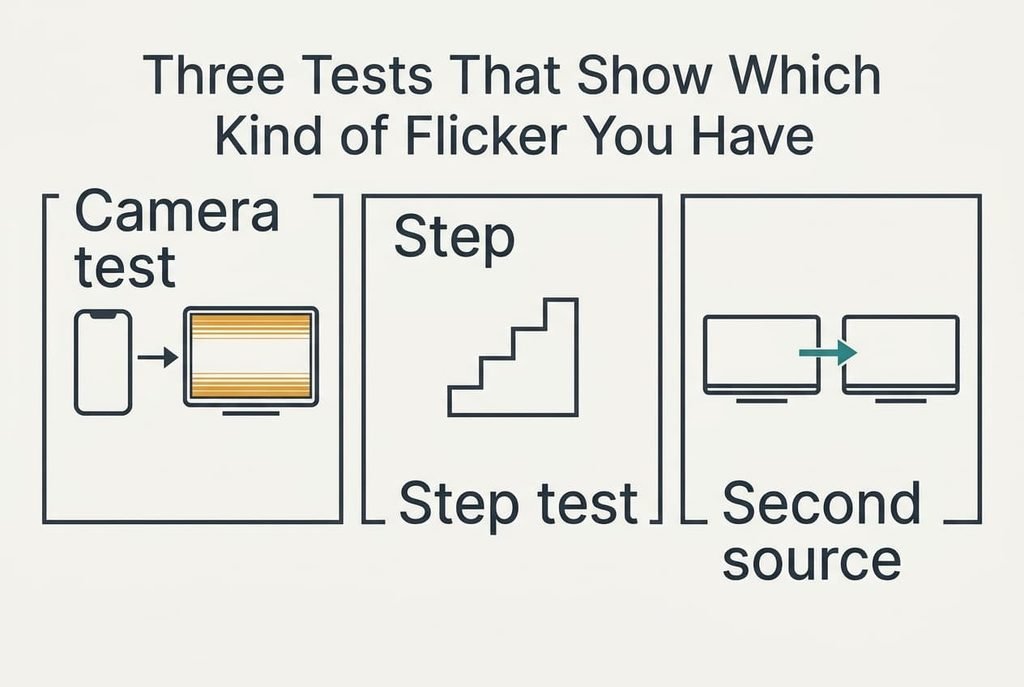
Only a screen that starts to flicker when you turn the brightness down needs these tests.
Begin with the camera test. Set the screen to about 30% brightness and hold your phone camera close to a plain white page. Dark bands rolling across the preview show a pulsing backlight. Raise the screen to full brightness and look again; if the bands vanish, you’ve found the cause. In our example a 2 ms camera exposure fits inside the 3.13 ms gap at 25% but never inside the 1.04 ms gap at 75%, so bands show below roughly half brightness.
Next comes the step test. Lower the brightness one notch at a time while watching a plain page, and note the setting where the shimmer begins. A sudden start at one notch means the monitor changes its dimming method there. A slow build-up with no clear threshold points to pulsing throughout.
Last is the second-source test. Connect another device or a different cable and repeat the low setting. If the shimmer follows the monitor, the backlight control is responsible. If it disappears, look at the original computer first.
When You Turn the Brightness Down: Four Fixes for the Flicker
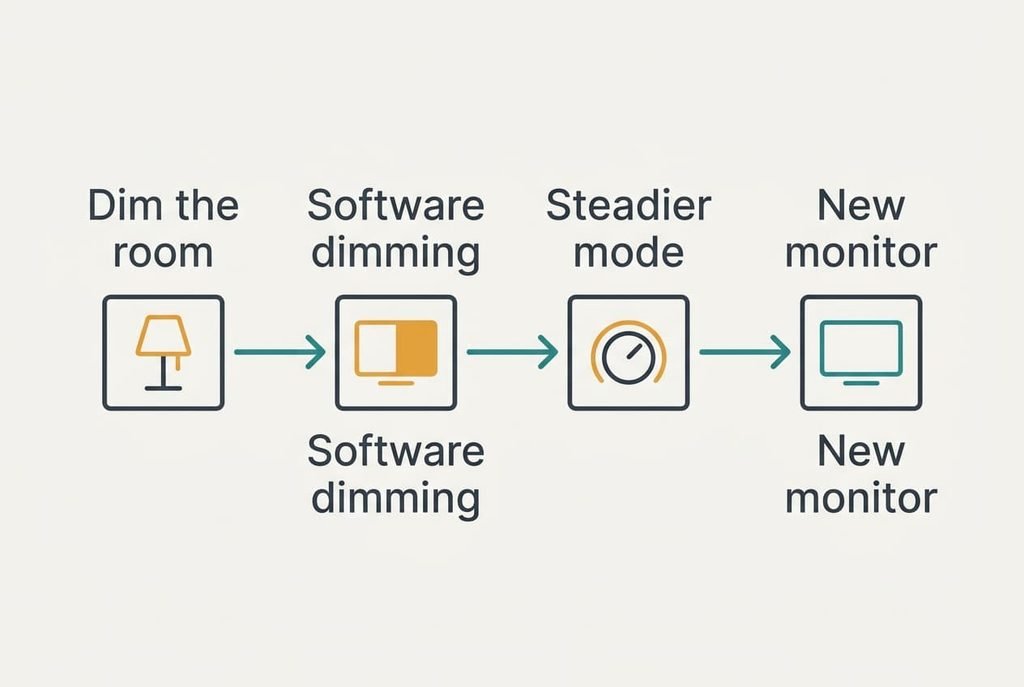
Keep the backlight higher and dim the room instead, because the off-gaps lengthen only at the low notches. The step test gave you the lowest notch that stayed clean, so hold the screen at or above it. Then draw the curtains part way and put a lamp behind the screen to soften glare. The cost is nothing. You give up some ease in a very dark room, where a bright screen against a black wall looks harsh until the lamp is lit. Both changes are free and reversible.
Dim the picture in software rather than through the backlight. This lowers the pixel values while the light behind stays at its clean notch. A night mode or a dark theme does this and takes a few minutes to set up. Pixel dimming acts on the picture, whereas the shimmer lives in the light behind it, so the two don’t interfere. Try it on a plain page first. The price is contrast and colour accuracy, because the whitest white becomes a grey. That suits reading and email, yet it makes photo editing unreliable.
Look for a steadier dimming mode in the monitor’s own menu and in its manual. A few models offer one, and an update from the maker may add controls. Allow half an hour to read the manual and then repeat the camera test after each change. Keep notes of every change so you can undo it, and write the result beside the model name. The cost is time, and you may gain nothing. You could also lose range, since a steadier mode can raise the lowest brightness the screen reaches, which defeats the point in a dark room.
Swap the monitor for a steadier one, which is the expensive final option. Read the maker’s specification for steady dimming, then repeat the camera test in the first days, before the return window closes. Get the seller’s written word on the dimming method, which gives you proof if the screen disagrees. You lose money, and the old monitor is worth less once it has been used. Choose a replacement when the earlier fixes left bands in the camera at your usual brightness.

If None of the Four Fixes Worked
Collect the facts first. Write down the model name and the notch where you first see the flicker when you turn the brightness down. Add the result of the camera test and the result of the second-source test. Those four notes let a support agent skip the usual questions and answer in one message.
Attach a brief recording of the camera test if the maker’s form allows it. Ask directly whether the model dims by pulsing; the reply shows whether a swap is worth weighing.
Shimmer at full brightness is a different problem. So is flicker that changes when you touch the cable. Lines on the picture are another sign. Each points to a cable or panel fault and justifies a warranty claim. Resetting to factory defaults comes last; it wipes your colour and picture settings, so photograph the menu pages first.
The Fix That Rarely Earns Its Cost
Setting a higher refresh rate on the computer seems a sensible answer to a flickering screen, yet on most monitors it leaves the backlight untouched. Refresh rate sets how often the panel redraws the picture, for instance 144 times a second, while the backlight pulses on its own circuit at a separate speed. Changing one leaves the other as it was. The refresh setting has no link to that circuit. Our example monitor keeps pulsing 240 times a second whichever refresh rate you pick. A higher rate can also demand a better cable and more graphics effort. The flicker when you turn the brightness down comes from the backlight circuit alone, so you pay for the change and the shimmer stays put.
Find the clean notch with the camera test and leave the rest alone.
The cheap fixes work because they keep the backlight out of its pulsing range. A monitor that holds steady at a higher notch in a dimmer room is behaving as designed. If the camera still shows bands at every step, you’ve learned something useful about the monitor you own, and that’s when a swap becomes reasonable. Keep the notch you found written on a note pinned near the desk.
Questions Readers Keep Asking
Can I fix the shimmer at home?
Often, yes. Hold the backlight at the lowest notch that tested clean, dim the picture with the operating system’s night or dark mode, and cut room glare with curtains or a lamp. All three cost nothing. A monitor that pulses at every notch is the only case that needs replacing.
What actually causes the shimmer?
The backlight is pulsed on and off many times a second to set its brightness. At low settings the off-gap in each cycle grows. A camera or a fast eye movement can then catch it. At full brightness the light stays on continuously, which is why the shimmer disappears there.
Does it mean the monitor is failing?
Rarely. Pulsed dimming is a design choice and it behaves the same way at every low notch. Failure looks different. Shimmer at full brightness is one sign, and flicker that changes when you touch the cable is another. Both are worth taking to the maker.