Why is my printed page smaller than the document on screen? Most often the file is set to US Letter, the paper in the tray is A4, and the print window shrinks the page to make it fit. Switching the file to A4 usually ends it. The cause is a mismatch of sizes, which a setting resolves without any repair. Measure the shrink with one test sheet and a ruler before you change anything. Every figure below rests on a printer with a 5 mm unprintable edge and a Letter file on A4 paper, so you can follow each number on your own sheet.
What Makes a Printed Page Smaller Than the Document on Screen
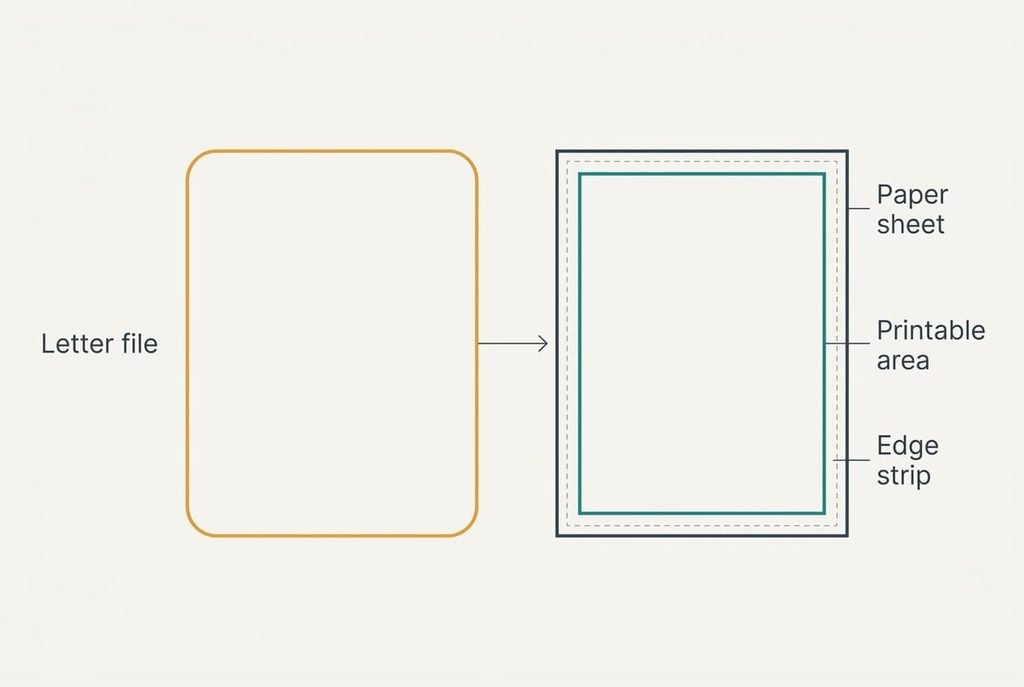
Two page sizes and one hardware limit meet at the printer. The file carries a page size of its own. A sheet in the tray may be a different size. The printer can only mark the part of that sheet that sits clear of its rollers, which leaves a bare strip around every edge. When these facts clash, the software has to crop the page or shrink it, and most print windows shrink.
Take a Letter file of 215.9 × 279.4 mm sent to A4 paper with a 5 mm bare strip all round. The printable area is 200 × 287 mm. Width allows 200 ÷ 215.9 = 92.6%, while height allows 287 ÷ 279.4 = 102.7%. The page is scaled by the smaller figure, so it prints at 92.6%. Text set at 12 pt lands at 11.1 pt, and a bar drawn 10 cm long measures 9.3 cm.
Put plainly, the shrink equals the printable area divided by the page, taken on the tighter side, which means a printed page smaller than the document needs no faulty setting at all.
A page that already fits inside the printable area is never scaled at all.
Why the Page Prints Smaller Than the Document: Four Tests
Each test ends in a figure read off with a ruler. None needs a purchase.
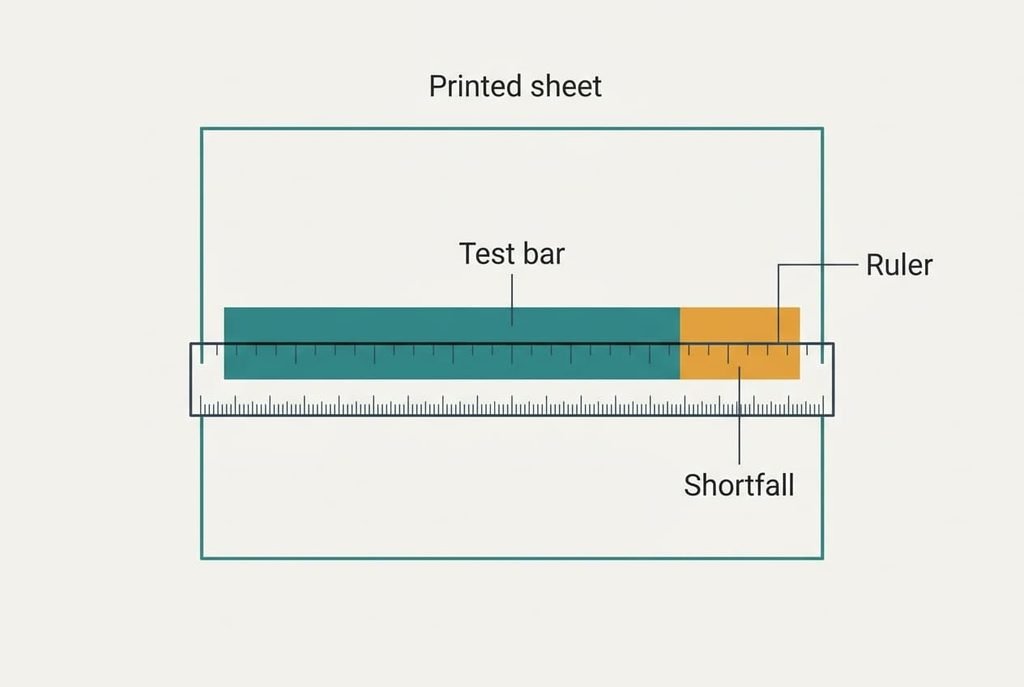
Print one page holding a bar drawn exactly 10 cm long. A printed bar of 10.0 cm means nothing was scaled, and the difference you noticed came from screen zoom. At 9.5 cm, an A4 file was fitted inside the printable area, because 200 ÷ 210 is 95.2%. A bar of 9.3 cm points straight at Letter on A4. Any other length means a typed percentage or a different edge strip is at work.
Next, compare the file’s own page size with the paper in the tray. A Letter file over A4 paper accounts for the 9.3 cm reading.
Then print the same file from a second program. If that bar reads 10.0 cm, the first program holds the setting that shrinks it.
Last, print a plain document next to a web article. A web page is laid out for a wide screen, so a bigger shrink there is normal and says nothing about your printer.
Four Fixes, From Free to Irreversible
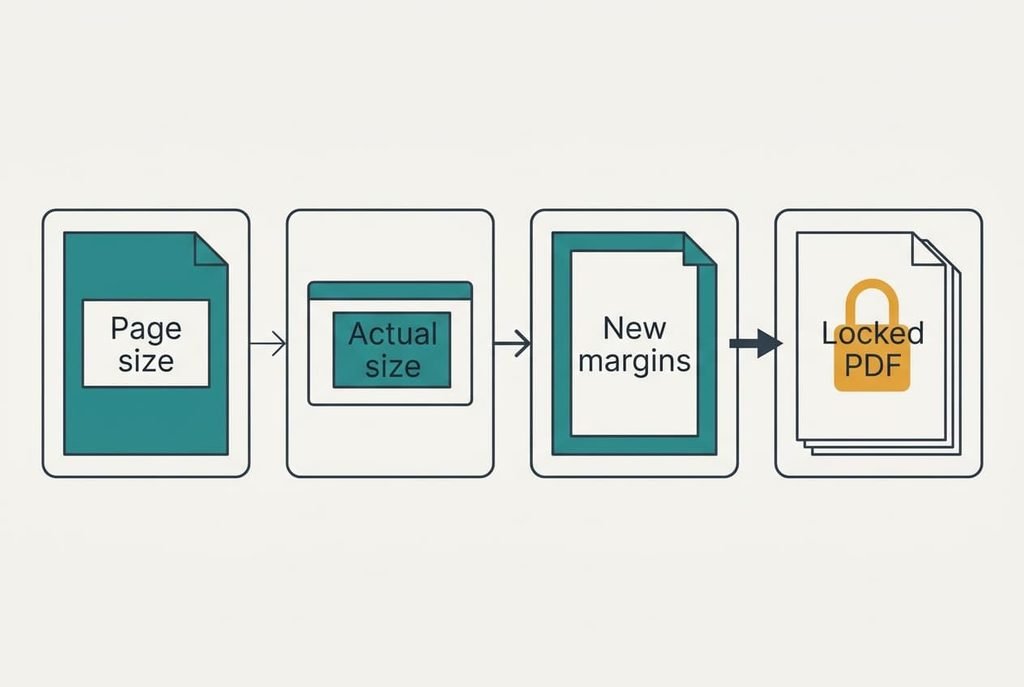
These four fixes are ordered by cost. Each one removes a printed page smaller than the document by changing a single thing, so apply them singly, re-measuring the bar after each.
Set the document to A4. This matches the page to the paper, leaving at most the 95.2% fit from the printer’s edge strip. There’s no cost and it takes one minute, and it removes the mismatch itself. The price is the shape: A4 is 17.6 mm taller than Letter. Lines reflow and page breaks move. Recheck any page count you rely on, for example a form that must stay at two pages.
Choose actual size instead of fit. This stops the software scaling at all. It’s free and takes seconds. It answers the fit-to-page cause directly. The loss is clipping: anything inside the 5 mm edge strip is cut off, and a Letter page loses 15.9 mm of width on paper that holds 200 mm. Use it only when the content sits well inside the margins. Measure the bar again on a fresh page, which should read 10.0 cm.
Re-export from the source with 6 mm margins. Saving the file again at A4 with at least 6 mm of margin gives content that fits without any scaling on an A4 printer. This answers a layout that runs to the edge. It costs ten minutes for a short file and far longer for a long one, since every page needs a look. The layout can shift slightly. That trade buys a fix that lasts. Tables and images deserve a close look, because they run past a margin first.
Resize the PDF itself to A4. The shrink then lives in the file, so every printer produces the same result. It’s the one irreversible fix: once you save over the original, the Letter geometry is gone, so keep a copy first. Small print also stays at the reduced 11.1 pt for good. Print one page of the saved copy and measure a known line, such as a table border, against your ruler before you share it. Cutting the page to size often needs a paid PDF editor, which makes this the only fix with a money cost.
If None of the Four Worked
Gather the file’s page size and the printer’s model. Add the measured length of the 10 cm bar. A helpdesk or print shop can name the applied scale from those in a minute. Bring the test sheet itself, since a measured bar tells them more than any description.
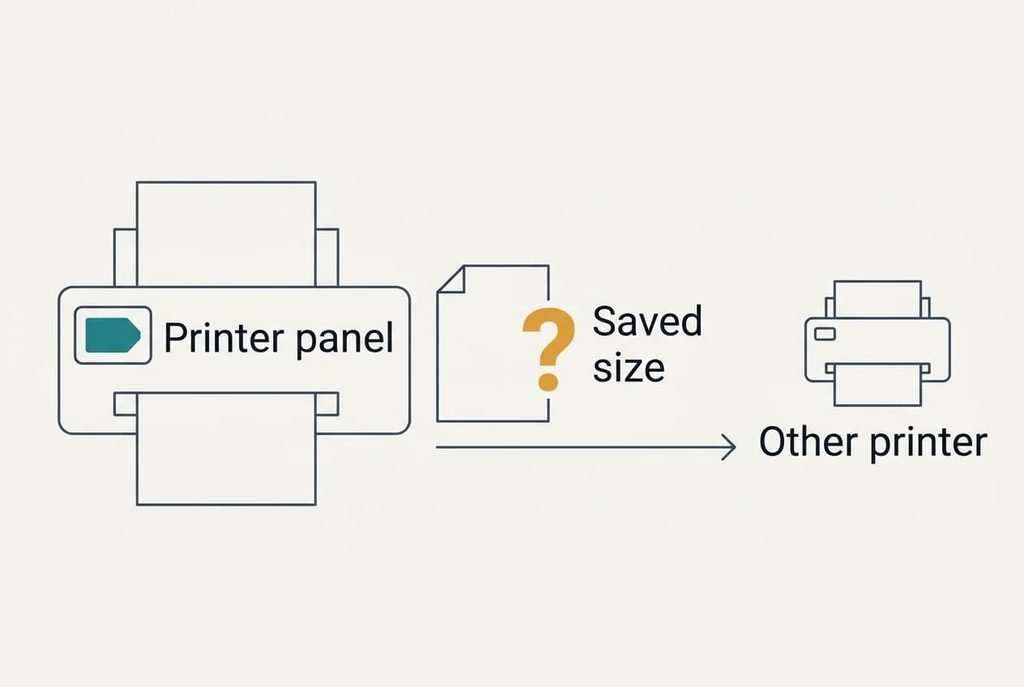
Next, look at the printer’s own panel or settings page for a saved paper size. Some printers keep a default that overrides what the file asks for. Write the stored value down before you change it, so you can put it back.
Leave any factory reset until the very end. Resetting a printer wipes its saved defaults, and on some models it also removes the network name, which means reconnecting it afterwards. If the bar still measures wrong, try the same file on another printer. A different result there points to the first printer’s stored settings.
The Fix That Isn’t Worth Doing
Raising the font size to compensate sounds sensible and fails twice. At 92.6%, 13 pt text prints at 12.0 pt, so the lines look right. Yet a bigger font reflows every paragraph. Page breaks move, and a two-page letter can spill onto a third. The cause remains untouched, and a different printer shrinks the page by another amount, so you’d be correcting by eye each time.
Widening the margins in the file looks like a cousin of that trick and carries the same flaw. A narrower text block does fit inside 200 mm, but you’ve changed the layout for one printer’s sake, and the same file sent to a Letter printer now wastes paper. If a layout truly needs the change, make it once through the re-export fix above and keep it.
A printed page smaller than the document is a symptom of mismatched sizes, so the remedy is to make the sizes match. Measure the bar, compare the page size with the paper, then change the one setting the number points to. Keep the test sheet in a drawer. The next time a printout looks small, a ten-second measurement will show whether anything has actually changed.
Questions Readers Keep Asking
Can I fix this at home?
In nearly every case you can. The remedy is a setting or a page size, and neither needs a repair. Print the 10 cm bar first, because its measured length shows which setting to change. Only a bar that reads exactly 10.0 cm while the page still looks wrong calls for a different question, such as screen zoom.
What is the most common cause?
A file set to US Letter and printed on A4 paper. The printer fits the wider Letter width into its 200 mm printable area, which cuts the page to 92.6%. Setting the file to A4 removes the mismatch, though lines may reflow when you do it, so recheck page counts afterwards.
Does a smaller printout mean the printer is faulty?
No. A printer that shrinks a page is obeying its instructions and printing the scaled result accurately. Hardware trouble looks different on the sheet itself: stripes or smears. A clean, even reduction that matches a percentage you can calculate always points to settings, so look there first.