Most absence messages get ignored because they describe the holiday in detail and mention the next step last. An automatic email reply that works can be ready in twenty minutes, and it finishes as one short message giving your return date and one person to contact. The first fork comes early: answer everyone, or answer only the people already in your contacts. Most people pick everyone and later find that shop alerts and newsletters collect a reply as well. First come the decisions to make, then six steps that suit any mail service. A short test and a note on common stalls follow.
Before You Start: What to Decide About an Automatic Email Reply
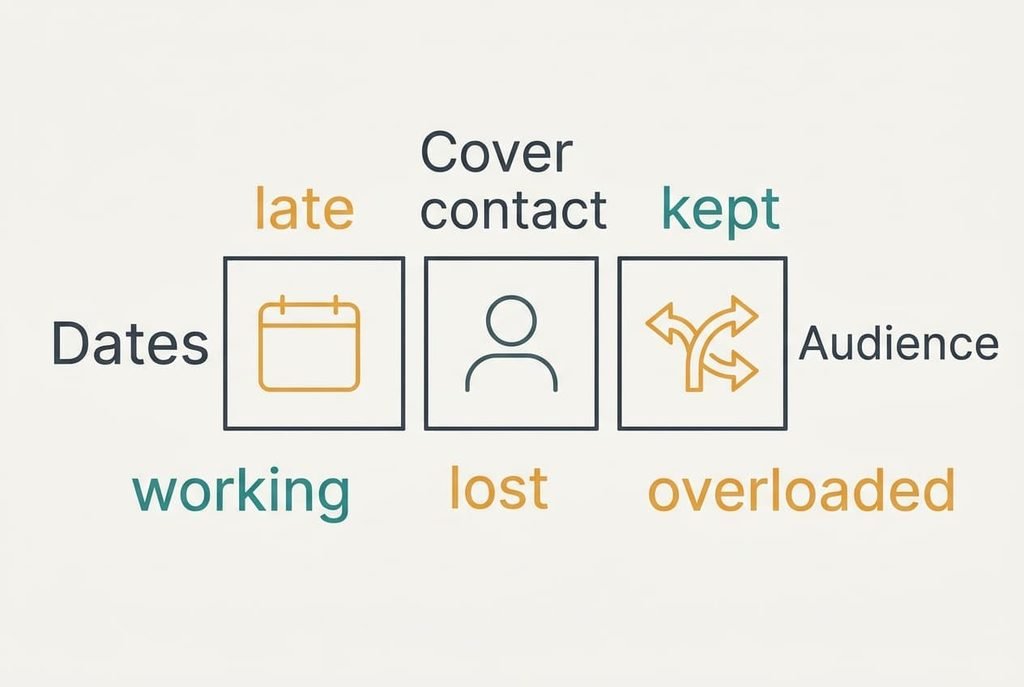
Settle two things on paper before you open any settings. The first is your dates, meaning the hour you stop reading mail and the hour you return. The second is the person who covers urgent matters, and people skip this one far more often than the dates. A message with no named cover contact sends the sender straight back to you while you’re away. Ask the cover person first, since they’ll receive the extra messages. Write their address on the same page, because you’ll need it twice: once in the message and once in the test.
Our example is an office worker in Leeds who stops work at 5 pm on Friday 13 November and returns on Monday 23 November, five working days later. She receives about 40 messages on a working day, so roughly 200 will gather by her return, from perhaps 90 different senders. That second figure matters, because most mail services send the reply once per sender within a set period. So about 90 replies go out, one for each person.
Services differ on that rule, so the test later in this guide shows what yours does.
Six Steps to Set Up the Reply
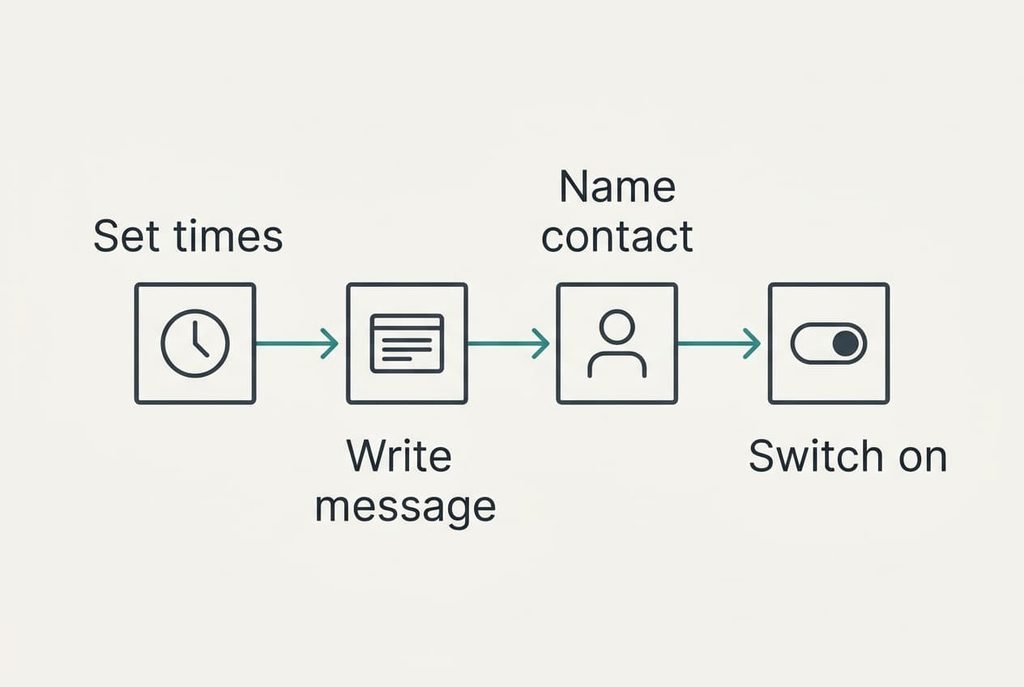
1. Choose the start and end times. Find the hour you really stop reading mail and the hour you return, with both shown in your own time zone. A start on Friday evening covers the weekend, and an end on Monday morning stops the reply just before you answer your first message. You know it’s right when the summary line shows the dates you wrote on paper.
2. Write the message in four short lines. Look for the return date and the cover contact. Add your answer time and a line of help, each as a sentence of its own. Readers scan a reply in seconds, so every extra line lowers the chance that the contact gets noticed. Our example stays under 50 words, and yours is short enough when it fits on a phone screen without scrolling. Cut anything that doesn’t help a stranger decide what to do next.
3. Name the cover contact by role and address. Look for a shared team address or one colleague who agreed in advance, and leave out personal numbers. Without a named contact, an automatic email reply points to nobody and leaves urgent mail waiting for you. You know it works when the cover person has answered your request and the address is spelt correctly in the message.
4. Pick the audience. Look for the choice between replying to everyone and replying to contacts only, and take the second when your inbox receives many automated messages. Everyone reaches customers you’ve never met, while contacts only keeps the reply for people who know you. You know the choice works when a message from an unknown address behaves as you intended during the test.
5. Leave out where you’re going and why. Look for any detail that tells a stranger your desk or home stands empty, such as a destination. A return date does the job, and extra detail only informs people you wouldn’t choose to inform. You know the message is clean when it names no place and no trip.
6. Switch it on and confirm the end. Look for a status line that shows the reply as active with its end time beside it. Some services keep replying until you cancel, and replacing an older automatic reply wipes its text, so copy the old wording somewhere first. You know it’s done when the status shows both dates.
Testing That the Automatic Reply Reaches an Email Inbox
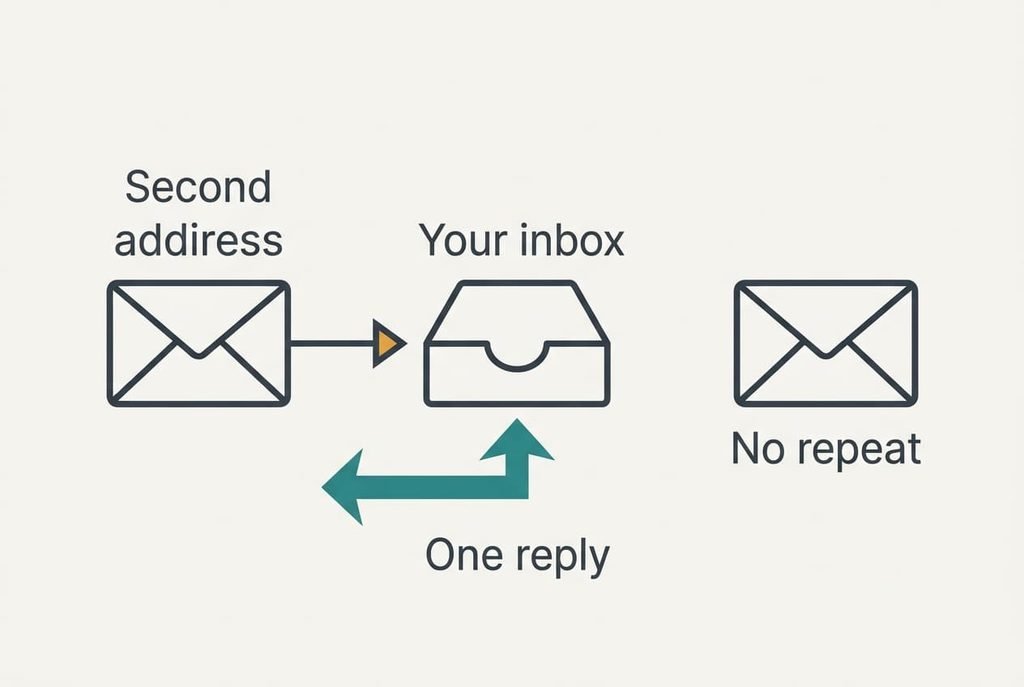
The only proof is a trial from outside your own account. Send two messages a minute apart from a second address that isn’t in your contacts, and watch what comes back. Most services answer a sender once per set period, so you should see one reply to the first message and none to the second.
Open the reply in the second inbox and read it as a stranger would. The dates should match your plan, and the cover address should be a working one. Send a short question to that address too, because a typo there would otherwise surface on the first urgent message.
A second reply means your service repeats itself, so 200 messages from 90 senders could produce far more than 90 replies. Shorten the message so a repeat does little harm, or switch to contacts only.
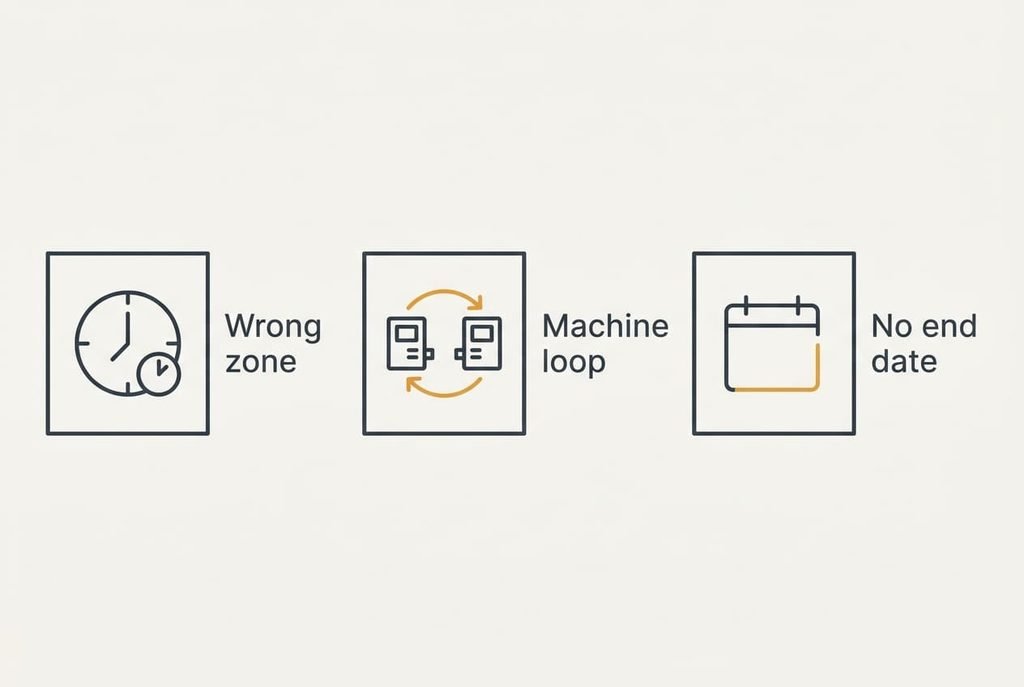
Three Places the Reply Stalls
The time zone causes the first stall, since a 5 pm start entered in the wrong zone can begin an hour or more early, while a late end lets the reply run on after you’ve returned.
The audience causes the second. Automated systems answer a reply sent to every sender. Some of them answer back, and two machines can then trade dozens of messages before anyone notices. That is why contacts only suits busy inboxes, and in our example it would probably cut the 90 replies to a small fraction. A stranger who truly needs you can still reach the cover contact named in the message.
The end date causes the third. Forget it, and an automatic email reply keeps announcing a return date that passed weeks ago, which tells customers you’re careless. Set the end when you set the start, then look at the status line on your first morning back. That page also shows whether an older reply from a previous trip is still switched on.
The Step Not Worth Taking
Forwarding your whole inbox to a colleague seems the cautious option, yet it rarely helps. Every message arrives stripped of context, and the colleague must sort roughly 200 messages that were never meant for them. It also hands private mail to someone who shouldn’t see it, and you can’t recall it afterwards. A blanket forwarding rule has no filter either, so a password reset link and a private note from a friend travel with the routine mail.
The named cover contact already does that job one sender at a time, and only for matters that can’t wait. Skip the forwarding. Anything else can sit in your inbox until you return. An automatic email reply that names the right person has done the sorting for you. If one message truly needs passing on, forward that single message by hand after checking it holds nothing personal.
On your first day back, read the newest messages first. Your reply has already answered or redirected the oldest ones, so a quick scan shows whether anything still needs you. Then switch the reply off and check that the status line shows it as ended. Save the wording as a template, and next time the whole setup takes five minutes. Only the dates and the cover contact change. You’ve done the job well when the first day back feels like an ordinary morning.
Questions Readers Keep Asking
How long does the setup take?
Expect about twenty minutes the first time and roughly five on later absences. The longest part is agreeing who covers urgent mail, since the settings themselves take a couple of minutes. A saved message can be reused with new dates and, if needed, a new contact name.
Can it overwrite or delete anything?
It sends messages and leaves your inbox untouched. The only thing it replaces is an earlier automatic reply, so copy the old wording somewhere first if you want it back. Messages that arrive while you’re away stay in the inbox in the usual order, ready for your first morning back.
What if I’m away for only a few hours?
Skip the reply and rely on your calendar instead. A reply for a short gap teaches senders to ignore every later one, so keep it for absences of a full working day or longer. For a half day, a status message in your chat tool reaches colleagues faster.