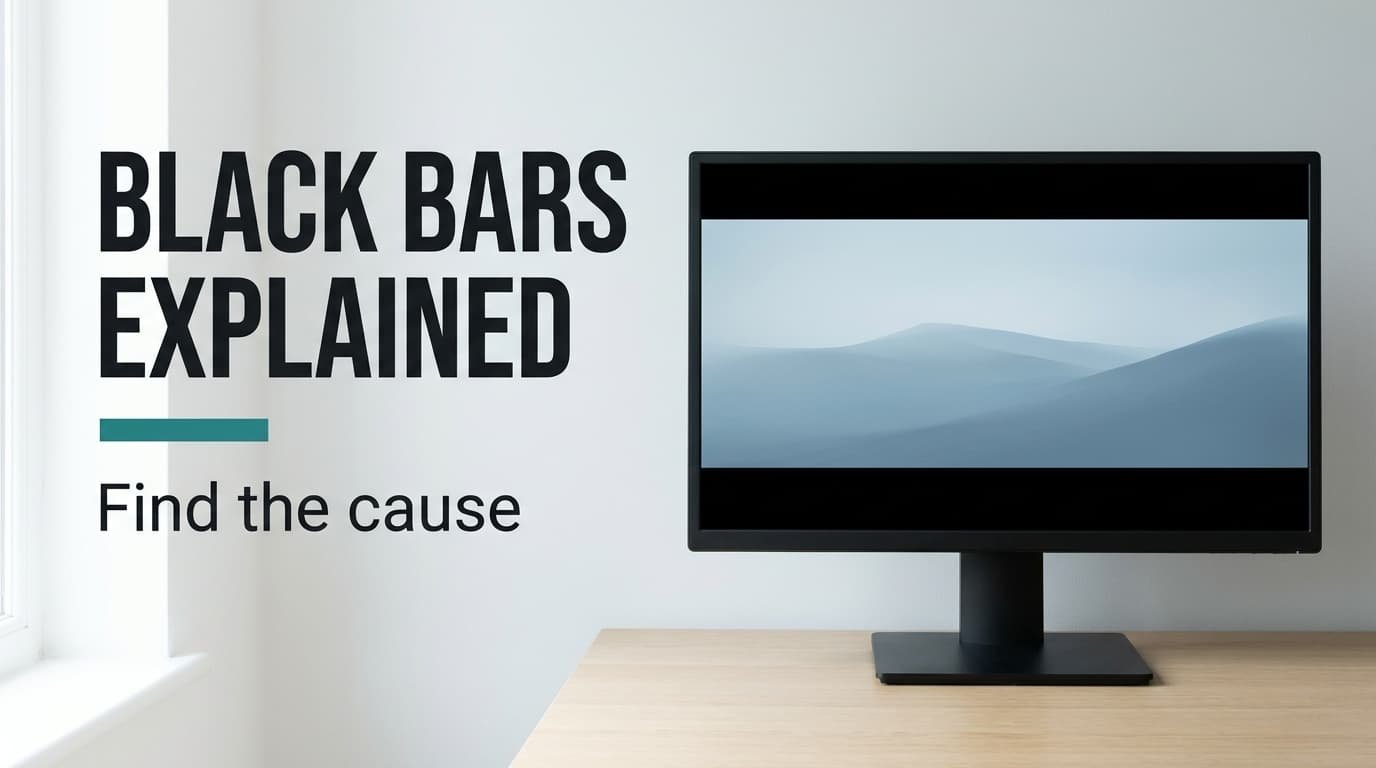
Black bars around the picture mean the video and the screen have different shapes, and the player has fitted one inside the other. Hannah, in Bristol, plays a 4:3 home video and a widescreen film on one 1920 × 1080 screen, and both come with bars. In most cases the quickest fix is a zoom or fill choice in the player, which trades the bars for cropped edges. The cause decides whether that trade is worth it, and three readings will tell you. Four fixes follow from cheapest to dearest, then a shortcut that makes things worse. All sizes are assumed samples, and you should swap in your own.
Why Black Bars Around the Picture Appear at All
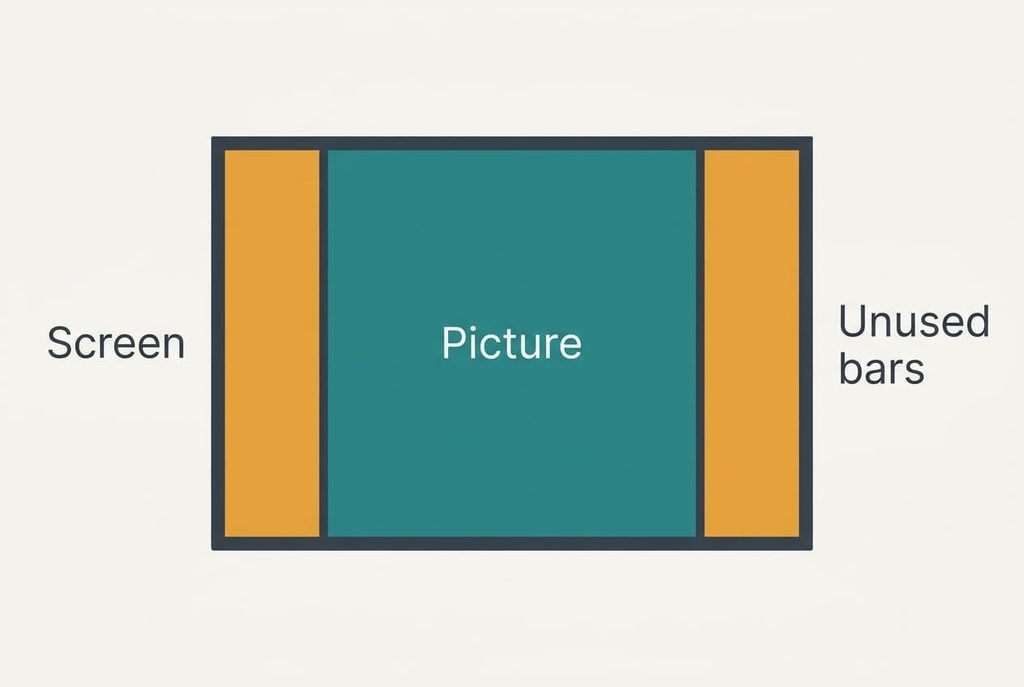
A picture has a shape, written as width over height. Hannah’s screen is 1920 by 1080, which is 1.78. Her home video is 4:3, or 1.33, and the film is 2.39. When the shapes differ, a player has two honest options. It can scale the picture until it fits inside the screen, or it can scale it until it covers the screen and cut off whatever sticks out.
The usual choice is to fit the whole picture inside the screen and leave the spare space black. For the home video the height stays at 1080 and the width becomes 1440. A bar of 240 pixels sits at each side. That’s 25% of the screen unused. The film, scaled to the full width, stands 803 pixels tall. It leaves 138 pixels above and 138 below, about 26% unused.
Black bars around the picture are just leftover room.
The bars carry no picture. No setting can recover detail from them. A bigger screen doesn’t help either, because the proportions still differ. Only the relationship between the clip and the display matters, and nothing in either device is damaged.
Three Readings That Tell You Which Bars You Have
Play one clip and record what you see. Each reading ends with a stated outcome.
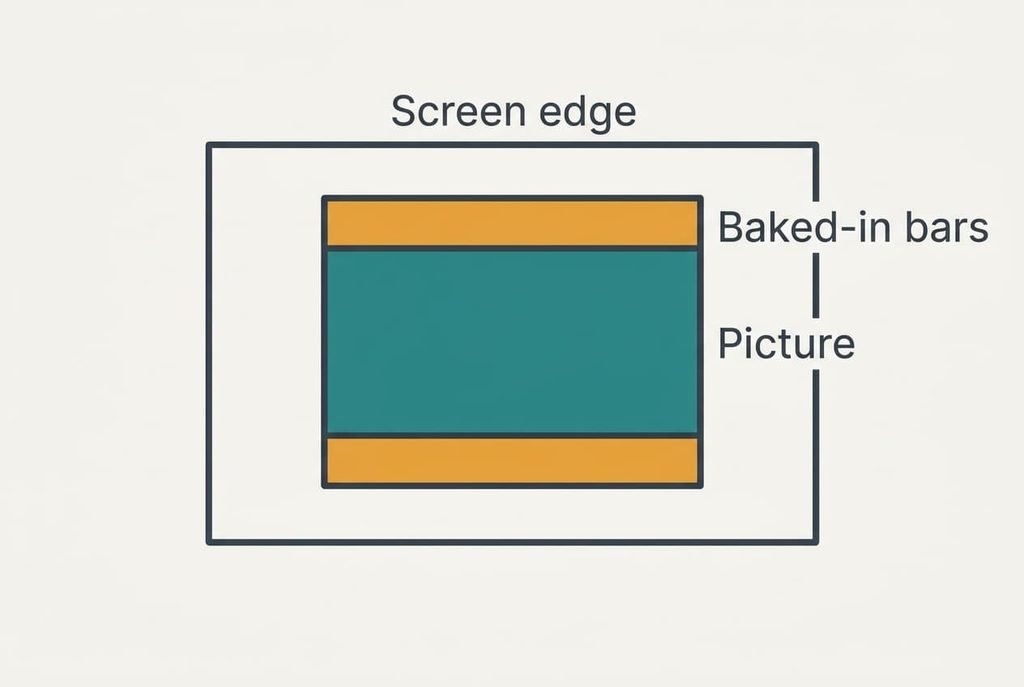
Look at the position of the bars first. At the two sides alone, they mean a narrow picture on a wide screen. Above and below, they mean a wide picture. On all four sides they mean a picture sitting inside another one, because the file itself has black edges built in. As a rough guide, side bars eating one fourth of the width suggest 4:3, while a similar loss at the top and bottom suggests a 2.39 film.
Next, switch to a different video or a different source. If the bars change with the clip, the file sets the shape. When every source shows the same bars, blame the screen’s picture-size mode.
Finally, open the TV’s own menu or your phone’s home screen on the same display. Bars there as well point to a display setting. Clean edges there mean the bars belong to the video alone.
Note the three answers before you try a fix.
Four Fixes for a Letterboxed Picture, Cheapest First
Work down the list whenever black bars around the picture bother you, and quit when the picture looks right. Every fix targets one cause.
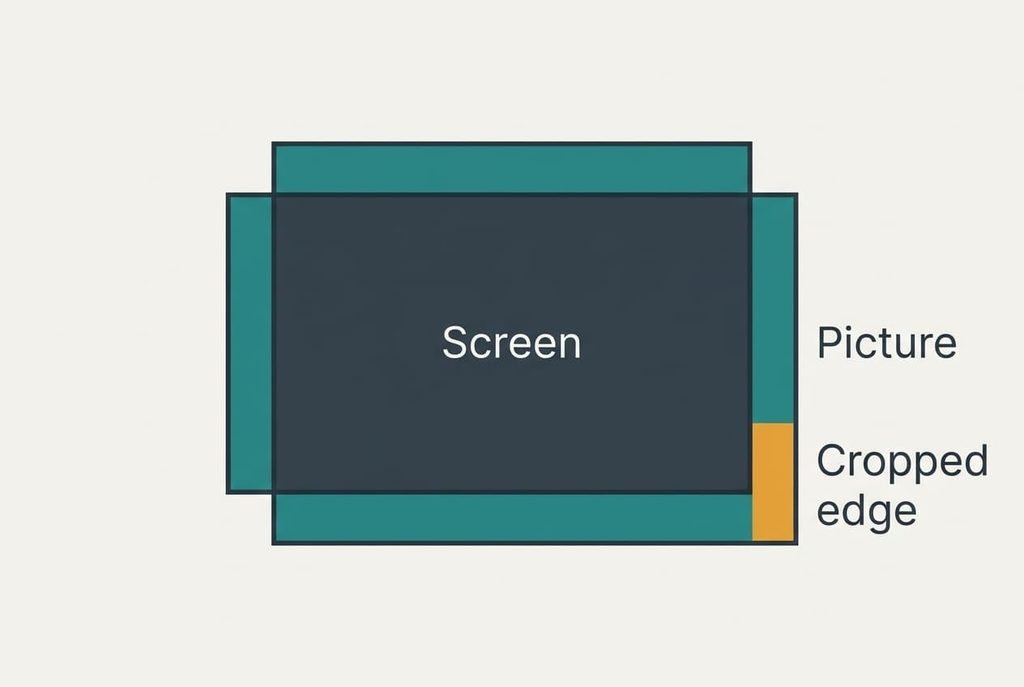
Choose zoom or fill in the player. This answers bars that come from shape alone. Zoom enlarges the picture until it covers the screen. That’s free and instant. Edges go, though: the 2.39 film at full height measures 2581 pixels wide, and 330 vanish at both edges, a quarter of the picture. The 4:3 clip loses a quarter of its height in the same way. Players call this option zoom or fill, and some call it crop to fit. If the clip has subtitles burned in near the bottom, test it first, because zoom can cut them off.
Set the picture-size mode to match. This answers bars on every source. Some modes assume a 4:3 picture and add bars of their own to a 16:9 one. Pick the mode that shows the picture at its natural shape. On a TV the modes are often named after the shape they assume, for example 16:9 or 4:3, plus an original setting. Try each with the same clip and keep the one that shows the full frame. It’s free, though the wrong choice stretches the picture. A 4:3 clip pulled to 16:9 grows 33% wider, and faces look broad.
Cut the baked-in bars from the file. This answers bars on all four sides. A video editor or converter crops the picture to 1920 × 804 and saves a new copy. At an assumed twice real time, a 100-minute film takes 50 minutes. Export ten seconds as a trial, then run the whole film. The copy is re-encoded and loses a little quality. Keep the original untouched.
Match the screen to what you watch. A film at 2.39 sits on a 3440 × 1440 screen with almost no bars, because that screen has the same shape. Ordinary 16:9 video then gains 440 pixels of bar at each side. Check first that films make up most of what you watch, because on ordinary 16:9 television the bars merely move to the sides. Buying is the dearest and least reversible fix. Make it the last.
When Black Bars Still Sit Around the Picture
Collect three facts first: which sources show bars, whether the TV’s menu is clean and what size the file reports. A phone clip held upright is 9:16, which leaves a bar of 656 pixels at each edge of the screen. No setting can change that. Then look at the player itself, since a few players add their own fit rule that overrides the display.
Ask where the video comes from next. A streaming service or a disc may carry its own shape, and the provider’s help page states it. Someone playing this file on a different screen gives you a quick test. Matching bars there prove the file is the cause.
Finally, treat a full reset of the picture options as a warning. It clears every adjustment you’ve made, brightness included. Write the values on paper before you reset anything, to restore them later.
A Fix That Stretches the Problem
People often reach for stretching every video until the bars disappear. It looks tidy for a minute, then it doesn’t. A 4:3 picture pulled to 16:9 grows 33% wider than it should. A face 18 cm wide on the screen appears 24 cm wide. Circles turn into ovals, and the effect never feels quite right. Round logos and clock faces are the quickest giveaway. Black bars around the picture are honest, because they show you the whole frame. Stretching hides the bars and distorts what’s inside them. The distortion reaches subtitles and logos too, and sports graphics look squat. Zoom has a cost as well, but it’s an honest one, since you can see which edge went. Stretching offers no such clue. People live with a warped picture for months without noticing why it feels off.
Keep the setting that preserves the natural shape. Use zoom for single clips where the edges don’t matter. Trim the file only when the bars are baked in. Most people stop noticing cropped edges within ten minutes, though they do spot a stretched face at once. If the screen is shared, stick a note beside the remote naming the winning mode, because the next person to open the menu will otherwise undo your work.
Questions Readers Keep Asking
Can black bars be fixed at home?
Usually, yes. A zoom option or a picture-size mode takes seconds and no outlay. The cost is cropped edges or a stretched picture. Bars baked into the file need an editor, and bars from a mismatched screen need a different screen. Check which kind you have before you try anything.
What causes the bars?
The clip and the screen have different proportions. The player keeps the clip’s proportions and fills the remainder with black. In our example a 4:3 clip leaves 25% of the 1920 × 1080 screen unused, and a 2.39 film leaves about 26%.
Do bars on every video mean the screen is faulty?
Not by themselves. Bars that appear on every source and in the TV’s own menu point to a picture-size setting. A real fault shows as damaged pixels or dark patches, or as a picture that fails to fill any part of the screen. Check the settings before blaming the hardware.