You begin copying files to a USB drive and the progress bar leaps to a quarter within seconds. Then it creeps for minutes, and the last few per cent take longest of all. The usual cause is two buffers that fill up early, and the best first move is to send fewer, larger files at the drive’s true pace. The worked example below uses invented figures for a plain home laptop. Swap in a timing from your own drive before leaning on any of the sums. Everything here can be checked with a stopwatch and a spare folder.
Why copying files to a USB drive starts fast and then slows
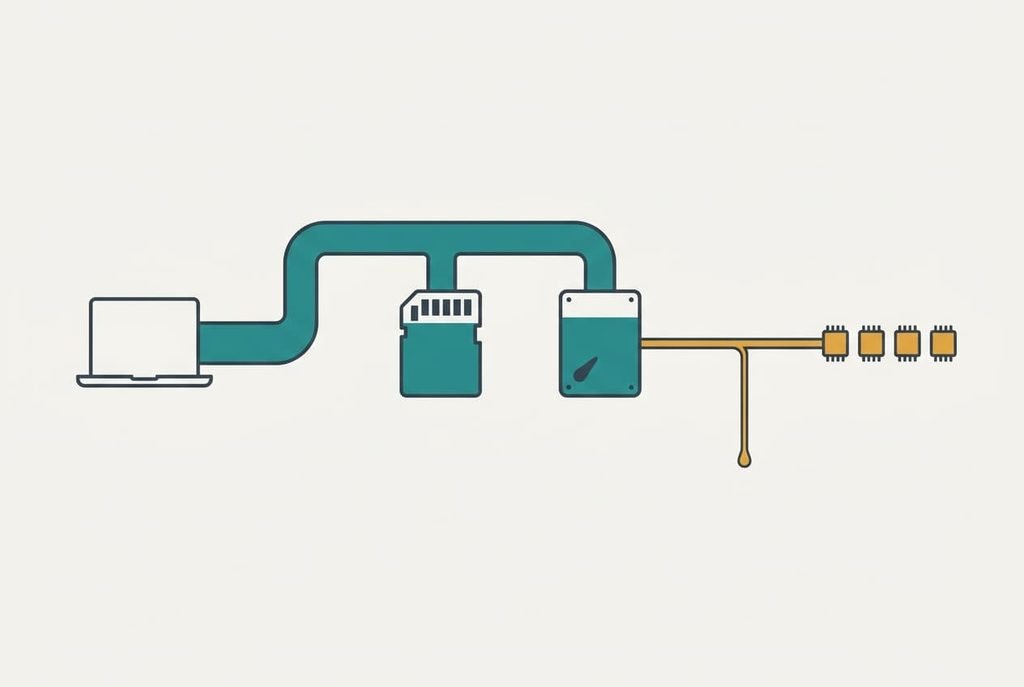
Two buffers sit between your files and the flash chips. Your computer first accepts the data into memory and reports it as copied, and many drives then take it into a small, quick region of their own. Once each has filled, the data has to reach the chips at their steady writing speed, which is much lower.
Assume a burst of 300 MB/s for the first 2 GB and a steady 30 MB/s after that. Copying one 8 GB video file then takes 2000 ÷ 300 ≈ 6.7 s for the burst and 6000 ÷ 30 = 200 s for the rest, so 207 s in all. After 7 seconds the bar shows a quarter done and promises about 27 seconds. It delivers 207. The honest average is 8000 ÷ 207 ≈ 39 MB/s.
Files add a second cost. Every file needs its own bookkeeping, say 20 ms each. A set of 4,000 photos at 2 MB also totals 8 GB, but the bookkeeping adds 4,000 × 0.02 = 80 s, which is 39% longer than the single file.
That’s why the headline speed on the box describes the burst, and a drive can look fast in a shop demonstration while it crawls through a long copy. A demonstration rarely lasts long enough to show the drop.
Copying files to the drive: four tests with clear results
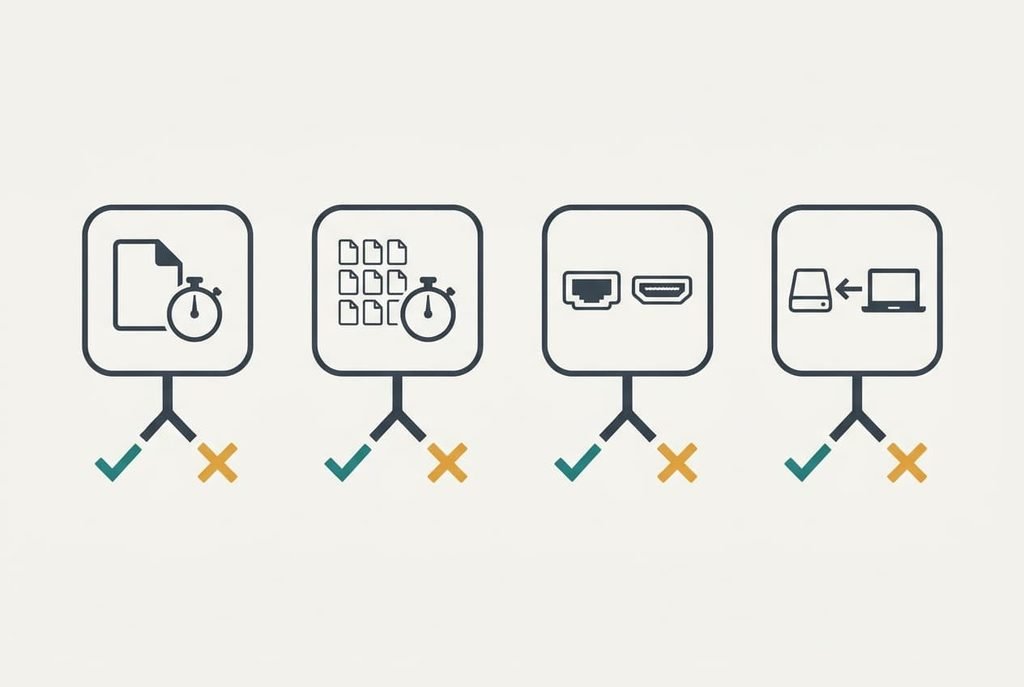
Run these with a spare folder of test data. Write each timing down as you go.
1. Copy one large file of 8 GB and watch the speed for the first 10 seconds and again after a minute. A drop of 5 times or more means buffers are filling, and the speed after the drop is your real figure for any long copy.
2. Copy the same amount as thousands of small files. If it takes 30% longer than the single file, per-file bookkeeping is the second cost.
3. Try a different port on the machine itself and skip any hub. If the steady speed doubles, the first path was the bottleneck.
4. Copy the large file back off the drive. If reading runs about 10 times faster than writing, the drive’s own writing speed is the limit, and nothing in the cable or port will lift it. Delete the test files afterwards.
Most slow copies show a big drop in the first test and little else.
Four fixes, from free to paid
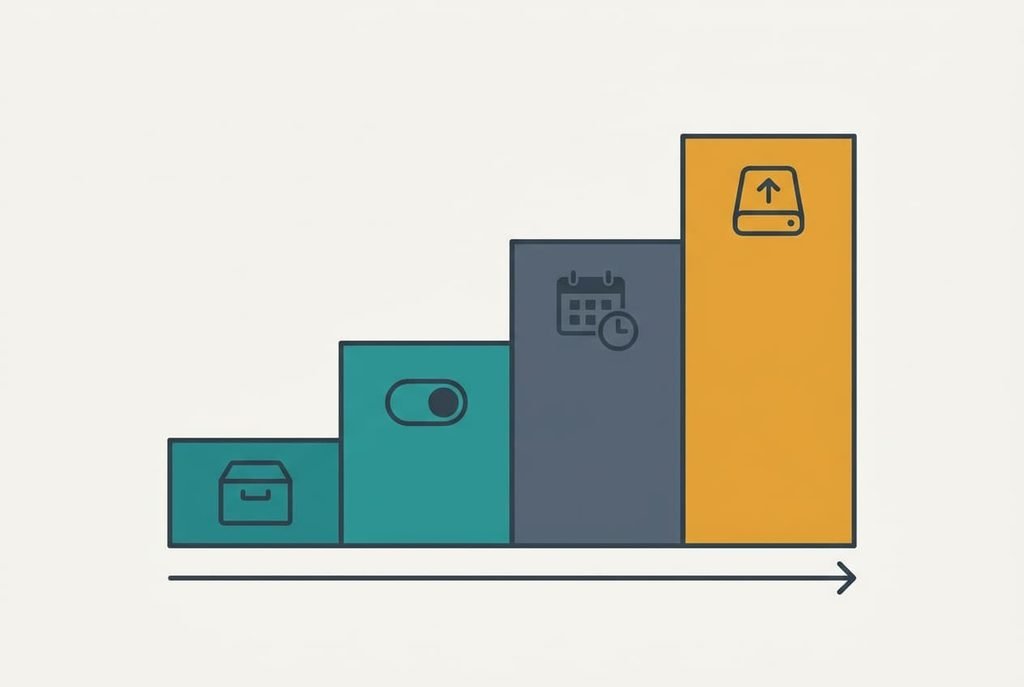
Bundle small files into one archive before copying, which answers the bookkeeping cost. Packing 4,000 photos into a single uncompressed archive takes about 30 s on the computer’s own storage, and it removes the 80 s of per-file overhead, so the net saving is around 50 s. The method is free and works with any drive. You lose the ability to browse the photos on the drive until you unpack them, and each later change means repacking. A single huge file gains nothing, because its cost comes from the buffers. Photos of this size already arrive compressed, so a plain archive adds almost no extra time.
Let the computer hold more in memory before it writes, a setting that makes the bar look better without changing the finish time. The early speed rises, though the wait simply moves to the final removal step, where the computer must empty its memory onto the drive. It also risks losing data if you pull the drive out without ejecting it, so use it only when you always eject. In practice the bar may finish in 10 s while the removal step waits for the remaining 200. Treat it as cosmetic: it addresses the first buffer, and 207 s is still 207 s.
Accept the steady speed and schedule the copy, since the steady speed is the real one and the cost is only your waiting. Copying files to a USB drive at its steady pace takes about 3.5 minutes for the 8 GB file. A 64 GB folder takes 64,000 ÷ 30 ≈ 2,133 s, roughly 36 minutes, so start it before a meal. You give up only the belief that the bar’s first figure was the real one. Keep the laptop plugged in and awake so nothing interrupts the copy.
Replace the drive with one that states a sustained writing speed, the sole purchase on this list. Compare the sustained figure, because the advertised number typically describes reading or the burst. Look for the word sustained or an equivalent, and if the page gives a single headline figure, assume it describes the burst. A drive that sustains 120 MB/s would finish the 8 GB file in 8,000 ÷ 120 ≈ 67 s, about three times faster than ours. The old drive stays useful as a spare, though you’ll copy your files across once.
If none of those worked
If copying files to a USB drive is still slow after all four, the drive itself is probably the limit. Write down four facts before you contact support. Note how full the drive is. Record the speed at 10 seconds and again at 60 seconds. Name the port you used. Finally, say whether the slowdown shows on large files or on small ones.
A maker’s support team can compare your figures with the drive’s rated sustained writing speed, and they’ll ask for exactly these numbers. A reply that quotes only the headline speed hasn’t answered the question, so ask again for the sustained figure.
Be careful with any advice to reformat the drive. That erases everything on it, so copy the files off first and confirm the copy opens. Reformatting rarely changes a speed that the chips set, which makes it a last resort rather than a cure.
The fix that isn’t worth buying
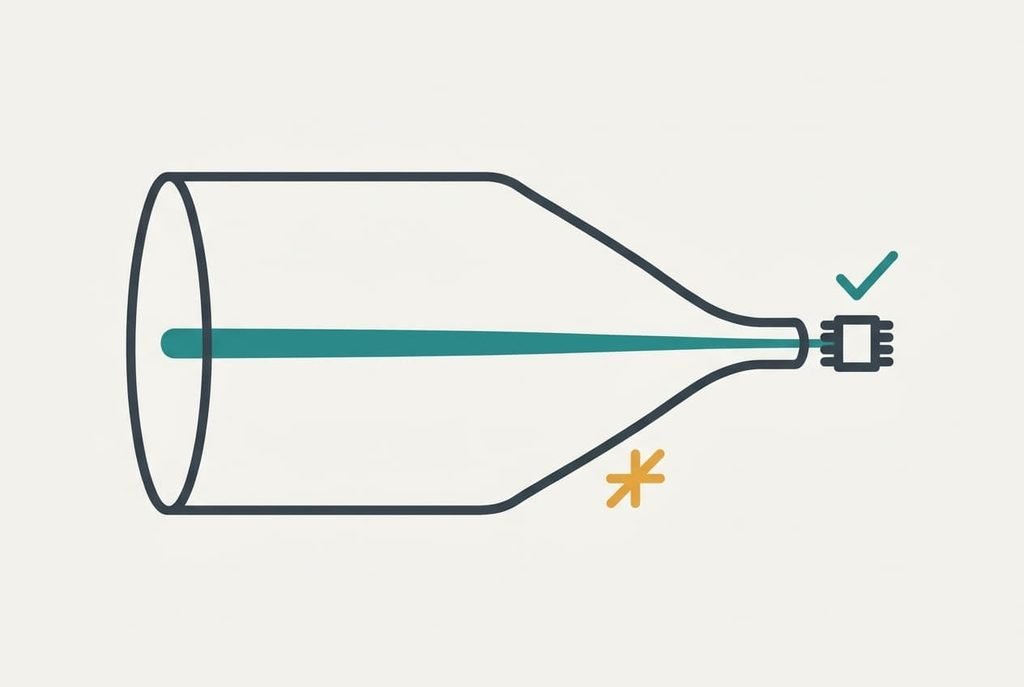
A faster cable or an adapter with a bigger port sounds sensible and changes nothing here, because a steady 30 MB/s is 240 Mbit/s, which is under 5% of an older 5 Gbit/s link. The link was never full, so widening it adds no speed. The chips were the limit all along, and a premium cable won’t change what they can write. Spend nothing here.
Defragmenting a flash drive is a second dead end. Flash has no spinning parts to reach, so there’s nothing to shorten. The extra writes also use up the drive’s life for no gain, which makes it worse than useless. A third is copying twice and hoping the second try runs quicker, since the buffers refill each time and you meet the same wall again.
Faster links can’t speed up chips that write slowly.
Copying files to a USB drive is fast only while the buffers last, and the figure to trust is the steady one. Time one 8 GB file, then time one folder of small files, and you’ll know which cost is yours. Use the cheap fixes first and pass on the rest. If you plan regular large copies, buy by the sustained figure, and a drive that lists one will repay the effort within a few backups.
Questions readers keep asking
Can I fix this at home?
Mostly, yes. Bundling small files and scheduling long copies cost nothing and cover most cases. The drive’s steady writing speed can’t be raised, so the only remaining option is a different drive. Time one large file first, because that decides which fix applies.
What causes the speed to drop partway through?
Two buffers fill. The computer holds data in memory and the drive keeps a quick region of its own, and both run out within seconds. After that, data reaches the flash at its steady speed. The bar looks quick at first because it measures the buffers, not the chips.
Does a slow copy mean the drive is failing?
Usually not. A fast start and a slow finish is how most drives behave. A failing drive looks different: copies stop midway or errors appear. Files might also arrive damaged. If you see those, copy everything off at once and replace the drive.