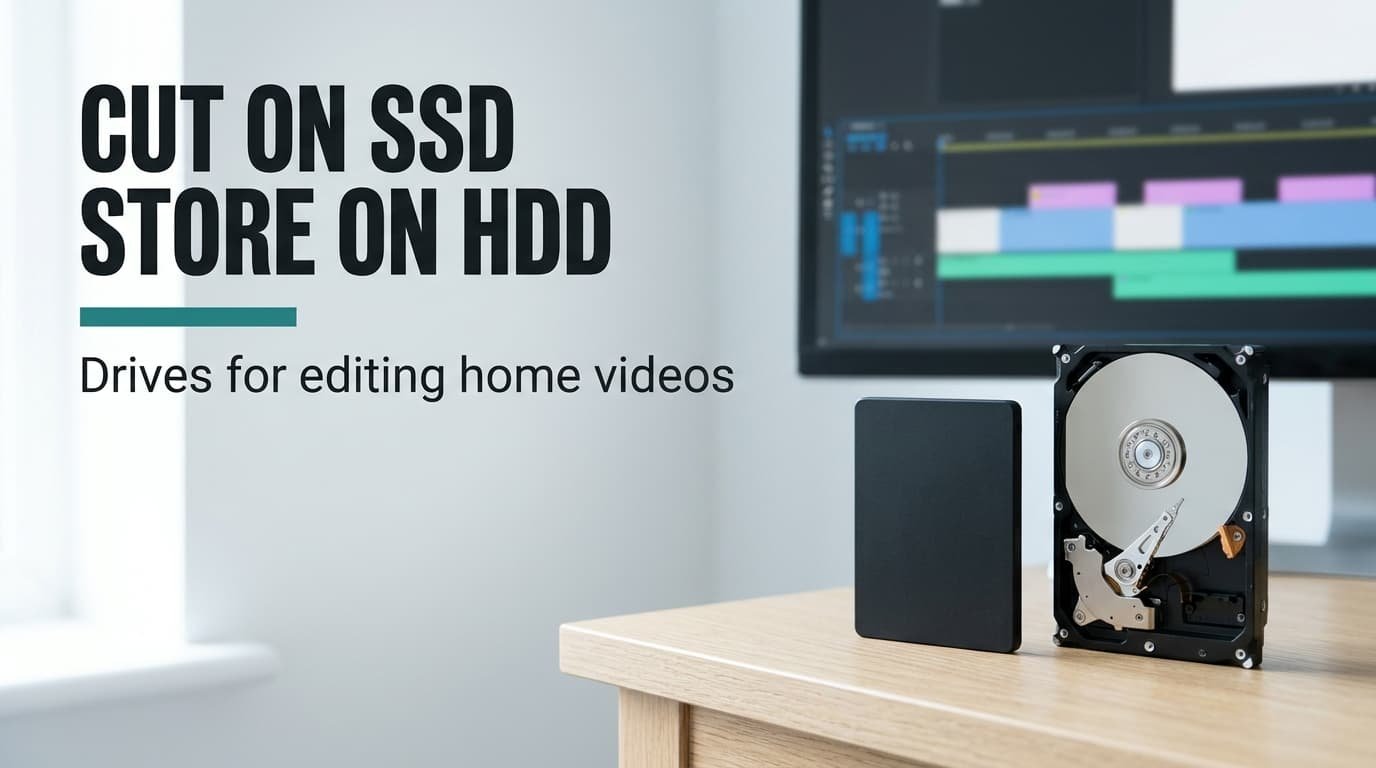
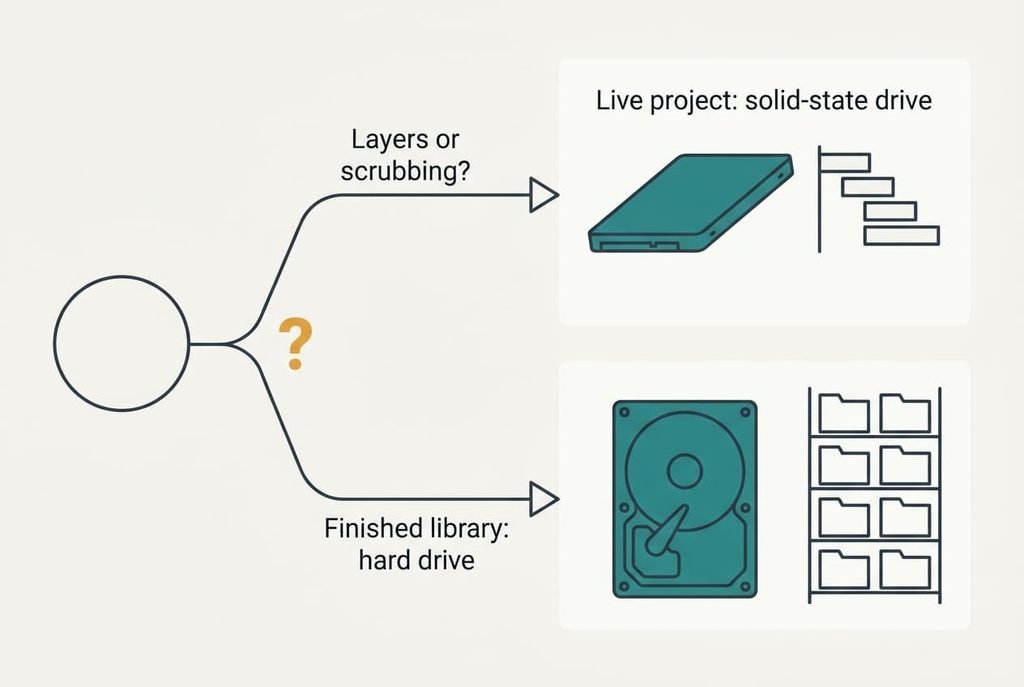
Cut on solid-state and store on spinning platters. That rule settles the drive for editing home videos on a desktop: the live project belongs on the solid-state drive, and finished footage retires to the hard drive. The cause is mechanical. A hard drive swings a read head to every new spot in a file, and a timeline with several clips makes it swing all day.
We’ll use an invented household that films two hours of 4K a month. The round figures are picked for the sums and come from no particular model. Rerun them with your camera’s bitrate and the verdict should hold, because it rests on head movement.
The one property that decides the drive for editing home videos
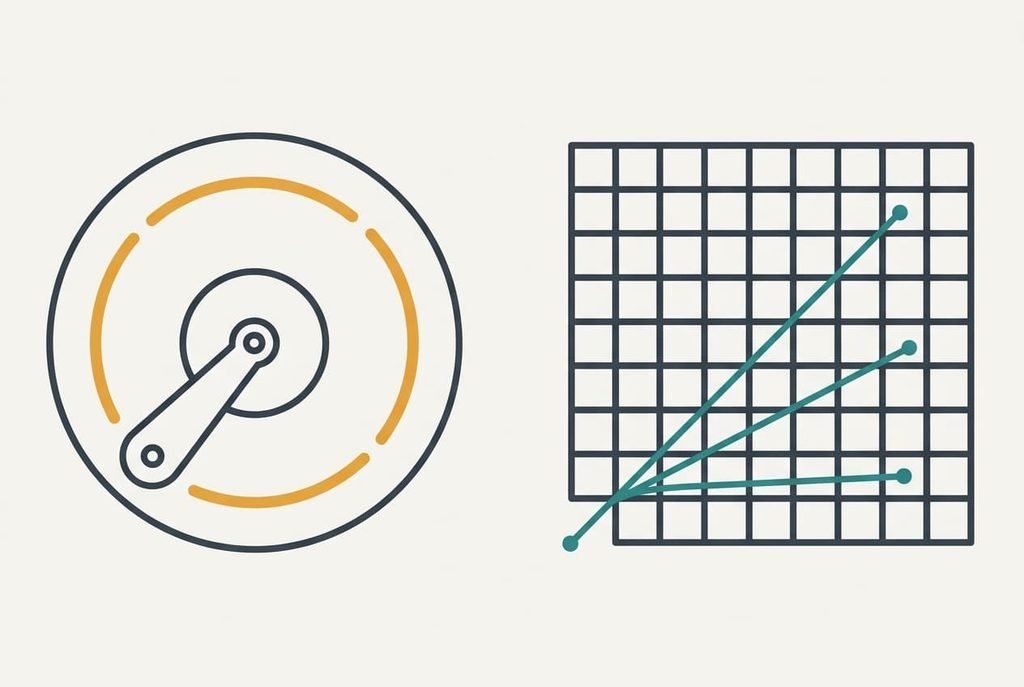
Capacity for the money is the usual yardstick, and it suits a library better than a project in progress. For a project, what matters is how many separate places on the drive your editor must read each second. A hard drive reads quickly along one track. Whenever the next piece lives elsewhere, it has to swing its head and wait for the platter to come round. Each move is dead time, since nothing is read while the head travels. Assume 10 ms for each move and 150 MB/s once it’s reading.
Our household shoots 4K at 100 Mbit/s, which is 12.5 MB/s or 45 GB an hour. A timeline with two video layers and two audio tracks pulls from four files, so playback needs 50 MB/s. At 2 MB per read, each read costs 10 ms of movement plus 13.3 ms of transfer, so the drive delivers 85.7 MB/s. That copes. Scrubbing back and forth shrinks the read to 0.25 MB, and the same drive delivers 21.4 MB/s, enough for 1.7 clips. Give a solid-state drive 0.1 ms per access and 500 MB/s, and those small reads yield 417 MB/s.
A bigger hard drive only adds more places to travel.
Solid-state drive and hard drive compared on what fails
Judge each type by how it behaves under a timeline. Model figures date within a year, and you can watch behaviour without buying anything. Six situations follow.
| Situation | Solid-state drive | Hard drive |
|---|---|---|
| Jumping around the timeline | Answers almost as fast as in a straight line | Pays a head movement on every jump |
| Several clips layered at once | Shares the load evenly | Slows as each clip claims its own stretch of platter |
| Nearly full | Writes slow once little spare room remains | Files scatter, so even one clip needs extra head moves |
| What caps it first | The port or cable it’s plugged into | The head movement |
| Warning before failure | Often none; it works, then it doesn’t | Often noise or slow reads first |
| Years on a shelf, unplugged | Charge leaks slowly from the cells | Usually holds longer, provided the drive stays undamaged |
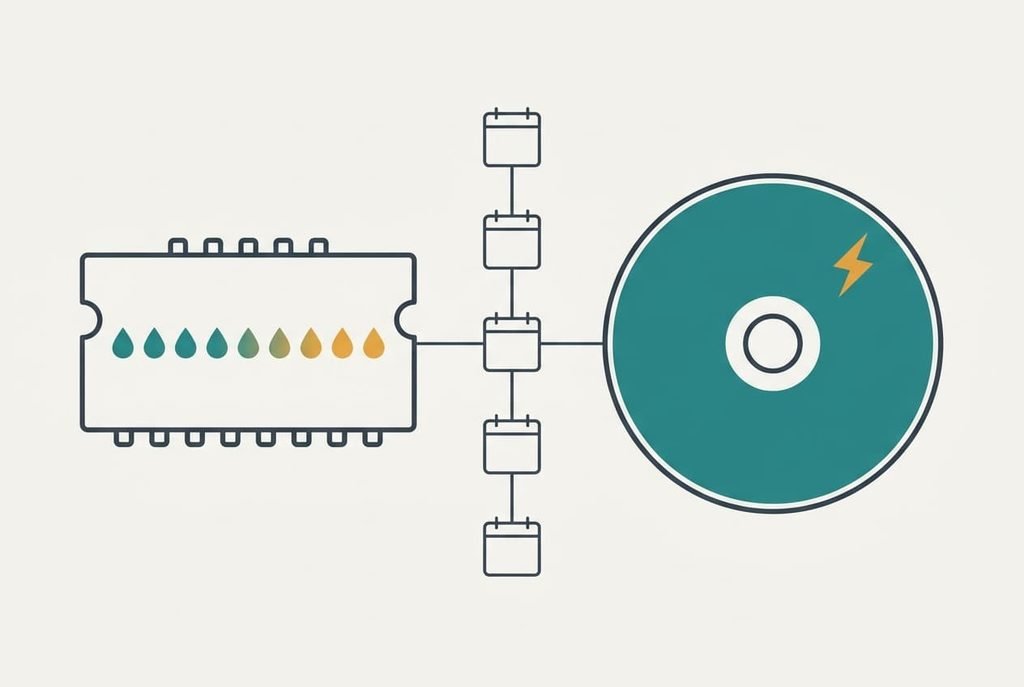
The shelf row surprises people most. Flash cells keep data as trapped charge, and it leaks slowly when the drive has no power to refresh it, which makes the faster drive the weaker archive. Footage you finished with years ago belongs on a hard drive, with a second copy kept somewhere else.
Where a solid-state drive wins
The live project is the clear case. Two hours of footage is 90 GB. The editor’s cache and previews add about 40 GB more, so one holiday occupies 130 GB. On a hard drive that pile is read in many small pieces. On a solid-state drive it behaves like one flat file, and a fifth video layer costs the drive almost nothing extra.
Silence is the unglamorous reason. With no platters there’s no whirr at a late-evening desk and no pause while a sleeping drive spins up after you’ve stepped away. The proxy step is another gain. Proxies are low-bitrate stand-ins that editors build so a slow drive can keep up. A fast drive lets you skip the half hour or so of building them.
Weighing a drive for editing home videos by this logic, solid-state wins whenever the timeline carries more than two layers. A jump costs close to nothing. Two projects open at once take 260 GB, so a modest drive holds the active ones if you clear each finished project away.
Where a hard drive wins
The library is the clear case here. At two hours a month the household adds 24 hours a year, or 1,080 GB, and five years of that is 5.4 TB. Nothing in that archive is read in small pieces. Copying a finished 90 GB holiday back to the solid-state drive runs along the disk at 150 MB/s. That takes 600 seconds, or ten minutes.
Playing one clip for a relative needs only 12.5 MB/s, so a family viewing from the hard drive never stutters, since even the scrubbing figure of 21.4 MB/s covers a single stream.
The plainest reason is that nothing needs watching. A hard drive in a drawer has no write budget being used up and no spare-room rule for staying fast. It’s powered only when you copy something. The risk it does carry is a knock. The head floats a hair above the platter while spinning, so a drive that falls off a desk mid-run is one to replace.
When neither drive is right
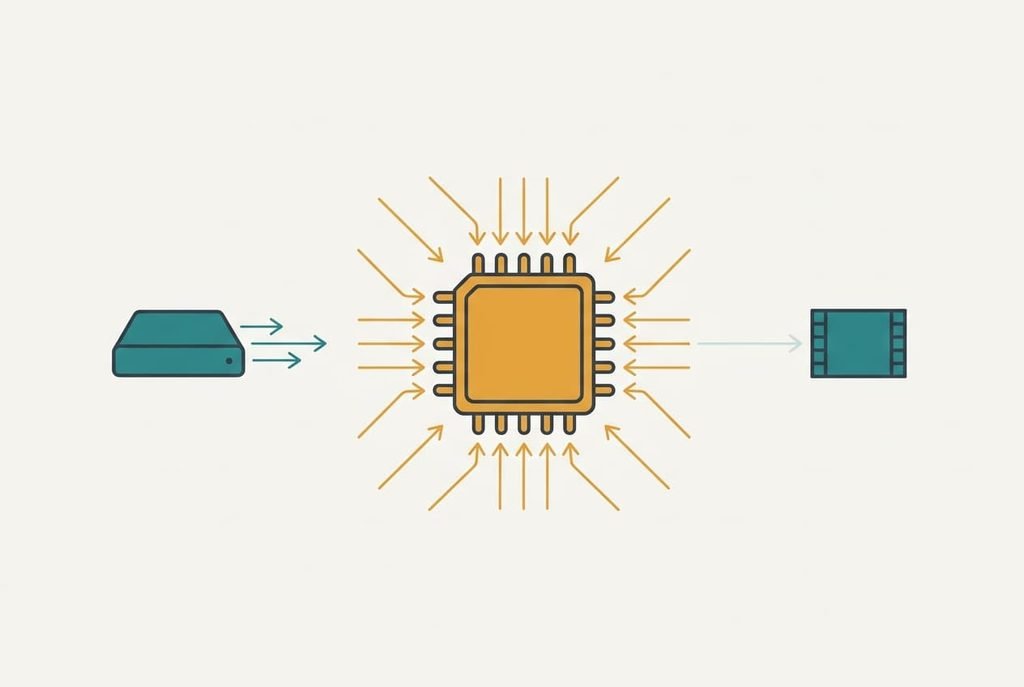
Some stuttering starts somewhere other than storage. Most cameras squeeze video by storing a full frame now and then and only the changes in between, so stepping back one frame makes the editor rebuild it from the last full frame. That’s decoding work for the processor, so neither drive helps once decoding is what falls behind. Watch the system’s resource monitor while playback stutters. If processor use sits near its ceiling while disk activity stays low, storage isn’t your bottleneck.
Choosing a drive for editing home videos can’t fix a decoding limit. The fix is proxies. The editor builds them once per clip and swaps them in during the cut, while the final export still reads the original files. I’d argue half the faster drives bought to cure choppy playback should have been a proxy setting. Which side of this line your footage falls on depends on the codec your camera records, so run the monitor test before spending anything.
How to decide which drive suits editing home videos in thirty seconds
If your timeline stacks more than two video layers or you scrub a lot, put the live project on the solid-state drive. Keep the footage you’ve finished with on the hard drive. If you cut one clip at a time and mostly keep footage for years, leave the library on the hard drive. Copy a project across only while you’re working on it. Whatever sits untouched for a month goes back to the hard drive.
Test it before spending anything. Scrub the timeline for a minute with the resource monitor open. Disk activity near its ceiling alongside a low transfer rate means the head is hopping, which points to solid-state.
Judged by movement, the drive for editing home videos is the solid-state one while a project is live. The hard drive earns its place afterwards, holding the finished years with little effort. Each does the job its mechanics suit. Change the split only when your timeline gets heavier or your library outgrows the drawer. Make a second copy of whatever you can’t film again.
Questions readers keep asking
Is it worth moving a video project to a faster drive?
Usually yes if your timeline stacks layers or you scrub a lot, since the gain comes from skipping head movement. Check first that the processor isn’t the limit, because a faster drive can’t fix decoding. Copy one project across and compare how the timeline behaves before moving everything.
Which type of drive is likelier to fail without warning?
A solid-state drive more often goes from fine to gone in one step, while a hard drive tends to give noise or slow reads first. Neither is guaranteed, so a second copy matters more than the type. Keep finished footage in two places, whichever kind of drive holds it.
Can I edit straight from an external drive?
Yes, if the port isn’t the ceiling. The cable and port set a maximum rate, which can cap a fast solid-state drive before the disk does. A hard drive in a box rarely reaches that cap. Use the fastest port on the desktop, and keep project files off a drive that’s nearly full.