Why do laptop speakers crackle when the volume goes up? Usually the sound is being asked to go past what a small speaker path can carry, and stopping the slider a notch below the top often clears it. In most cases the speakers aren’t broken. They run out of room before the slider does. The student followed here lives in Cardiff and watches films on a thin laptop, with crackle starting near 85 percent. All numbers here are rough guesses for one machine, and yours will differ. Four short tests locate the limit, and four fixes follow from free to costly.
Why Laptop Speakers Crackle When the Volume Goes Up
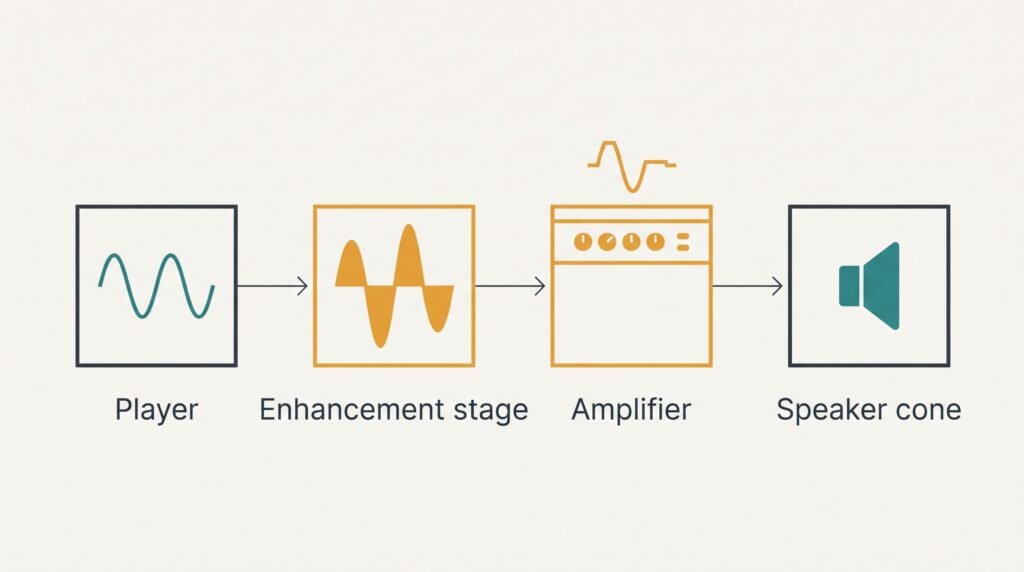
Three limits sit in the path between a film and the air in the room, and each can run out of room.
The first is a digital ceiling. A sound file can’t hold a value above full scale, which we’ll call 1.0. If an enhancement stage such as a bass boost adds gain, loud peaks try to exceed it and get flattened. Say a track peaks at 0.89, which is minus 1 dB. A boost of 6 dB roughly doubles amplitude. The peak would then reach about 1.78, and the ceiling cuts everything above 1.0, which removes 0.78 of the 1.78, or 44 percent. A flattened peak adds harsh extra tones, and the ear hears them as crackle.
The second limit is the little amplifier, which can only swing so far. The third is the cone, which often has well under a millimetre of travel, and deep bass at high level asks for more than it has.
Clipping happens before the sound reaches the speaker, and the cone’s limit follows after it. The three problems feel identical, yet each has a different cure. That’s why a quiet dialogue scene can sound clean with the slider fully raised while an explosion breaks up at 85.
Tests for Speakers That Crackle When the Volume Goes Up
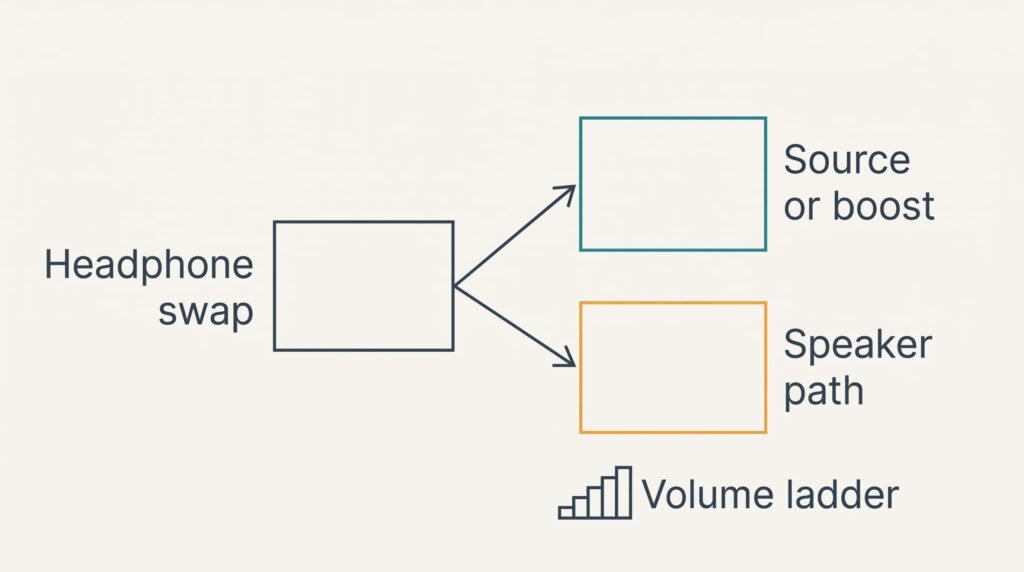
If laptop speakers crackle when the volume goes up, pick one bass-heavy film scene and play it at each step. Write down what you hear.
Test one is the headphone swap. Plug in headphones and repeat the scene at the same slider position. Crackle that follows you into headphones points to the source or an enhancement. Clean headphones point at the speaker path.
Test two is the ladder. Raise the slider in steps of 10 from 50 upward and note where the crackle begins. A start above 80 suggests the amplifier or cone is running out of room.
Test three is the track swap. Play a quiet spoken recording at the same slider position. If it stays clean and only the loud film crackles, the loud peaks are the trigger.
Test four is a light press on the keyboard deck beside the grille while a steady note plays. A buzz that changes under your fingers means a loose part, which is a hardware fault and not a setting.
Ours gave clean headphones and a start at 85. The voice stayed clean, and the press changed nothing.
Four Fixes From Free to Costly
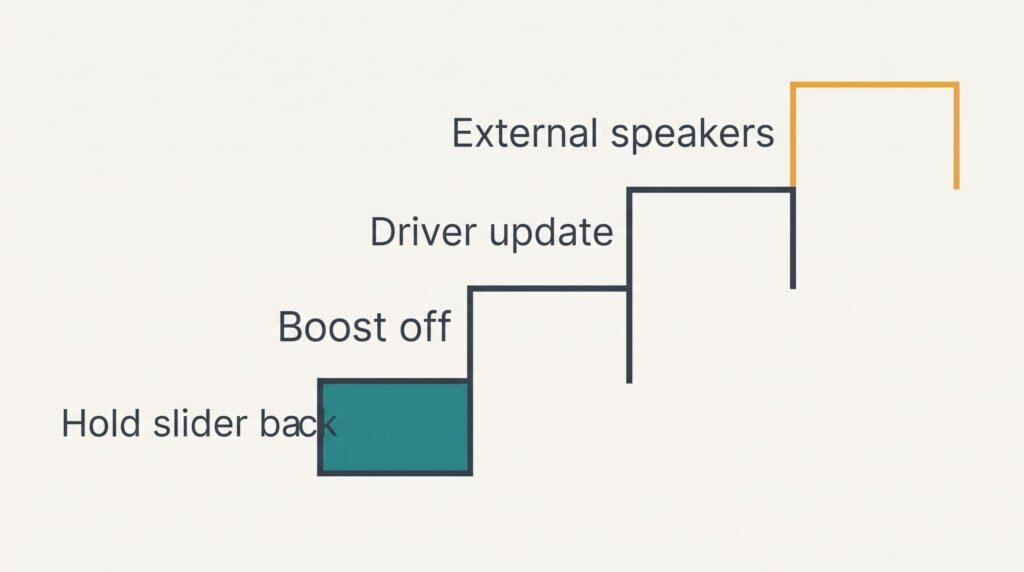
These four fixes assume that laptop speakers crackle when the volume goes up for one of the three reasons above. Each of them targets one limit.
Stop the slider at 80 percent. This answers the amplifier and cone limit, since our crackle begins at 85. The only expense is a habit, and a small sticker on the screen frame can mark the spot. The slider rarely scales evenly, and its top stretch often adds little loudness while straining the amplifier most. What goes is the last few decibels of peak loudness. A noisy kitchen may swallow quiet dialogue. Subtitles or headphones then take over on those evenings.
Switch off loudness and bass enhancements. This answers the digital ceiling, because the 6 dB boost turned our 0.89 peak into a flattened 1.78. It needs roughly a minute in the sound settings and no money. In our test the crackle moved from 85 to 92 percent with the boost off, which shows the boost played a part without being the whole story. In return the sound turns thinner, since the bass loses some fullness and speech loses the lift that a loudness mode gives it.
Update the audio driver. Some crackle comes from a poor hand-off between the media player and the audio chip, such as a mismatched sample rate, and it can appear at 50 percent on certain tracks. If yours shows up at any volume with some files, this is the likeliest cure of the four. The update takes ten to twenty minutes through the normal update tool. Expect your enhancement choices to return to defaults. Check them afterwards. It won’t rescue a speaker that is simply at its limit.
Use headphones or external speakers. These bypass the small cone and the small amplifier altogether. Every limit above is avoided. Any headphones or a pair of small desk speakers will do, because the aim is only to move the sound away from the thin cone. It means spending money and giving up a corner of the desk. You also lose the freedom of sound from the laptop alone, and a cable joins the setup.
When None of the Four Fixes Worked
Suppose laptop speakers crackle when the volume goes up even after all four fixes. Collect evidence before anyone opens the case. Note the slider position where the crackle starts, and whether headphones stay clean. Write down which tracks trigger it. Record ten seconds of the noise on a phone held 20 cm from the grille, then play the clip back to hear what a repairer will hear.
Describe the sound plainly, because a rattle suggests a loose part while a rasp suggests clipping.
Ask whether the laptop is still under guarantee before a shop touches it. The manufacturer’s helpline can use your notes and the clip.
A reset of the sound settings, or of the whole system, is the final step. It wipes custom choices. List every setting you changed and back up your files first.
A Fix Not Worth Trying
A volume booster only adds more clipping. Such software raises gain above full scale, which is the very ceiling that produces the crackle. Its meter shows a bigger number while the speaker path meets the same limit, and the film breaks up harder than before. Each of these remedies targets the loudness you notice and ignores the limit that causes the crackle. None of them adds travel to the cone or swing to the amplifier; the ceiling remains where the machine put it.
Pushing the equaliser’s bass slider to maximum to make up for thin sound has the same flaw, because deep notes demand the most travel from the cone. A cleaning pin or a blast of air at the grille doesn’t help either. Dust seldom causes crackle that grows and fades with the volume, and a pin can tear the mesh.
Start with the ladder test and let it reveal which limit you’ve met. Apply the free fix and then the settings fix, and move on only if the crackle stays. Most laptops settle with the slider held back and the boost off. External speakers suit people who want loud sound from a thin machine, and a repair suits crackle that ignores volume altogether.
Questions and Answers
Can I fix crackling speakers at home?
Usually yes. Holding the slider below the point where crackle starts and switching off bass boosts need no tools. A driver update takes a short while. Only crackle that ignores volume, or buzzes when you press the deck, calls for a repair shop.
What causes it most often?
Asking a small speaker for more than it can carry. A thin laptop has little amplifier headroom and a cone with very short travel, and an enhancement stage can flatten loud peaks before they leave the machine. Bass-heavy film scenes trigger it fastest.
When does crackle mean the speakers are failing?
When it appears at low volume and stays whatever track plays, suspect the hardware. A change as you press beside the grille says the same. Those signs suggest a loose connector or a damaged cone. Crackle that begins only in the top stretch of the slider and clears when you lower it points to limits instead.