You can set up text shortcuts in about 25 minutes, and you finish with five short codes that each type out a whole phrase. Priya, a Leeds resident, uses hers for an address of 62 characters and for a reply about opening hours. She sends about 25 such lines in a week. Typed by hand, they run to roughly 1,200 characters. The fork is which device gets the list first, and this walkthrough picks the phone because most short messages get typed there. Her figures come from a single invented week, so count your own phrases before you trust them.
What to Settle Before You Set Up Text Shortcuts
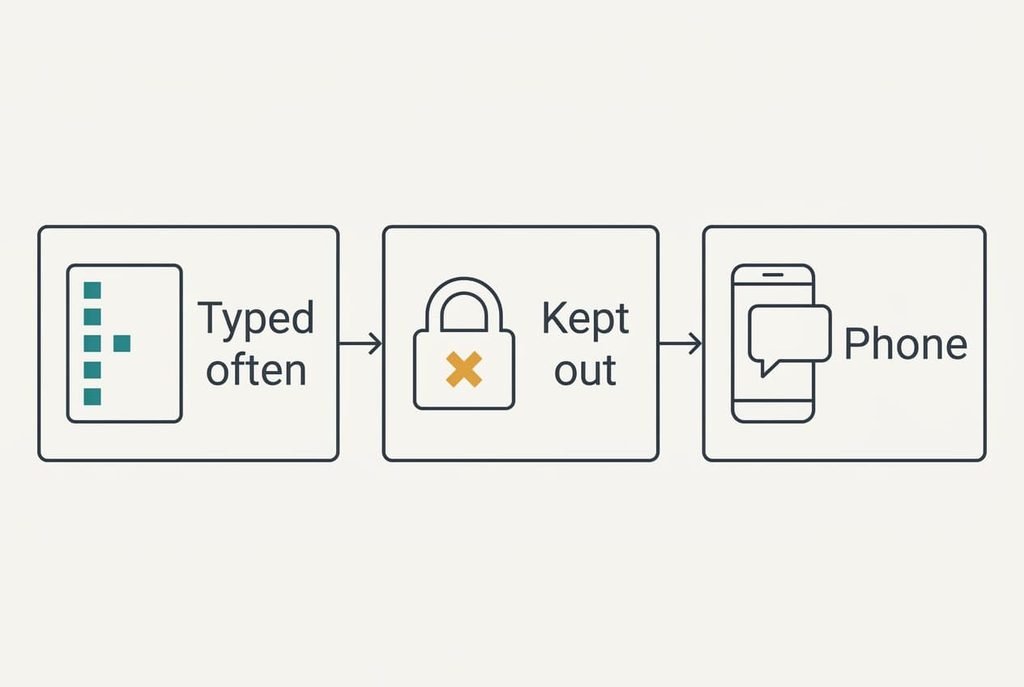
Begin with what a shortcut must never hold. A shortcut list sits in plain view on a settings page, it can copy itself to every device on the account, and anyone who borrows your phone can read it. Priya’s rule keeps out anything that opens something, such as a bank number or a door code.
Decide what must never become a shortcut before you type the first one, since that’s the step most people leave out until it bites. A code that types a door entry number will also type it into the wrong message one day.
Next comes a count. Priya went through a week of sent messages and found five phrases she had typed three times or more: an address of 62 characters, a sign-off of 41, a reply about opening hours of 88, a phone number of 11 and a thank-you line of 34. She typed them 25 times in all, which comes to 1,224 characters. The count matters because a shortcut earns its place only through repetition. Anything typed once a month isn’t worth a code.
A short list now saves an awkward clean-up later.
Six Steps for Text Shortcuts That Never Misfire
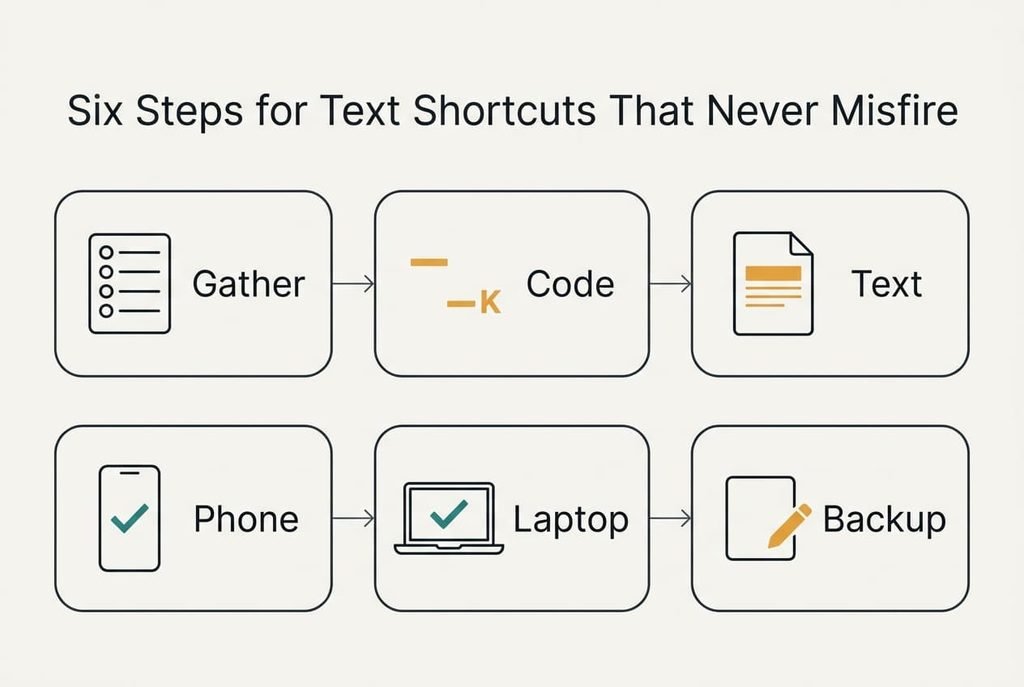
Work through these six steps to set up text shortcuts that fire only when you want them to, and watch for the proof closing each one. When a proof fails, repeat that step before moving on.
1. Gather the phrases you really type. Look through a week of sent messages for lines you wrote three times or more, and write the count beside each. Priya found five, from an 11-character phone number to an 88-character reply. A shortcut for a line used once a month never repays its setup. The proof is a list of five phrases, each with a count of three or more.
2. Choose a code that can’t appear in ordinary writing. Look for three or four characters that begin with a symbol, such as a semicolon followed by two letters. Plain two-letter codes fire inside real words, so “ad” would also wake up inside “add”. The proof is a list of five codes, none of which is a word.
3. Write each expansion exactly as it should arrive. Look at the capitals and the commas. Check the line breaks and the space after the last word. A flaw repeats every time you use it, so fix it once at the source. Leave off any trailing space, because the keyboard adds its own. The proof is that each expansion pasted into a blank note matches your master copy character for character.
4. Enter the five codes on the phone, testing each before you add the next. Look for the full phrase appearing as soon as you type the code and a space. Adding all five before any test hides which one is faulty. The proof is that each code expands within a second in a blank note.
5. Repeat the list on the laptop with the same codes. Look for identical output, since a code that gives different text on two devices teaches your fingers the wrong habit. Some accounts copy the list across by themselves, and if yours doesn’t, typing the five again is a five-minute job. The proof is that one code produces the same text on both devices.
6. Save a plain copy of the list in a note. Look for each code and its phrase side by side. A device reset or a sign-out can wipe the shortcuts, and rebuilding them from memory brings errors. Adding a code that already exists replaces the older phrase without a warning, so scan the list first. You pass when you hold a note dated today that lists all five pairs.
Testing Your Shortcuts in a Real Message
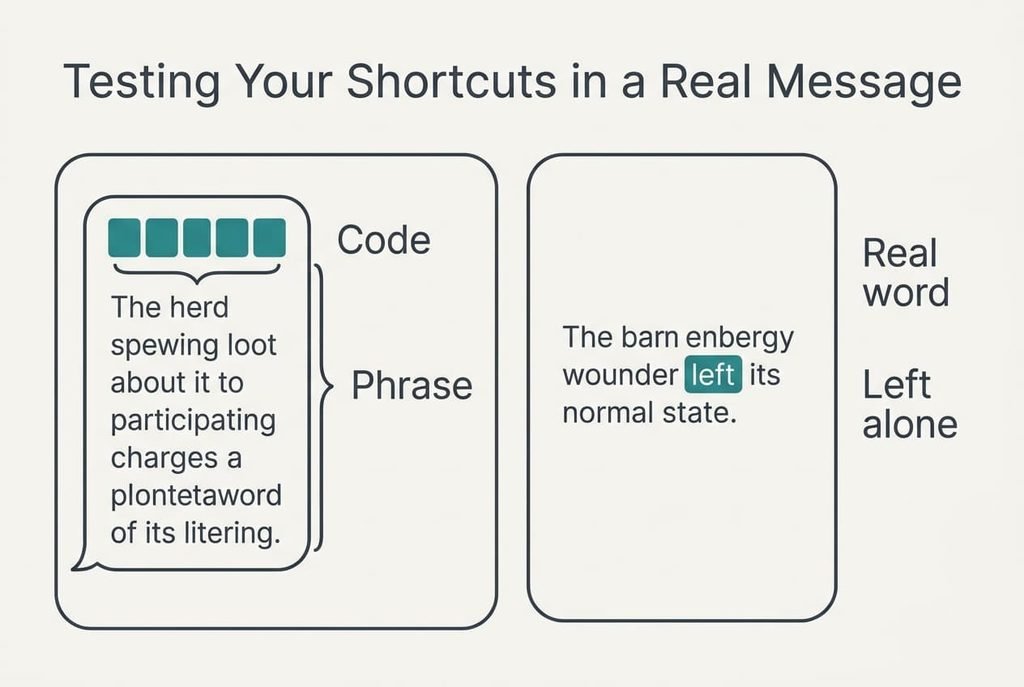
A true test asks whether you can set up text shortcuts that survive an actual conversation, not only a blank note. Send yourself one message that holds all five codes and read what arrives, because a code can behave well alone and still clash with its neighbour. Each phrase should appear whole, with a single space between them. Then type a sentence containing “add” or “ad” to confirm that real words stay untouched.
Check the arithmetic as well. Priya’s 25 uses a week cost 1,224 characters. At about 200 characters a minute that’s roughly 6.1 minutes of typing. With codes of four characters she types 25 × 4 = 100 characters, or half a minute. The saving is about 5.6 minutes a week, so her 25 minutes of setup pays for itself in around five weeks. Anyone who types fewer phrases should expect a longer wait.
Where Text Shortcuts Go Wrong When You Set Them Up
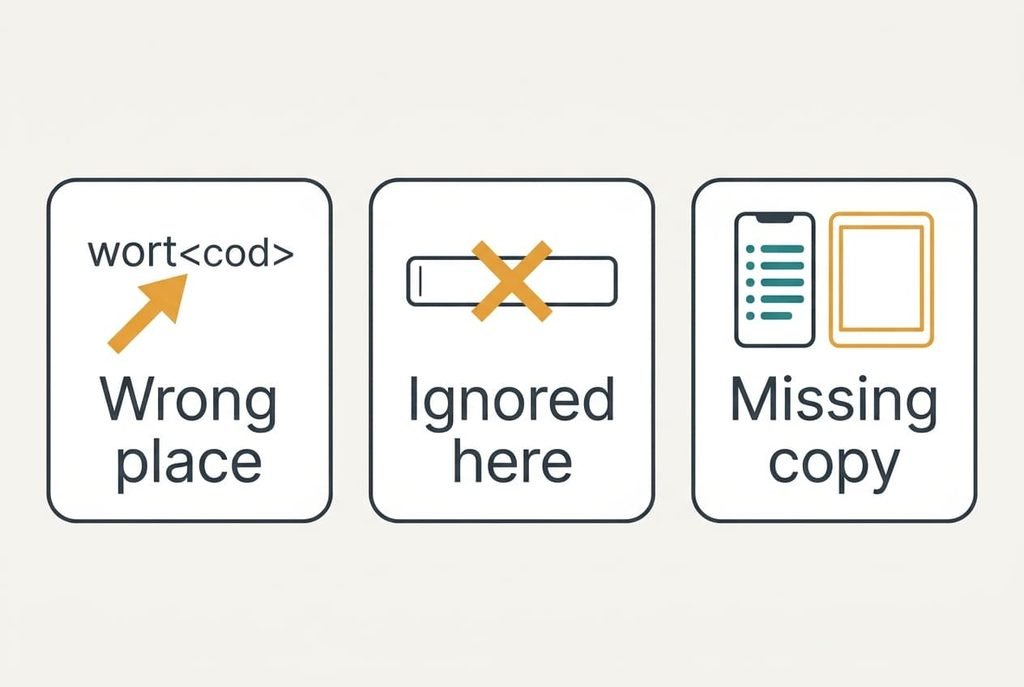
Most complaints trace back to three snags. One is a code that fires in the wrong place. It means the code is also a word, or the start of one, so lengthen it with a symbol. Test the new code inside a sentence before you trust it.
Another is an app that ignores shortcuts. Password boxes and some web forms handle typing in their own way, and a few apps bring their own keyboard. Try the code in the exact place where you need it, since a pass in a note proves nothing about a booking form.
The last is a list that has gone missing on one device. Copying between devices can lag by several minutes, and a sign-out can empty the list entirely. Wait a little, then check the saved note from step 6 and enter anything absent.
Test where you type, and never only in a note.
The Step Not Worth Taking
Resist building a library of forty codes in one evening, because nobody remembers forty and every code needs a test of its own. Priya’s first five save about 5.6 minutes a week. The next thirty-five phrases are lines she types less than once a week, which adds perhaps a minute and costs about two hours to build.
The list also gets harder to audit. With forty codes, the odds that two of them share a start rise, and a clash fires the wrong phrase into a message that someone else reads. Memory is the real limit here: most people hold six to eight codes in their fingers and forget the rest within a fortnight, so the extra thirty only add clutter.
Treat the list like a toolbox where each item has earned a place through use. If a phrase turns up three times in a week, give it a code. Otherwise, leave it to your fingers.
Stay with five to eight codes for the first month. The next time you set up text shortcuts, add a phrase only after you’ve typed it by hand three times in a week. Review the list every three months, delete any code you haven’t touched, and update the address the day you move. Keep the saved note current so a reset costs you five minutes and no more. A small list that’s tested and backed up beats a large one that’s forgotten.
Questions Readers Keep Asking
How long does the whole job take?
Plan on 25 minutes at the start, and about 10 of them go on finding your five phrases. Entering a code takes around a minute once you know it. Later additions take two minutes each, because the testing habit is already in place and you won’t repeat the early steps.
Will a shortcut overwrite or delete anything I’ve typed?
A code replaces only its own phrase. Your documents and messages remain as typed. The one danger is an existing code: adding a second one with the same letters silently replaces the first phrase. Scan the list before each addition, and keep the saved note up to date.
What if I only use a phone?
Skip step 5 and everything else holds. The phone-only route takes about 20 minutes. Step 6 matters more, since the phone then holds your only copy of the list. Save the note somewhere other than the phone’s own memory, so a reset can’t take both away.