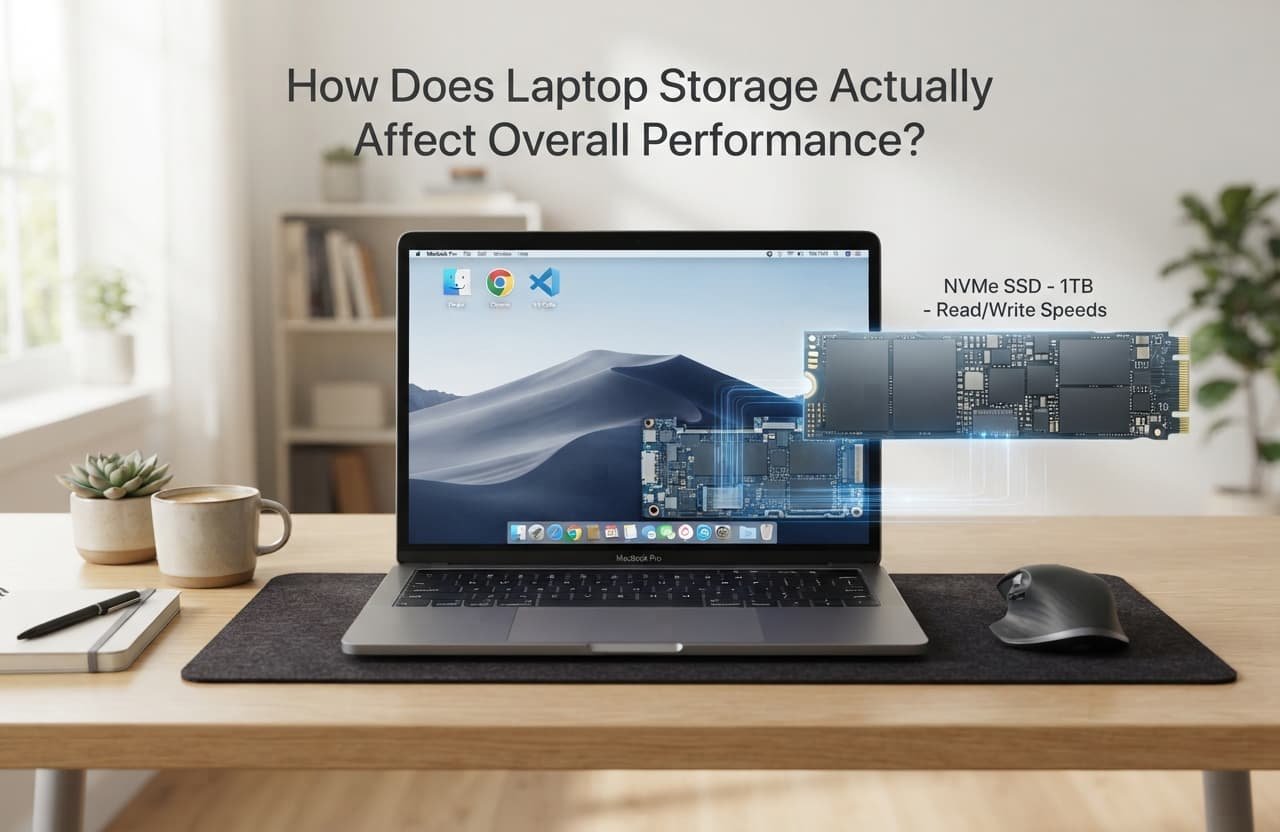
Laptop storage isn’t simply a container for your files – it’s an active component your operating system constantly reads from and writes to during normal operation, which is why storage condition affects overall speed in ways that go well beyond simply running out of space entirely. Understanding this active role explains both why storage-related slowdown happens before a drive is technically full, and what specifically determines how much storage condition affects your laptop’s actual performance.
The short answer, and what it leaves out
Storage affects performance because your operating system uses available drive space for more than just your saved files – it also uses free space for temporary system files, virtual memory, and various background processes that support normal operation.
What that leaves out is why reduced free space specifically causes slowdown before the drive is technically full – the operating system needs genuine working room to manage these temporary processes efficiently, and as available space shrinks, the system has less room to organise this activity smoothly, causing the performance impact to become noticeable well before storage is literally exhausted.
How it actually works, step by step
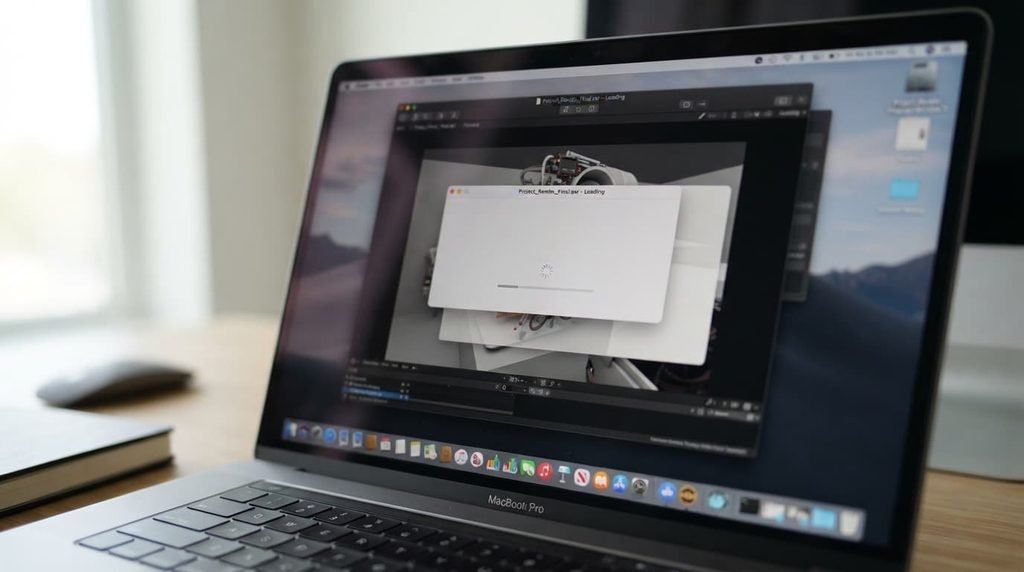
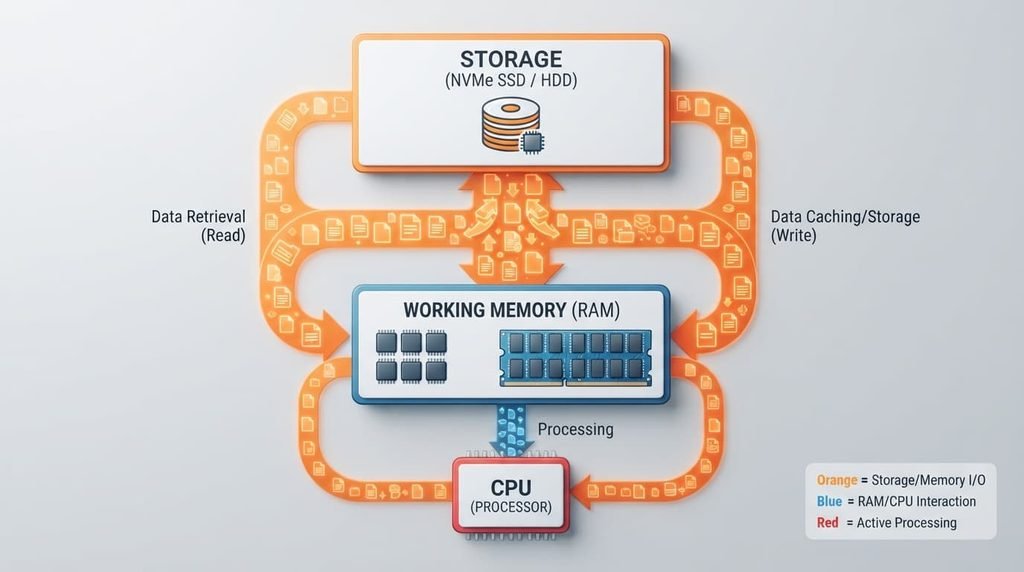
When you open a program or file, your laptop reads that data from storage into faster, temporary working memory for active use. This process happens quickly under normal conditions, but requires the storage drive itself to locate and retrieve that specific data efficiently.
As available storage space decreases, the physical or logical organisation of remaining free space can become more fragmented or constrained, depending on your specific storage type, making this retrieval process take measurably longer than it would with more available working room.
Your operating system also uses storage space for virtual memory specifically – a system that extends your available working memory by using drive space as an overflow when active memory usage is high. When storage space runs low, this overflow capacity shrinks correspondingly, forcing your system to manage active tasks with less overall working room than it would otherwise have.
The two main storage technologies, briefly
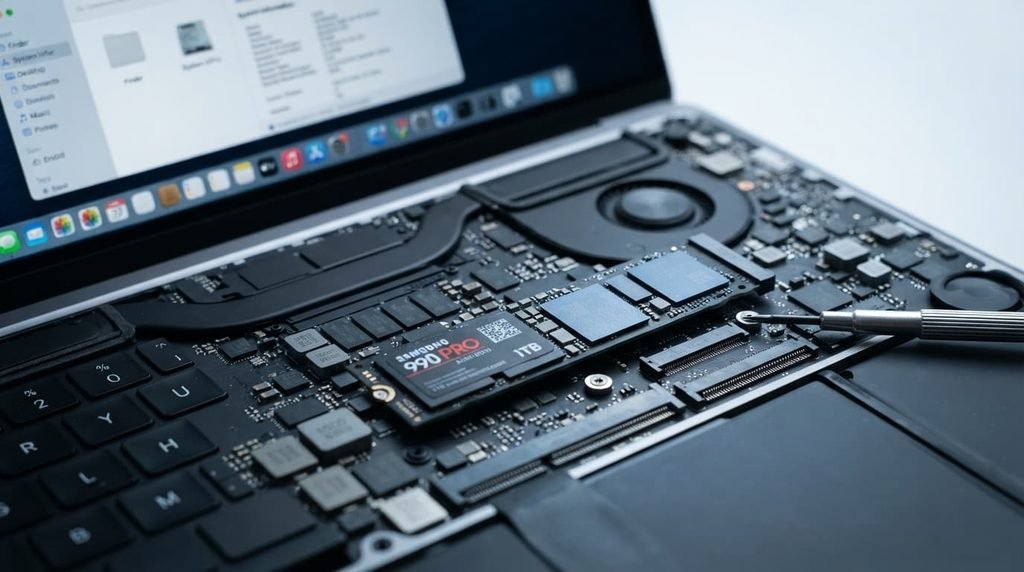
Most modern laptops use one of two broad storage technology categories, and this distinction genuinely matters for how storage condition affects performance. One category relies on moving mechanical components to physically locate and read data, meaning fragmented or scattered free space can meaningfully slow retrieval since the mechanism must physically move to access different locations. The other category has no moving parts and accesses data electronically instead, which handles fragmented free space considerably better, though it isn’t entirely immune to performance changes as available space decreases.
This is part of why identical free-space percentages can produce noticeably different real-world performance impacts between two laptops – the underlying storage technology itself meaningfully shapes how sensitive a specific laptop actually is to reduced free space, independent of the free-space percentage alone.
The analogy, and where it breaks
Laptop storage running low is sometimes compared to a workspace becoming too cluttered to work efficiently – even if you can technically still fit one more item, the lack of clear working space slows down every task performed within that space.
The analogy holds for the basic principle that reduced working room slows down normal operation, even before the space is technically completely full. It breaks because a cluttered physical workspace is a matter of pure inconvenience, while a genuinely low-storage laptop faces an actual technical constraint on virtual memory and temporary file management that directly and measurably affects processing speed, not simply visual or organisational inconvenience.
What this does not explain
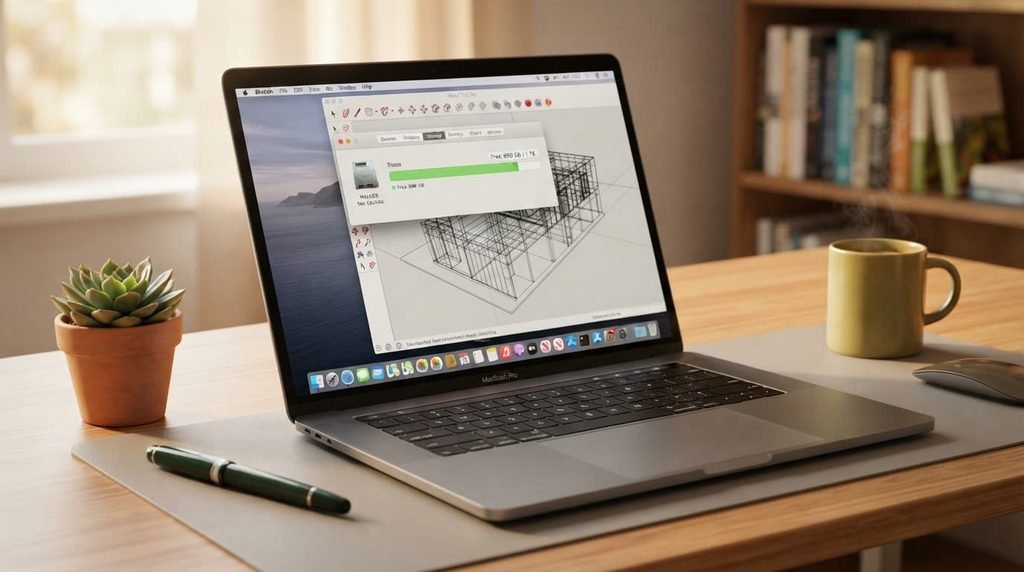
The storage-performance explanation clarifies why reduced free space causes slowdown, but it doesn’t explain or address every possible performance issue – a laptop with abundant free storage space can still run slowly due to entirely separate causes, such as insufficient active memory for your current workload or a background process consuming processing power unrelated to storage at all.
It also doesn’t explain why two laptops with identical free storage percentages can perform differently, since the specific storage technology itself – how quickly it can read and write data – varies considerably between different laptops and affects overall performance independently of how much free space remains available.
What people get wrong about it
The belief that storage only matters once a drive is completely full. This forms because “storage full” warnings create a binary sense of the issue, but performance impact genuinely begins well before that point, as available working room for temporary files and virtual memory shrinks progressively rather than remaining unaffected until the exact moment storage reaches its absolute limit.
The belief that all storage slowdown can be fixed simply by deleting files until more space is free. While freeing space genuinely does help, the specific files removed matter too – deleting large media files provides more genuine benefit than deleting many small files, since it’s the actual amount of freed working room that matters, not simply the number of items removed.
Where the popular explanation oversimplifies
Advice describing storage impact as simply “your laptop needs more free space” glosses over the meaningful difference between how much free space genuinely matters and which specific type of storage technology you actually have, treating all storage as functioning identically when different storage technologies respond to reduced free space in genuinely different ways.
This distinction matters practically: understanding that storage affects performance through virtual memory and temporary file management specifically, not simply through the abstract concept of “more space is better,” helps explain why the exact same amount of free space can affect two different laptops’ performance differently depending on their underlying storage technology.
Storage affects performance by providing working room for temporary system files and virtual memory, not merely by holding your saved files passively – which is why performance impact begins well before a drive becomes completely full. Understanding it as an active working component your system relies on constantly, rather than as a passive container only mattering once full, is the detail most explanations skip, and it’s the one that actually explains why storage-related slowdown happens when it does.
Questions readers keep asking
How much free storage should I try to maintain to avoid performance issues?
This varies by specific storage capacity and system, but maintaining meaningfully more free space than the absolute minimum before a “storage full” warning appears generally provides more comfortable working room for the temporary processes covered above.
Does storage type affect how much free space I actually need to maintain?
Yes, meaningfully – different storage technologies handle reduced free space differently, so checking your specific laptop’s storage type can help you understand roughly how much buffer space genuinely makes sense for your particular system.
Is it worth upgrading my laptop’s storage technology to improve performance?
This depends on which specific technology your laptop currently uses, so checking this first is worth doing before considering an upgrade – a laptop already using the more electronically-based technology typically sees a smaller performance improvement from an upgrade than one still relying primarily on mechanical components, since the starting baseline performance already differs considerably between the two.
Will adding external storage help with performance issues caused by low internal storage?
Only partially – external storage can hold files you don’t need immediate fast access to, freeing internal space, but virtual memory and temporary system files specifically still rely on your internal drive, meaning external storage alone doesn’t fully address the performance mechanism covered above.